Working with results
Once the filter is applied, the agent has a working set of tickets. A few things they can do without leaving the inbox: see how the results break down, act on tickets in bulk, export the set as a CSV, and rely on the filter sticking when they navigate away and back.
Result counts and quick views
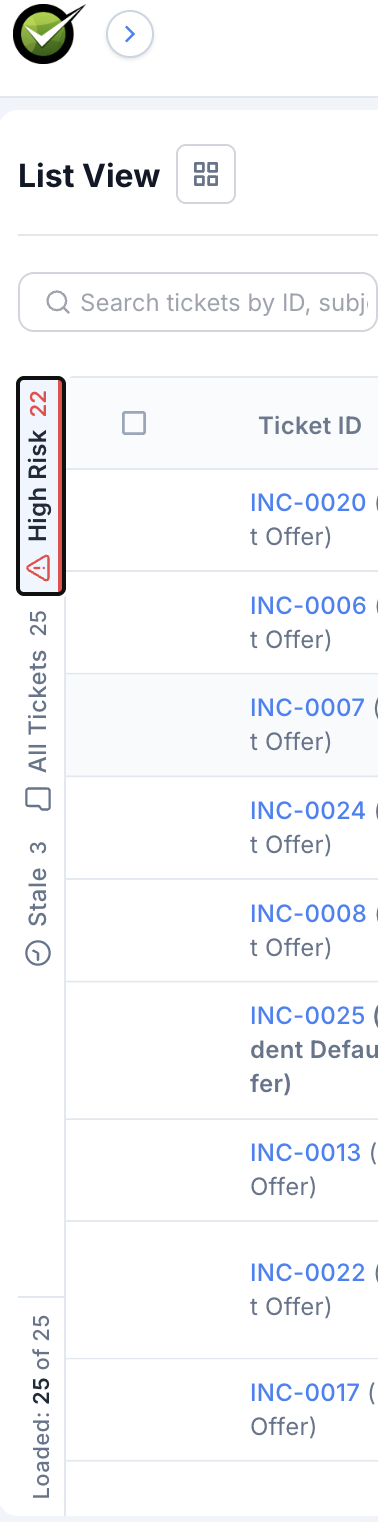
A vertical rail sits on the left edge of the result list with three tabs:
- High Risk - tickets in the current filter that Agent Assist has flagged as at risk of escalation. The count is shown next to the label, with a red warning icon when the count is non-zero.
- All Tickets - every ticket in the current filter.
- Stale - tickets in the current filter where the agent is waiting on the customer past the staleness threshold.
The count of how many tickets are loaded on the page sits at the bottom of the list (for example, "Loaded: 25 of 25"). Clicking a tab on the rail switches the visible list between High Risk, All, and Stale without changing the underlying filter.
Bulk operations
Tick the checkbox at the head of the list to select every match (across pages, not just the current page). Or select individual tickets. The bulk-action toolbar appears with:
- Transition status - move every selected ticket through a status change in one go
- Edit fields - set assignee, priority, queue, or any other editable field across the selection
- Bulk action menu - tenant-defined actions, if any
Bulk actions run as a job; the toolbar shows progress and reports the count that succeeded vs. failed.
Inline editing
Inline editing isn't shipped yet. Today, click into a ticket to change fields. The behaviour described below is the planned design.
The agent won't have to open a ticket to change a single field. Click the field's cell in the list view and edit in place. The change saves immediately. This will work on every editable column - status, assignee, priority, due date, custom fields the agent has permission to edit.
Inline edits will respect the same workflow rules as the full ticket form. If a status transition needs a comment, the inline edit will prompt for one before saving.
Export to CSV
The Export button on the search bar dumps the current filter result to a CSV (or Excel) file. The export contains every column visible in the inbox, in the order they're shown. Up to 10,000 rows per export; if the filter returns more, the CSV contains the first 10,000 and a warning row at the bottom.
The export runs on the server and downloads when ready - useful for long-running queries that would otherwise time out in the browser.
Sticky filters
When the agent clicks a ticket from the filtered list, opens it, and then clicks back, the filter is still applied. The scroll position is preserved. The agent picks up exactly where they left off.
The filter resets when:
- The agent presses Clear all on the search bar
- The agent applies a different saved filter
- The agent's session ends (the next session starts with the default view)