Troubleshoot
A guided, one-step-at-a-time walkthrough toward resolution. Unlike Next Best Actions, which shows everything ranked, Troubleshoot gives the agent one action, waits for feedback, then adapts the next step based on what happened.
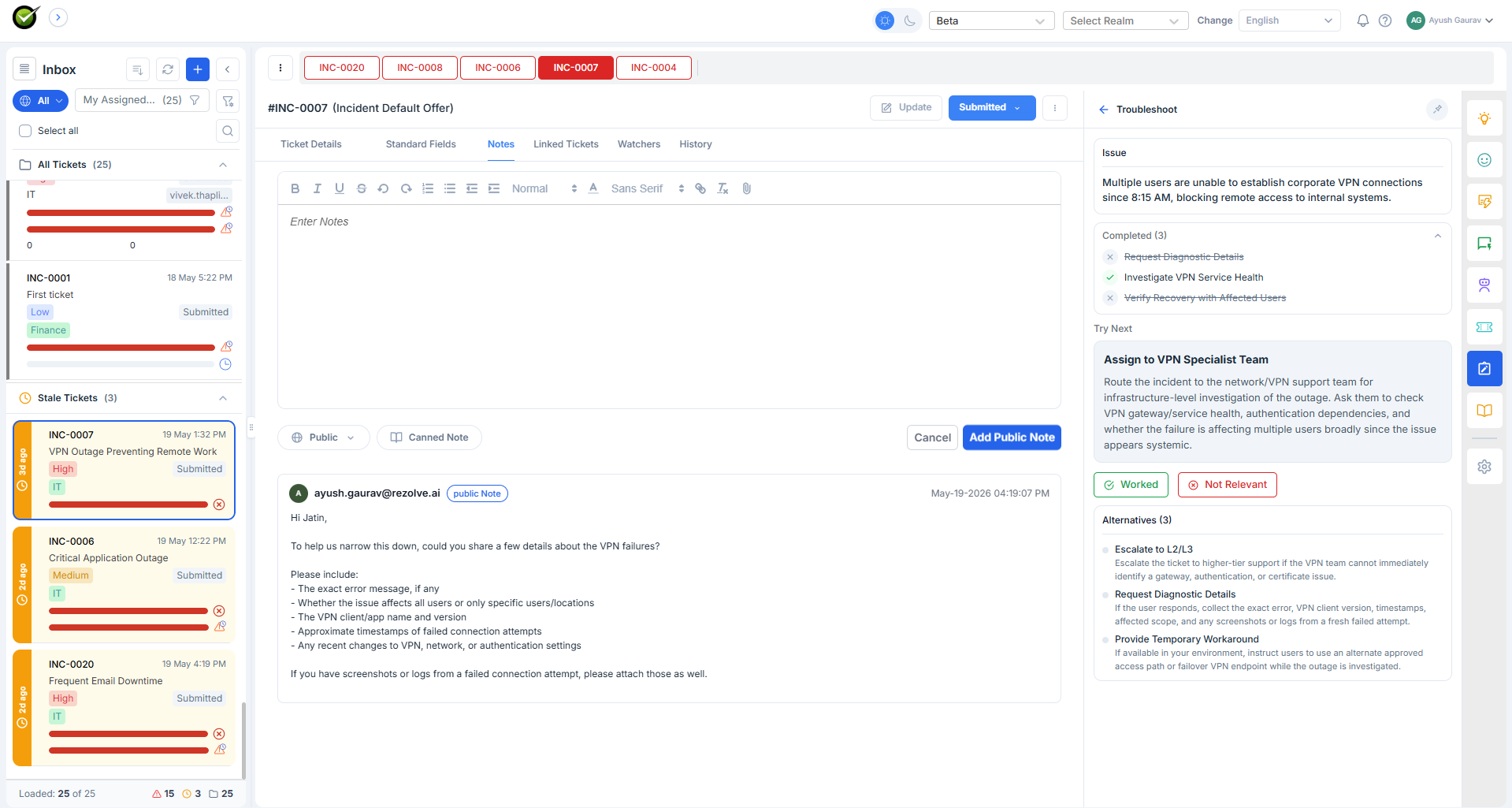
What the agent sees
Three sections stacked vertically.
Issue. A one-line restatement of the ticket subject so the agent knows the bot is reading what they're reading.
Action Already Taken. A checklist of steps the agent (or a previous agent) has already done, with green checkmarks. Auto-populated from the ticket notes and earlier Troubleshoot interactions - the agent doesn't have to tick them manually.
Try Next. A single highlighted card with the next step:
- Action title in bold (e.g. "Run Hardware Diagnostics")
- Detailed instructions - what to do, why it might help, what to look for
- Three buttons:
- Share Findings - continue the dialog with detail
- Worked (green) - marks the step successful; the next card may suggest closing the ticket
- Not Relevant (red) - requires a one-line note, skips this step, and surfaces a different action
The "Not Relevant" reasons feed back into the AI - the panel learns from rejections over time.
What it reads
- The current ticket (subject, description, notes)
- Past tickets - especially ones with similar resolution paths
- The tenant's ingested knowledge
When Troubleshoot stops suggesting
If the AI exhausts its plausible suggestions, the panel shows:
That's all I could think of, would you want to escalate or seek help?
This is the explicit signal that the guided path is done. The agent can then reassign, escalate, or fall back to Ask Sidekick for free-form help.
Which ticket types Troubleshoot applies to
Only Incident and Problem Management tickets. Change Management and Service Management tickets don't get the panel - those follow approval and fulfilment workflows, not diagnostic resolution. On those ticket types Troubleshoot is rendered disabled with a one-line explanation.
What persists
The state of the panel is preserved per ticket. Close the panel and reopen it, switch tickets and come back - the same checklist, the same current step, the same dialog. The agent doesn't restart from scratch.
Future: automation execution
Troubleshoot will be able to execute automations rather than just describe them - e.g., a "Run diagnostics" step that actually triggers the diagnostic tool. The shape of the panel doesn't change; what changes is that the Worked / Not Relevant buttons get a third option to Run it for me. Not part of MVP.