Filter builder
The visual builder is how an agent constructs a filter without writing any query syntax. Each field becomes a dropdown; each chosen value becomes a chip on the bar; the ticket list updates as the agent edits.
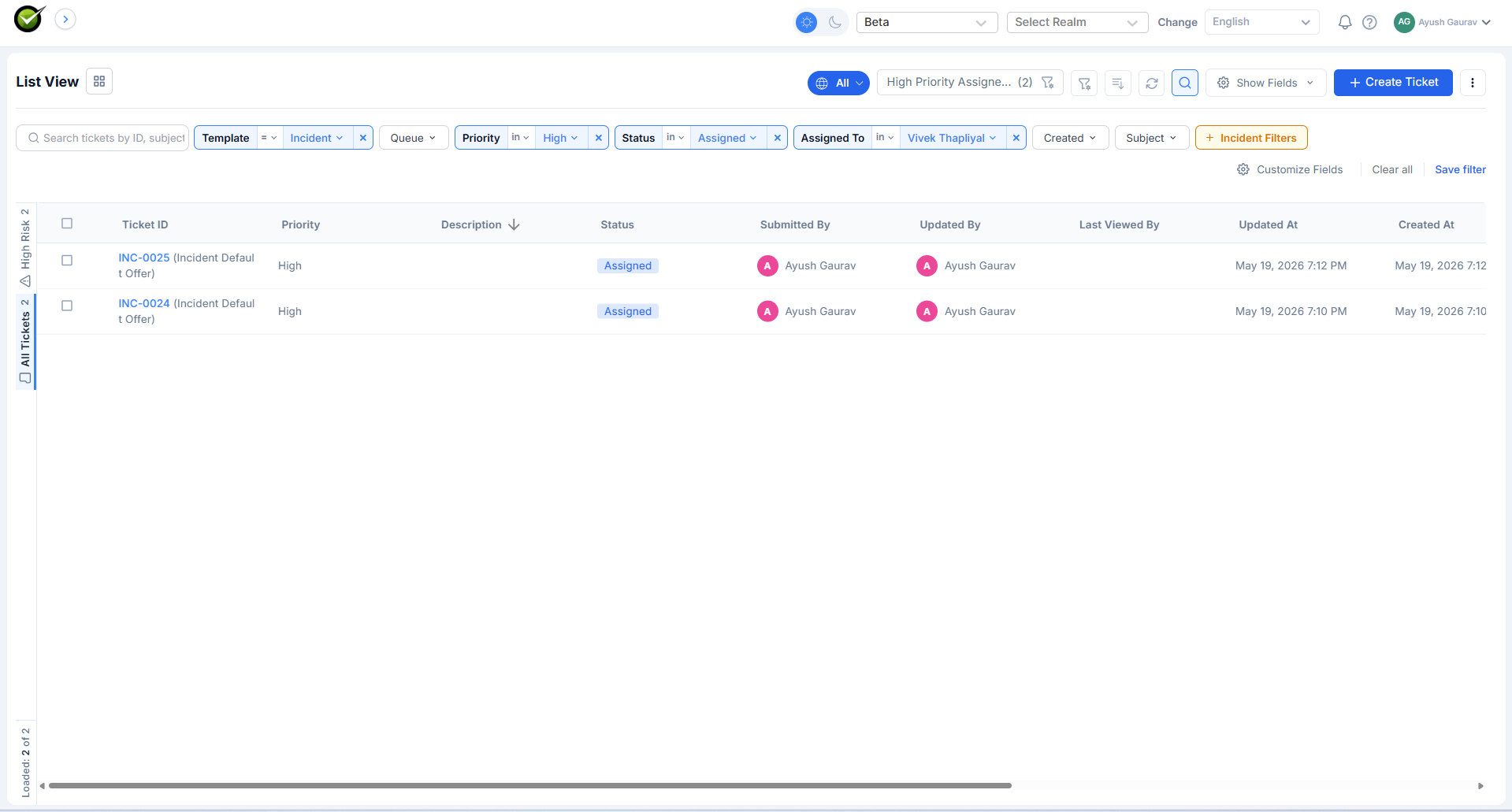
Adding a condition
The agent picks a field from the bar (for example, Status). A multi-select dropdown opens with all the values that field can take. The agent ticks one or more, and the selection appears as a chip on the bar. The ticket list refreshes immediately.
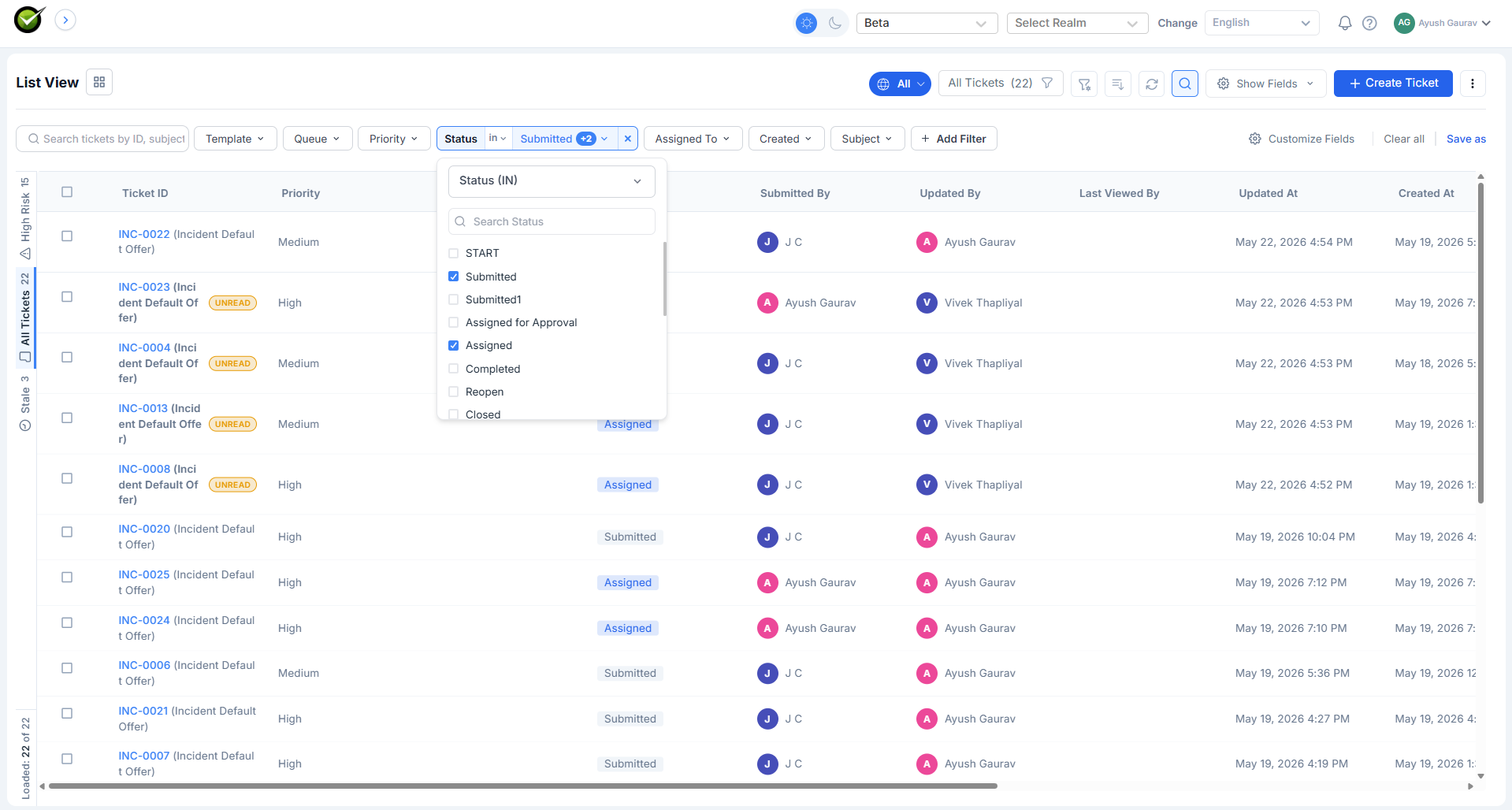
Field types and operators
| Field type | Operators |
|---|---|
| Dropdown / Status / Category | IN, NOT IN (both multi-select) |
| User / Actor fields (assignee, reporter, watcher) | IN, NOT IN, IS EMPTY, IS ME |
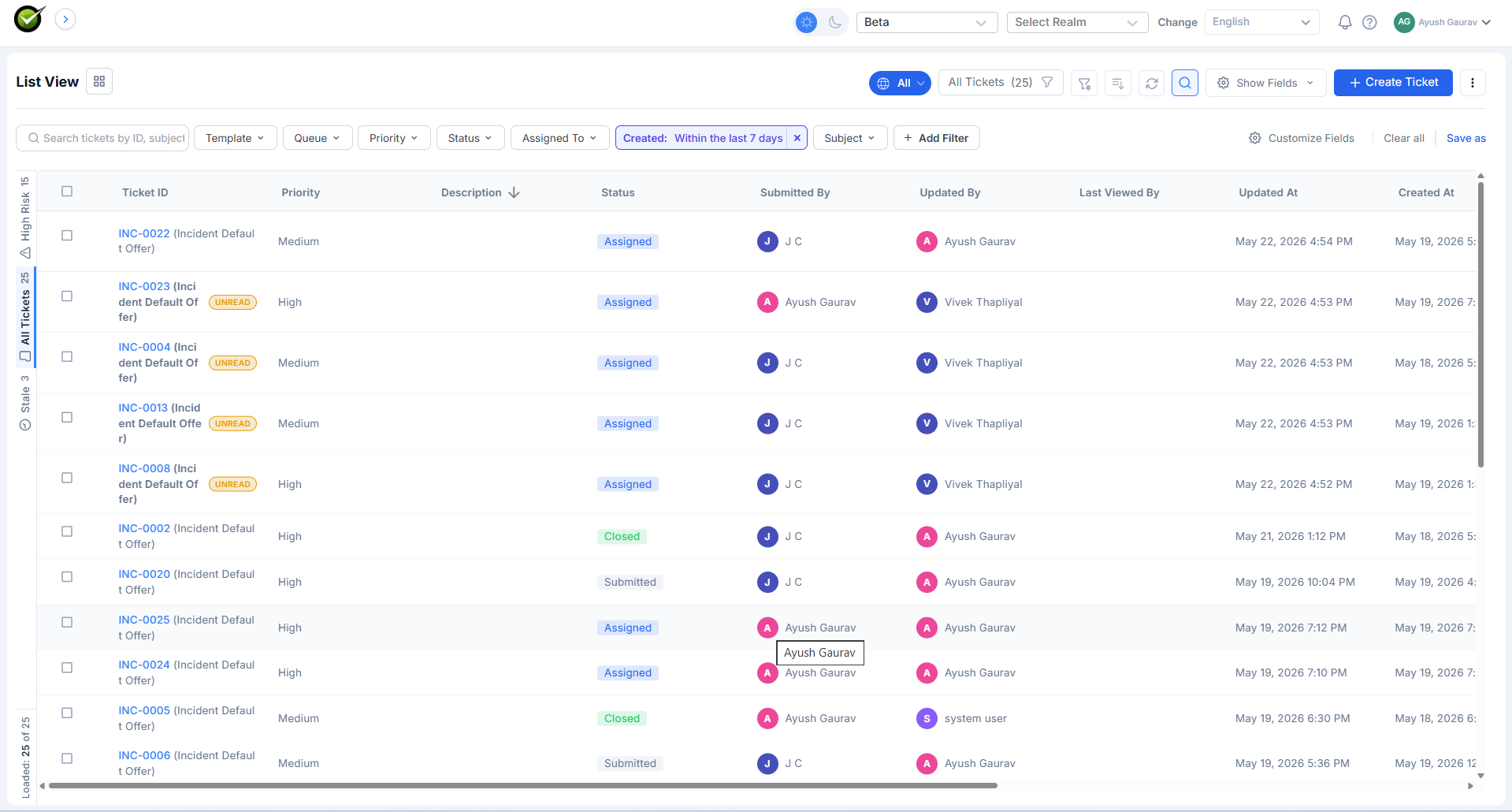
| Date fields | In the last N minutes / hours / days / weeks; more than N ago; between two dates; in a relative range like -3w 4d 12h 30m to +3w 4d 12h 30m |
| Text fields | Contains, Does not contain |
| Number fields | Equals, Greater than, Less than, Between |
| Boolean / Toggle | Is true, Is false |
The operator picker appears inside each chip. Click the chip, change the operator, and the result updates without losing the chosen values.
Date range examples
| Need | Operator |
|---|---|
| Tickets created in the last 2 hours | In the last 2 hours |
| Tickets untouched for more than 3 days | More than 3 days ago on Last updated |
| Tickets due between two specific dates | Between on Due date |
Tickets with a -3w to +1w due-date window | Relative-range syntax on Due date |
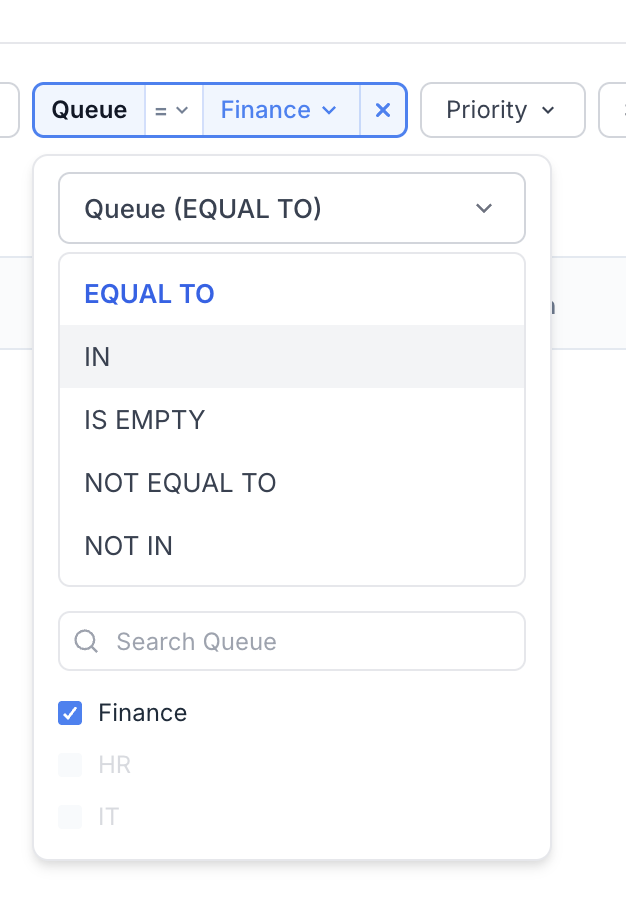
Switching the operator
Every chip has a small operator dropdown next to the field name. Clicking it shows the operators that field supports - typically EQUAL TO, NOT EQUAL TO, IN, NOT IN, and IS EMPTY for dropdown and user fields. Pick a different operator and the chip updates without losing the chosen values.
To express "not this", switch the operator from EQUAL TO to NOT EQUAL TO (or from IN to NOT IN when you have multiple values).
Ticket-type-specific fields
The bar always shows the meta fields shared across all ticket types (Status, Priority, Category, Assignee, dates). Custom fields belong to specific ticket types and don't show up until the agent picks the ticket type.
To filter on a custom field:
- Open the Ticket Type dropdown and pick one (for example, Incident).
- A second row of field dropdowns appears with the custom fields for that ticket type.
- Add conditions the same way as for meta fields.
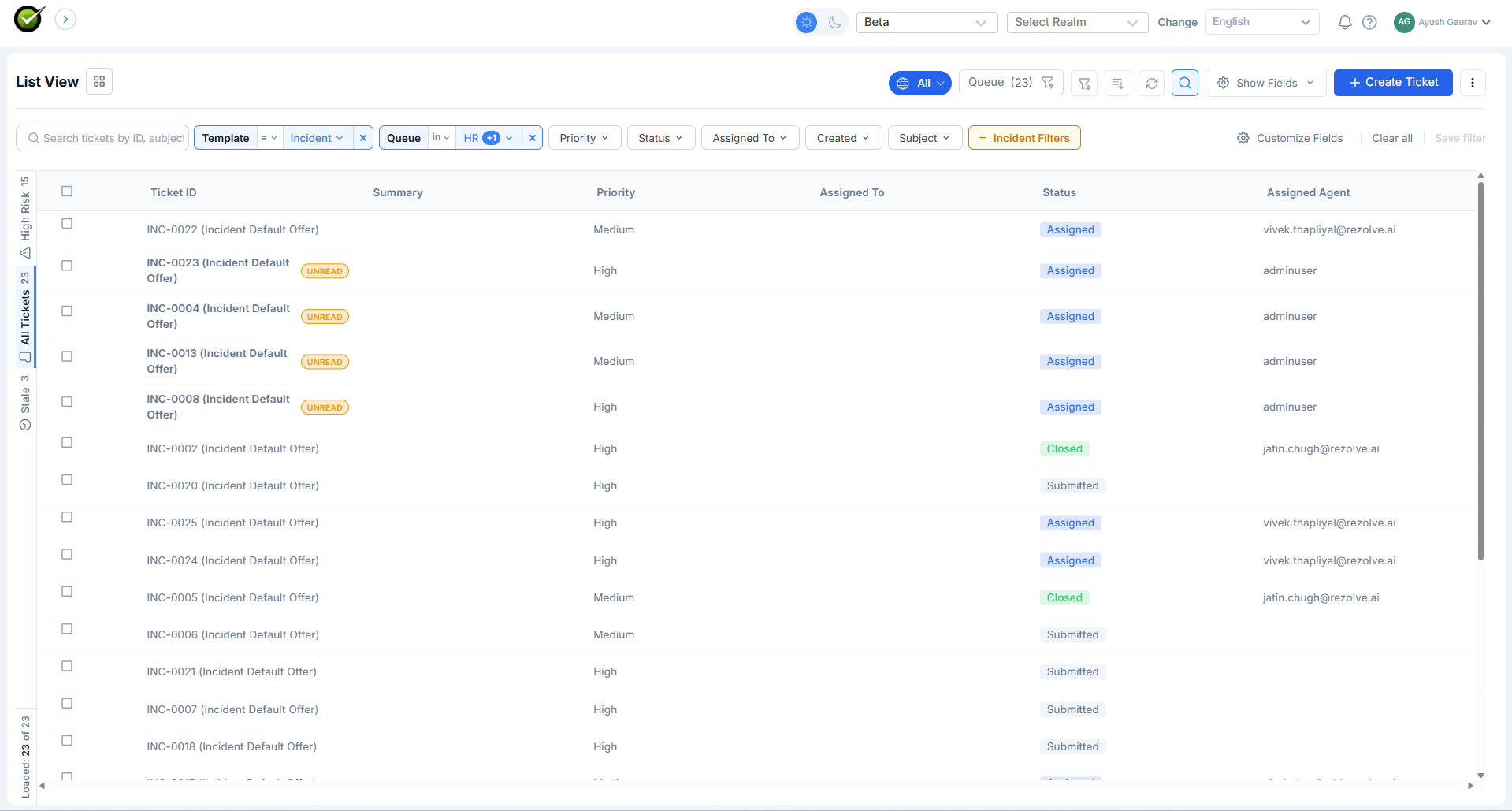
If the agent picks multiple ticket types, only the fields they share are offered for filtering.
Clearing the filter
The Clear all button at the right of the bar removes every chip and resets the list. Individual chips can be removed by clicking the small "x" inside the chip.