Import and Export
Import Ticket
- Supports bulk ticket creation by uploading a file (CSV, Excel, etc.) containing multiple ticket details.
- Reduces manual data entry efforts and speeds up the process for large-scale ticketing.
Import Process
-
Prepare Data File
- Create a CSV or Excel file with required ticket fields as columns
- Ensure data follows the required format (proper date formats, valid category values, etc.)
- Include mandatory fields like Subject, Description, and Category
-
Upload File
- Navigate to the Import section in the Helpdesk
- Select the file type (CSV, Excel)
- Browse and select your prepared file
-
Map Fields
- Match columns in your file to ticket fields in the system
- Specify default values for any missing fields
- Set handling rules for duplicate entries
-
Validate Data
- System checks for formatting errors and missing required fields
- Review validation results and correct any issues
- Proceed once validation is successful
-
Import
- Confirm the import operation
- System creates tickets based on the imported data
- Review import summary showing successful and failed entries
Importing Ticket Data
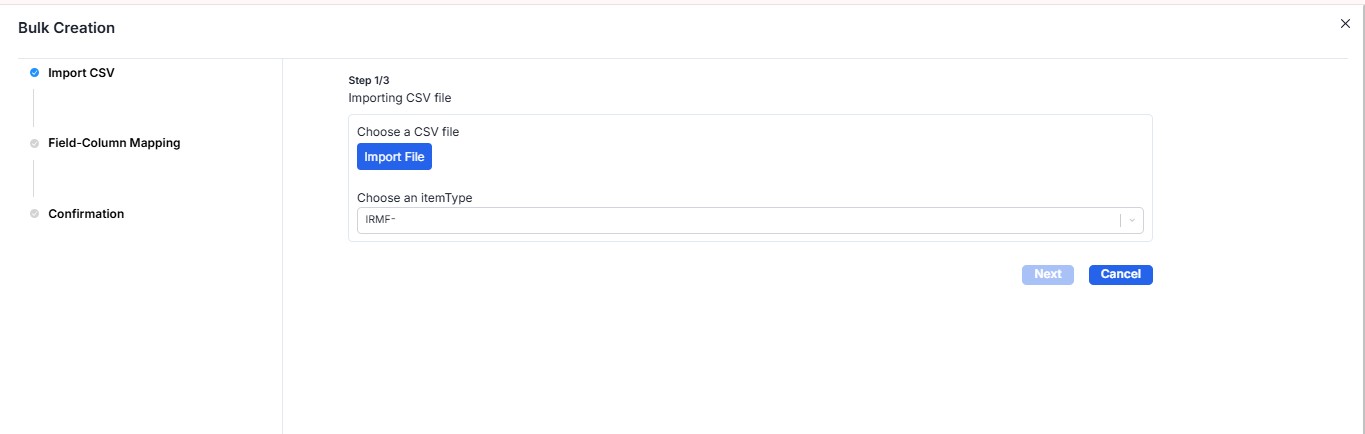
The system provides flexible options for importing ticket data from various sources. Available import methods include:
- Import from CSV – Upload CSV files with ticket data following the system's template format
- Import from Excel – Upload Excel workbooks with ticket information organized in sheets
Import Considerations
-
Data Preparation
- Ensure all required fields are included in the import file
- Validate data formats match system requirements (dates, priorities, categories)
- Consider using templates provided by the system for consistent formatting
-
Field Mapping
- Map source data columns to corresponding ticket fields
- Handle special fields like attachments or custom fields appropriately
- Set default values for missing or optional fields
-
Error Handling
- Review validation results before finalizing import
- Address common errors like invalid references or missing required fields
- Use the import log to identify and correct problematic records
Export Ticket
- Allows downloading ticket data in various formats (CSV, Excel, PDF)
- Useful for reporting, analysis, and backup purposes
Export Process
-
Select Tickets
- Filter tickets based on criteria (date range, status, category, etc.)
- Select specific tickets or export all filtered results
-
Choose Export Format
- Select the desired format (CSV, Excel, PDF)
- Configure export options (field selection, formatting preferences)
-
Generate Export
- System processes the export request
- Download the generated file
- Use for reporting, analysis, or data backup
Benefits
- Data Migration: Easily transfer ticket data between systems
- Batch Processing: Create multiple tickets simultaneously
- Reporting: Generate custom reports for analysis
- Backup: Maintain offline copies of ticket data
- Integration: Share ticket information with other business systems
Exporting Ticket Data
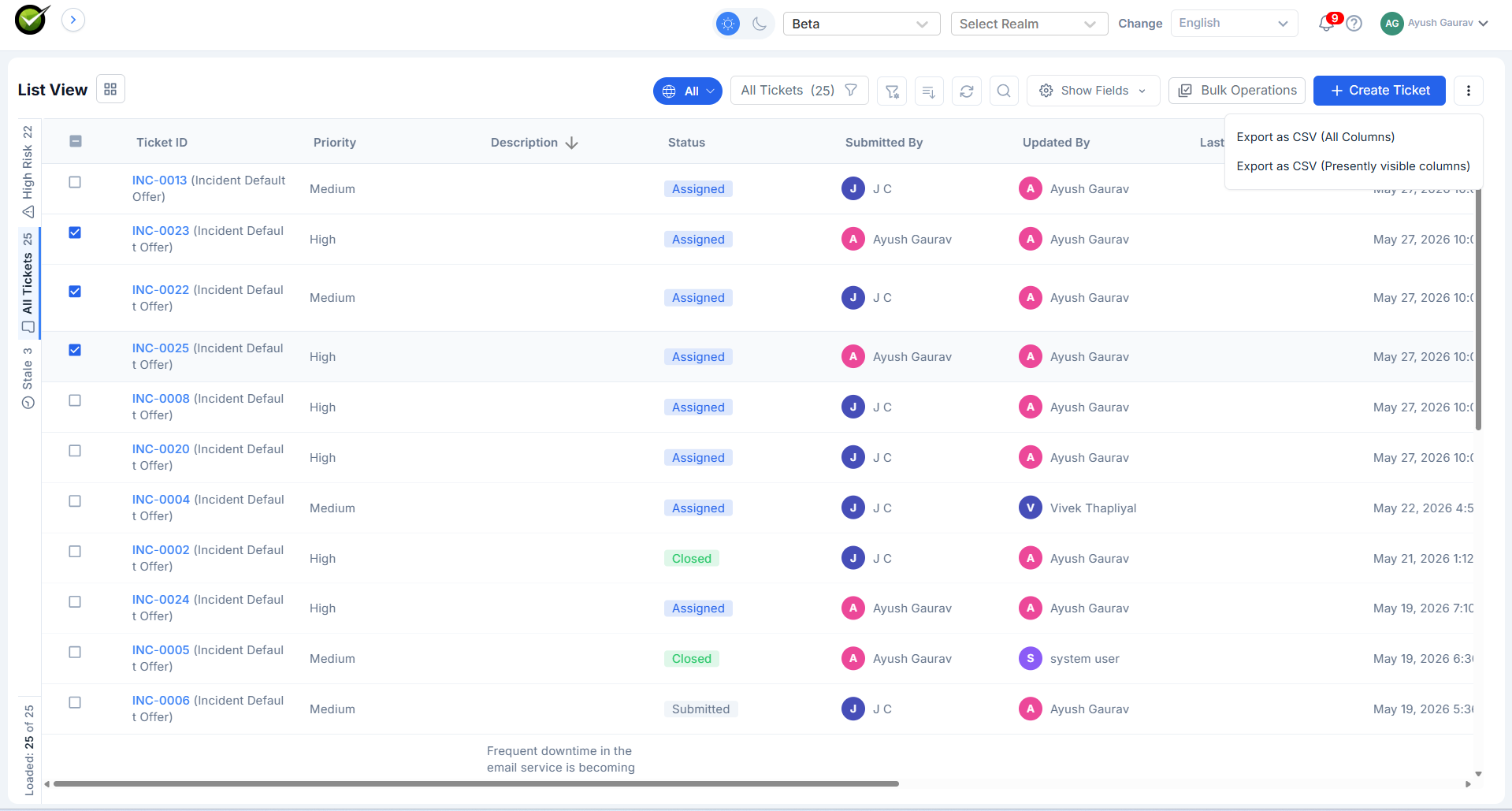
The system offers flexible exporting options to help users retrieve and analyze ticket data efficiently. Available export formats include:
- Export as CSV (All Data) – Downloads the entire dataset, including all tickets and details.
- Export as CSV (Present View) – Downloads only the tickets and fields currently visible on the screen based on active filters and column selection.
- Export as Excel – Creates a formatted Excel workbook with ticket data organized in sheets.
Export Use Cases
-
Management Reporting
- Generate weekly or monthly reports on ticket volumes and resolution times
- Track SLA compliance across different teams or categories
- Analyze trends in ticket types and priorities
-
Audit and Compliance
- Export ticket data for audit trails and compliance verification
- Document resolution processes for regulatory requirements
- Track approval workflows and decision history
-
Data Analysis
- Perform detailed analysis of helpdesk performance metrics
- Identify patterns in ticket creation and resolution
- Support data-driven decision making for process improvements