Ask Sidekick for Dashboards
Every Helpdesk Dashboard has a chat panel that answers analytical questions in natural language. Instead of building a new widget or hunting through filters, the user asks Sidekick what they want to know, reads the answer inline, and downloads it as a PDF or CSV if they need to share or reuse it.
Where it lives
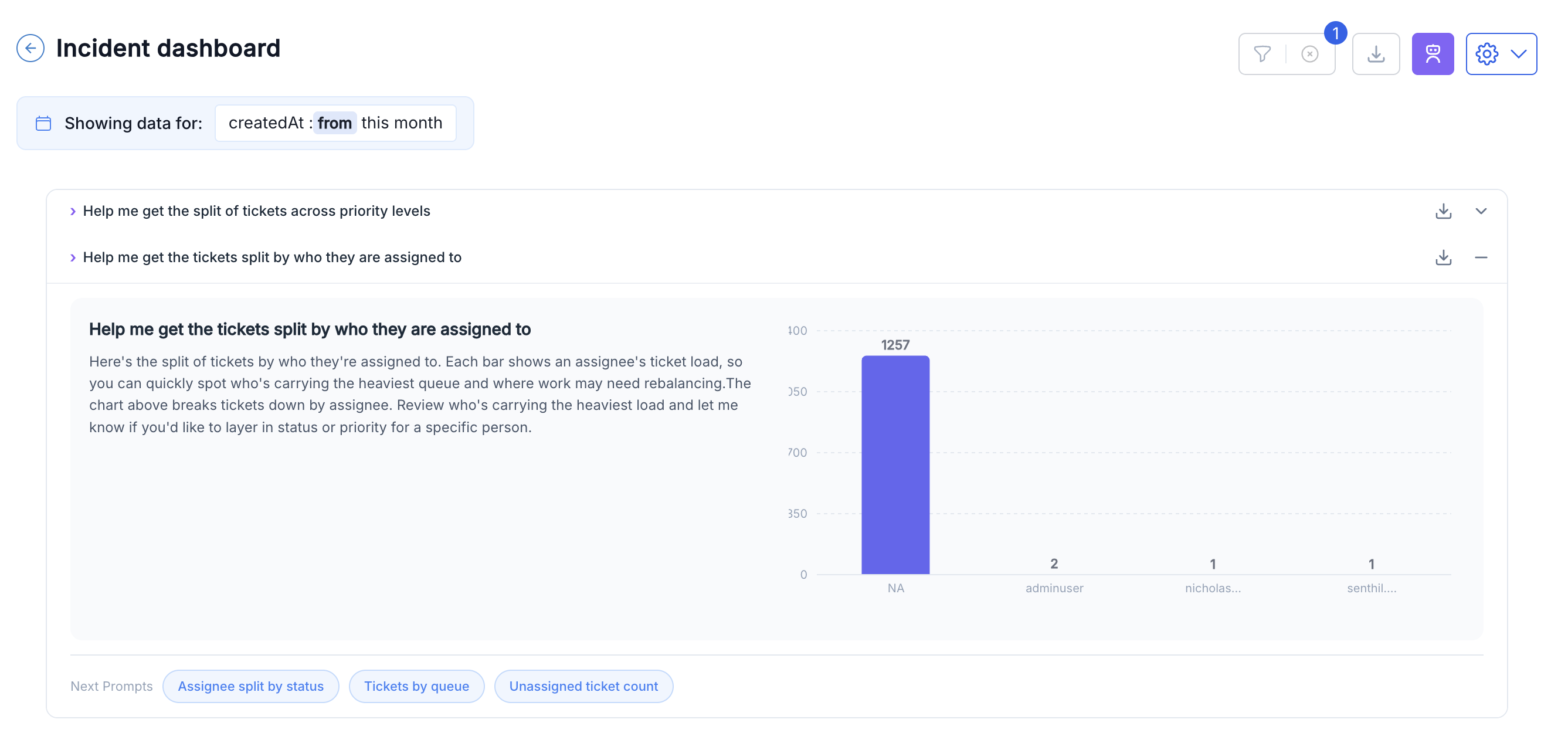
Once enabled, an Ask Sidekick button appears in the dashboard header. Clicking it opens a chat panel docked to the right of the dashboard, sitting alongside the widgets so the underlying data stays visible. The panel is available on every Tickets Management dashboard - the default dashboards, custom dashboards, and combined dashboards - and closes back into the header when the user is done.
What you can ask
Sidekick reads whatever is on the dashboard the user is looking at right now, including any filters that are currently applied. Every answer comes from that data set; Sidekick does not wander into other dashboards or reach into raw ticket storage.
Typical questions:
- "Which three agents resolved the most tickets last week, and how does that compare to the week before?"
- "What percentage of tickets breached SLA in the last 30 days, and which category had the highest breach rate?"
- "Show me the ticket volume trend for the Finance queue over the last quarter."
- "Which ticket types had the longest average resolution time this month?"
If the question can't be answered from the current dashboard (for example, it needs a field that isn't in scope), Sidekick says so and suggests either switching to a dashboard that has the data or adjusting the filters to expose it.
The answer format
Answers come back as a short text explanation. Where the question implies a comparison or a distribution, Sidekick attaches an inline chart or table alongside the text so the numbers are visible without leaving the panel. The chart is generated from the same underlying rows that back the dashboard; refreshing the dashboard refreshes what the panel is answering from.
Downloading the response
Any answer can be exported directly from the panel:
- PDF - a formatted document containing the question, the text answer, and any inline chart the answer produced. Suitable for sharing with stakeholders. The workflow parallels the existing Exporting Data flow for the rest of the dashboard.
- CSV - the raw rows behind the answer. Suitable for further analysis in a spreadsheet or BI tool.
The download applies to the specific answer, not the whole conversation. To capture more than one answer at once, download each one separately.
Turning it on
Ask Sidekick for Dashboards is off by default. A tenant admin turns it on from Generative AI configurations - see GenAI Settings. Once the Ask Sidekick for Dashboards toggle is on, the panel appears on every dashboard for every user in the tenant on their next page load. With the toggle off, the panel does not render anywhere and no dashboard behaviour changes.
How it differs from ticket-level Ask Sidekick
Two Sidekicks exist in the product. Same name, different jobs.
| Job | Feature |
|---|---|
| "Answer analytical questions about the metrics I'm looking at" | Ask Sidekick for Dashboards (this page) |
| "Answer questions about the specific ticket I'm looking at" | Ask Sidekick (Agent Assist) |
The two do not share memory. A question asked on a ticket does not influence answers on the dashboard, and vice versa.
What Ask Sidekick for Dashboards does not do
- It does not change dashboard configuration or add widgets. Read-only over the current view.
- It does not answer questions about data outside the current dashboard. If the data is not on the dashboard, the answer is not available.
- It does not persist chat history across dashboards. Each dashboard has its own conversation thread that resets when the tenant refreshes the dashboard's underlying data.