GenAI Settings
The Gen AI Settings page is where a tenant admin controls how the virtual agent behaves: what it sounds like, how it answers, when it escalates, what AI features support human agents, and what sensitive data it masks.
The page is organised into tabs. Each tab is one area of control. The top-right Save Changes button commits the edits on the current tab. Menu items, commands, and bot-level messages live on a separate page, Bot Settings.
Bot Identity
Sets the bot's name, the short profile it presents to users, the personality it speaks with, and the company branding it represents.
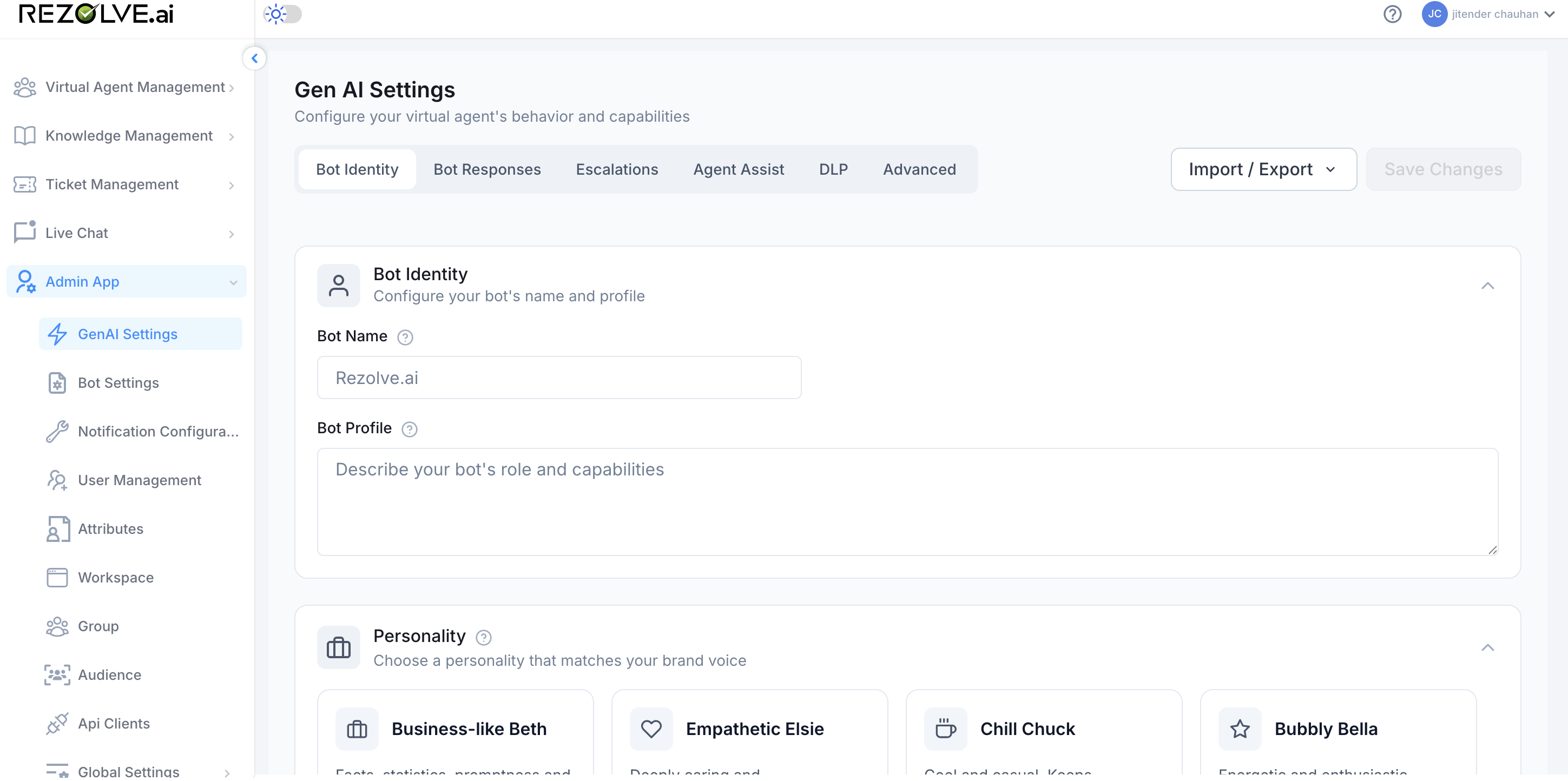
Bot Name and Profile
- Bot Name is the name users see when the bot introduces itself. Keep it short and memorable.
- Bot Profile is a short description of the bot's role and capabilities. It's used as system context for the AI and may also appear in welcome cards.
Personality
A bot's personality shapes the tone of every generated reply. Pick one of four pre-defined personas; you don't write the tone yourself.
| Persona | When to pick |
|---|---|
| Business-like Beth | Professional, business-oriented, concise. Best for IT helpdesks, internal support, and audiences that prefer brevity. |
| Empathetic Elsie | Empathetic, patient, understanding. Best for HR support and any case where users may be frustrated or anxious. |
| Chill Chuck | Relaxed, easy-going, friendly. Best for casual workplace cultures and lighter-touch support. |
| Bubbly Bella | Energetic, joyful, youthful. Best for outward-facing campus or community bots. |
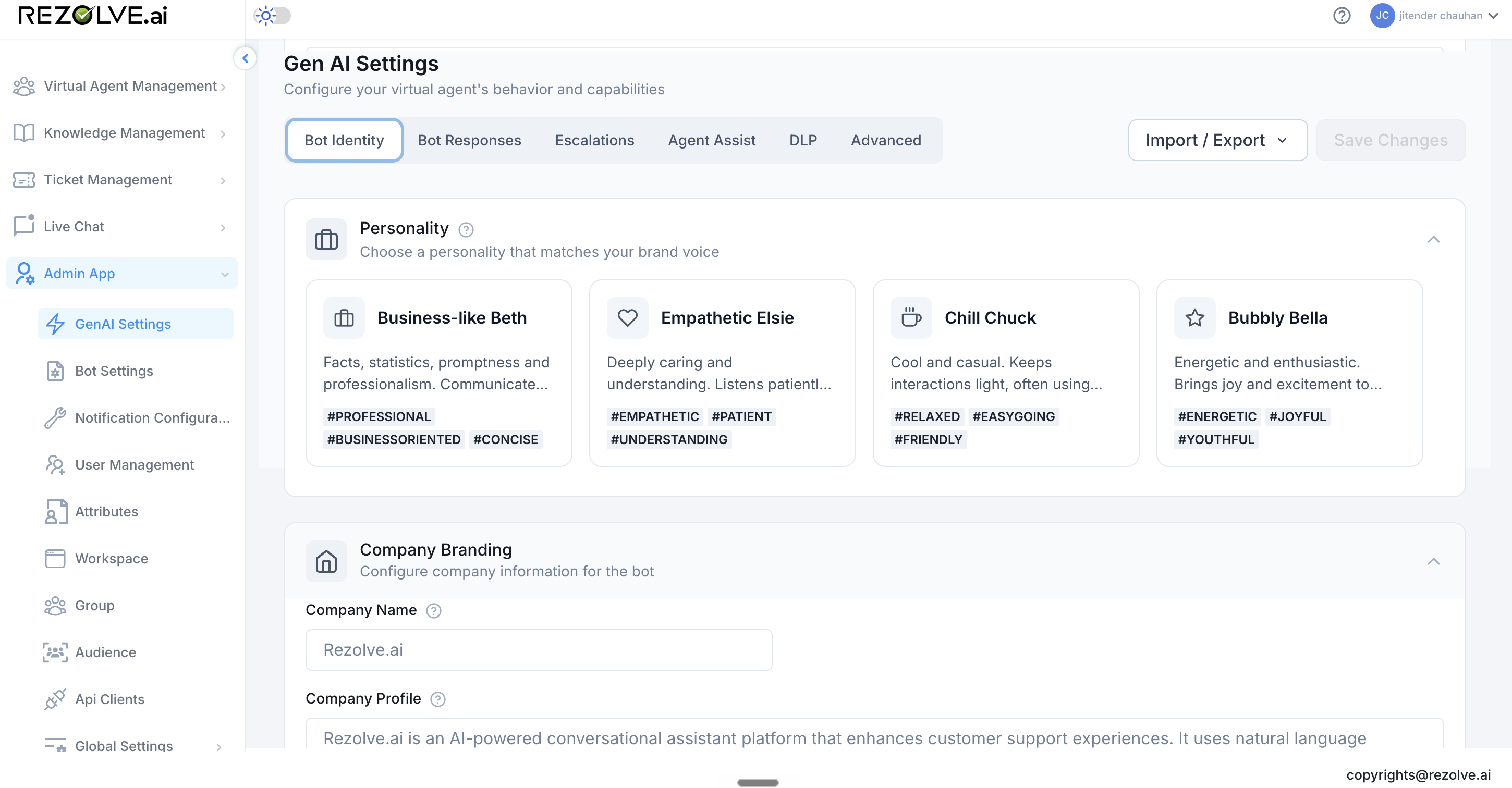
Company Branding
- Company Name is shown when the bot references its operator.
- Company Profile is a paragraph the AI uses as context. Include what the company does, the industry, and any tone notes you want carried into every reply (e.g. "We use British English. Don't promise refunds. Always offer to escalate.").
Bot Responses
Controls how the bot processes a question and how it phrases the reply. Each setting is a trade-off; the safer default is marked Recommended.
Thinking Mode
How the bot reasons through a query before answering.
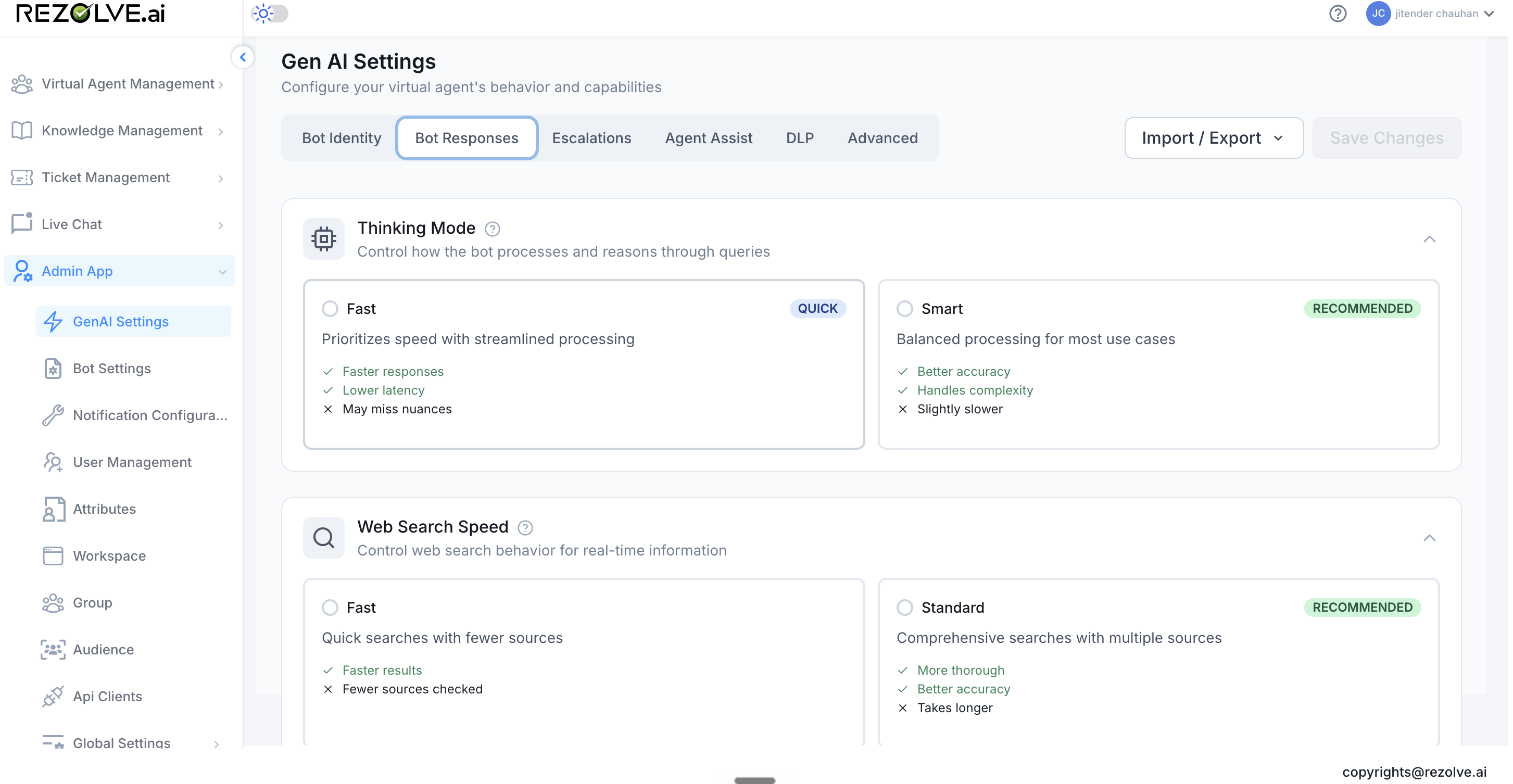
- Fast prioritises speed. Faster responses, lower latency, may miss nuances.
- Smart prioritises accuracy. Better handling of complex queries, slightly slower. Recommended for most tenants.
Web Search Speed
How the bot searches the web when it needs real-time information.
- Fast runs a quick search across fewer sources. Faster results, less coverage.
- Standard runs a comprehensive search across multiple sources. More thorough, takes longer. Recommended when accuracy matters more than latency.
Response Length
Controls how verbose the bot's answers are.
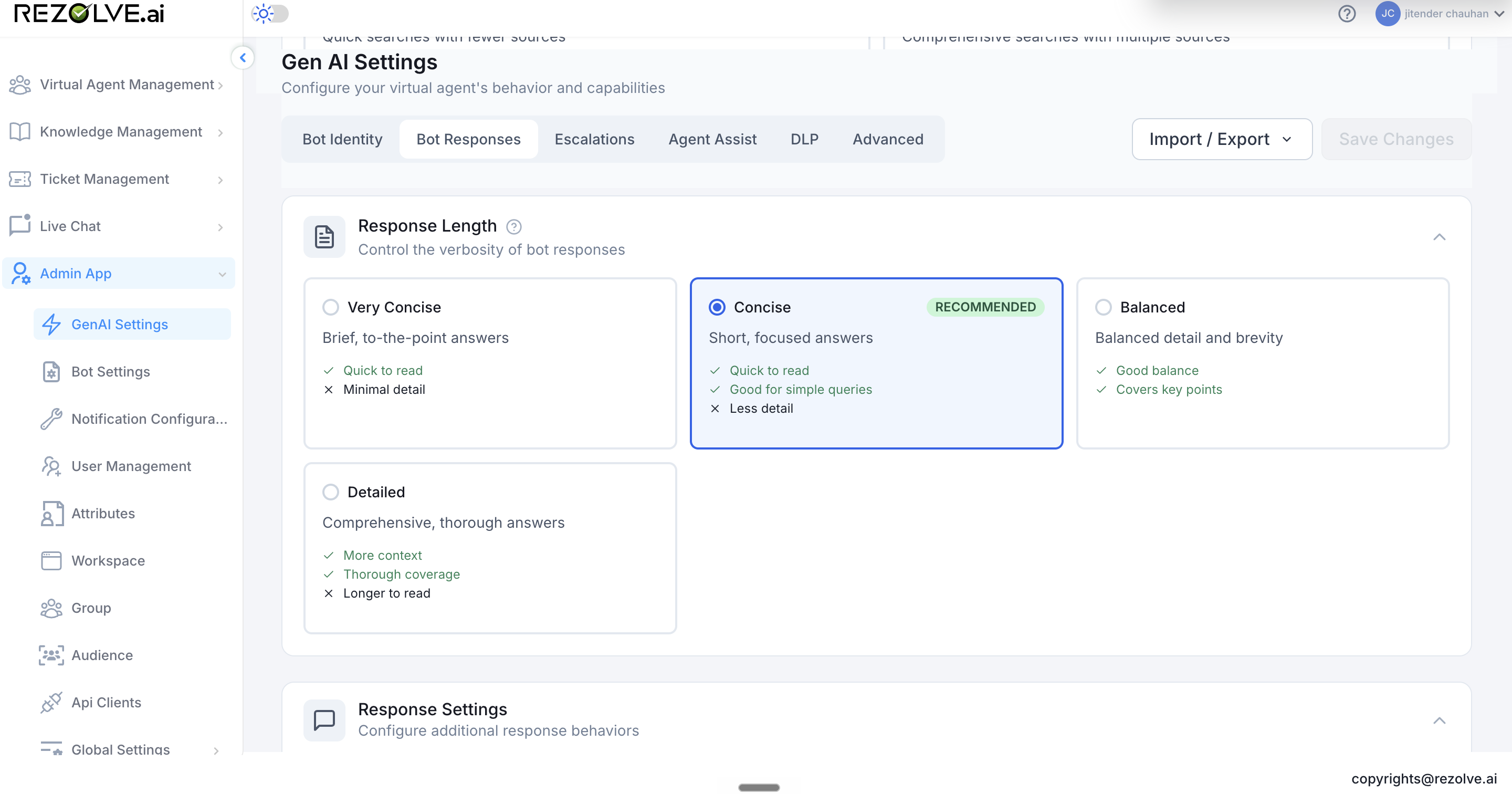
| Option | When to pick |
|---|---|
| Very Concise | Brief, to-the-point answers. Minimal detail. Best for quick lookups. |
| Concise (Recommended) | Short, focused answers. Good for simple queries. |
| Balanced | A mix of detail and brevity. Covers the key points without over-explaining. |
| Detailed | Comprehensive, thorough answers. More context. Useful where users want full explanations, even at the cost of reading time. |
Response Settings
Five toggles that tune how the bot answers.
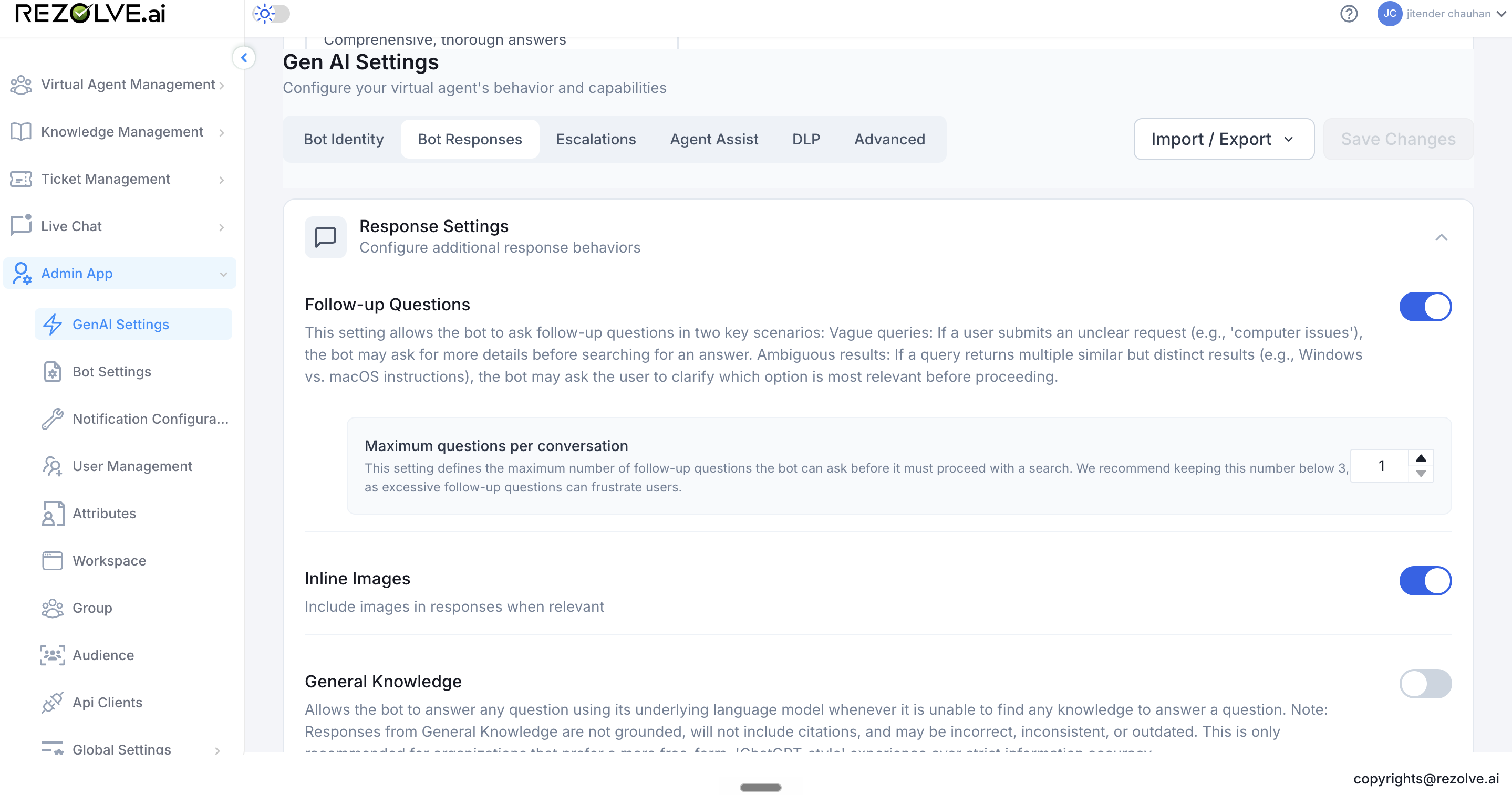
- Follow-up Questions - when ON, the bot asks clarifying questions for vague or ambiguous queries before answering. The sub-setting Maximum questions per conversation caps how many clarifications it can ask (default: 1; keep below 3 so users don't get frustrated).
- Inline Images - when ON, the bot includes relevant images in its responses.
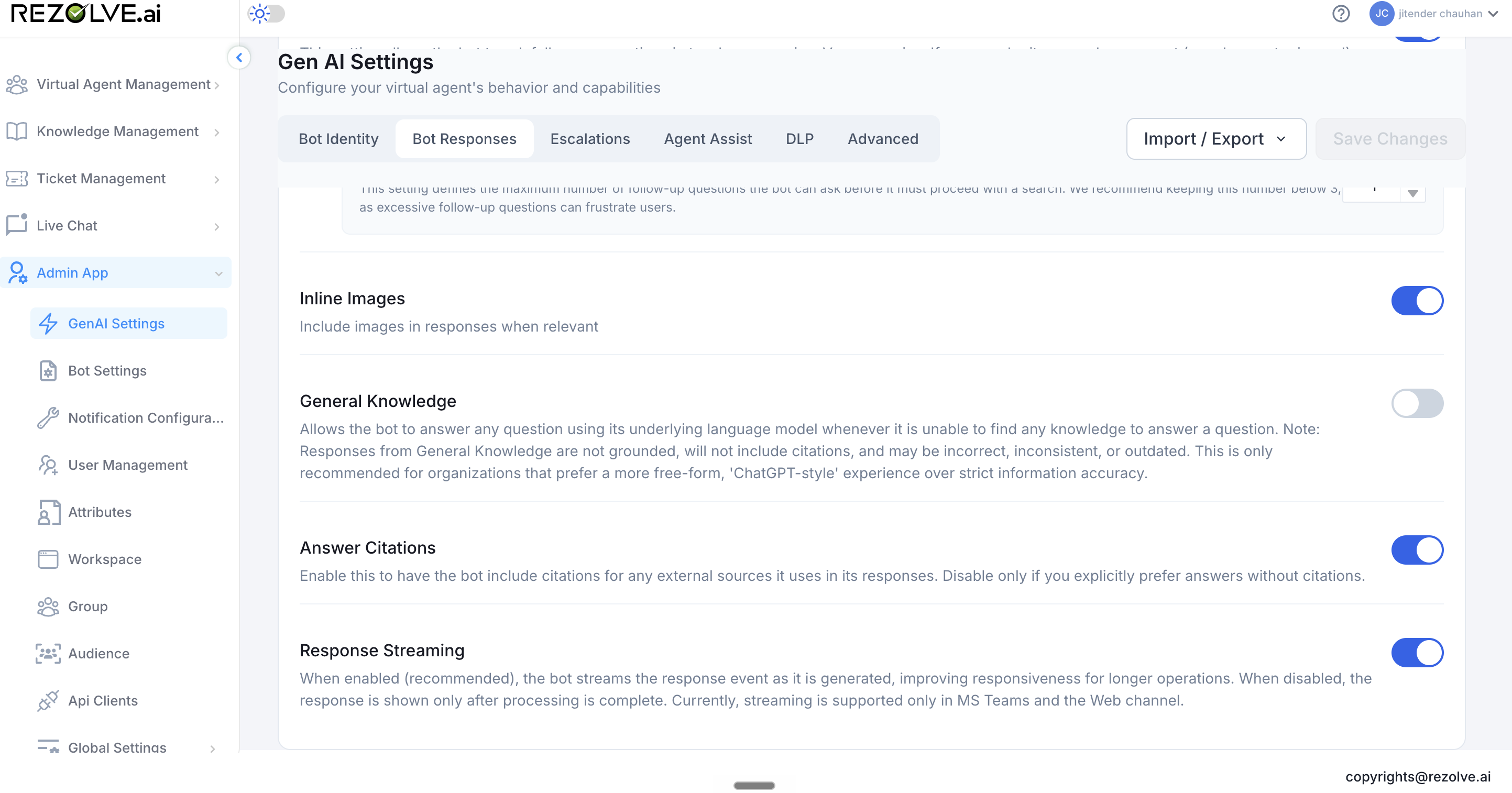
- General Knowledge - when ON, the bot can fall back to its underlying language model when it can't find an answer in your knowledge base. Use with caution. General-knowledge responses are not grounded in your data, won't include citations, and may be incorrect or outdated. Recommended only for tenants that prefer a more free-form experience over strict information accuracy.
- Answer Citations - when ON, the bot includes citations for any external sources it uses in a response. Turn off only if you explicitly want answers without citations.
- Response Streaming - when ON (recommended), the bot streams the response as it's generated, so users see characters appear progressively rather than waiting for the full reply. Currently supported only on the MS Teams and Web channels.
Escalations
Rules for when the bot creates a ticket or hands the conversation to a live agent.
Ticket Management
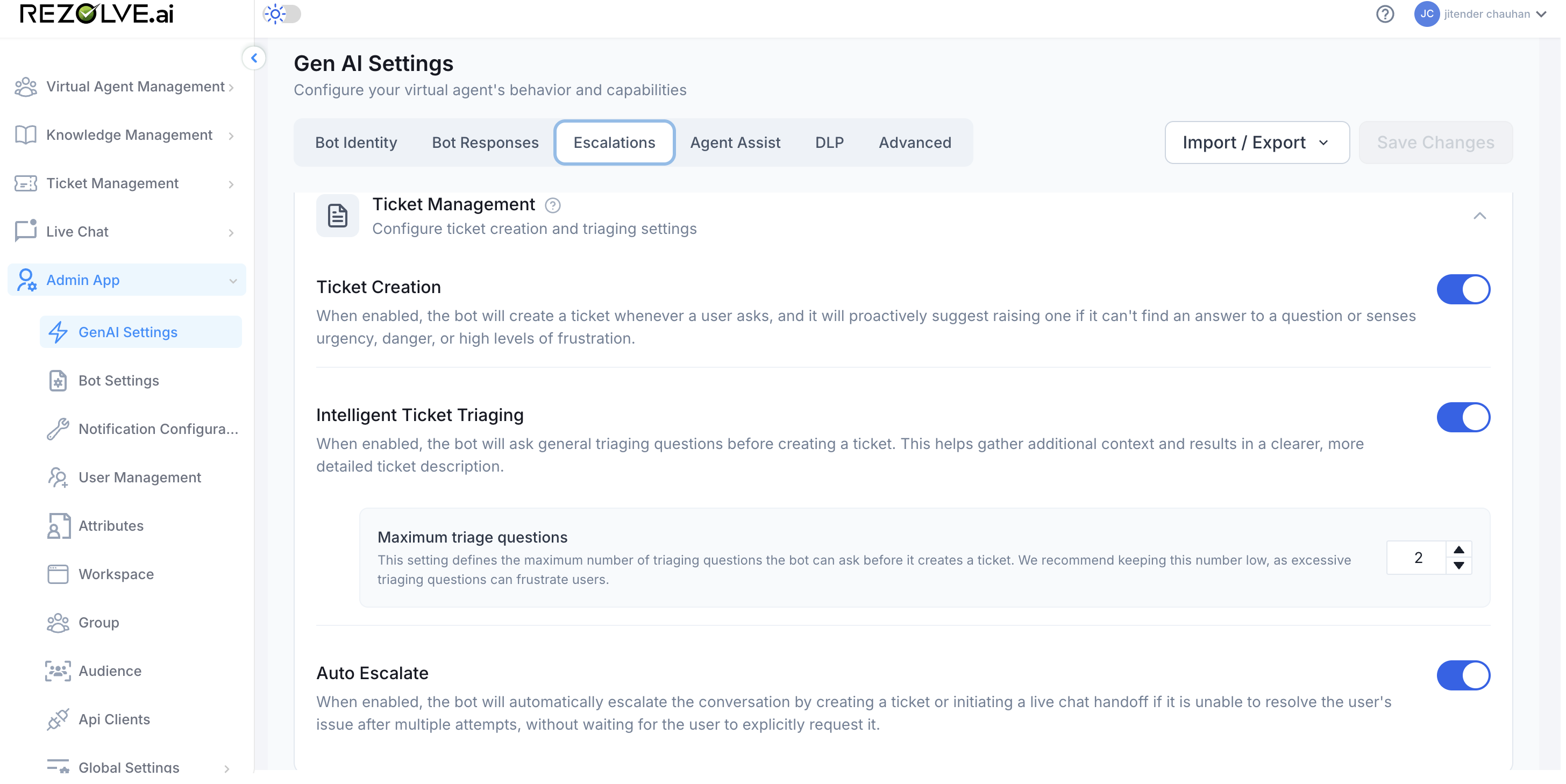
- Ticket Creation - when ON, the bot can create a ticket on the user's request and will proactively suggest creating one when it can't answer a question or detects urgency, danger, or high frustration.
- Intelligent Ticket Triaging - when ON, the bot asks general triaging questions before creating a ticket, gathering more context for the agent who picks it up. The sub-setting Maximum triage questions caps how many questions the bot asks (recommended low; excessive triaging frustrates users).
- Auto Escalate - when ON, the bot automatically creates a ticket or starts a live-chat handoff after multiple failed resolution attempts, without waiting for the user to ask.
Live Chat
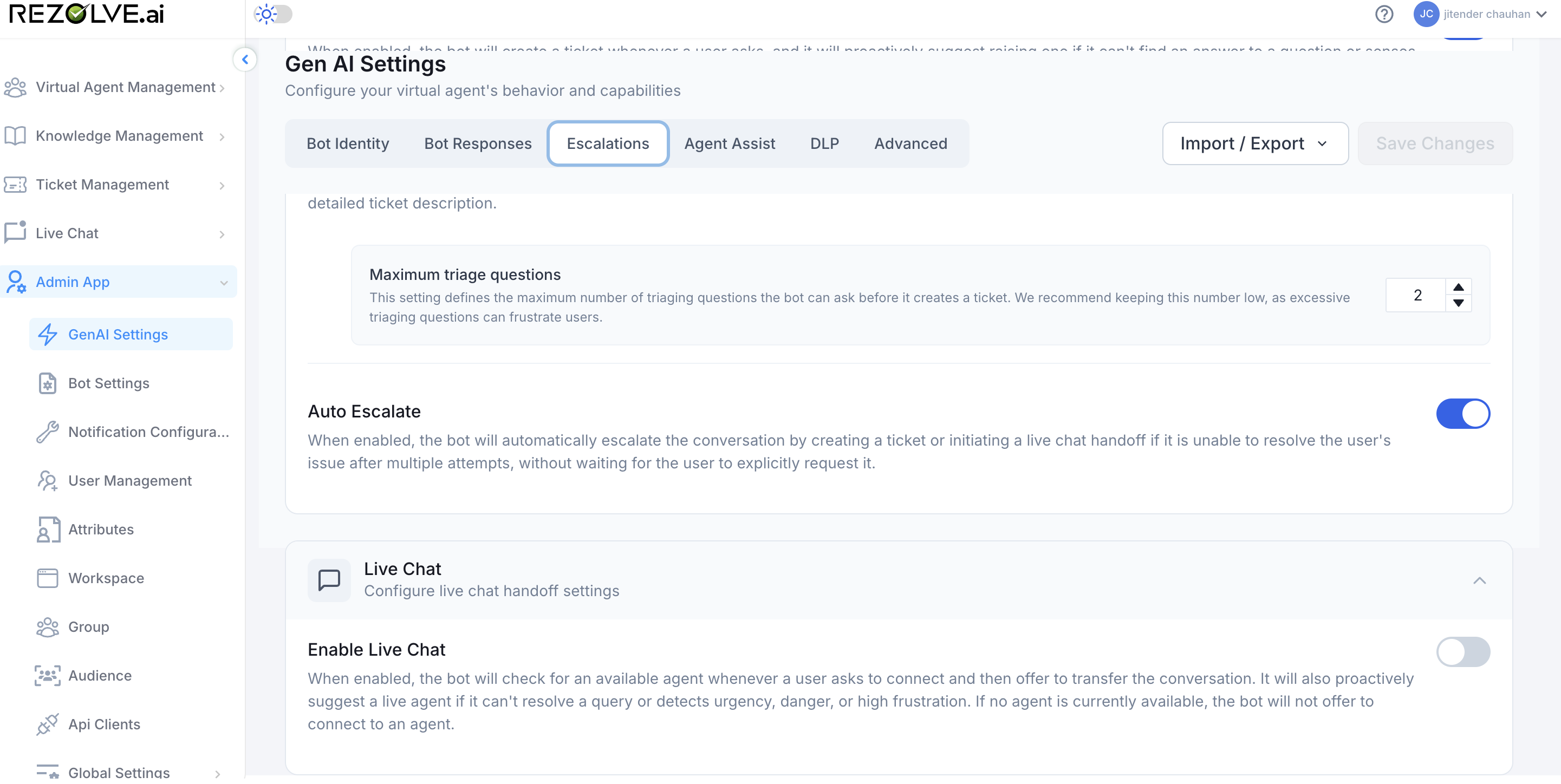
- Enable Live Chat - when ON, the bot checks for an available agent whenever the user asks to connect to one, and proactively offers a handoff if it can't resolve a query or detects urgency, danger, or high frustration. If no agent is available, the bot doesn't offer the option.
Agent Assist
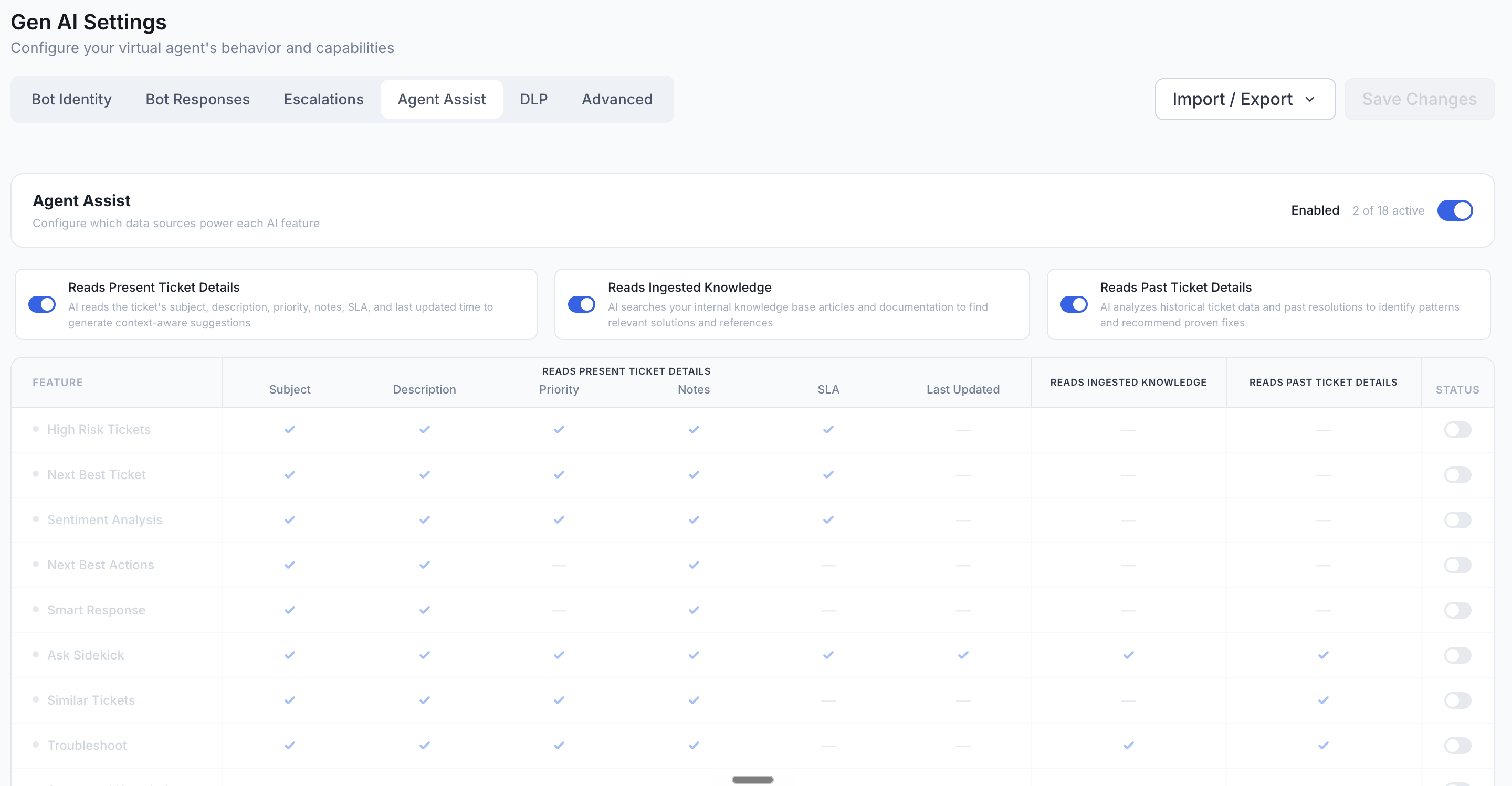
Configures the AI features that help ticket agents. Each Agent Assist feature can be turned on or off for the tenant, and each can be restricted to specific data sources.
Master data-source toggles
Three switches at the top of the tab govern what the AI is allowed to read across every Agent Assist feature:
- Reads Present Ticket Details - subject, description, priority, notes, SLA, last-updated time.
- Reads Ingested Knowledge - your internal knowledge base articles and documentation.
- Reads Past Ticket Details - historical tickets and how they were resolved.
Turning a master toggle off greys out every feature that depends on that data source.
Per-feature configuration
The matrix below the master toggles lists every Agent Assist feature. Each row shows which ticket fields the feature reads (a checkmark in the column) and a Status toggle on the right.
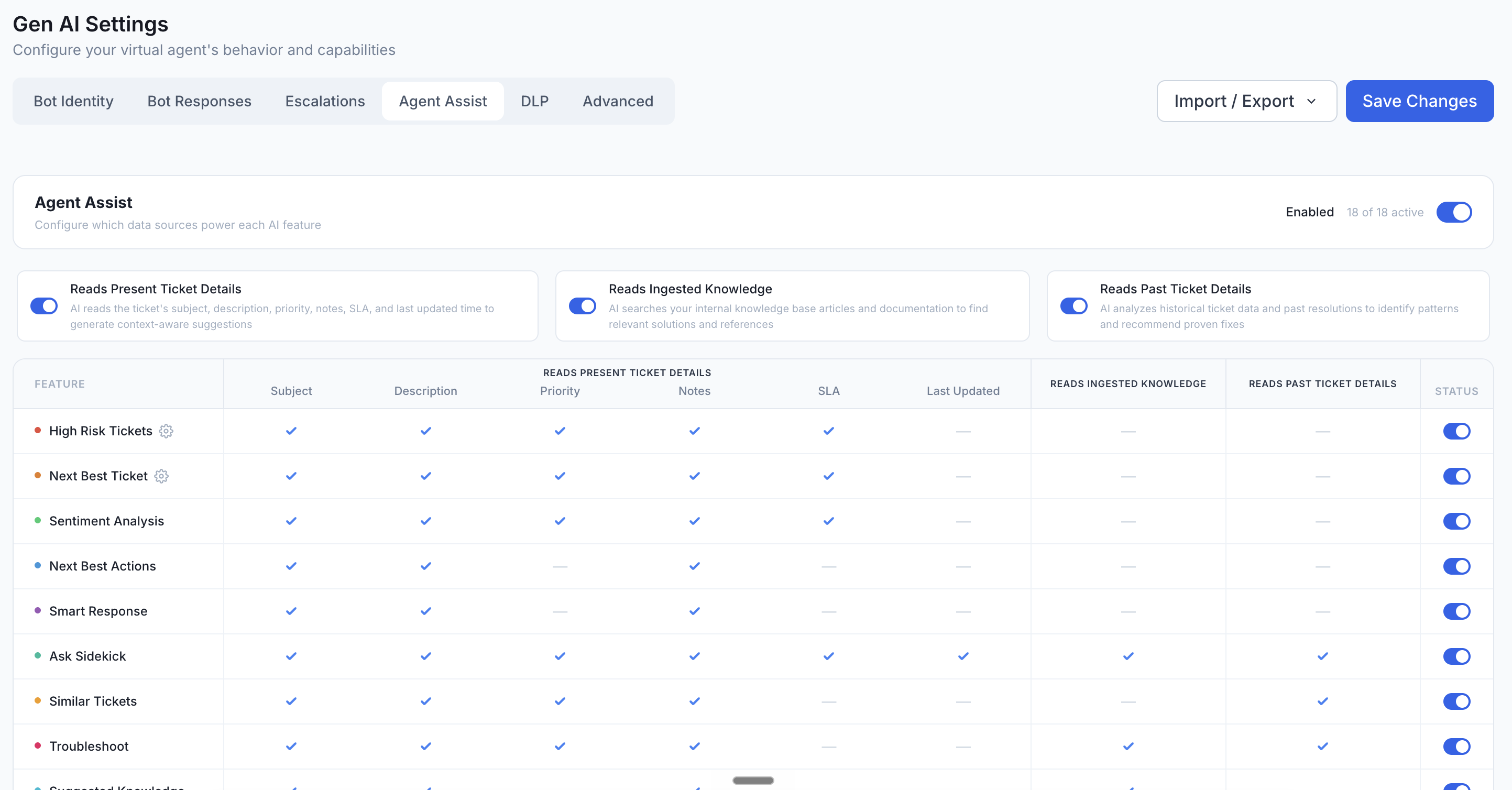
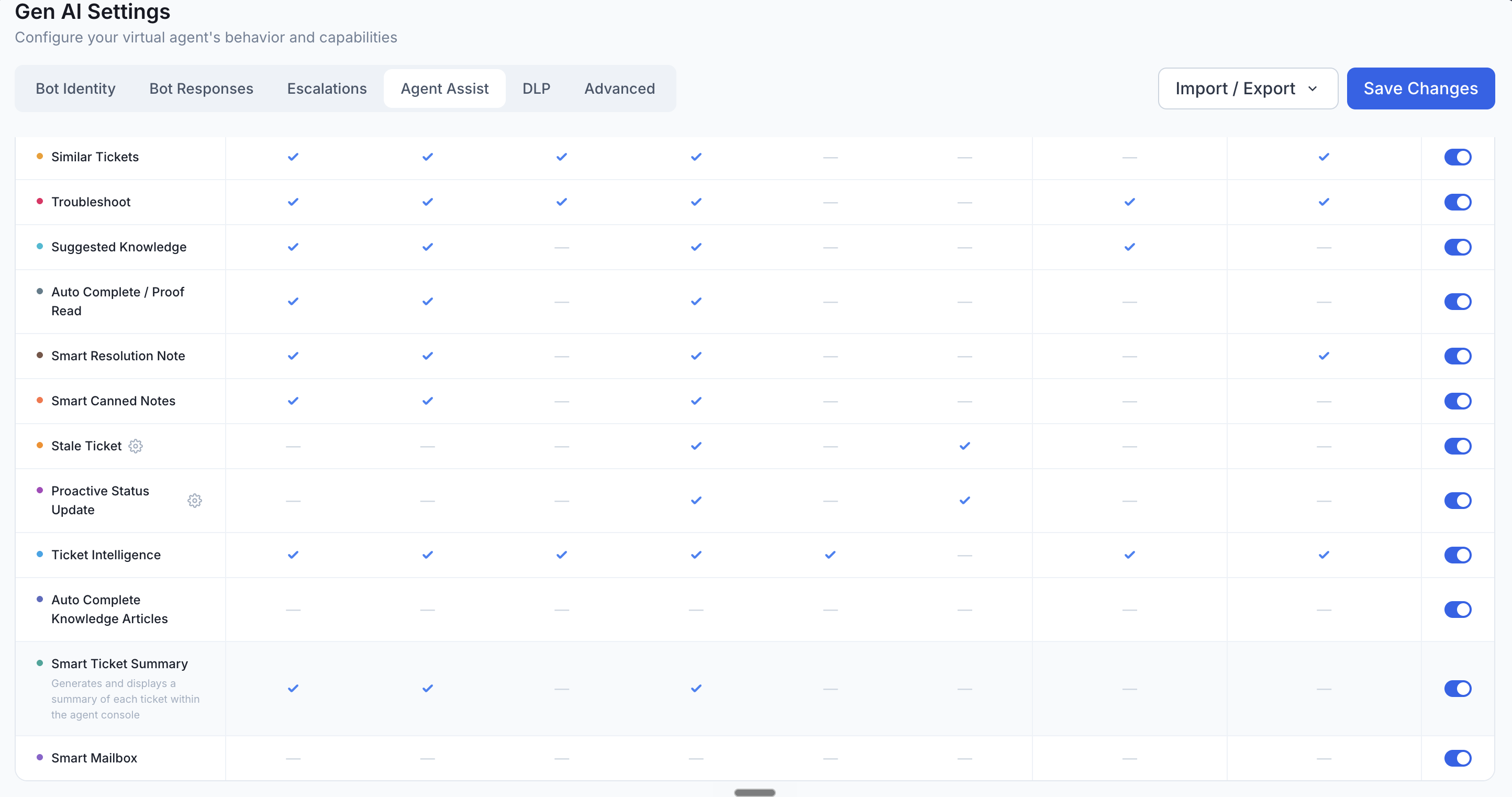
The header above the matrix shows how many features are currently active (e.g. "2 of 18 active").
For what each feature does, see the Agent Assist documentation.
DLP
Data Loss Prevention. Masks sensitive data in bot conversations so it isn't echoed back to users or sent to downstream AI services.
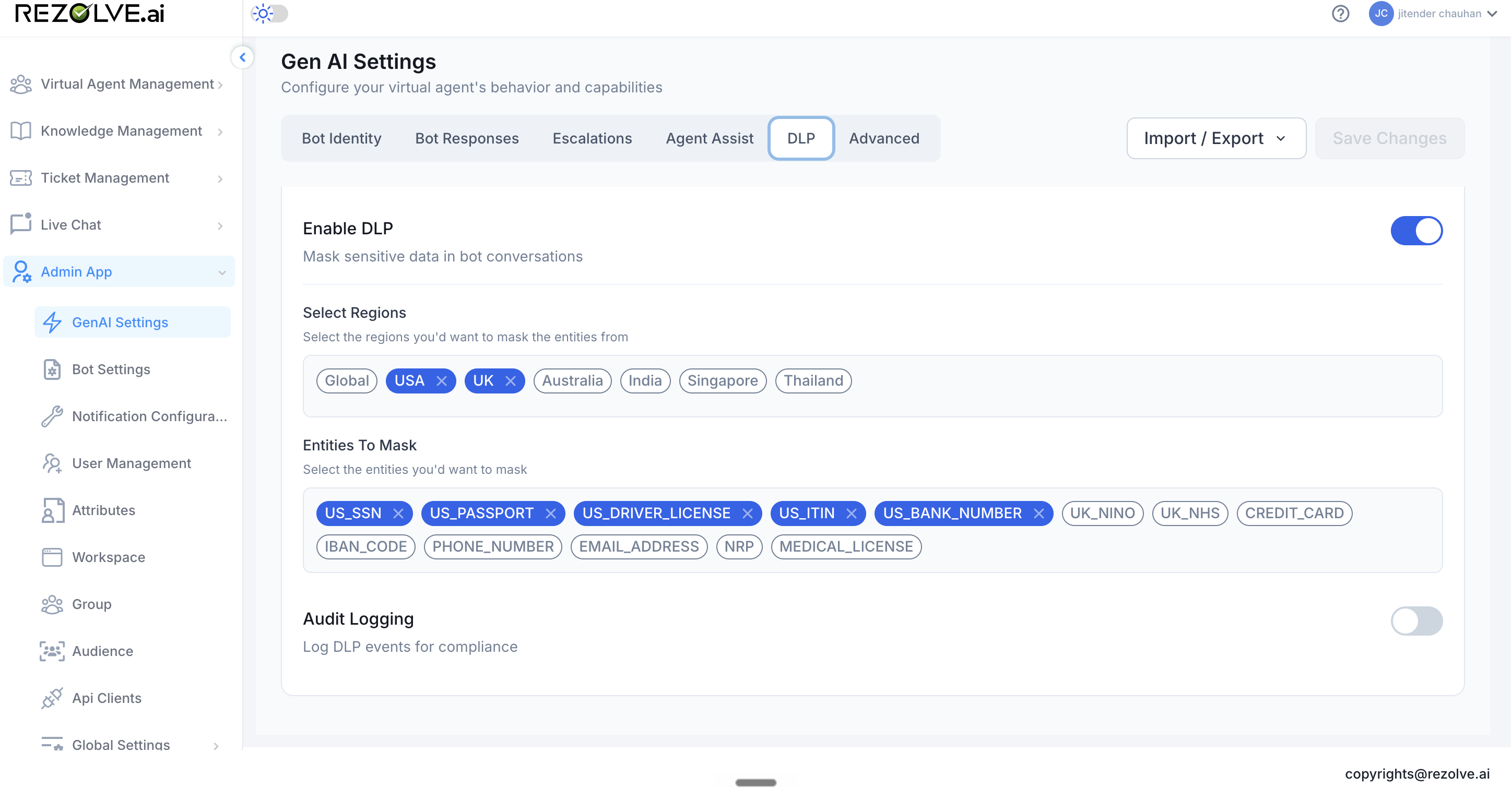
- Enable DLP - master switch. When ON, the bot detects and masks the configured entity types in every message.
- Select Regions - which regional data laws to apply. Pick one or more from Global, USA, UK, Australia, India, Singapore, Thailand. The available entity types update based on the regions selected.
- Entities To Mask - which categories of sensitive data to mask. Includes regional identifiers (US_SSN, US_PASSPORT, US_DRIVER_LICENSE, US_ITIN, US_BANK_NUMBER, UK_NINO, UK_NHS) and global categories (CREDIT_CARD, IBAN_CODE, PHONE_NUMBER, EMAIL_ADDRESS, NRP, MEDICAL_LICENSE).
- Audit Logging - when ON, every DLP event is logged for compliance reporting. Leave off only if your tenant explicitly opts out of DLP audit retention.
Saving changes
Changes don't take effect until you press Save Changes in the top-right of the tab you've edited. The button stays disabled until there's something to save.
Related pages
- Bot Settings - menus, skills, commands, and messages
- Agent Assist overview - what each Agent Assist feature does for ticket agents