Templates and Custom Fields
Two ways to make the system fit your inventory instead of the other way around.
Custom fields
The default asset record covers name, status, serial number, and the basics. Custom fields let you track anything else that matters to your team — CPU model, warranty end date, internal cost code, RAM, MAC address.
Defining a custom field
Go to Settings → Custom Fields. Click Add Field and choose:
- Field name — what you'll call it (e.g. Warranty End Date)
- Type — text, number, date, or dropdown
- Category — which asset category this field applies to
- Required — must someone fill this in to save?
A field defined under Computing shows on every laptop or desktop. A field defined under Mobile shows only on phones. This keeps forms relevant — laptop users don't see IMEI Number on their form.
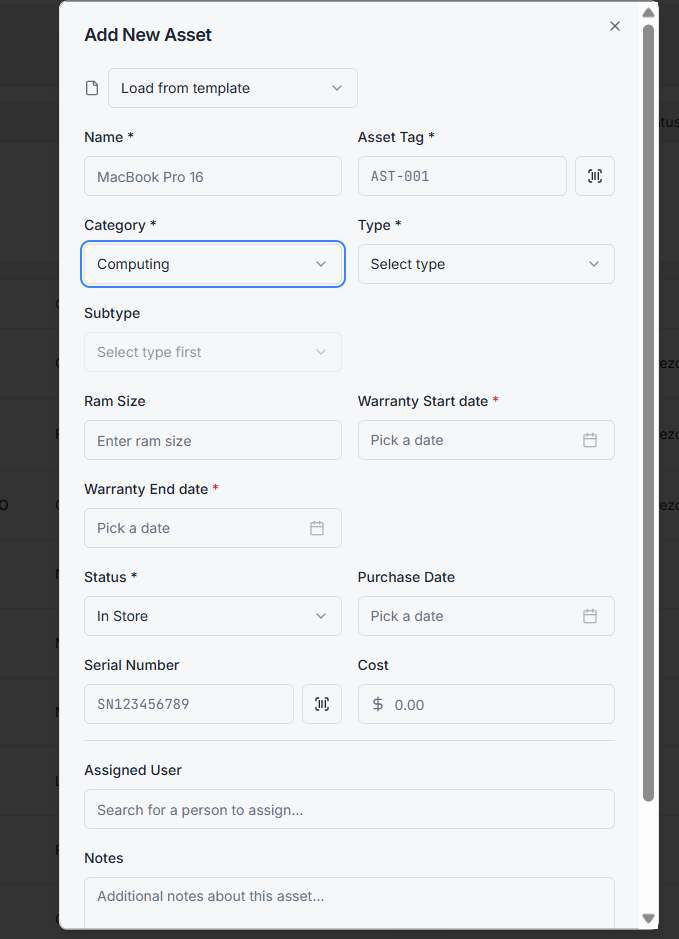
Filtering by custom fields
Once a field exists, it shows up as a filter on the asset list. Filter your laptops by warranty status, your phones by carrier, your monitors by screen size — whatever you've defined.
You can also save these filters as Saved Filters so the team can reopen them with one click.
Templates
A template is a pre-filled asset form. Useful when you frequently add the same kind of asset — twenty identical Dell laptops, a batch of monitors from one supplier.
Creating a template
Open the Add Asset form, fill in everything that's common (category, type, manufacturer, default status, custom fields), then click Save as Template. Give it a name.
Using a template
When you start a new asset, click From Template and pick one. The form pre-fills. Adjust the fields that change per device (serial number, asset tag) and save.
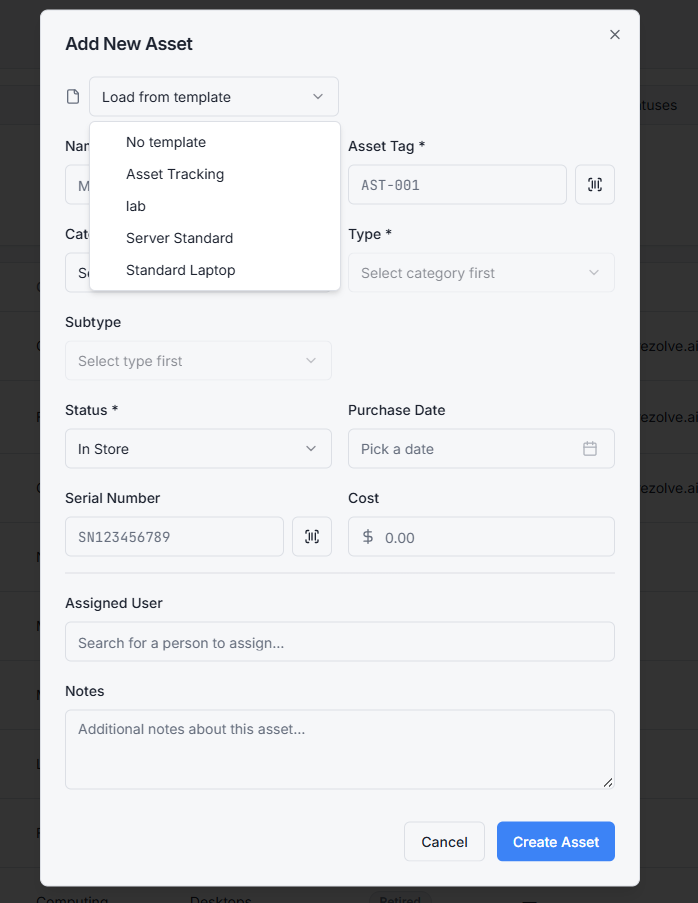
Managing templates
Under Settings → Templates you can edit, duplicate, or delete templates. They're tenant-wide — anyone with admin rights can use them.
When to use which
- A custom field captures data you want on every asset of a category. Use it when the data is structural.
- A template captures defaults you want pre-filled when creating an asset. Use it when the data is repetitive but not universal.
You can use both together. Define a custom field for Warranty End Date, then have a Dell Laptop Template that pre-fills the manufacturer but leaves the warranty date blank for each new asset.
Related topics
- Assets
- Categories, Types, and Subtypes — custom fields attach at the category level
- Imports and Bulk Actions — imports respect custom fields