Configuration Management Database (CMDB)
The CMDB tracks the things in your IT environment that aren't simple "assets you hand to a person" — servers, applications, services, databases — and how they relate to each other.
If you're new to CMDBs: think of it as a graph. Each node is a configuration item (CI), and the edges describe how CIs depend on each other.
What goes in the CMDB
Anything you'd want to map relationships for:
- Servers (physical or virtual)
- Applications and microservices
- Databases
- Network devices
- Cloud services
- Business services
If you only want to track who has which laptop, you don't need the CMDB — use Assets instead.
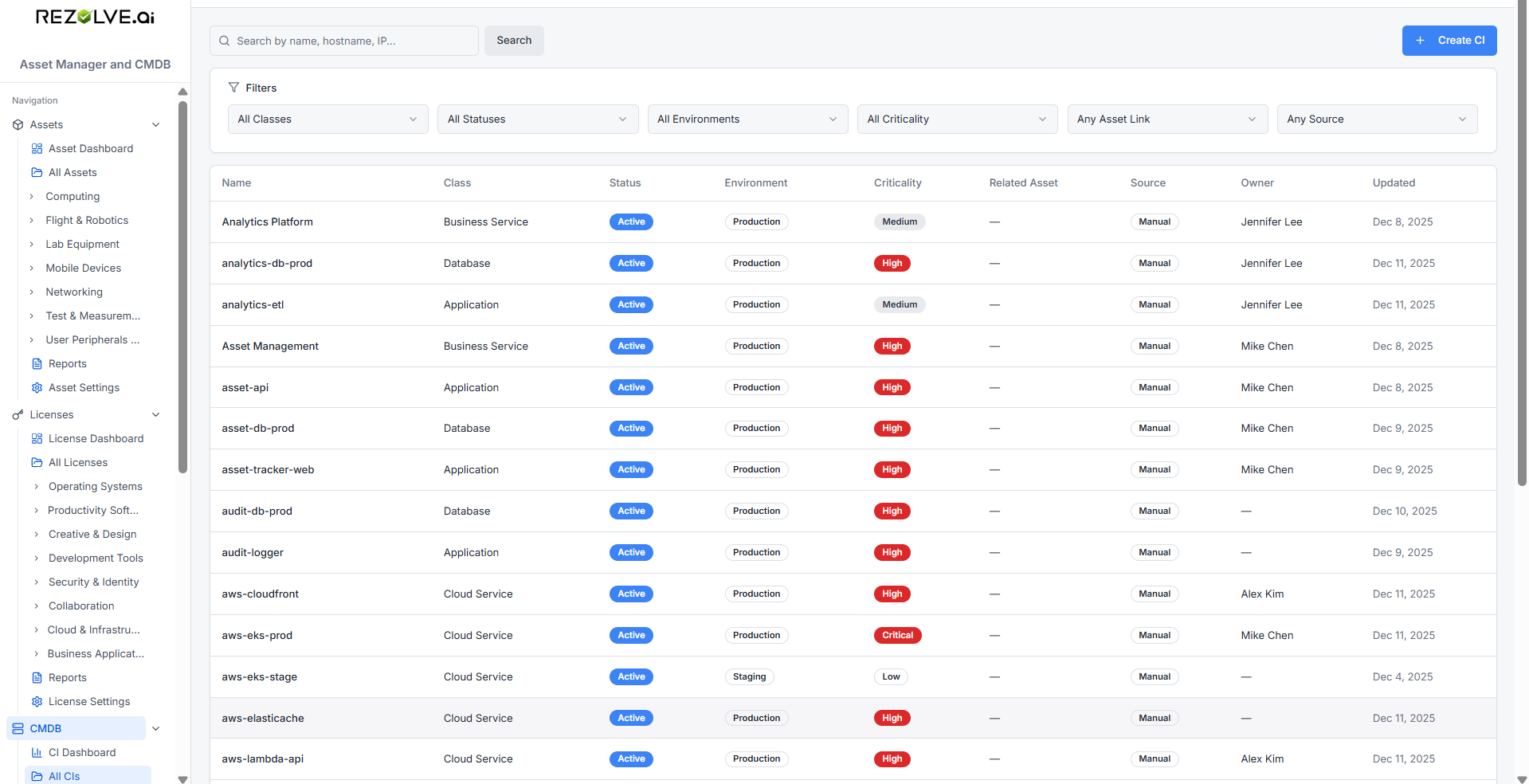
CI properties
Each CI has:
- Name and a CI class (defines what kind of thing it is)
- Status — Planned, Active, Degraded, or Retired
- Environment — Production, Staging, Test, Dev, or Other
- Criticality — Low, Medium, High, Critical
- Optional: hostname, IP address, location, tags, and a JSON metadata blob for whatever else you need
Setting up CI classes
Before you add CIs, define the classes you'll use. Open CMDB → Settings → Classes and add classes like Server, Application, Database, Service.
CI classes are flexible. You decide how granular to be — one class per server type, or just one Server class for everything.
Relationships
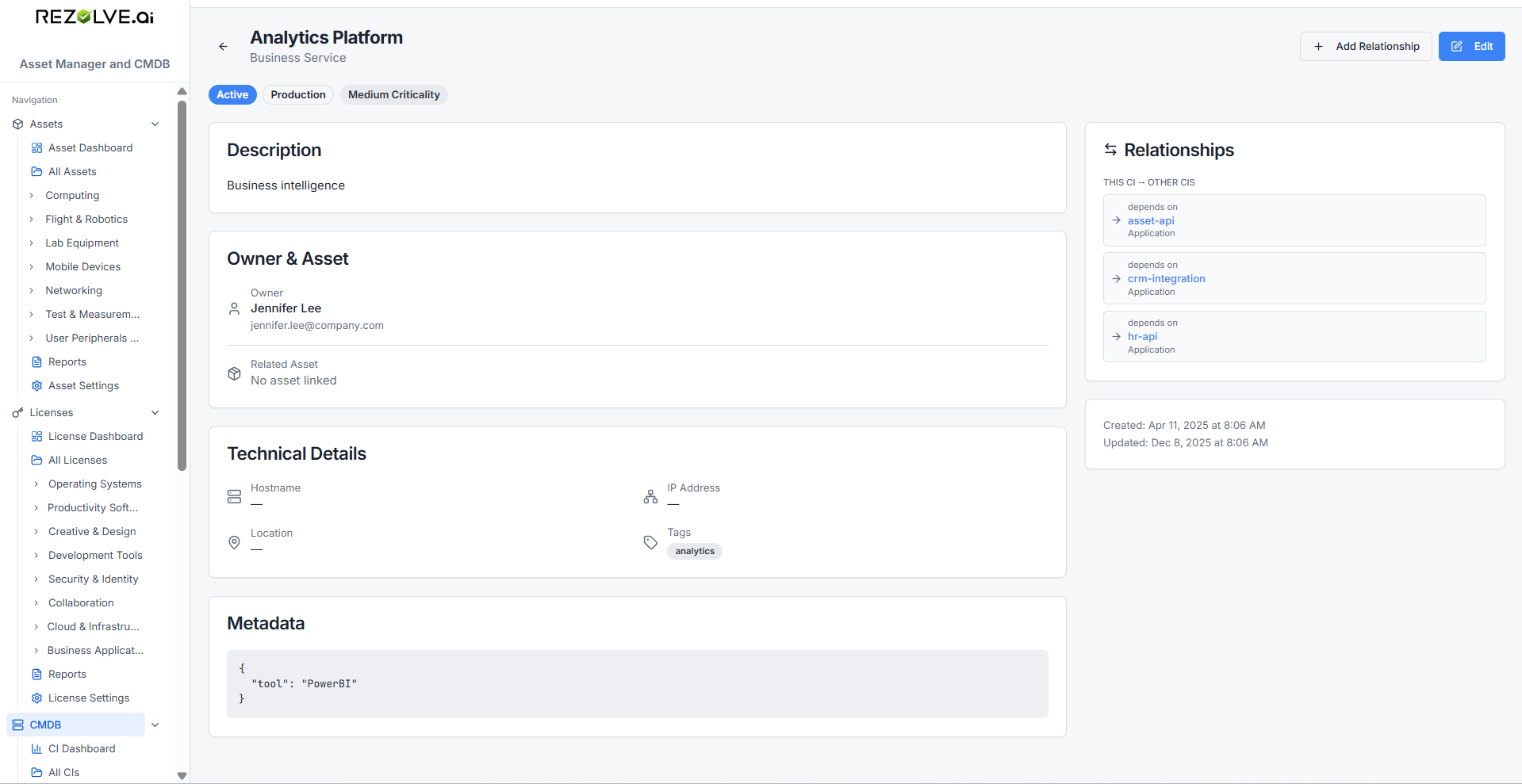
Relationships describe how CIs connect:
- App-A depends on Database-X
- Service-Y runs on Server-Z
- Server-Z is connected to Switch-2
Relationships have types you define (depends on, connects to, hosted on, etc.) under CMDB → Settings → Relationship Types.
To link two CIs, open one and click Add Relationship. Pick the relationship type and the other CI.
Linking CIs to assets
A CI can point to a real asset. For example, Server-Z (a CI) can be linked to the physical server with asset tag AST-1234. This way, when someone asks "which physical box runs the production database?", you can trace it.
Use the asset picker on the CI form to make the link.
Discovery
You can connect external discovery sources (e.g. cloud APIs, network scanners) that push CIs into a pending queue. An admin reviews the pending items and approves, merges, or rejects them before they enter the live CMDB.
This keeps the CMDB clean — nothing appears without human review.
Configure sources under CMDB → Discovery Sources. Review the queue under CMDB → Pending Discovery.
CMDB analytics
The CMDB dashboard gives you:
- Total CIs by class
- CIs by status and environment
- Critical CIs that are degraded or retired (the "should I be worried?" view)
Related topics
- Assets — when to use assets vs CIs
- Integrations — RMM tools can populate the CMDB
- Reports and Dashboards