Imports and Bulk Actions
Two ways to move large amounts of data into and around the system: file imports for the initial load, and bulk actions for everyday cleanup.
Importing assets from a file
Go to Assets → Import. Drop in a CSV or Excel file.
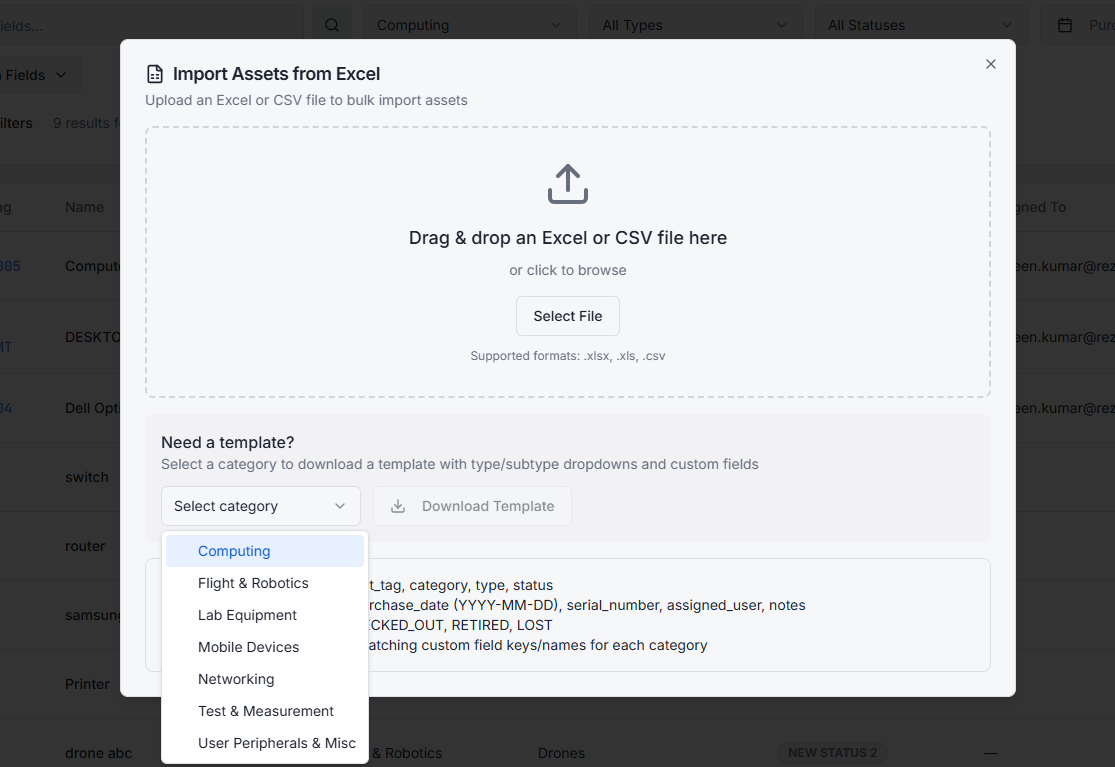
The importer:
- Reads the column headers from your file.
- Asks you to map each column to an asset field (name, asset tag, category, etc.).
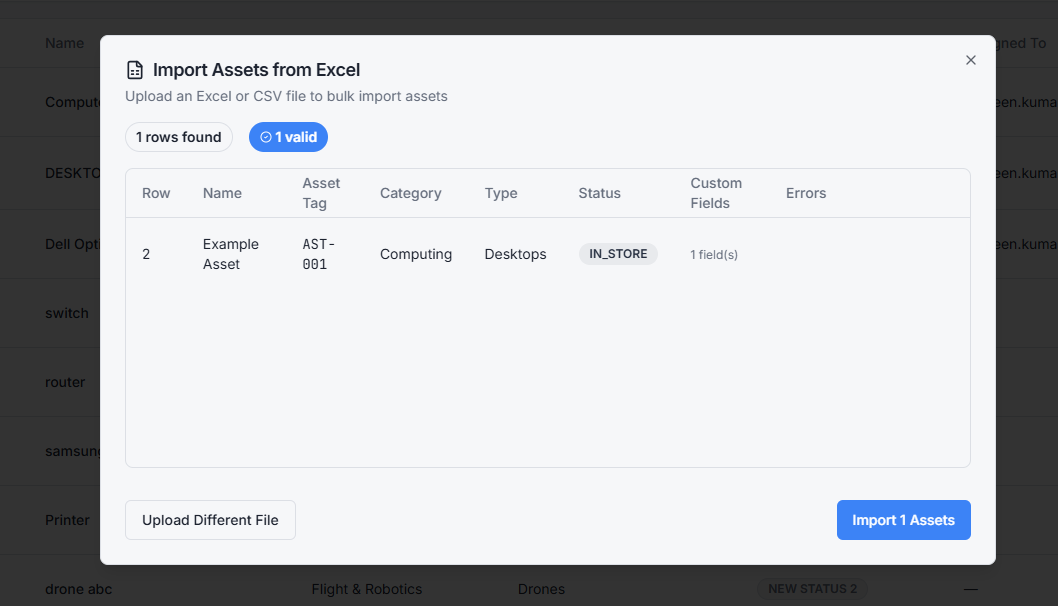
- Validates every row before committing anything.
- Shows you a preview with errors highlighted.
- Commits only the valid rows when you confirm.
If a row is invalid (missing name, unknown category, bad date), the importer flags it and tells you why. You can fix the file and re-upload, or skip the broken rows and import the rest.
What you'll need in the file
At minimum: a name column and a category. Everything else is optional.
If your file references categories or types that don't exist yet, the importer can create them on the fly — or stop and ask you to confirm. Choose what fits your workflow.
File size limits
Import in batches of 5,000 rows or fewer for the smoothest experience. Larger files work but take longer to validate.
Pending import review
Imports don't go straight into the live inventory. Files land in Assets → Pending Import first, where you (or another admin) can:
- Review the parsed rows
- Spot-check a few records
- Approve, reject, or merge against existing assets
This catches duplicates and misclassifications before they pollute your inventory.
Bulk actions on the asset list
From any asset list (filtered or not), select multiple assets with the checkboxes and you get:
- Bulk delete — permanent. Use sparingly.
- Bulk status change — flip a batch to Retired, In Store, etc.
- Bulk export — download the selection as CSV
Bulk actions respect your filters. Filter to "Computing → Laptops, status: Retired", select all, and bulk-delete to clean up old records.
Asset reconciliation
If an RMM integration brings in devices that look like assets you already track, they land in Assets → Pending Reconcile. You can:
- Merge — combine the two records, keeping the existing asset's history
- Approve as new — treat the discovered device as a fresh asset
- Reject — discard the discovered record
See RMM Integrations for the discovery side.
Related topics
- Assets
- RMM Integrations
- Reports and Dashboards — export reports for the same data in a more curated form