Categories, Types, and Subtypes
Asset Management groups everything in three levels. You don't have to use all three, but the structure is always the same:
Category → Type → Subtype
Examples:
- Computing → Laptops → Ultrabook
- Networking → Switches → 48-port
- Mobile → Phones (no subtype needed)
Why three levels
Two levels (category, type) are usually enough for filtering and reporting. The third level (subtype) is there for when you need finer detail — a "Laptop" filter is useful, but sometimes you specifically want to see "Ultrabooks" or "Workstations".
Setting them up
Go to Settings → Categories, Types, Subtypes.
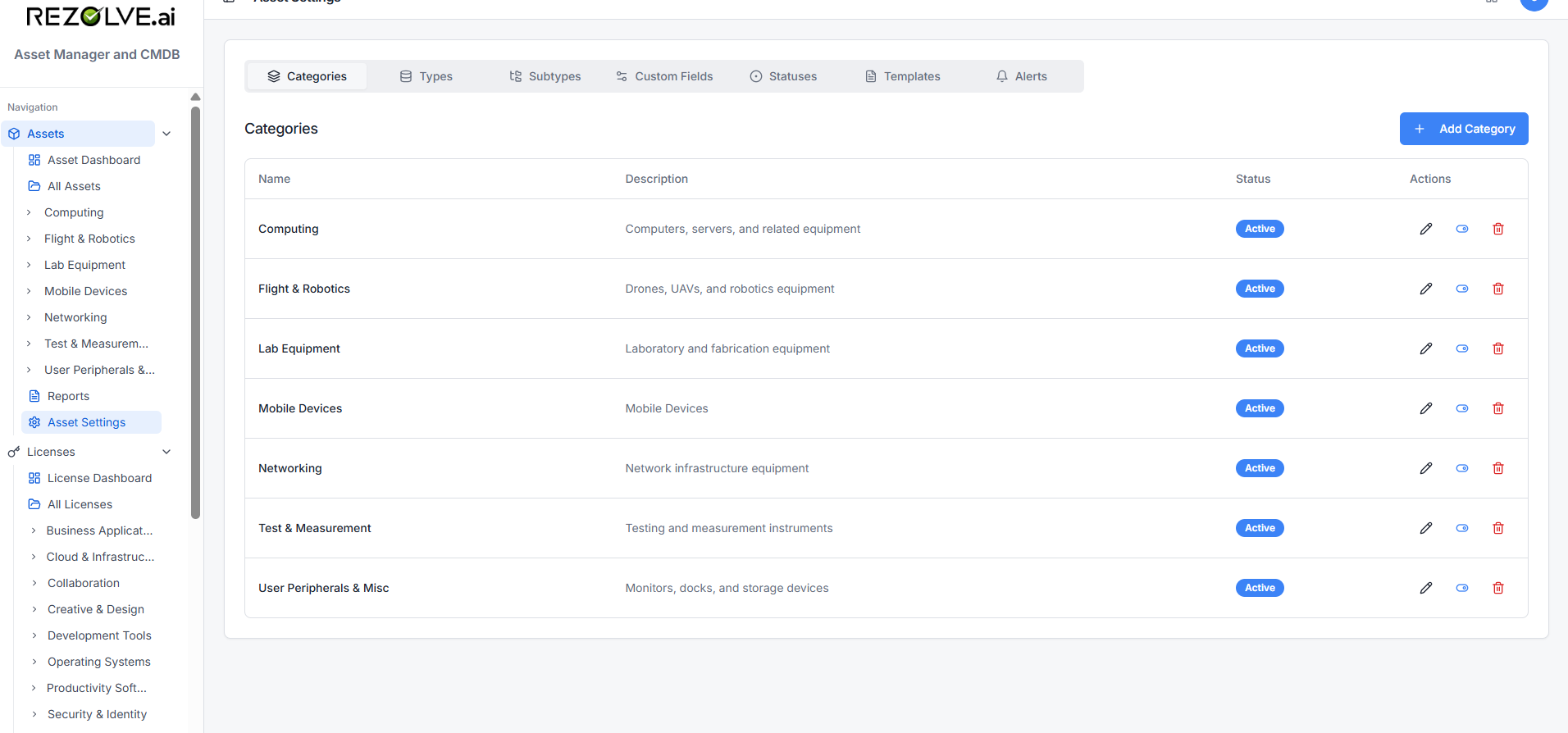
- Categories are flat. Add as many as you need.
- Types belong to a category. Pick the category, then add types under it.
- Subtypes belong to a type. Pick the type, then add subtypes under it. This level is optional.
Each one has a name, an optional description, and an active flag.
Deactivating instead of deleting
The delete button doesn't actually delete — it deactivates. The category, type, or subtype disappears from the Add Asset form but existing assets keep their classification.
This is on purpose. Deleting a type that already has 200 assets attached would orphan those records.
To bring a deactivated entry back, switch off the Active only filter and reactivate it.
Custom fields per category
Different equipment needs different details. A laptop has a CPU and RAM; a network switch has port count and firmware version. Custom fields let you attach those extras at the category level.
See Templates and Custom Fields for how to define them.
Sidebar navigation
The left sidebar lists your categories and types. Clicking Computing → Laptops runs a filtered asset search, so the navigation doubles as a quick filter.
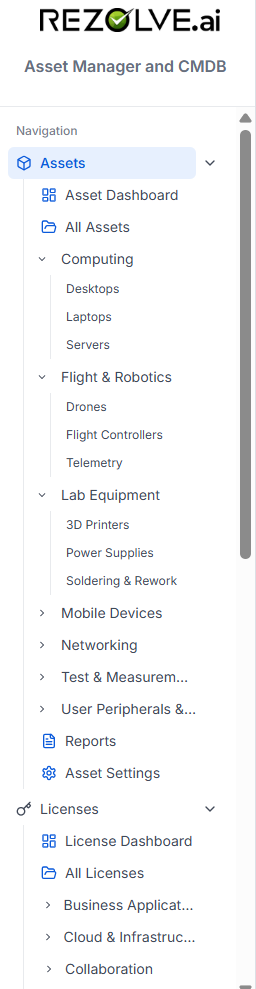
This is built on the same /assets API that powers the search box, so any filter you can make in the UI you can also run via the API or save as a Saved Filter.