ITSM Integrations
ITSM (IT Service Management) tools are where helpdesk tickets live. Connecting your ITSM to Asset Management means when a ticket mentions a device, the device's record shows that ticket — and vice versa.
This closes the loop. You no longer have to flip between two tools to answer "what's wrong with John's laptop?".
Supported platforms
- ConnectWise Manage
- Autotask
- Freshservice
- ServiceNow
- Zendesk
- Jira
- Rezolve.ai
- HaloPSA
- Generic / Custom (any tool that can post a webhook)
How it works
- You create an ITSM integration in Asset Management.
- The system gives you a unique webhook URL for that integration.
- You paste that URL into your ITSM as a notification target for new/updated tickets.
- When a ticket fires, your ITSM posts to the URL.
- Asset Management auto-matches the ticket to an asset or CI based on what's in the ticket body.
Setting up an integration
Go to Integrations → ITSM → Add Integration.
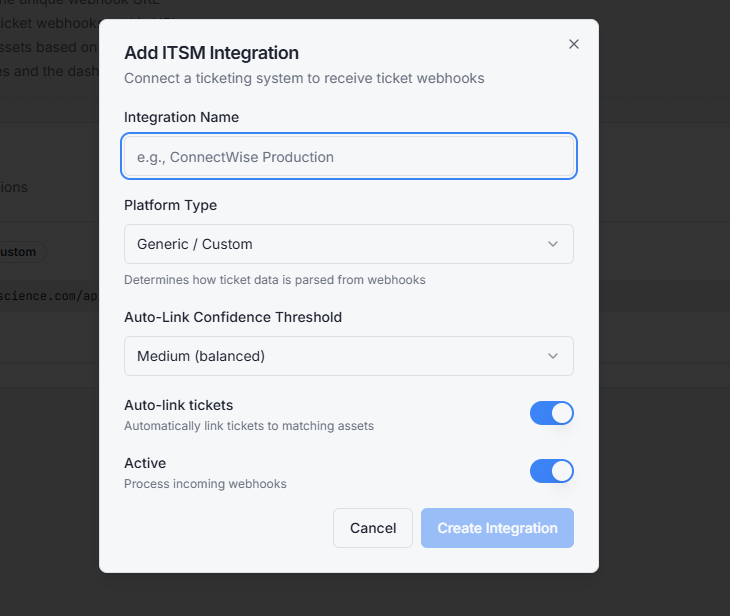
You'll set:
- Platform — pick from the list
- Name — for your reference (e.g. Production Freshservice)
- Match rules — what ticket fields to use for matching (more on this below)
Save. The system generates your webhook URL.
Copy that URL into your ITSM. Each ITSM names this differently — outbound webhook, automation rule, integration endpoint — but they all support it.
How matching works
When a ticket arrives, the system looks for any of these in the ticket subject or body:
- Asset tag (e.g. AST-0042)
- Serial number
- Hostname
- CI name
The first match wins. If two tickets reference the same asset, both link to it.
You can configure which fields to use, and the matching pattern (exact, contains, regex). The default — contains on all four — works for most teams.
What you see after a match
Open the asset (or CI). There's a Tickets tab showing every linked ticket:
- Ticket ID, title, status
- When it came in
- A link back to the ticket in the ITSM
You can click through to the ITSM directly. Asset Management doesn't replace your ITSM — it points at it.
Manual linking
When automatic matching misses (a ticket that doesn't mention any device by name, but you know which device it's about), you can link manually. Open the ticket in the Tickets view and click Link to Asset/CI.
Unmatched tickets
Tickets that didn't match anything land in the Unmatched view. Review them periodically — they're either:
- Tickets that genuinely don't need a device link (general questions, account issues)
- Tickets where the matching rule needs tightening (rename in body, missing serial)
Webhook security
The webhook URL includes a unique token. Anyone with the URL can post tickets. If you suspect the URL has leaked, regenerate it from the integration settings — your ITSM will need the new URL.
Webhook delivery logs
Every incoming webhook is logged with:
- Timestamp
- Source IP
- Whether the match succeeded
- The matched asset/CI (or unmatched)
If tickets aren't showing up where you expect, the logs are the first place to check.
Related topics
- Integrations Overview
- RMM Integrations
- CMDB — tickets can link to CIs, not just assets
- Assets