Triggers
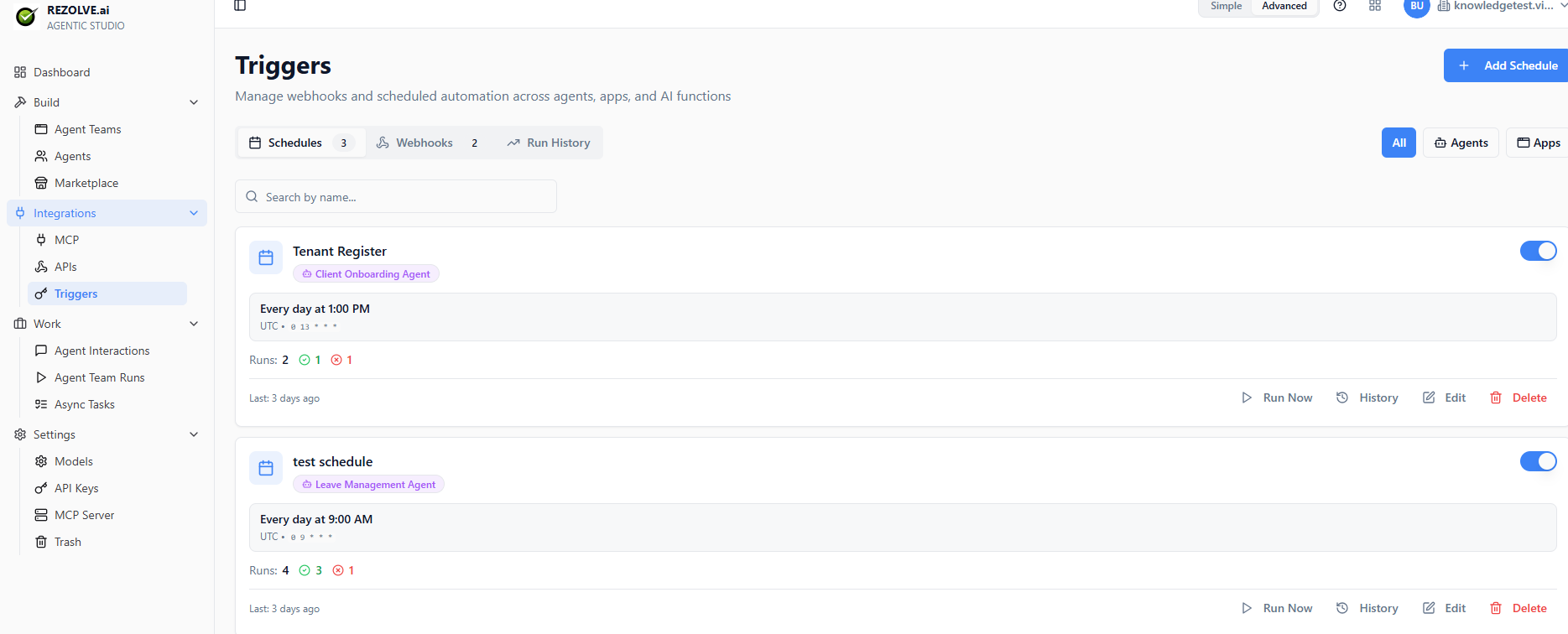
A trigger makes an agent run without a human typing in chat. Find them under Integrations → Triggers.
What you can trigger on
| Trigger type | When it fires |
|---|---|
| Schedule | On a cron expression — every hour, every Monday at 9am, etc. |
| Webhook | When an external system POSTs to a unique URL |
| Event | When something happens in the platform (new task, agent-team run completes, etc.) |
The Triggers page has three tabs: Schedules, Webhooks, and Run History.
Setting up a trigger
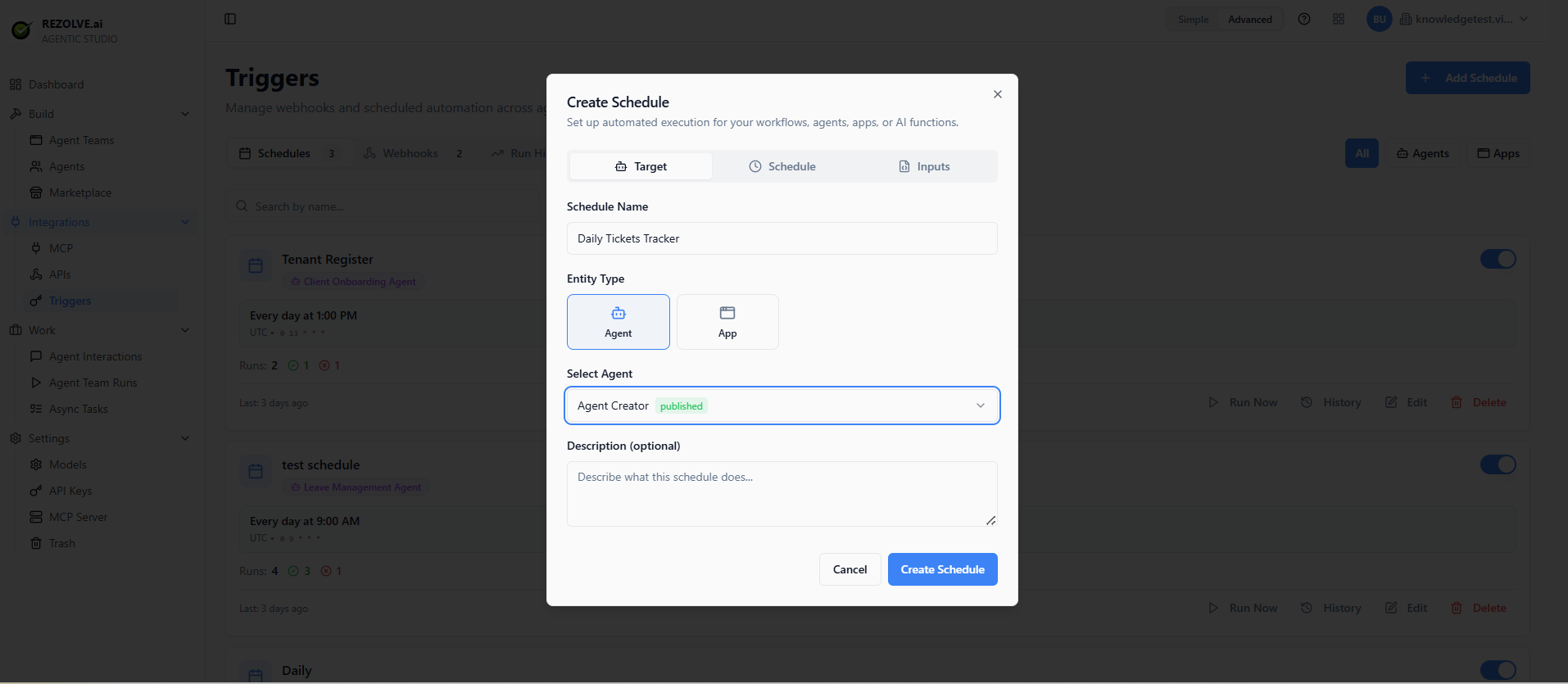
Go to Integrations → Triggers → Add Schedule (or Add Webhook).
You'll pick:
- Name — for your reference
- Type — schedule, webhook, or event
- Target — agent or agent team to run
- Input template — the message or payload sent to the agent
Save. The trigger is now active.
Schedule triggers
Use a cron expression or pick a preset (every hour, daily at 9am, every Monday morning). Useful for:
- Daily summaries
- Weekly digests
- Hourly health checks
- Periodic data refreshes
The agent runs as a background task. Output goes to the agent's interaction log and to any output destination you've configured (email, Slack, webhook).
Webhook triggers
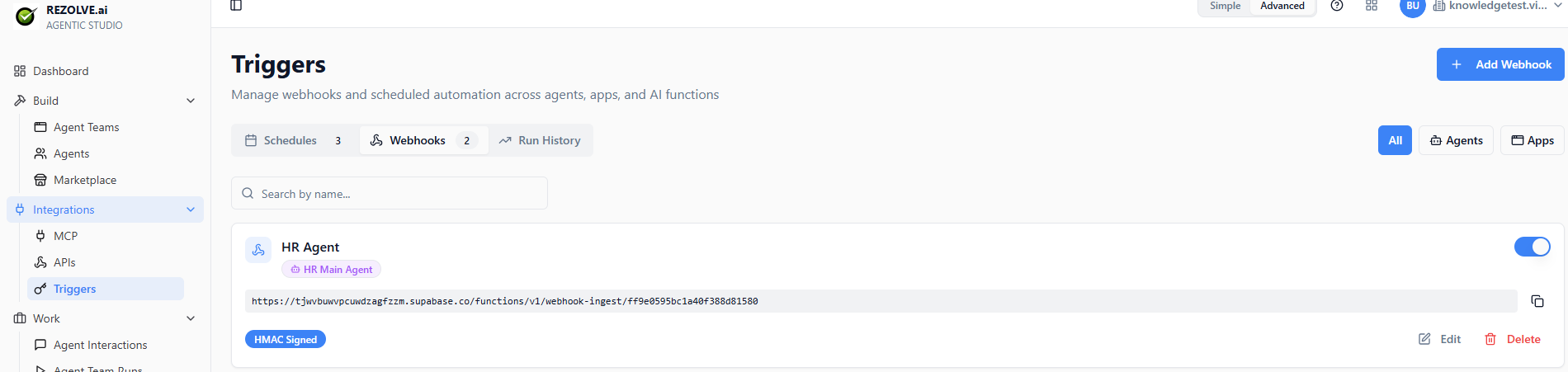
The trigger gives you a unique URL. Anything that can POST JSON can call it — Zapier, n8n, GitHub Actions, your own backend.
The POST body becomes the input to the agent. You can shape it with the input template: "User {{user.name}} just signed up at {{user.company}}. Send them a welcome message.".
The webhook URL includes a secret token (HMAC-signed). Treat it like a password.
Event triggers
Run an agent in response to something inside Agent Studio:
- A task lands in Async Tasks — auto-pick it up
- An agent-team run finishes — post the result somewhere
- Another agent finishes — chain the next one
These let you build pipelines without external orchestration.
Test before enabling
Every trigger has a Test button. It runs the trigger once with a test input and shows you the agent's response. Use it before turning a trigger loose on real data.
Disabling vs deleting
A trigger you toggle off stops firing but stays in the list. You can re-enable it any time.
A trigger you delete is gone (well — soft-deleted, see Trash).
Trigger history
Open any trigger and click History to see:
- Every fire, with timestamp
- Whether the agent succeeded or failed
- The input that came in
- A link to the agent interaction log
If a trigger seems quiet when it shouldn't be, history is the first place to check.