Tools and Integrations
Tools are how an agent does anything beyond text. Without tools, an agent can only respond from its training. With tools, it can search your knowledge, call APIs, query databases, or invoke other agents.
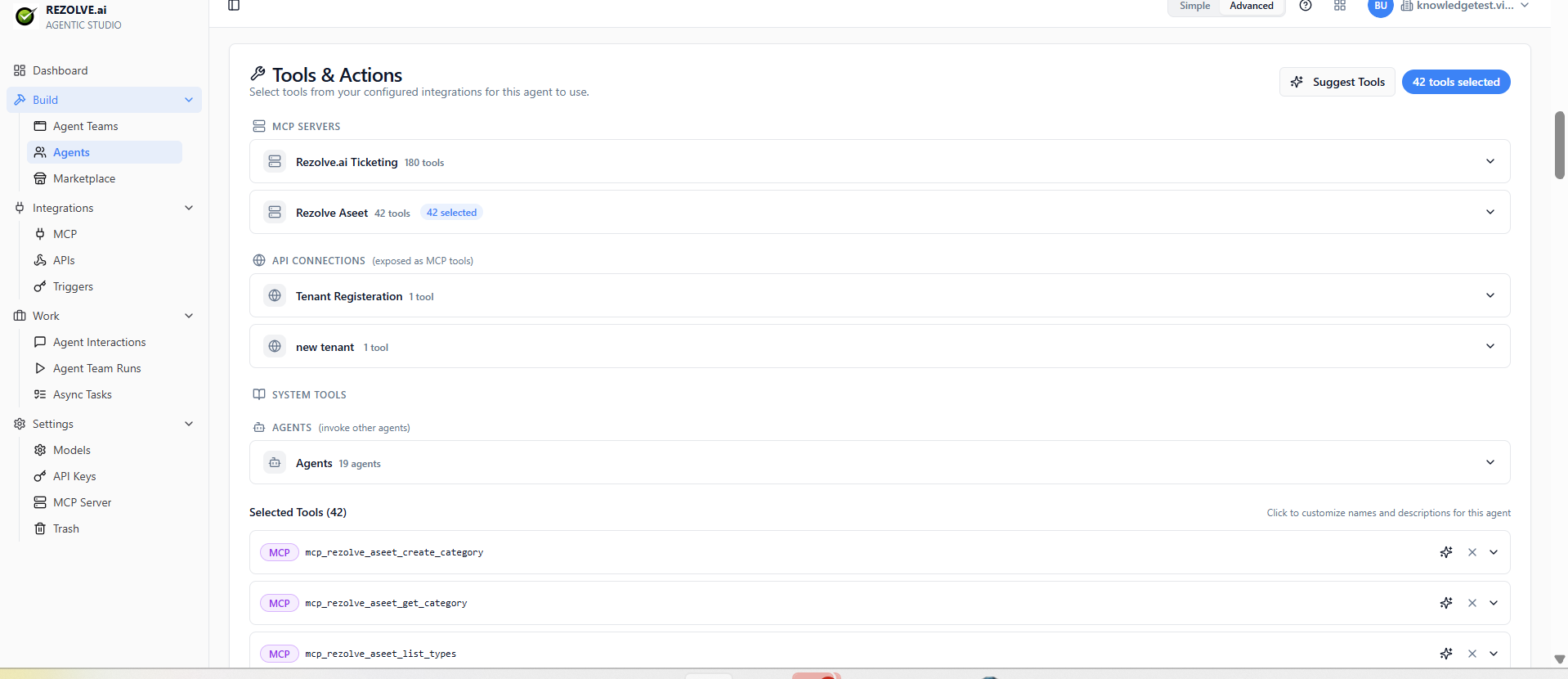
There are four kinds (the agent's Tools tab shows them grouped this way):
- MCP tools — anything exposed by a connected MCP (Model Context Protocol) server
- API connections — external HTTP APIs you've registered (exposed as MCP tools)
- Agents — calling other agents
- System tools — built-ins (web search, knowledge search, file reads)
MCP integrations
Model Context Protocol is an open standard for connecting LLMs to tools. An MCP server exposes a set of tools; you connect Agent Studio to that server and every tool becomes available.
Go to Integrations → MCP to add a server. You'll need:
- The server's URL
- Authentication (API key, OAuth, or none)
- A name for your reference
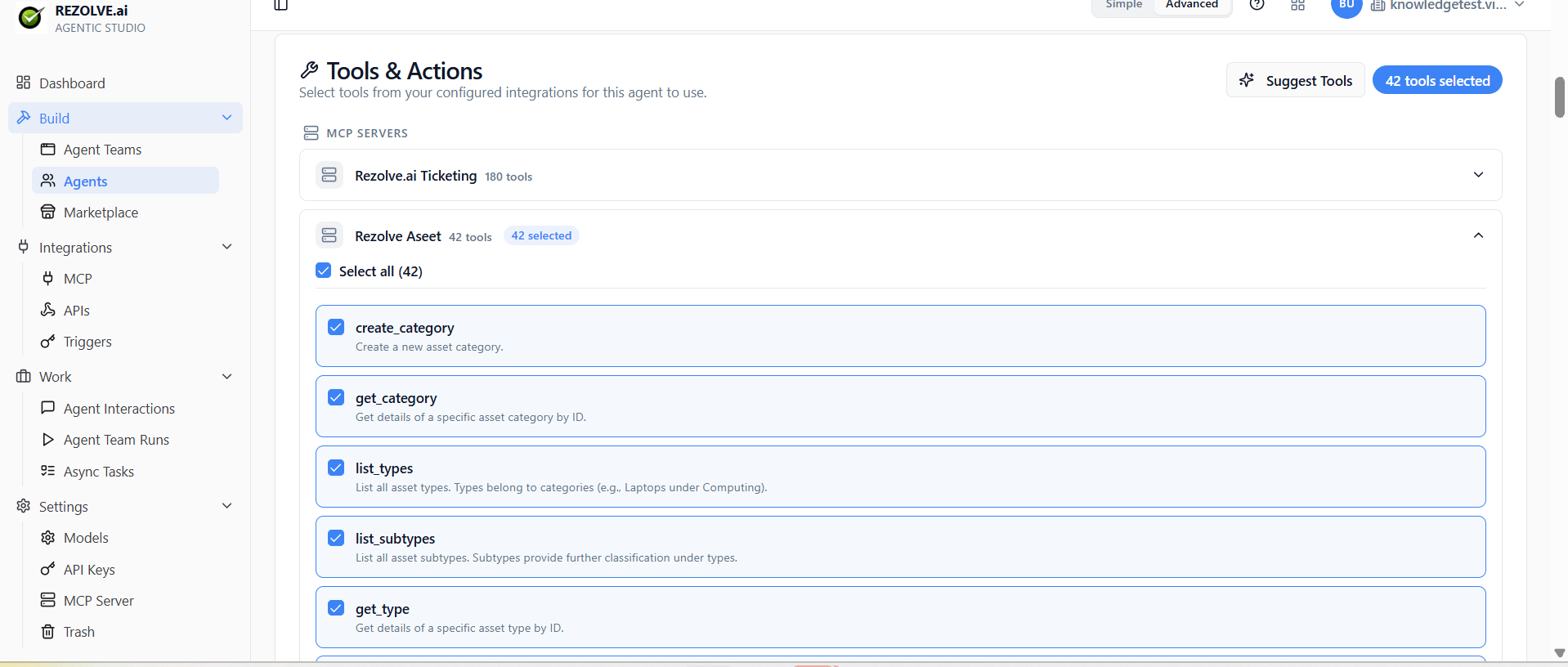
Once connected, the server's tools are auto-discovered and listed. Tick the ones you want available on this agent. The count badge shows how many you've selected per server.
See MCP Integrations for the full setup.
API integrations
Sometimes you just want to call an external API. Add API tool, paste in the endpoint and authentication details, and define the input/output schema. It's now a tool any agent can use.
The platform can also generate the schema for you from an OpenAPI spec — no manual schema-writing needed for well-documented APIs.
See API Integrations for the full setup.
Agent tools
The simplest tool is call another agent. Attach an agent-tool to your agent, pick which agent it should call, and your agent can now delegate.
This is how multi-agent Apps work.
System tools
Built-ins that come with Agent Studio:
- Web search — returns search results from the internet
- Knowledge search — searches documents you've attached to the agent
- File read — reads files you've uploaded
- Code execution — runs code in a sandbox (where enabled)
System tools don't need configuration. Toggle them on under the agent's Tools tab.
Adding knowledge
A knowledge attachment is a document or data source the agent can search. PDF, Markdown, a confluence space, a Notion database — whatever you've connected.
The agent uses knowledge search to find relevant chunks and quote them in responses. This is how you ground an agent in your own data without putting it all in the prompt.
Manage knowledge sources under Integrations → MCP or directly on the agent's Knowledge tab.
Choosing what to attach
Two principles:
- Less is more. An agent with 5 well-chosen tools beats one with 30. The model spends every turn deciding which tool to call — fewer choices = faster, more accurate.
- Match the tool to the job. A Compose Email agent doesn't need Database Query. A Lookup Customer agent doesn't need Send Slack Message.
You can always add a tool later. Start narrow.
Tool configuration
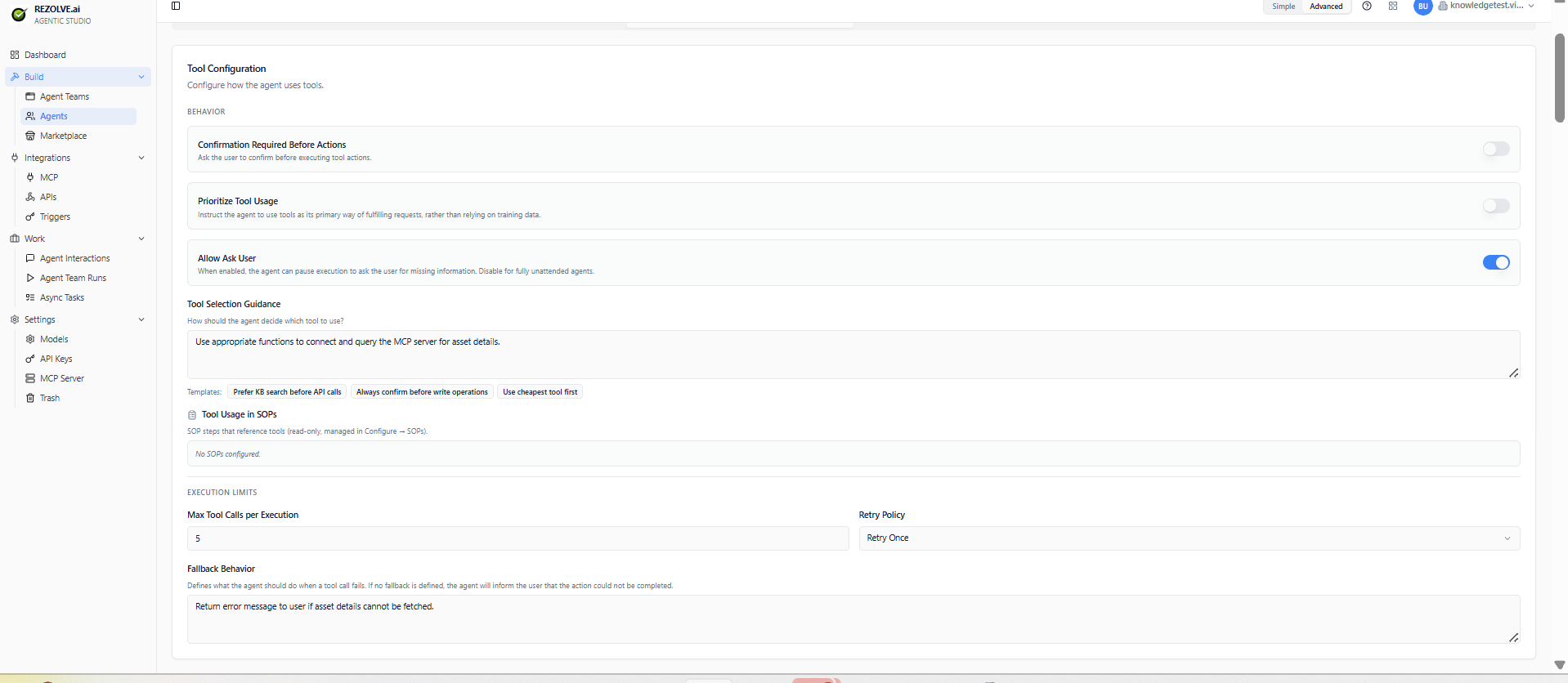
Below the tool selection, the Tool Configuration section controls how the agent uses tools — confirmation prompts before actions, whether to prioritise tools over training data, whether the agent can pause to ask for missing inputs, tool-selection guidance prose, execution limits, and fallback behaviour.