Developer Access
Three ways to integrate Agent Studio with your own code: the REST API, API keys, and the MCP server.
REST API
Every agent has a Deploy tab where you flip Enable API Access on. You get a stable endpoint and a copy-pasteable example request right in the UI, plus quick links to manage API keys and open the full API docs.
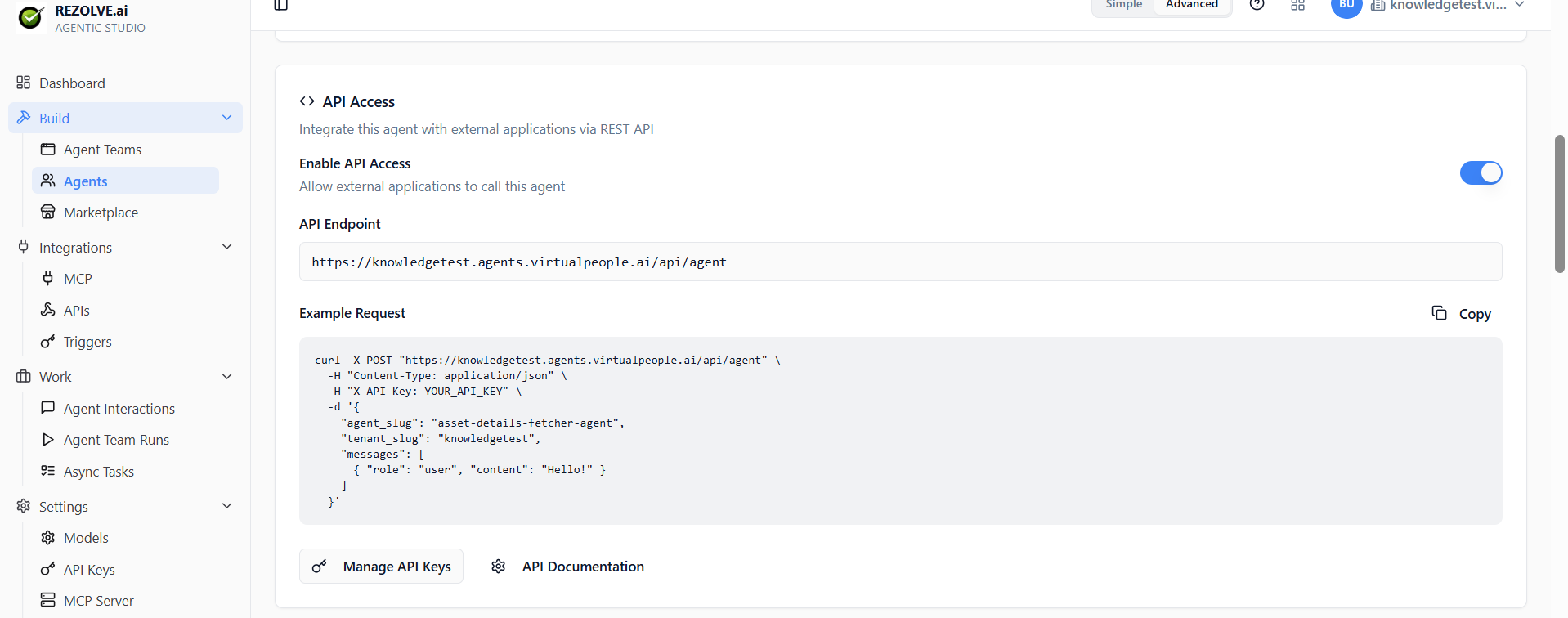
The API gives you:
- Run an agent or agent team and get the response
- Stream tokens for real-time UIs
- Inspect interactions and runs
- Manage agents, teams, integrations, and triggers programmatically
The base URL and full reference live under Settings → API Docs. The reference is generated from the live API, so it's always current.
Authenticating
Every request needs a Bearer token (an API key) and a tenant header. Example:
GET /api/agents
Authorization: Bearer {your-api-key}
x-tenant-id: {your-tenant-id}
Rate limits
Standard rate limits apply per API key. For sustained high-throughput use, request a higher limit from your tenant admin.
API keys
Generate keys under Settings → API Keys → New Key.
For each key you set:
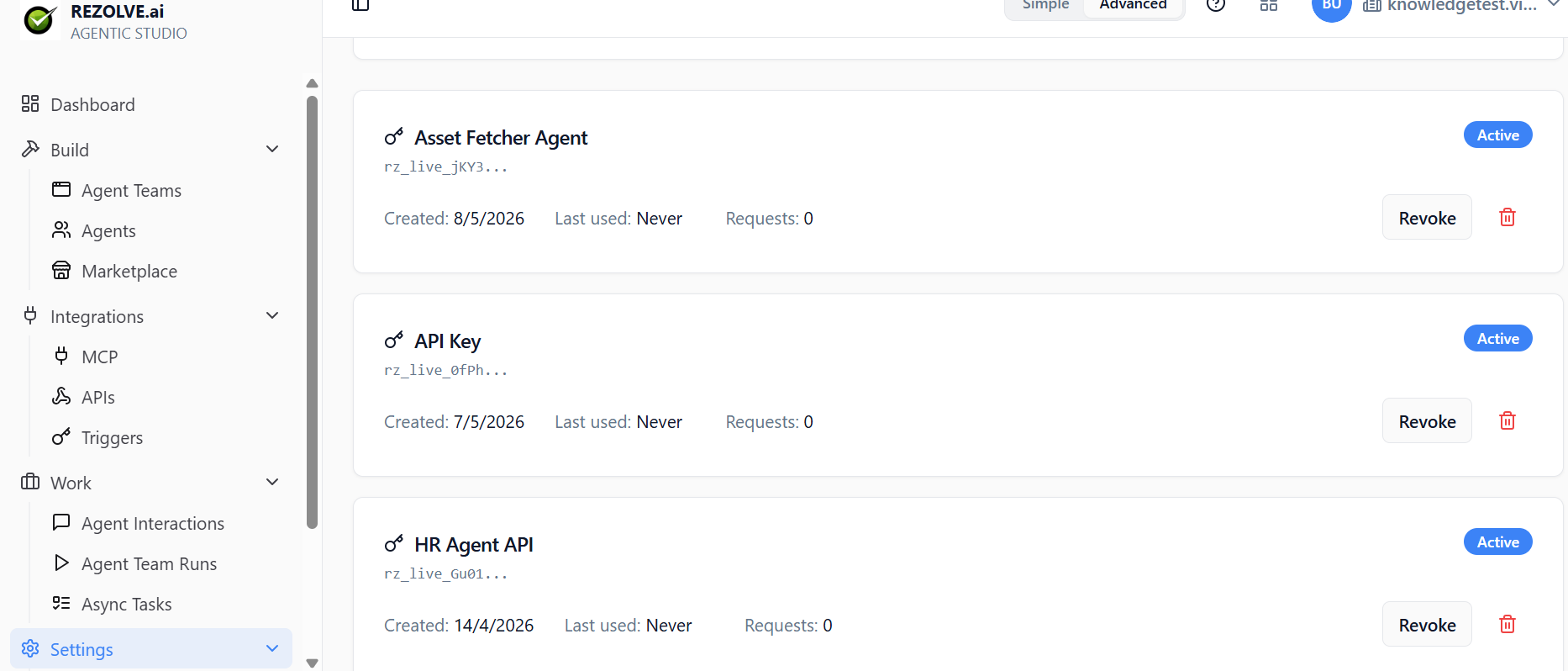
- Name — what the key is for (e.g. Asset Fetcher Agent, HR Agent API)
- Scopes — what the key can do (read interactions, run agents, manage agents, full admin)
- Expiration — optional. Auto-revokes after a date.
Each key is listed with its name, prefix (rz_live_...), created date, last-used time, request count, and an Active / Revoked status. Revoke stops the key instantly.
Best practices:
- One key per integration. Don't share keys across systems.
- Use the smallest scope that works.
- Rotate periodically.
- Revoke immediately if a key leaks.
Revoked keys stop working instantly — no propagation delay.
MCP server
Agent Studio can also be an MCP server, exposing your agents to other MCP clients (Claude Desktop, Cursor, your own apps).
On the agent's Deploy tab, the Protocol Exposure section lets you toggle MCP on (read-only by default — exposed as a get-tool). You get an MCP endpoint URL and the auto-generated tool name your client will see.
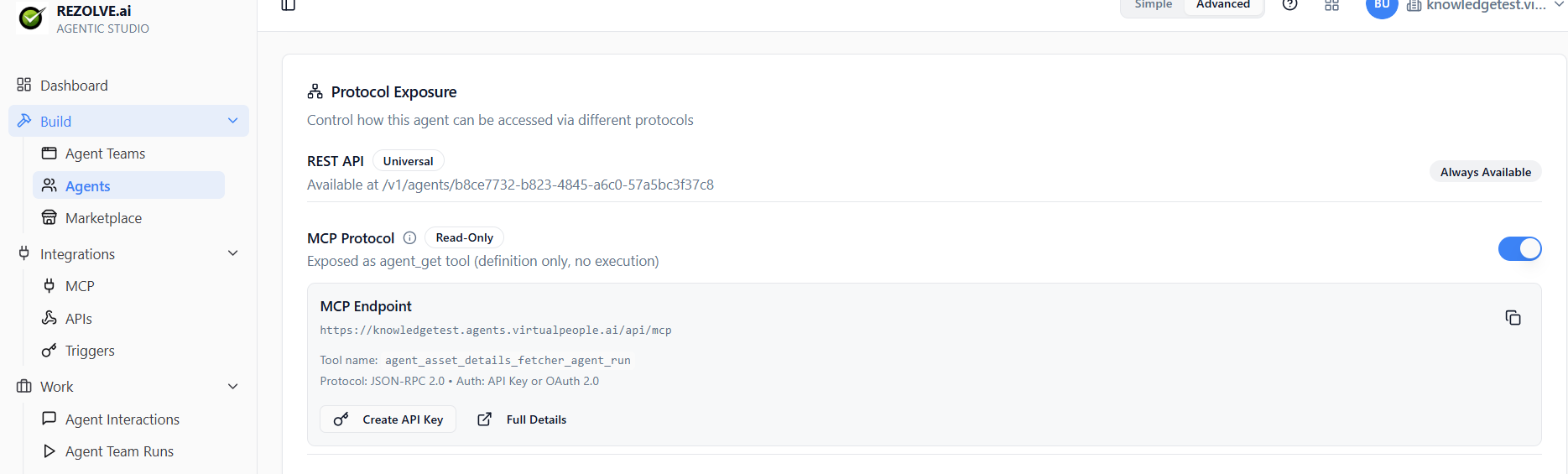
Configure the MCP server globally under Settings → MCP Server:
- Pick which agents to expose
- Generate a connection URL with an embedded token
- Paste that URL into your MCP client
Each agent appears as a tool in the client. The client calls the tool; Agent Studio runs the agent; the result comes back.
This is the inverse of MCP Integrations — there, you connect to MCP servers. Here, you are one.
A2A — Agent-to-Agent protocol
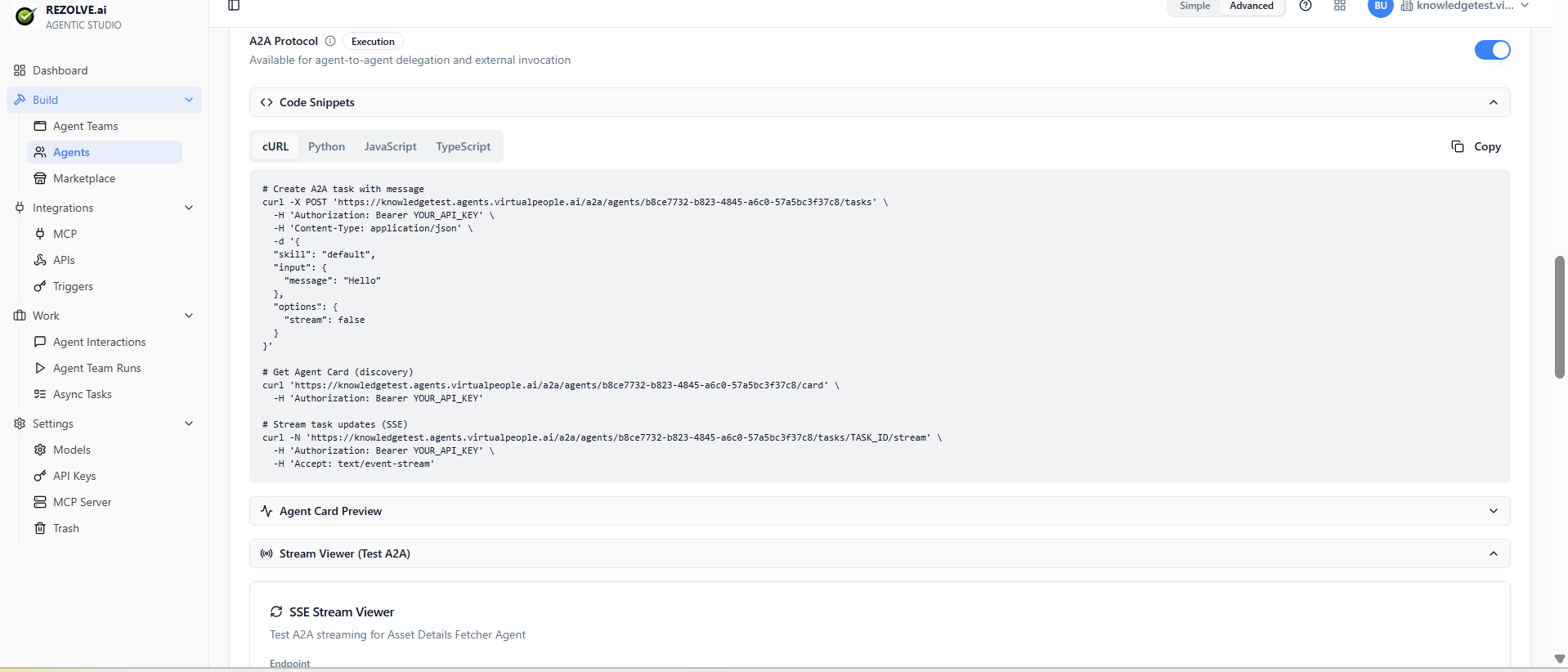
For external systems that need to delegate work to your agents (not just call a one-shot API), Agent Studio supports the open A2A protocol on the Deploy tab. The UI shows ready-made code snippets in cURL / Python / JavaScript / TypeScript, plus an Agent Card preview and an SSE stream viewer for testing.
OAuth for external apps
If you're building a third-party app that authenticates Agent Studio users, use the OAuth flow:
- Register your app under Settings → API Keys → OAuth Clients
- Direct users through the standard OAuth authorise URL
- Exchange the code for an access token
- Call the API as the authenticated user
Standard OAuth 2.0 with PKCE. Works with any OAuth library.
Webhooks
Agent Studio can also POST to your endpoints when things happen — agent finishes, app run completes, error fires.
Configure webhooks per-event or per-agent. The receiving endpoint gets a signed payload; verify the signature before trusting the data.
Related topics
- Triggers — for incoming webhooks (the inverse of outgoing)
- MCP Integrations
- API Integrations
- Team and Access