MCP Integrations
MCP (Model Context Protocol) is the open standard for giving an LLM a set of tools. An MCP server exposes tools; an MCP client (in this case, Agent Studio) connects to the server and uses them.
If a tool you want is already available as an MCP server, connecting it is faster than building a custom integration.
Why MCP
Without MCP, every tool is a one-off — you write a wrapper, define a schema, handle auth. With MCP, one connection brings in all the tools that server offers. And the same server you connect today also works in Claude Desktop, Cursor, or any other MCP-aware client.
Connecting a server
Go to Integrations → MCP → Add MCP Server.
You'll need:
- Name — what you'll see in Agent Studio (e.g. Production MCP Server)
- Endpoint URL — where the MCP server lives (HTTP, WebSocket, or stdio)
- Authentication — API key, OAuth, or no auth
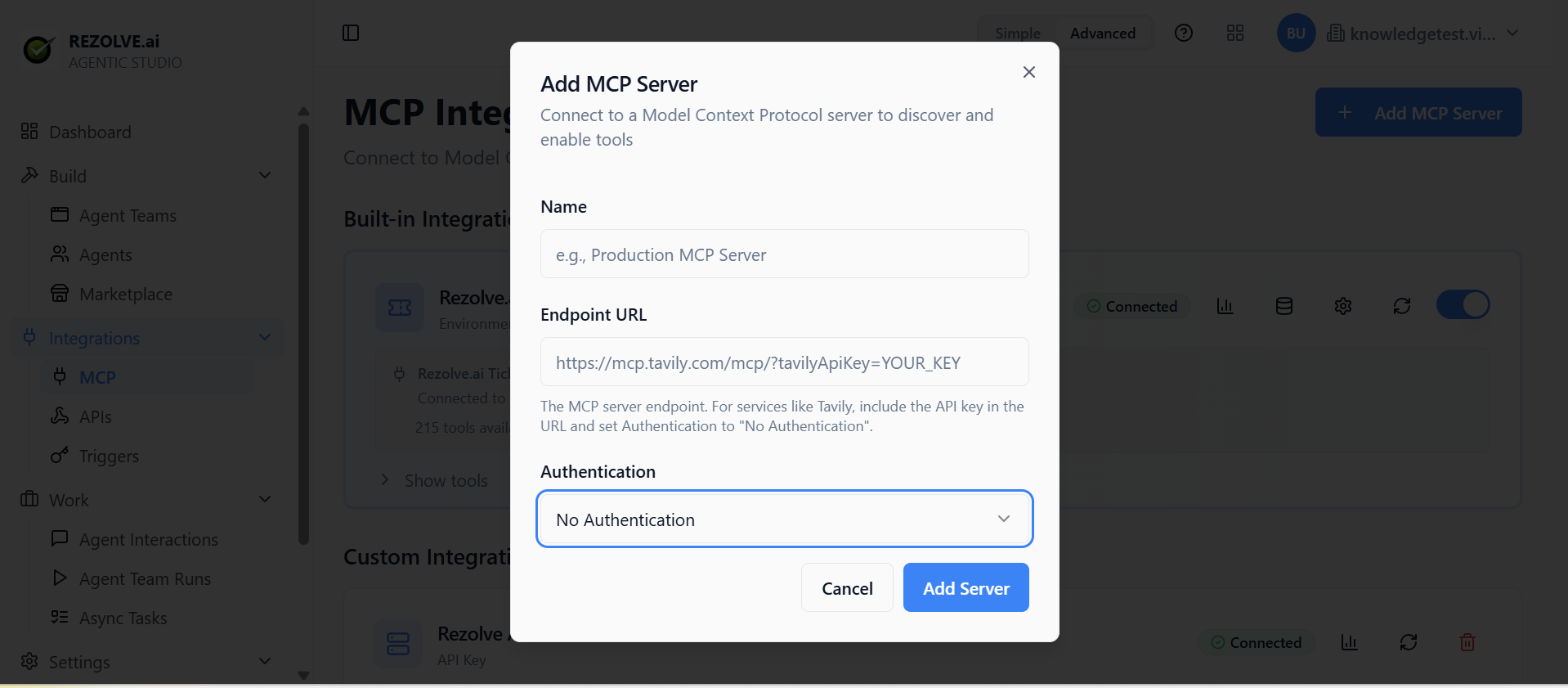
Click Add Server. Agent Studio reaches out, lists the available tools, and confirms the connection.
Using the tools
Once connected, the server's tools appear in the MCP integrations page with a count badge (e.g. Rezolve.ai Ticketing — 215 tools available). Expand a server to see each tool and toggle individual tools on or off.
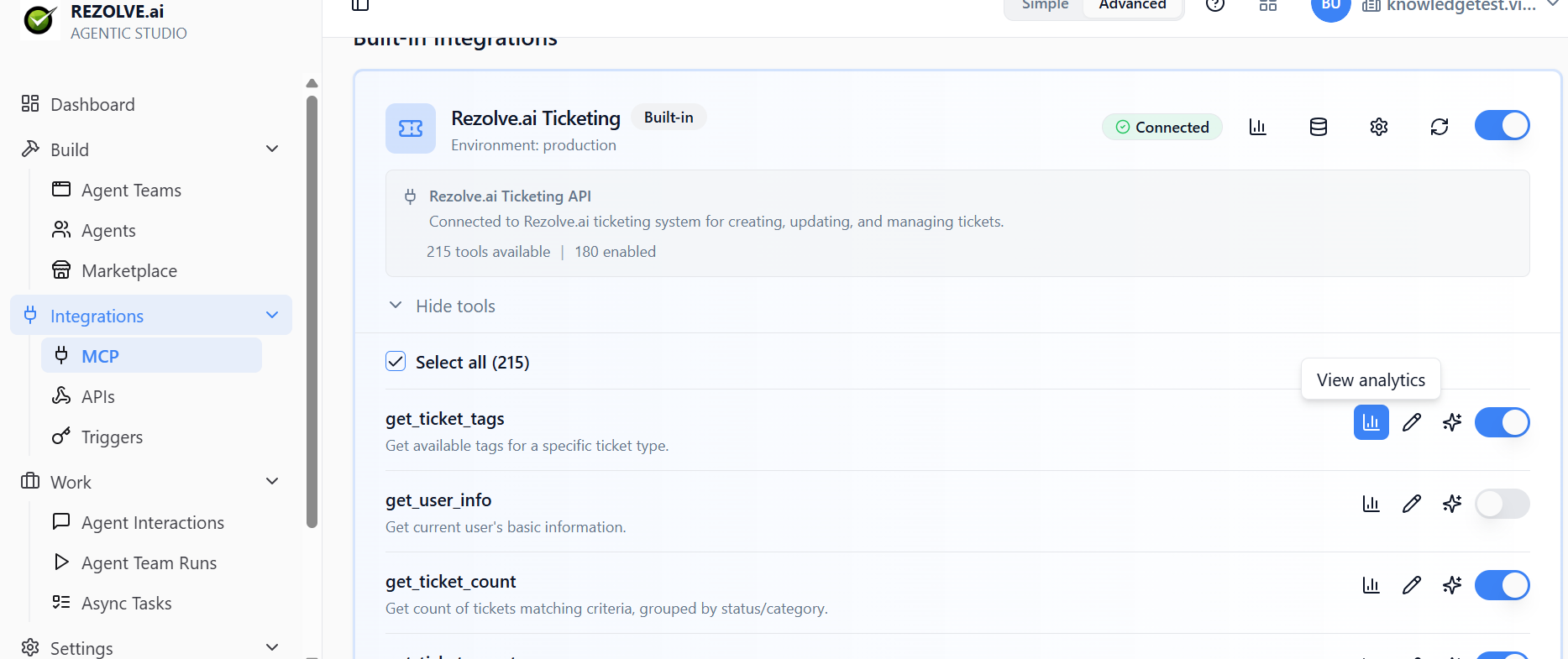
From there, tools appear in any agent's Tools tab under that server's name. Tick the ones you want the agent to use.
You can mix tools from multiple servers. An agent can use 3 tools from your CRM's MCP server, 2 from your knowledge base's MCP server, and 1 system tool — all in the same agent.
OAuth flow
If a server uses OAuth, the connection flow opens a browser tab where you approve the permissions. After approval, Agent Studio stores the tokens (encrypted) and refreshes them automatically.
Each user can have their own OAuth connection to the same server, or you can connect once for the whole tenant. The server decides which model it supports.
Hosting your own MCP server
You can also be an MCP server, exposing your agents to other clients (Claude Desktop, Cursor, etc.).
See Developer Access for how to expose an agent as an MCP endpoint.
Tool discovery
When you connect a server, Agent Studio auto-discovers its tools. If the server adds new tools later, click Refresh on the integration page and they show up.
If a tool stops working (the server changed its schema), the integration page flags it.
Logs and debugging
Every tool call flows through Agent Studio. Open the agent's interaction log to see:
- Which tool was called
- What input was sent
- What came back
- How long it took
If a tool returns errors, that's where you'll see them.
Disconnecting
Disconnect a server from the integration page. Tools from that server stop appearing in agent configurations. Existing agents that used those tools keep their references — they'll fail at runtime until you re-connect or remove the tool from the agent.
Related topics
- Tools and Integrations
- API Integrations — for non-MCP HTTP APIs
- Developer Access