Agent Teams
An agent team (called an "app" in older docs) is a group of agents working together, with one of them designated as the entry point. You'll find them in the product under Build → Agent Teams.
A single agent can answer "what's our refund policy?". An app can answer "I want a refund for order #1234, my email is X" — because behind the scenes the entry-point agent might call a Lookup Order agent, then an Issue Refund agent, then a Send Confirmation agent.
The user sees one chat. Under the hood, three agents did three jobs.
Why apps exist
You could build everything as one big agent with twenty tools. It works, until it doesn't:
- Big agents are slow — they re-read all their instructions on every turn.
- Big agents drift — too many concerns in one prompt and behaviour gets fuzzy.
- Big agents are hard to change — touching the prompt risks breaking unrelated behaviour.
Apps split the work. Each agent has a clear job. The entry-point agent decides which specialist to call.
Creating an app
Go to Build → Apps → New App.
You'll set:
- Name and description
- Entry-point agent — the one that receives the user's message first
- Status — draft or published
That's it. The app exists.
Wiring specialist agents
An app doesn't have a separate "specialist list". The entry-point agent has agent-tools attached to it (see Agents). Those agent-tools are the specialists.
Open the entry-point agent, go to Tools, and attach the agents you want available. The app shows the resulting topology — entry point at the top, specialists below.
Topology view
Open any agent team and you see the Entry Point Agent at the top and an Agent Topology panel below — a tree showing who can call whom, auto-derived from the entry-point agent's tool configuration. Team Members lists every agent in the team.
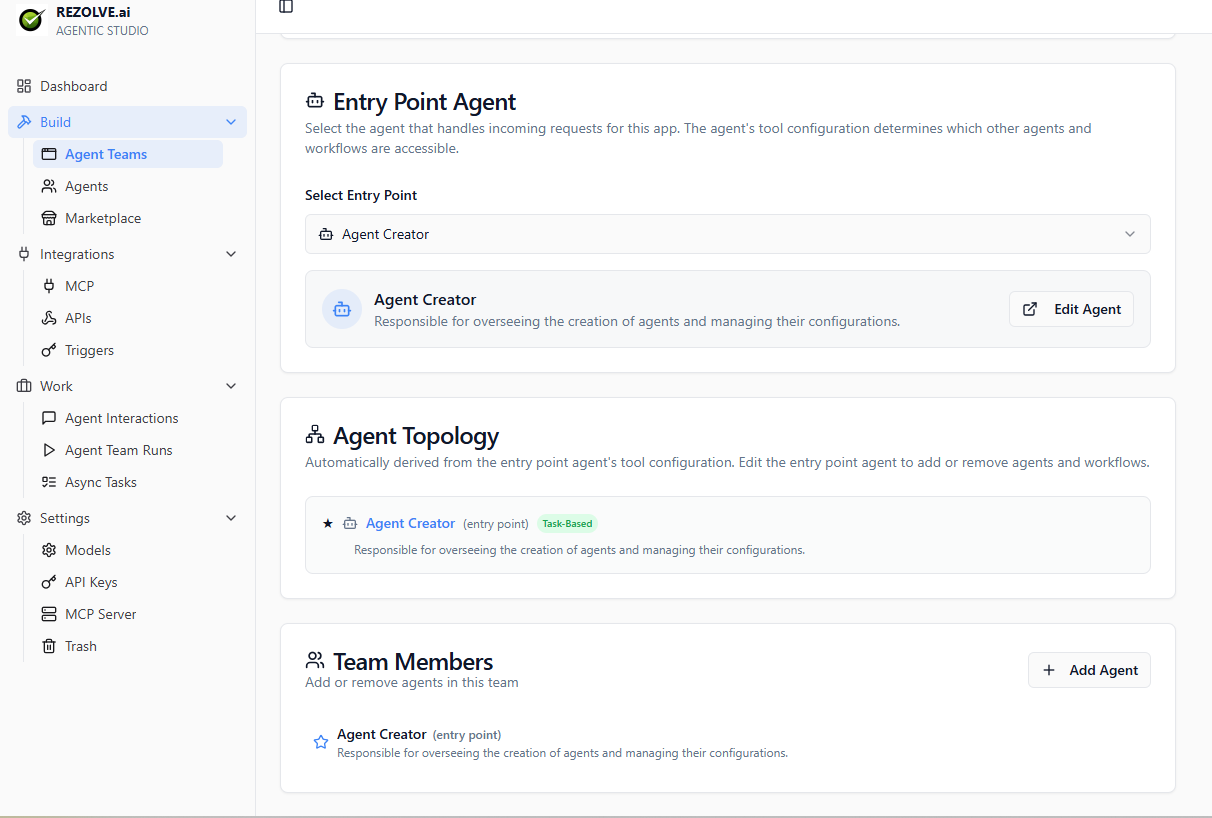
Useful for:
- Spotting unused agents
- Spotting circular calls (Agent A calls B which calls A)
- Onboarding new team members to how a multi-agent system fits together
Publishing
Apps start as draft. Drafts are visible only to your tenant. Published apps can be:
- Exposed via a public chat URL (see Sharing)
- Called via the API
- Hosted as MCP servers
- Triggered via webhook (see Triggers)
Switch from draft to published when you're confident. Switch back to draft to take it offline without deleting it.
Agent Team Runs
Every time someone uses an agent team, the run is recorded under Work → Agent Team Runs. You can see:
- The full conversation
- Every agent that was called
- Every tool call inside each agent
- How long it took
- The final result and overall status (Running / Failed / Cancelled / Completed)
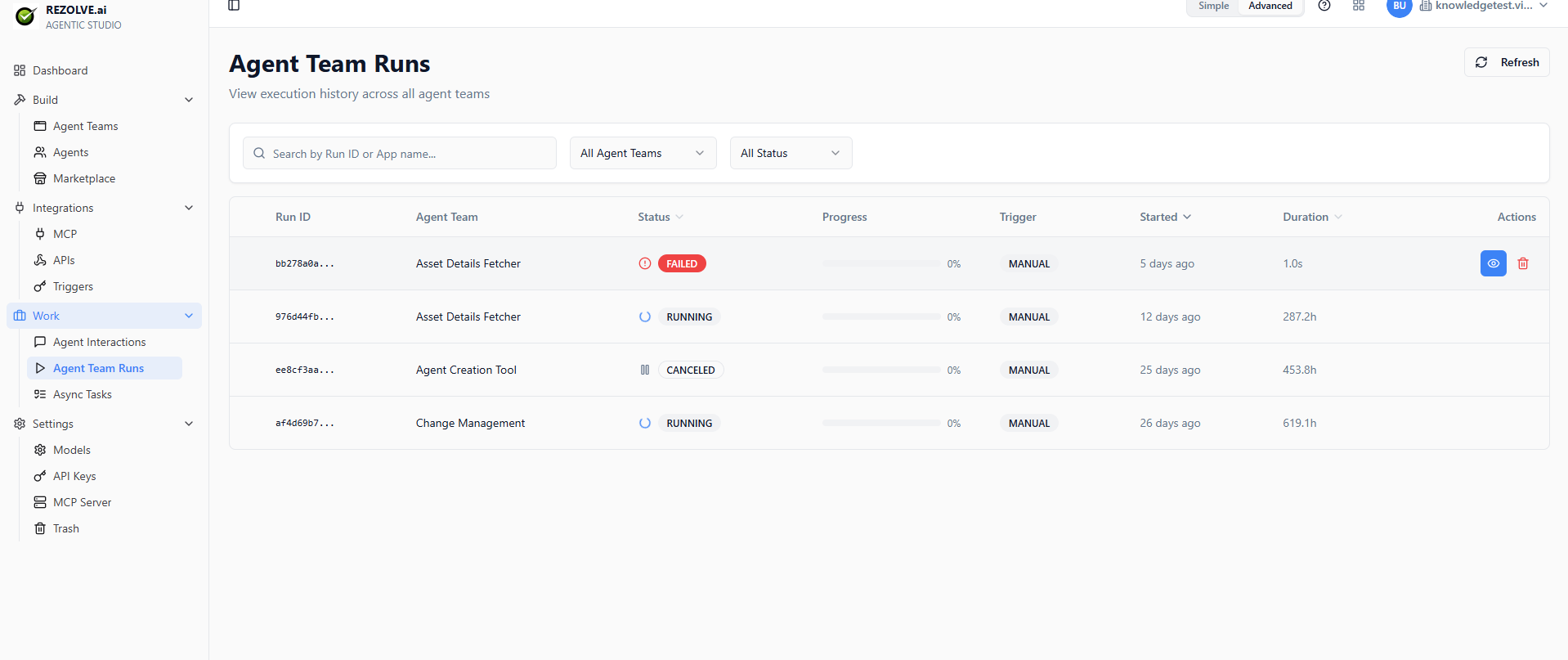
See Monitoring for what's there.
Editing live apps
Like agents, apps are live. Changes take effect on the next run. The entry-point agent's instructions are the most sensitive — change those carefully.
Use clone to test changes safely.
Related topics
- Agents
- Marketplace — for pre-built apps
- Monitoring
- Sharing