Agents
An agent is a model + instructions + tools + memory. It's the smallest unit you ship.
What's on an agent
Every agent has:
- Name and purpose
- Model — which LLM to use
- Instructions — the system prompt
- Tools — what it can do (call APIs, run MCP tools, invoke other agents)
- Knowledge — documents or data sources it can search
- Triggers — what makes it run (chat, webhook, schedule)
- Visibility — private to the tenant, or public via a chat URL
Creating an agent
Go to Build → Agents → New Agent. The agent editor is organised into tabs — Configure, Input / Output, Tools, Testing, Runs, Deploy — that you work through in roughly that order.
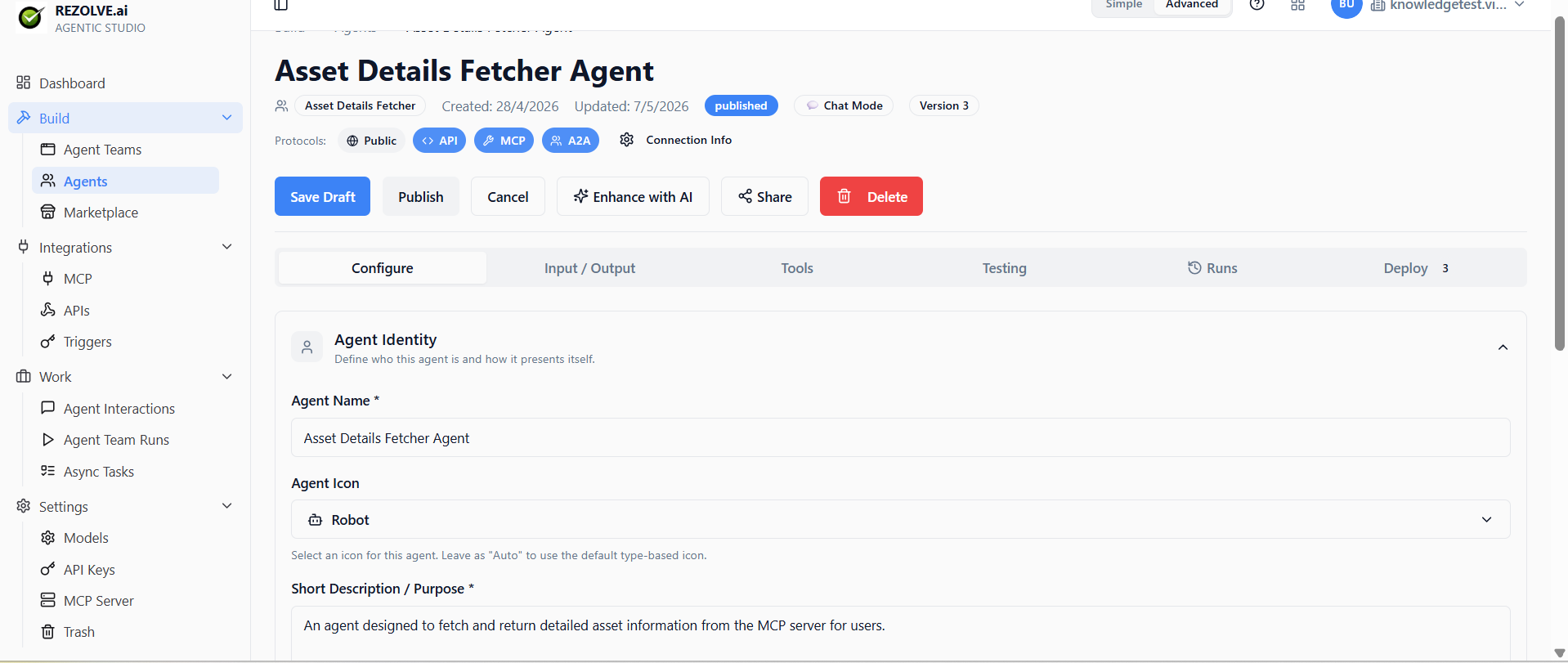
Agent identity
The first section under Configure. Set the agent's name, icon, purpose, persona, and the AI model it should use.
The purpose is short — one sentence. It's used in routing decisions if this agent ever gets called by another agent.
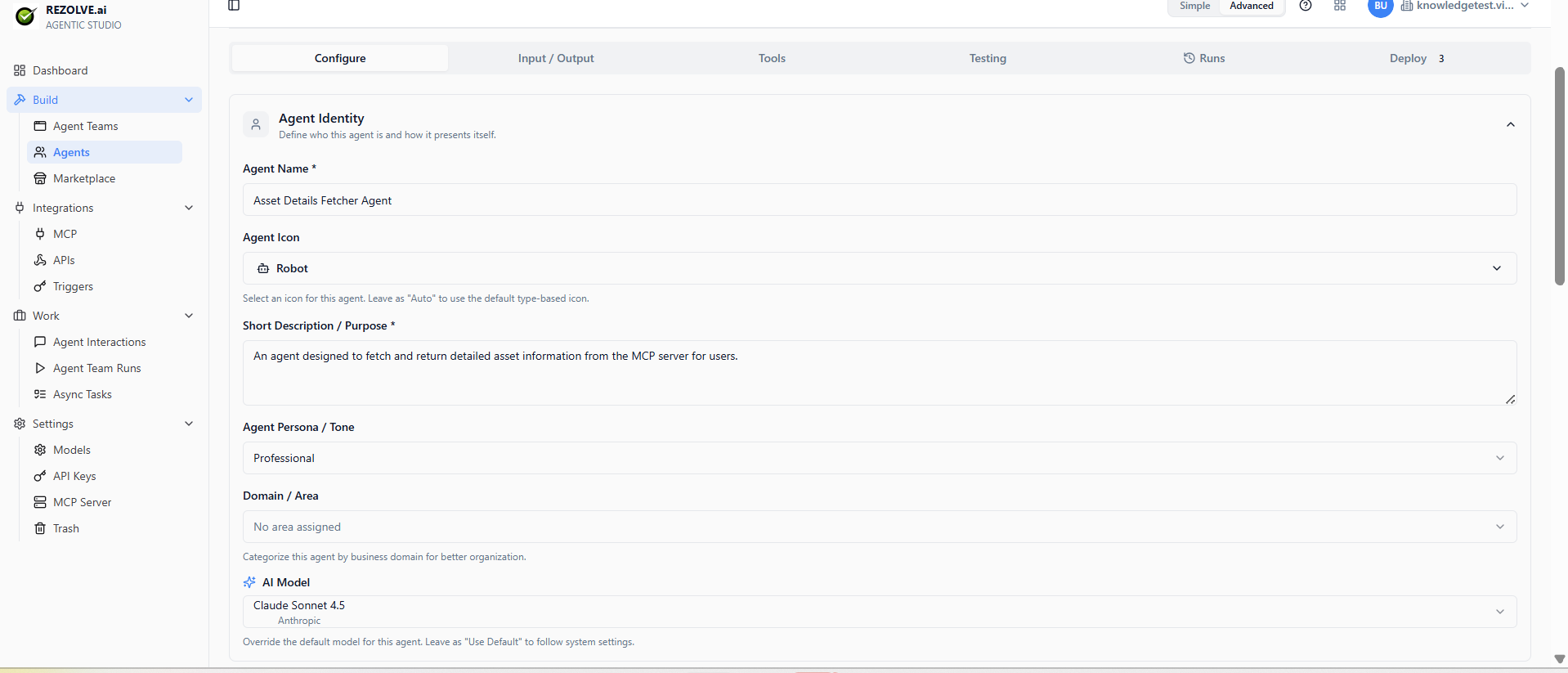
Start with Otto IT for IT-domain agents, Otto HR for people-ops agents, and Otto Finance for spend-and-procurement agents. Switch to a frontier third-party model only when a specific task requires capabilities beyond Otto (e.g. extended reasoning on edge cases). Custom Otto models tuned on your tenant's data also appear in this picker. See Models for the full list.
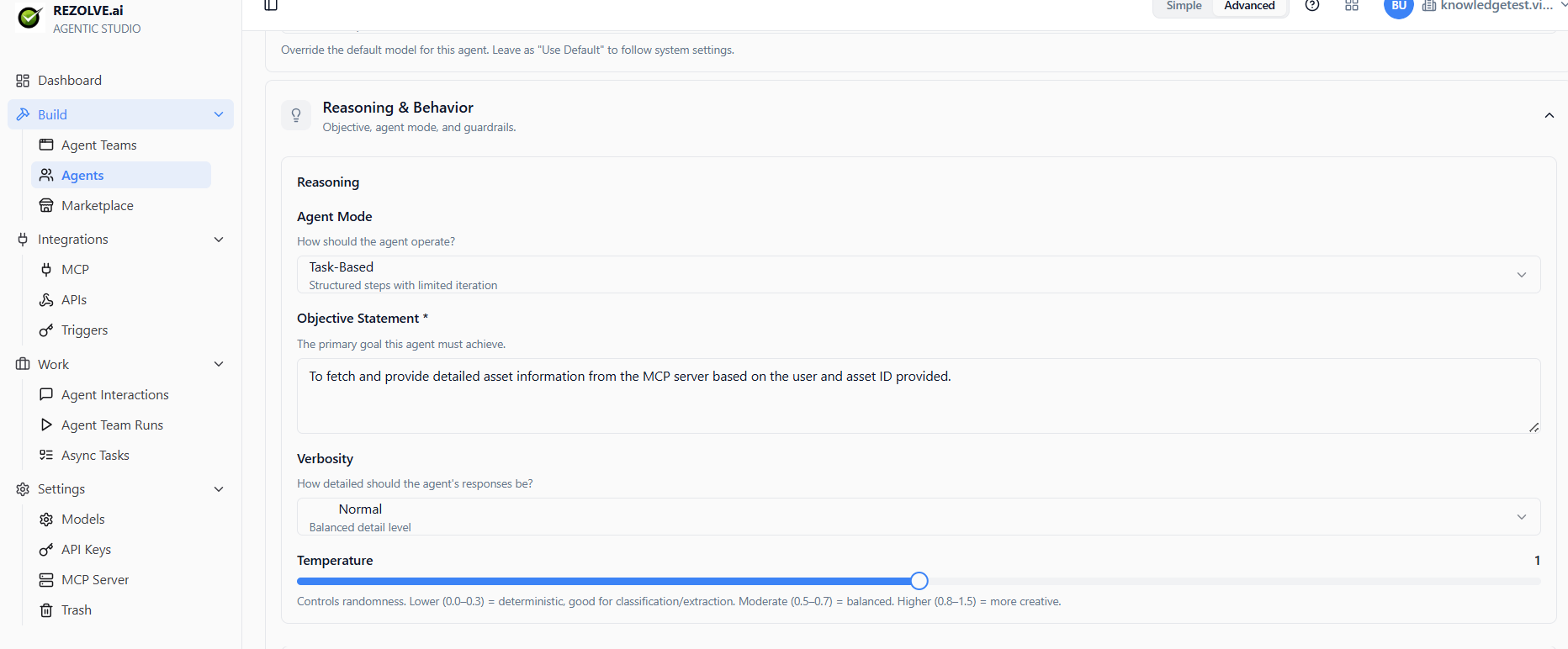
Reasoning and behaviour
Below identity, control how the agent thinks: pick its operating mode (Task-Based / Conversational / etc.), write its objective statement, tune verbosity, and set the temperature.
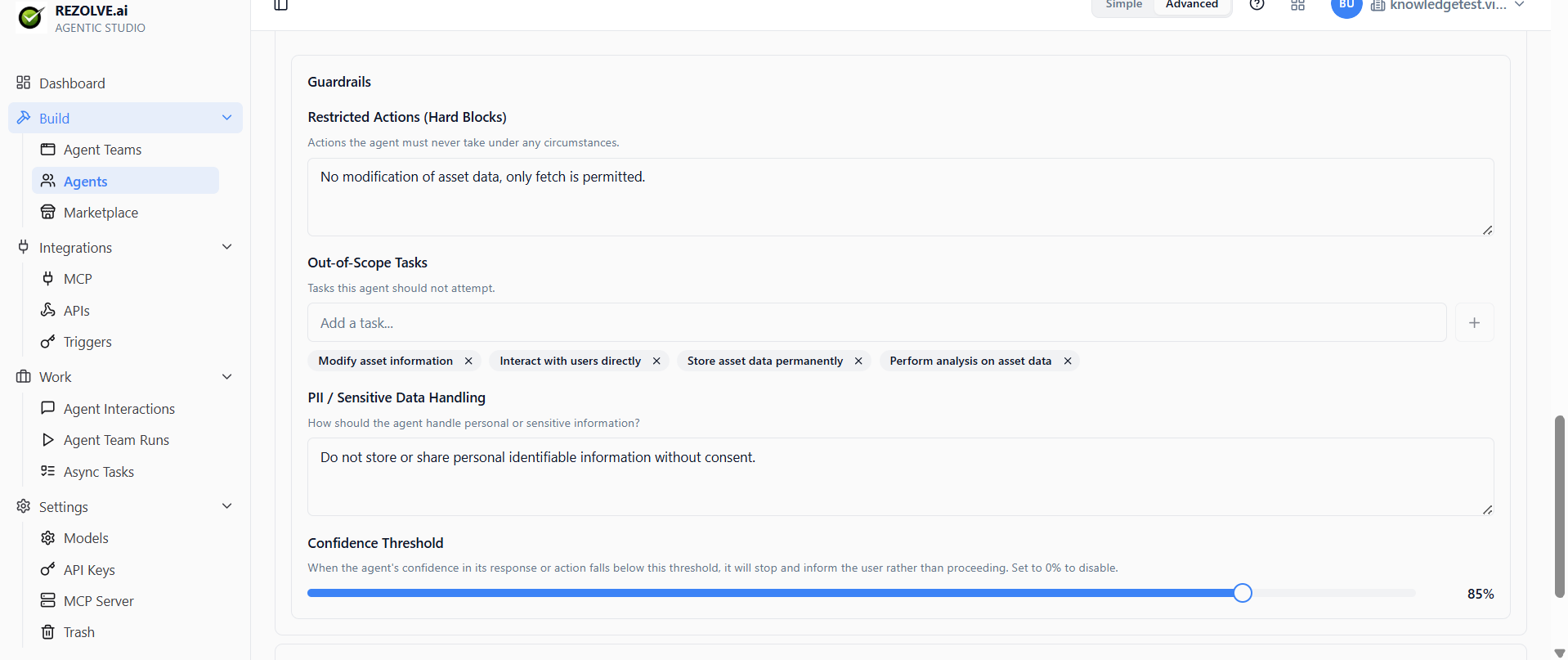
Guardrails
Define what the agent must never do, what's out of scope, how it handles PII, and a confidence threshold below which it stops and asks for help.
Standard Operating Procedures (SOPs)
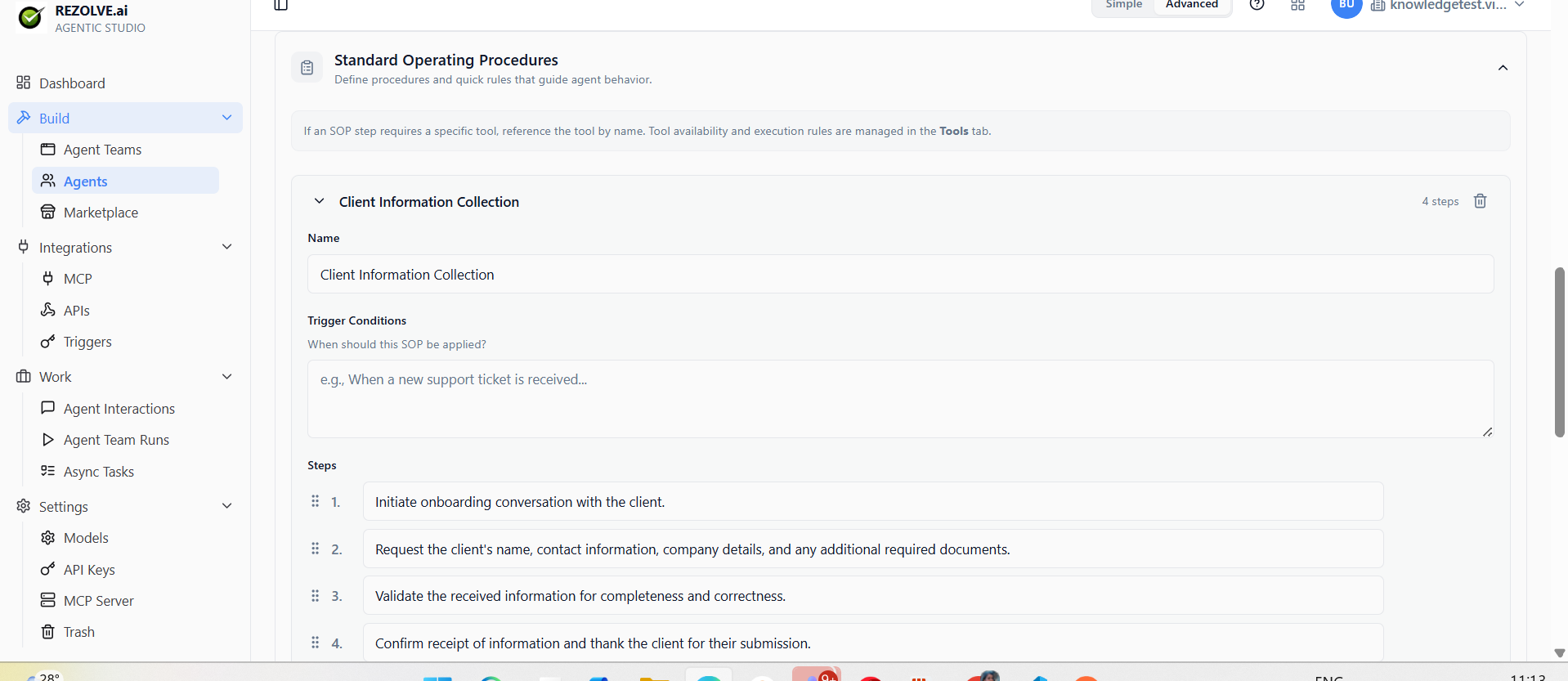
For agents that follow predictable workflows, define an SOP — a named procedure with trigger conditions and ordered steps. The agent follows the steps when the trigger fires.
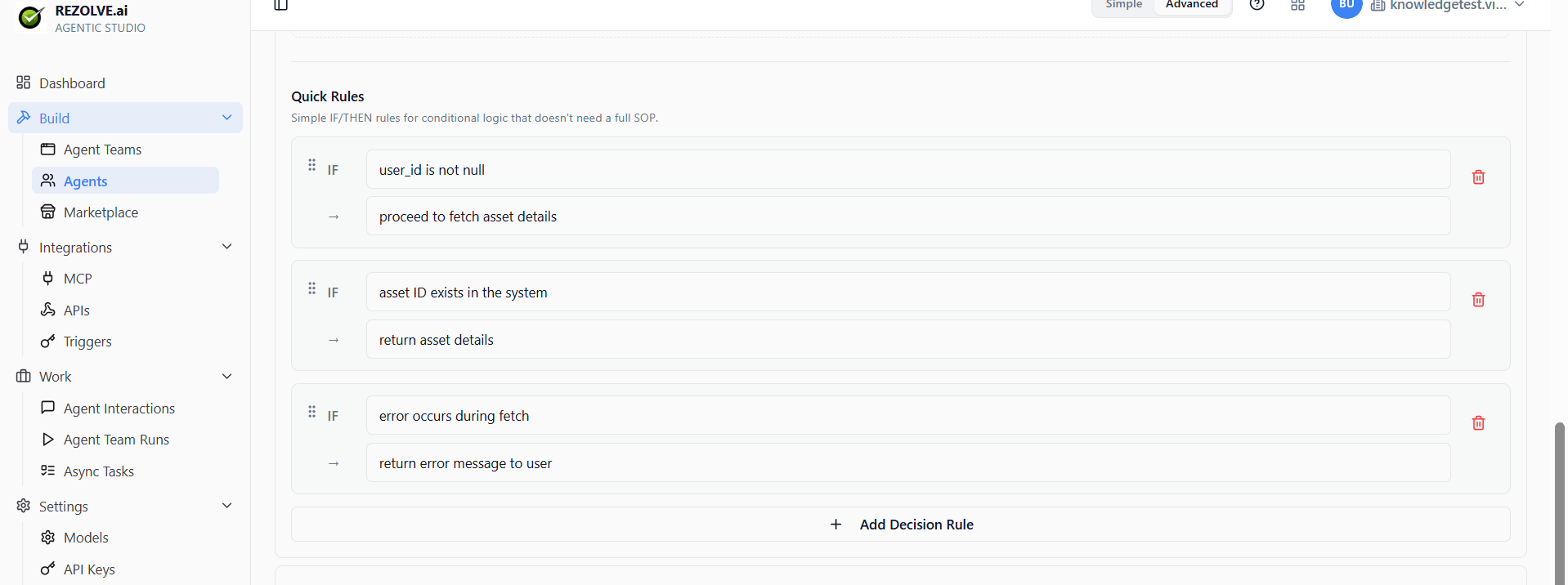
Quick rules
For simple IF/THEN logic that doesn't need a full SOP, use Quick Rules. Each rule is a single condition and a single action — useful for routing, early exits, or hard-coded edge cases.
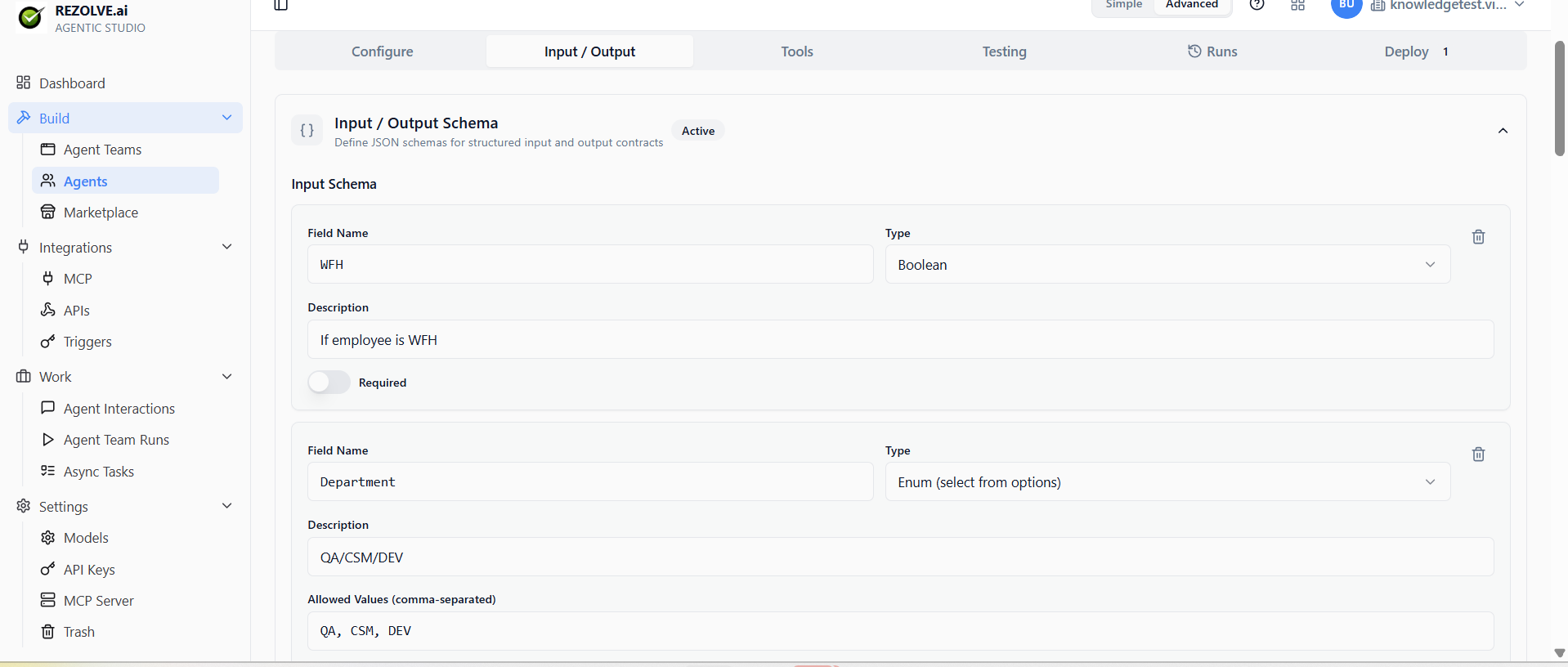
Input / Output schema
If your agent will be called programmatically (via API, MCP, or A2A), define typed input and output schemas under the Input / Output tab. Each field has a name, type (string, boolean, enum, etc.), description, and required flag.
Tools
Pick what the agent can call:
- MCP tools — anything from your connected MCP servers
- API tools — external HTTP APIs you've registered
- Agent tools — call another agent (the basis for agent teams)
- System tools — built-ins (web search, knowledge search, file reads)
Less is more. An agent with 30 tools spends most of its tokens deciding which to call. Start narrow. See Tools and Integrations for how the four categories work.
Knowledge
Attach documents or data sources. The agent can search them when it needs context. See Tools and Integrations for how to add knowledge.
Triggers
Wire the agent to run automatically. See Triggers.
Testing
Every agent has a Testing tab with an interactive Test Console. Talk to the agent in isolation, see every tool call inline, and watch the debug panel show iteration-by-iteration model calls.
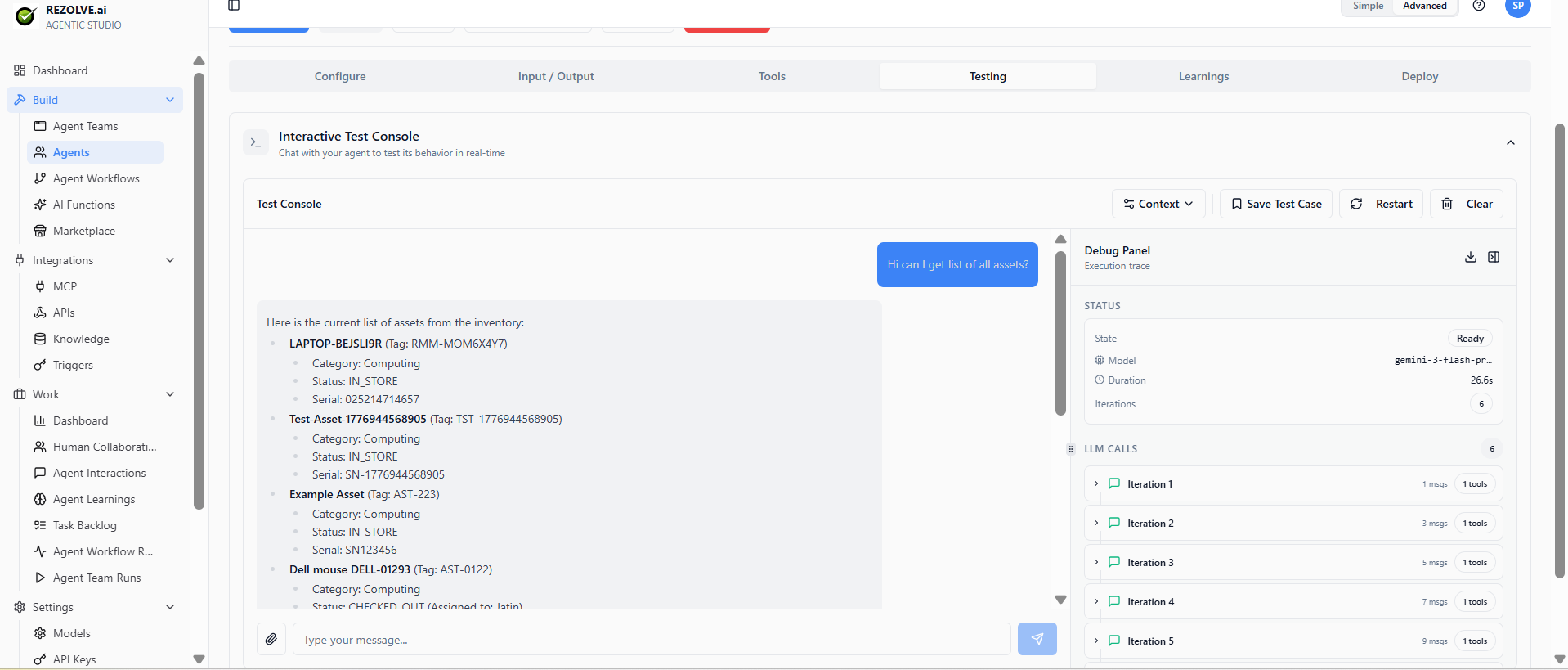
The test sandbox doesn't count against production usage and doesn't appear in your agent interaction logs.
Examples and Test Cases
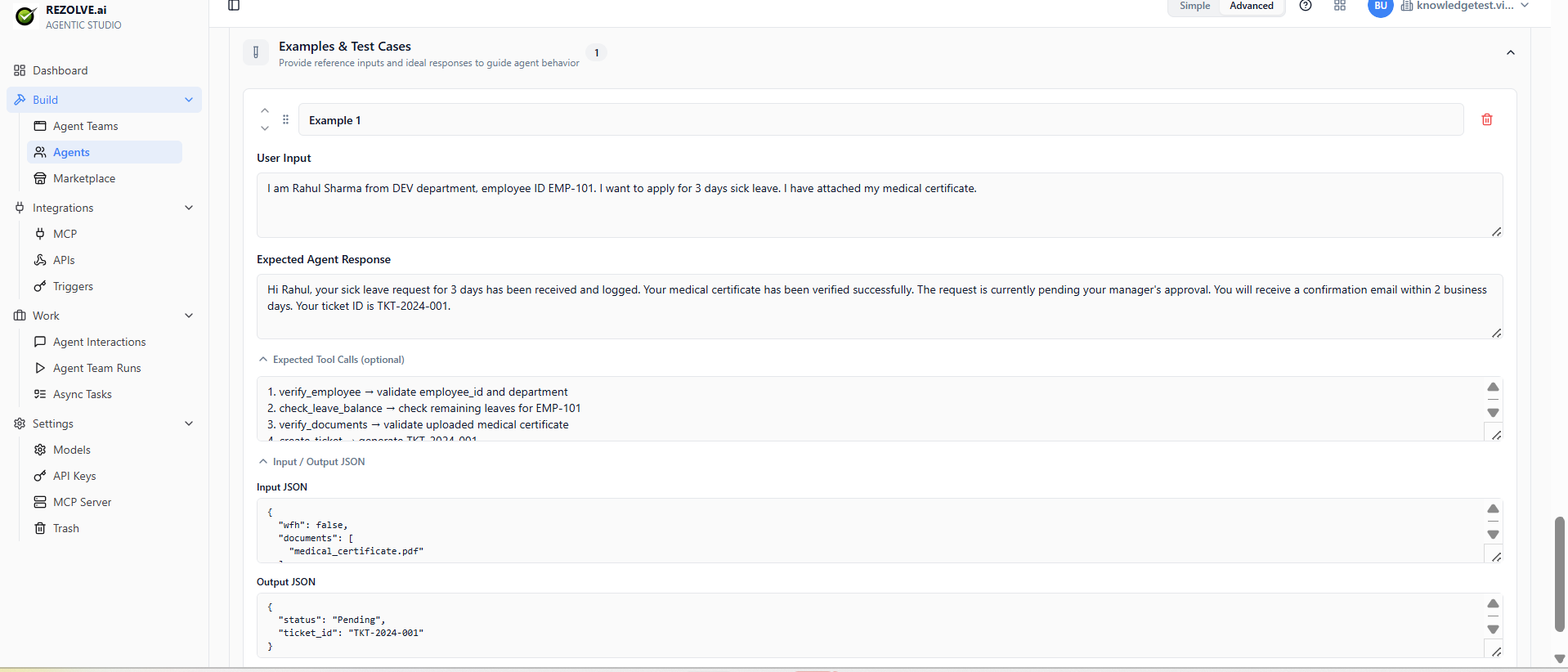
Capture good examples and test cases under Examples & Test Cases (still in the Configure flow). For each, you write the user input, the expected agent response, optional expected tool calls, and the expected input/output JSON. These act as both reference behaviour for the model and regression checks during development.
Run history
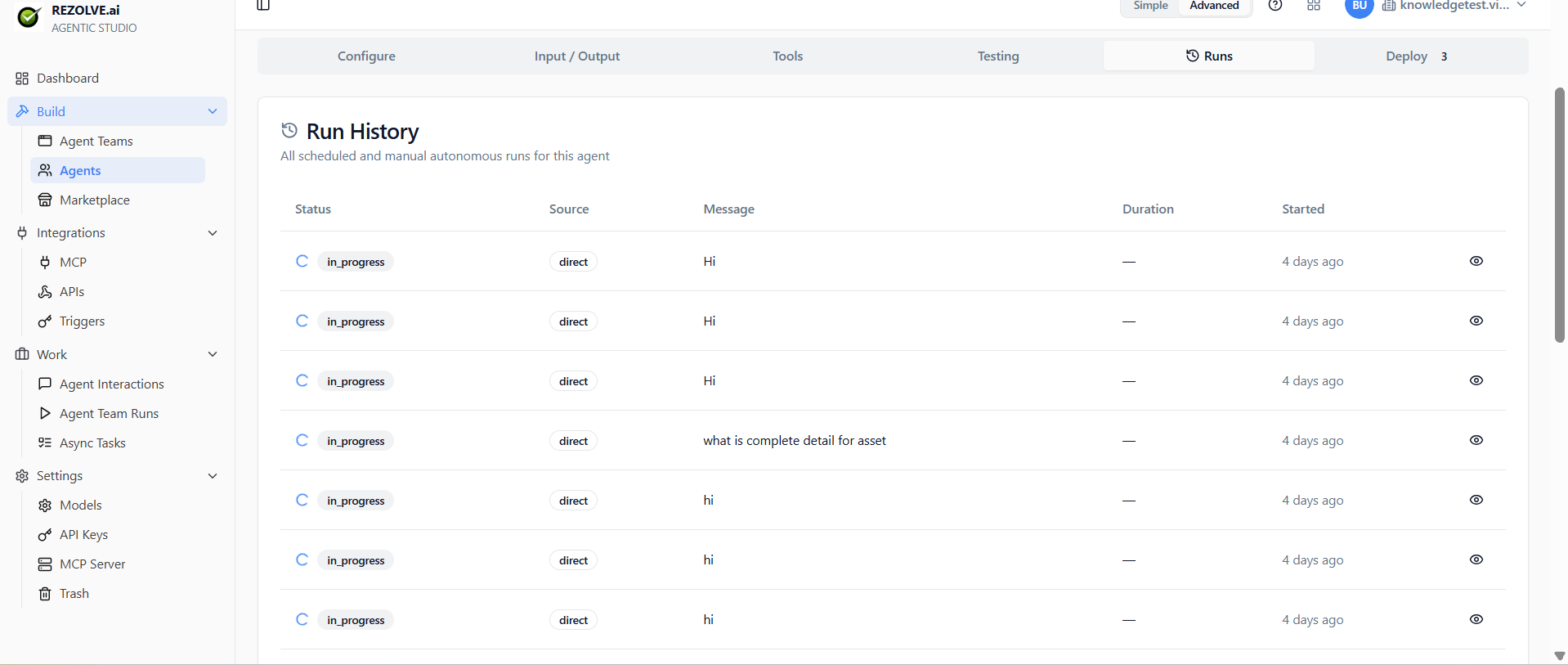
The Runs tab on an agent shows every scheduled and manual autonomous run for that agent — status, source, message, duration, started-at. Distinct from full conversational interactions (see Monitoring).
Editing
Editing is live. Save changes, and the next time the agent runs it picks them up. There's no deploy step.
This is convenient and dangerous. If an agent is in production with real users, edit carefully — there's a Trash for deletes but no built-in version history for instruction changes.
A safer pattern: clone the agent, edit the copy, test, and swap when you're happy.
Cloning
Click Clone on any agent. You get an exact copy with " (Copy)" in the name. Useful for:
- Variations of the same agent for different teams
- Safe experimentation without touching production
- Building a marketplace template from an existing agent
Agent-to-agent invocation
An agent can call another agent. Add an Agent tool under the Tools tab and pick which agent.
When the parent agent decides to use that tool, the child agent runs with the input the parent provides, and its response comes back as the tool result.
This is how Apps work under the hood. You can also use it without an app — just an agent with a few specialist agents on call.
Related topics
- Apps — multi-agent compositions
- Triggers
- Tools and Integrations
- Marketplace