Smart Mailbox
Smart Mailbox is an AI-powered email routing capability that automatically directs incoming support requests over emails to the appropriate service team queues. By intelligently analyzing email content and matching it against your configured ticket types > offer triggers, Smart Mailbox eliminates the manual triage step that traditionally delays ticket resolution in traditional ITSM setups for email tickets management.
1. Overview
Smart Mailbox is an AI-powered email routing capability that automatically directs incoming support requests over emails to the appropriate service team queues. By intelligently analyzing email content and matching it against your configured ticket types > offer triggers, Smart Mailbox eliminates the manual triage step that traditionally delays ticket resolution in traditional ITSM setups for email tickets management.
2. Configuring Email Mapping Settings
To ensure templates can be used as "Smart Templates," users must configure the Email Map settings:
2.1 Offer-Level Configuration
- Navigate to the desired Offer.
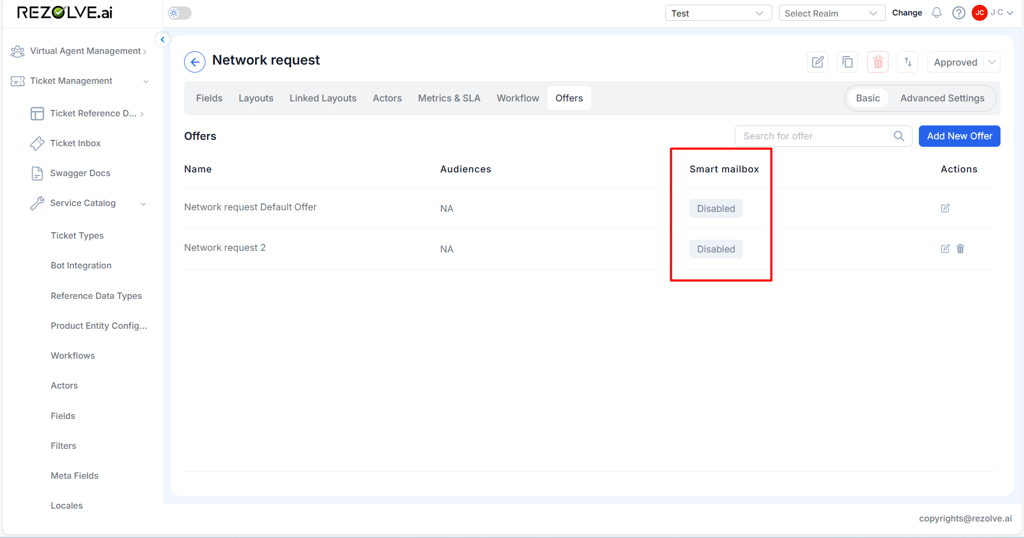
- On the Offers tab, users can view the Smart Mailbox status for each offer.
- The Smart Mailbox column displays whether the feature is currently Enabled or Disabled for every offer.
This provides a quick overview of which offers are configured for Smart Mailbox processing.
To enable Smart Mailbox for an offer, follow these steps:
- Navigate to the Service Catalog → Offers section.
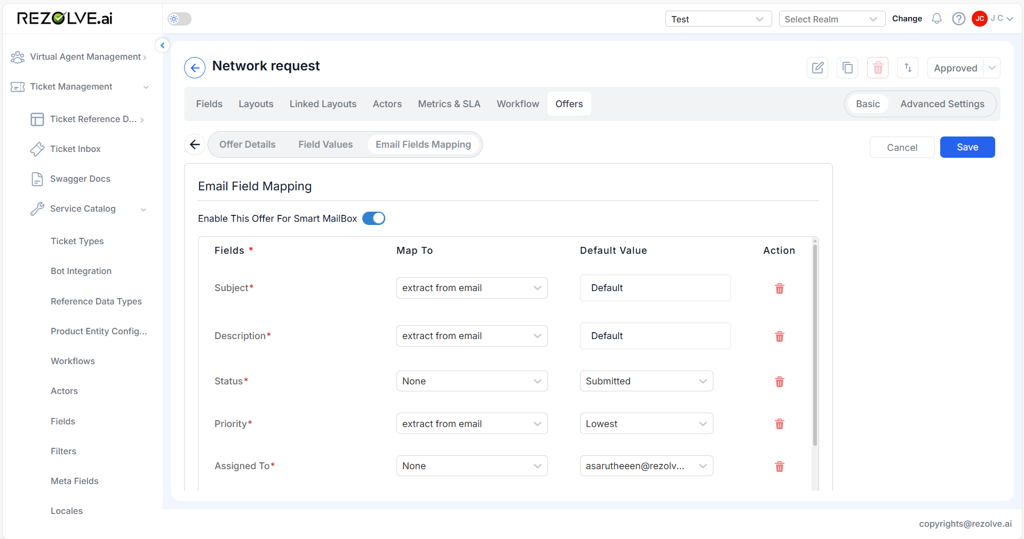
- Select the desired offer and go to the Email Field Mapping tab.
- Toggle the option "Enable This Offer for Smart MailBox" to ON.
Once enabled, the system will allow email ingestion and mapping based on the defined configurations.
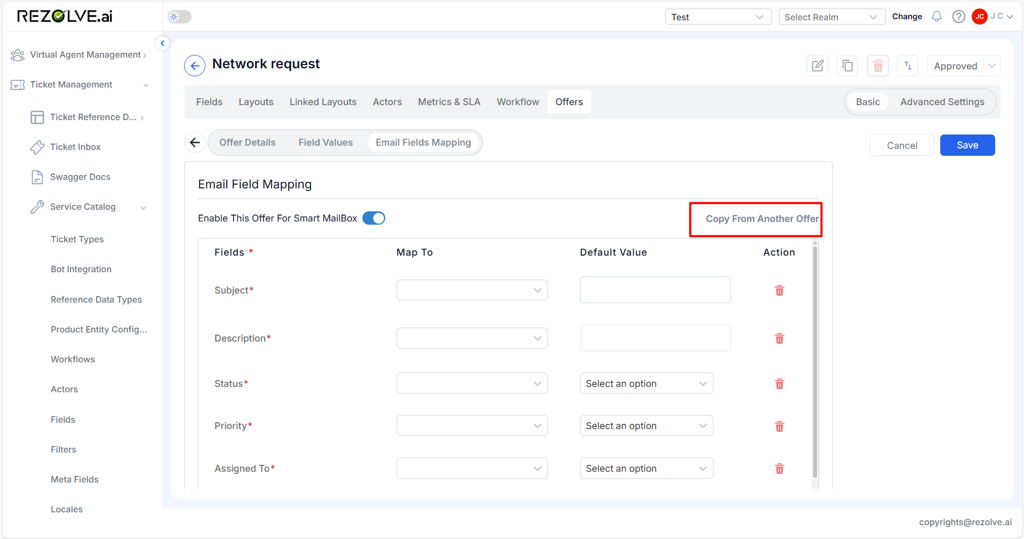
If we have more than one offer in template then user can copy the configs.
Steps:
- Click on Copy From Another Offer to reuse an existing Smart Mailbox configuration.
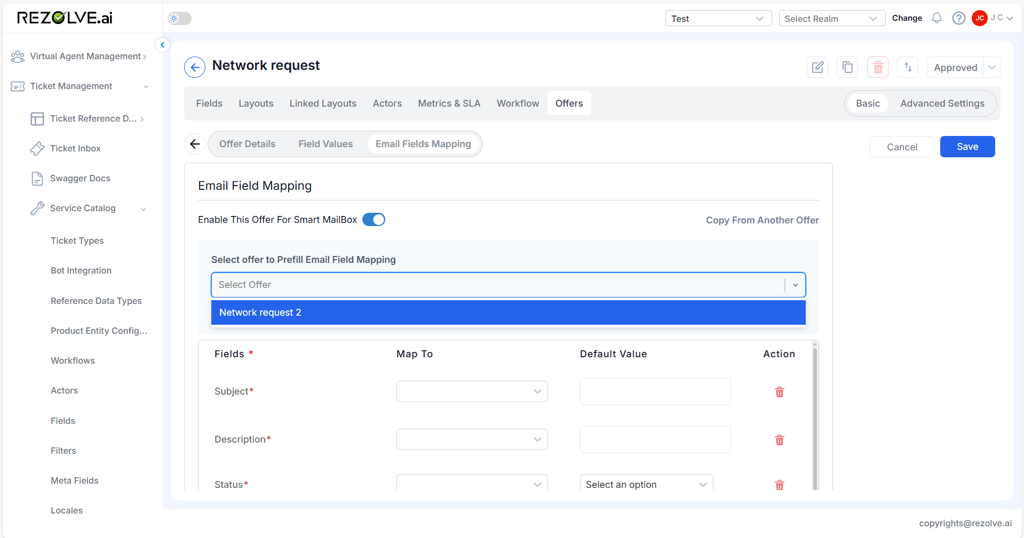
- A dropdown list will appear showing all offers that have Smart Mailbox mapping configured.
- Select the offer from which you want to copy the mapping.
- The system will automatically populate the email field mapping based on the selected offer's configuration.
- Review and adjust (if needed), then click Save to apply the copied configuration.
Purpose: This feature ensures consistency across offers, reduces configuration time, and helps maintain uniform Smart Mailbox processing logic.
User must fill the data for Subject, Description, Priority, and Attachment and choose whether they want the response from AI (Extract from email) or same as mentioned in email (Email.subject).
Add meaningful descriptions for each mapped field to define the purpose and expected input.
3. Updating Field Descriptions
For each field added in the Email Map configuration:
- Provide a clear and concise description explaining the purpose of the field.
- These descriptions help guide the Smart Mailbox in understanding the intent and context of incoming emails.

4. Bot Integration Configuration
After completing Offer and Template configurations, the next step is to configure Bot Integration Settings:
- Navigate to Bot Integration Settings.
- Update the following:
- Trigger Context
- Trigger Keywords / Phrases
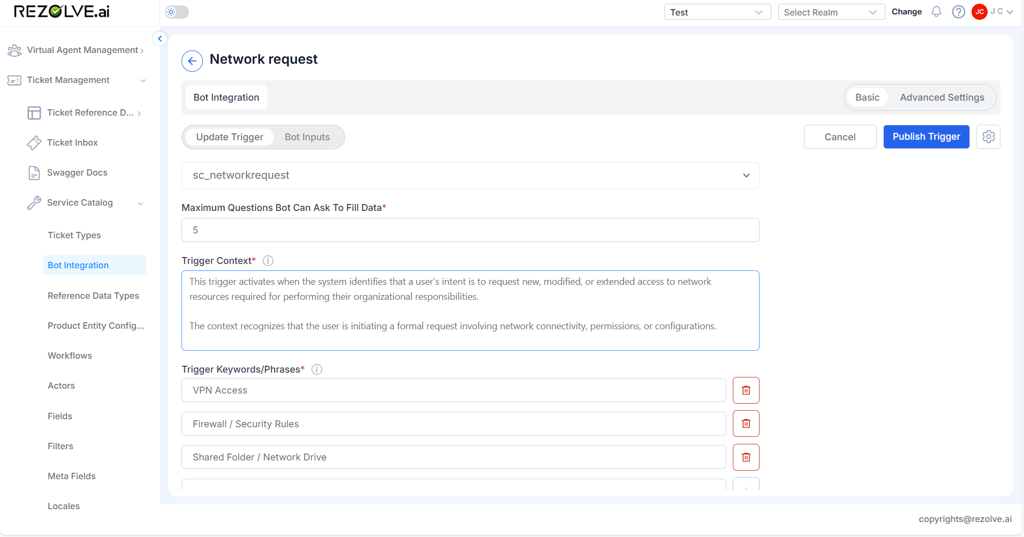
Additionally, ensure that each bot input field carries a precise description to enhance interpretation accuracy and improve mapping of information from email to the right fields in the ticket being created.

5. Creating a Smart Mailbox
Once all prerequisite configurations are complete:
- Navigate to the Smart Mailbox tab.
- Create a new Smart Mailbox.
- Configuration steps are similar to the standard Mail Server setup, except for an additional third tab: Ticket Mapping Settings
- Only templates that have offers with Email Mapping configurations will appear here.
- Select the relevant templates you want the Smart Mailbox to consider (you may want to create multiple smart mailboxes for different service teams. Please note you'd need to map different email IDs for different smart mailboxes).
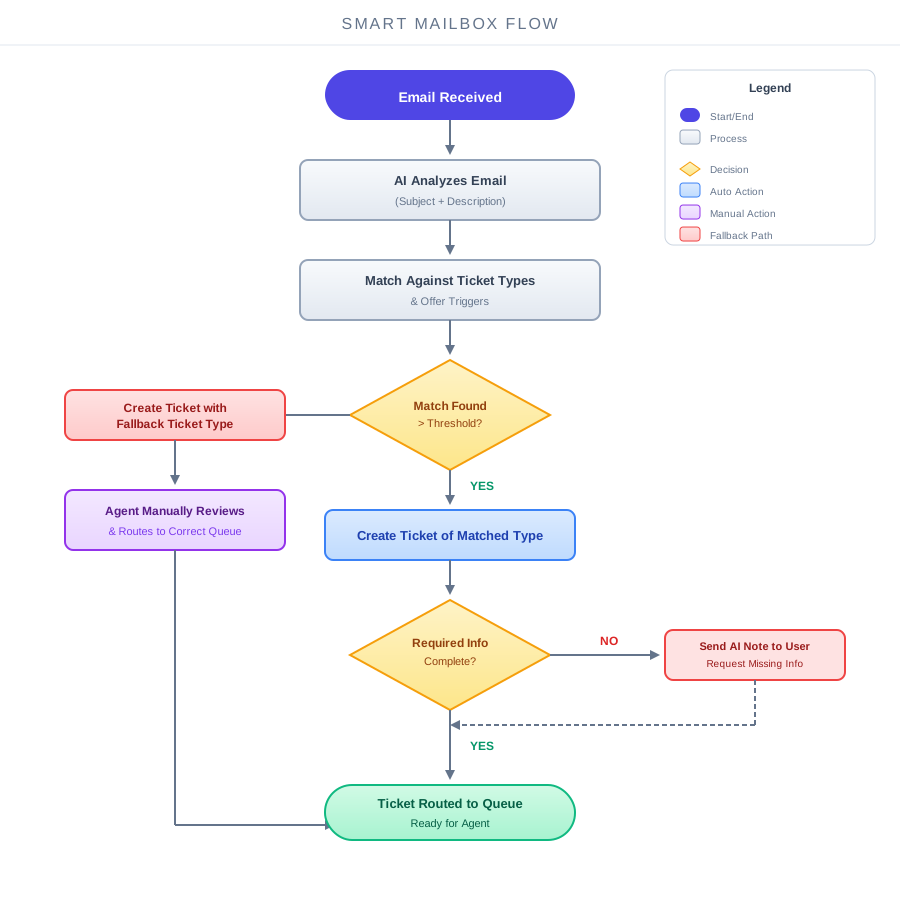
- You'll be requested to select a fallback ticket type that will be used to create the ticket under, in case AI is not able to find a match with the added triggers.

6. Ticket Creation Process
When an email arrives, Smart Mailbox analyzes the email subject and body content, then compares this information against your configured ticket types and offer triggers. Using AI-powered matching, it identifies the most appropriate ticket type for the request. If the match confidence exceeds the configured threshold, Smart Mailbox automatically creates a ticket of that type and routes it directly to the corresponding queue.
This means tickets appear in the right queue from the moment they're created, ready for the appropriate agent to pick up immediately.
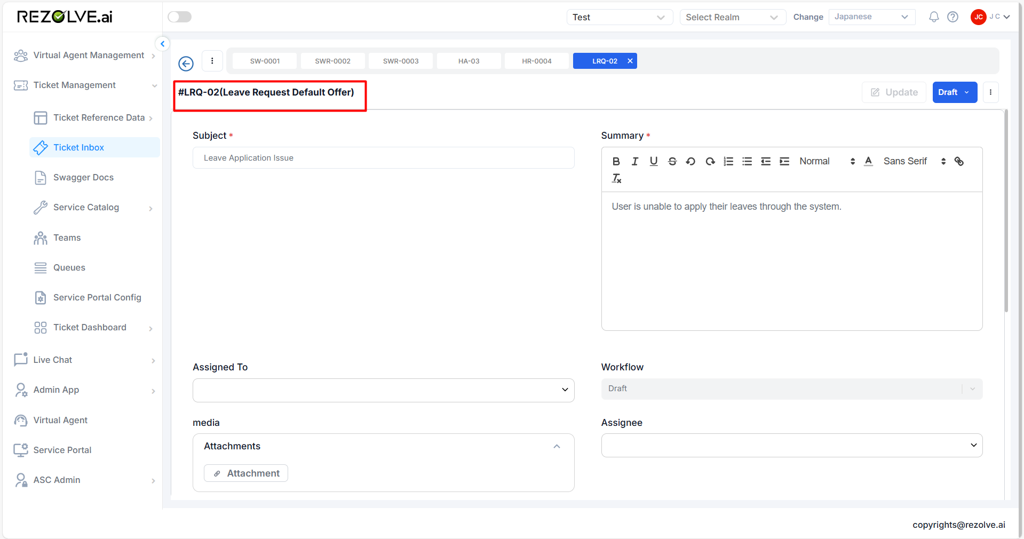
Additionally, Smart Mailbox checks whether the created ticket contains all the information an agent needs to work on that specific type of request. If any required details are missing, an AI-generated message is immediately sent to the user requesting that information. This proactive follow-up ensures tickets are fully actionable the moment an agent picks them up, eliminating back-and-forth delays.
7. Summary
In conventional ITSM setups, all tickets submitted via email land in a single shared service team queue. A member of the service team must then manually review each ticket, determine its category, and route it to the appropriate queue. This manual triage process introduces delays between when an issue is reported and when it becomes available for an agent to work on - time that could otherwise be spent resolving the issue.
Smart Mailbox significantly reduces time-to-resolution by eliminating the manual sorting and triaging step entirely. Service teams no longer need to dedicate resources to triaging incoming emails, allowing agents to focus on what matters most - resolving issues. The result is faster response times, improved SLA compliance, and a more efficient service operation overall.