Notification Wall
The Notification Wall provides a centralized hub for managing and viewing all notifications in Agent UI. It enables users to stay informed about ticket updates, SLA alerts, and other important events through a unified notification experience.
Key Highlights:
- Centralized notification management on V3 screens
- User-specific notification preferences
- Tenant-level notification configuration
- Standard and custom notification types
- Email notification integration with in-app alerts
This section describes the Notification Wall functionality, including how notifications are displayed, managed, configured, and delivered in Agent UI v2/v3 and on other v3 screens.
The Notification Wall is available on V3 screens. Currently, only the Agent UI app supports the Notification Wall for both V2 and V3. For all other applications, notifications will be available only on V3 screens.
For metric and SLA related notifications, you need to configure the SLA Events using the events and actions. After configuration, notifications will appear on the Notification Wall.
1. How Notification Settings Work
1.1 User-Specific Notification Settings
Whenever a user is on the V3 screens, they can find the Notification Settings option at the top-right corner. Using this option, users can configure their notifications based on their preferences. Notifications can be completely turned off or selectively enabled for specific events such as ticket assignment, ticket updates, and SLA-related notifications.
1.2 Tenant-Level Notification Settings (Standard Settings for All Users)

Notifications are categorized into two types:
- Standard Notifications – These are predefined from the backend and cannot be modified from the UI.
- Custom Notifications – These can be customized and managed directly by the ticket admin user.
2. Standard Notifications
Below are examples of Standard Notifications along with their respective images.
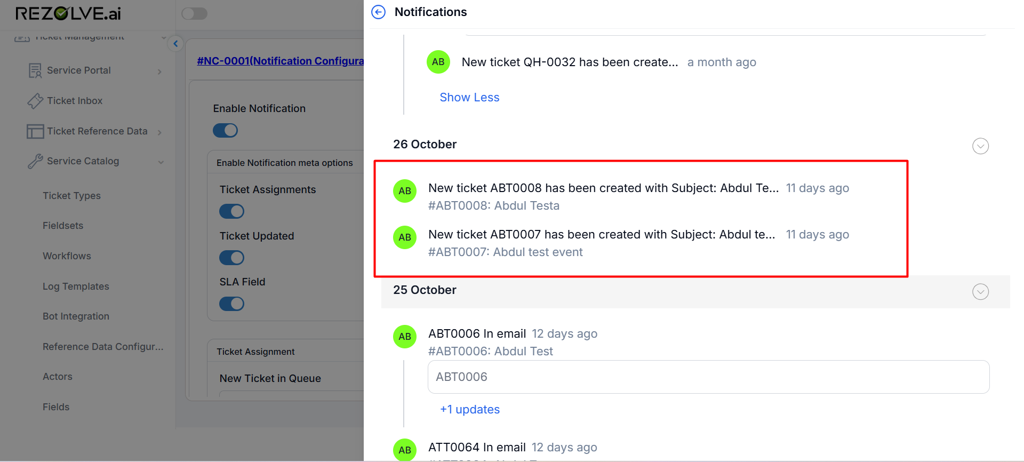
Ticket Created in Queue
Recipients: Queue members (agents + supervisors)
Ticket Updated - Note Added
Recipients: Actors + Watchers (includes tagged users)

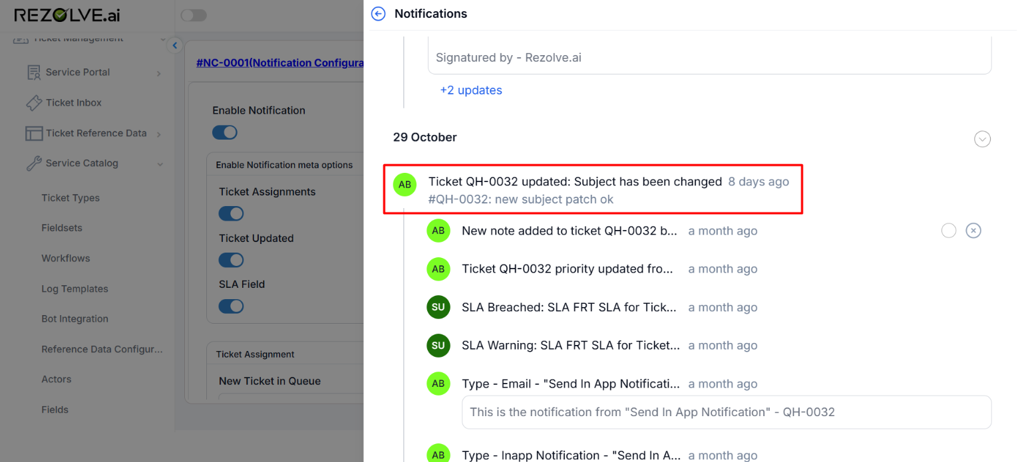
Ticket Updated - Field(s) Changed
Recipients: Actors + Watchers
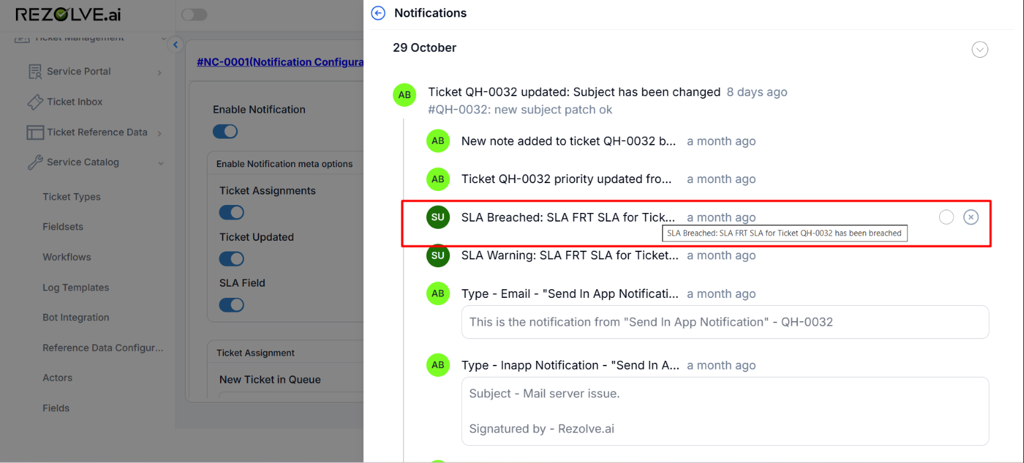
SLA Breached
Recipients: Actors + Supervisors of the Queue
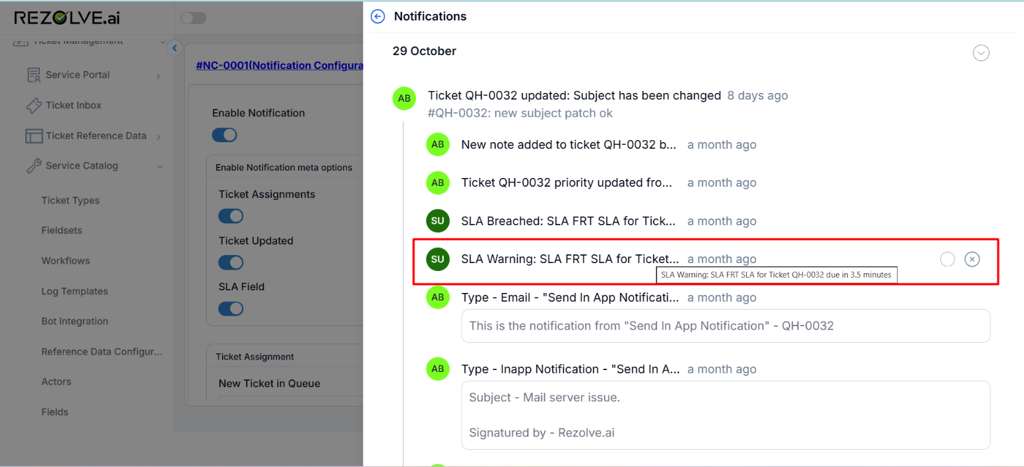
SLA Approaching
Recipients: Actors + Supervisors of the Queue
Ticket Updated - Priority Changed
Recipients: Actors + Watchers
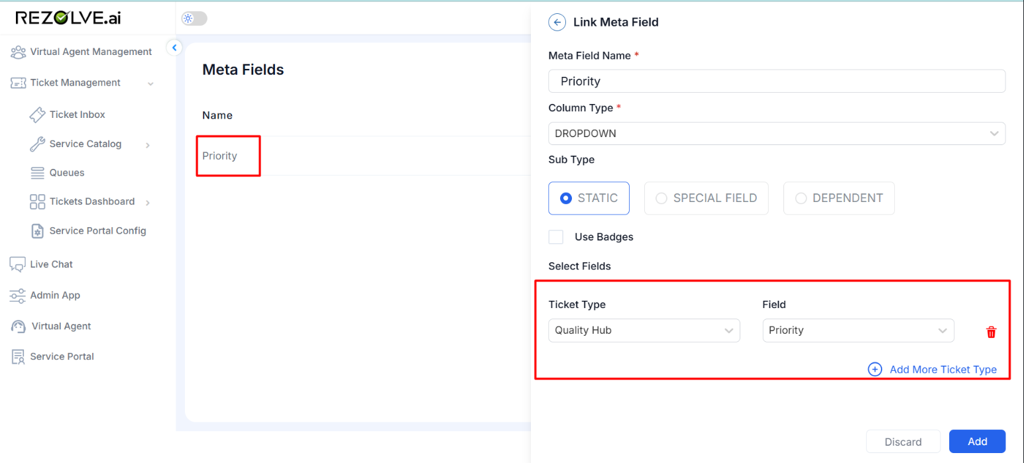
For standard fields such as priority, status, and attachment, please map the fields to the respective meta fields to ensure the relevant notifications are displayed. Otherwise, all unmapped notifications will appear as "Other field updated".
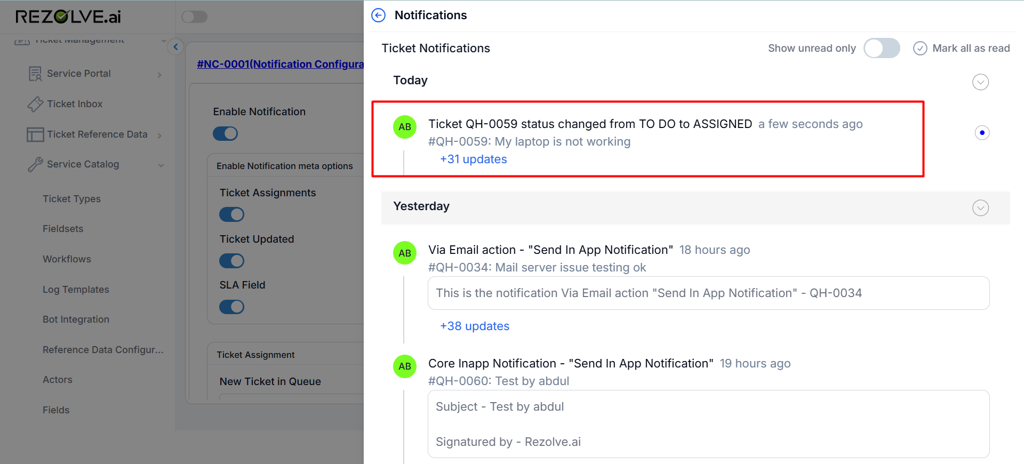
Ticket Updated - Status Changed
Recipients: Actors + Watchers
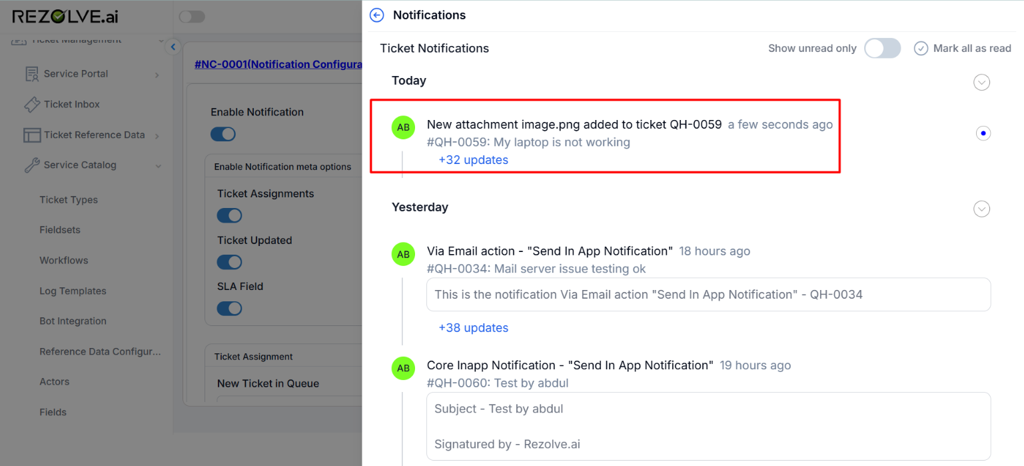
Ticket Updated - Attachment Added
Recipients: Actors + Watchers
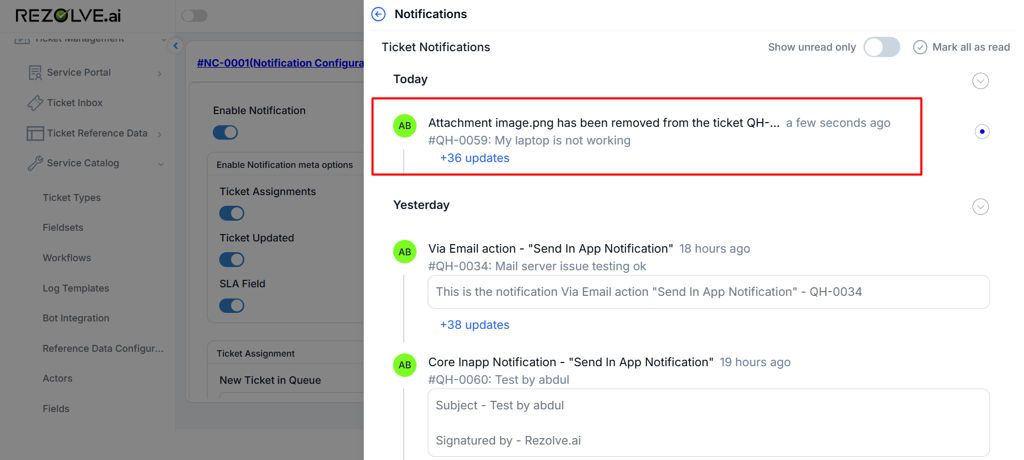
Ticket Updated - Attachment Removed
Recipients: Actors + Watchers
Ticket Updated - Ticket(s) Linked
Recipients: Actors + Watchers
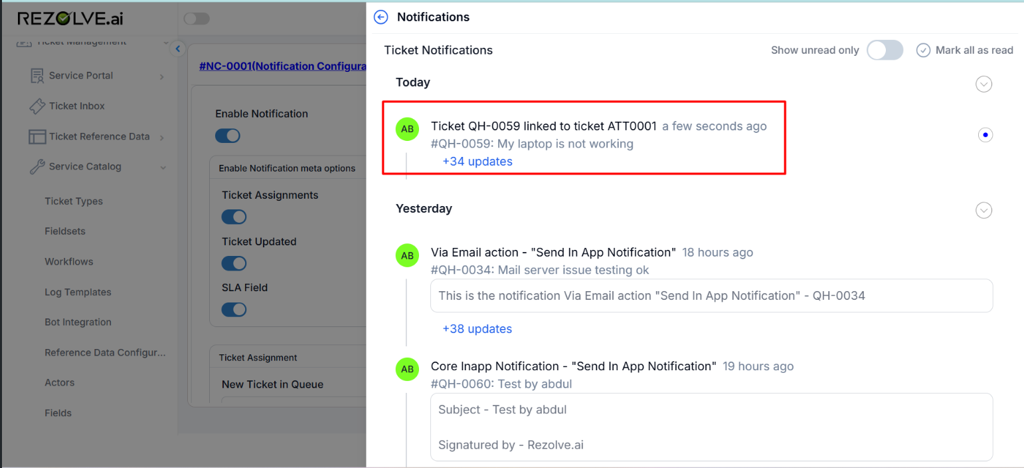
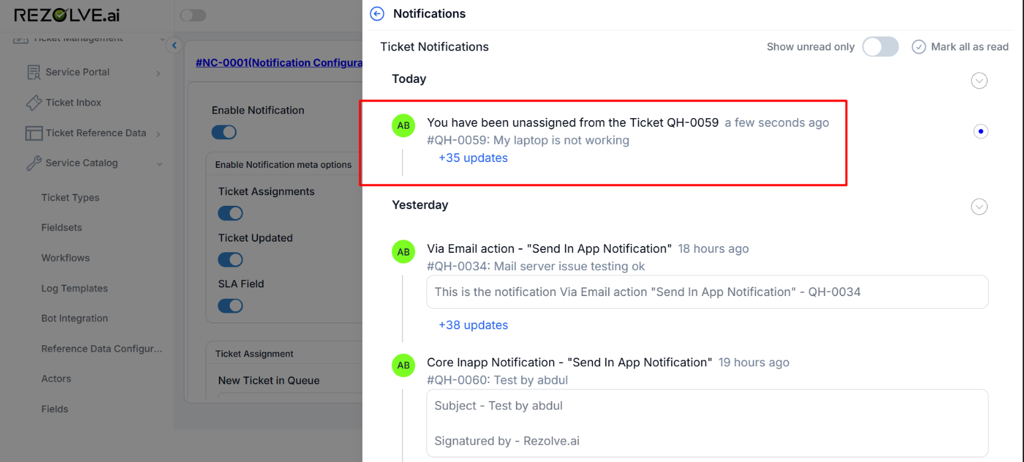
Ticket Unassigned
3. Email Notifications Enhancement
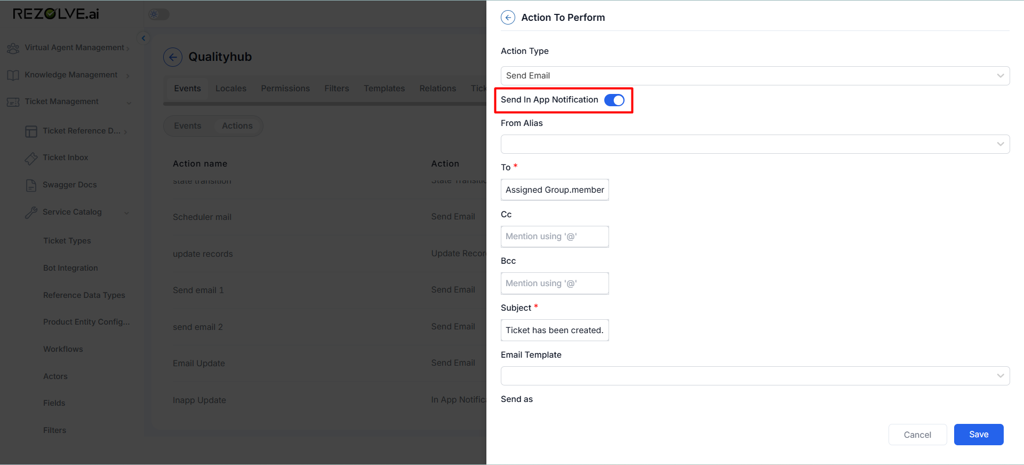
You can also enable selective email notifications to appear on the Notification Wall. Toggle the Send In App Notification option in the Actions screen.
Configuration on Service Catalog Side
Impact of Configuration on Notification Wall
