Special Fields
Special fields are platform-provided fields that appear on every ticket. Unlike custom fields you build yourself, they deliver built-in capabilities — communication logs, audit history, watchers, approvals, AI summaries, and feedback. You cannot add or delete them, but for each ticket type you can control who accesses them and configure how they behave.
Configure a special field from Service Catalog → Ticket Types → (your ticket type) → Special Fields → (field) → Edit. The editor opens in a side panel with up to two tabs:
- Role Setting: Who can view and edit the field. This works the same way on every field.
- Other Setting: Options unique to each field.
Role Setting
Every special field uses the same Role Setting tab to control access. Depending on the field, it shows some or all of the following.
Viewers
Defines who can see the field on the ticket. To add a rule, choose a Subject type (for example, Organization, group, role, user, user attribute, or actor), enter its Value (the specific identifier), and click Add. Each committed rule appears as a chip such as Organization: rezolve; remove it with the ✕. You can add multiple rules, and Viewers is required.
Editors
Defines who can add or edit the field, using the same builder as Viewers. It appears on fields whose contents can change, and is required where shown.
Expressions
Optionally restrict when the Viewer and Editor permissions apply, based on ticket data. Build the rule under IF THE FOLLOWING IS TRUE using Add OR and Add AND Condition.
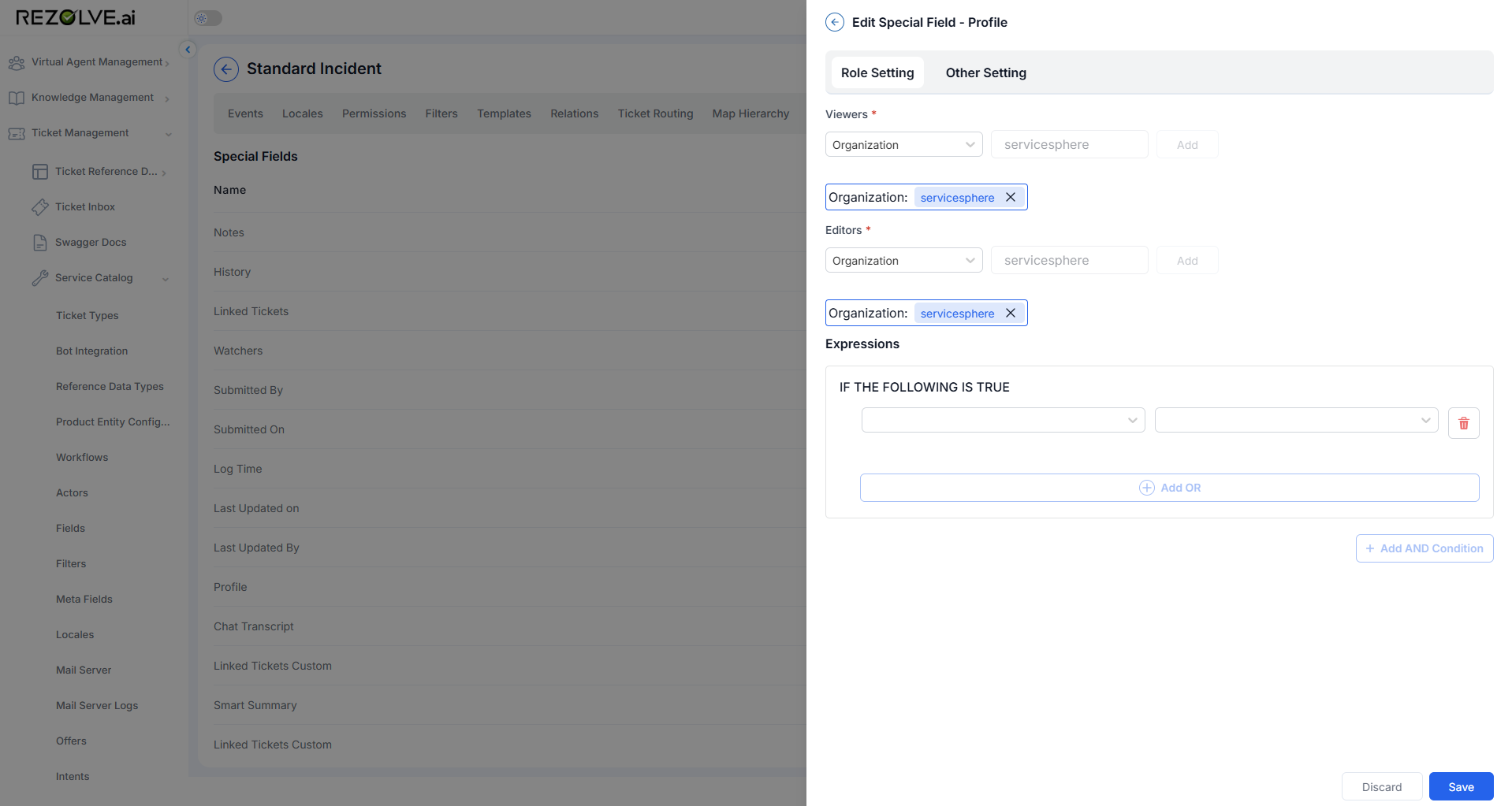
Because Role Setting works the same on every field, the sections below focus on what each field does and its own Other Setting.
Notes
The Notes field is the running log of communications on a ticket — agent comments, requester replies, chasers, and resolution details recorded over the ticket's lifetime.
Access: Role Setting — Viewers, Editors, Expressions.
Note Type Allow
Whitelists the note types agents may record. Only the selected types appear in the note-type picker:
- Private: Internal note, hidden from the requester.
- Public: Visible to the requester (portal or email thread).
- Chase: A follow-up / chaser note.
- Resolution: How the ticket was resolved.
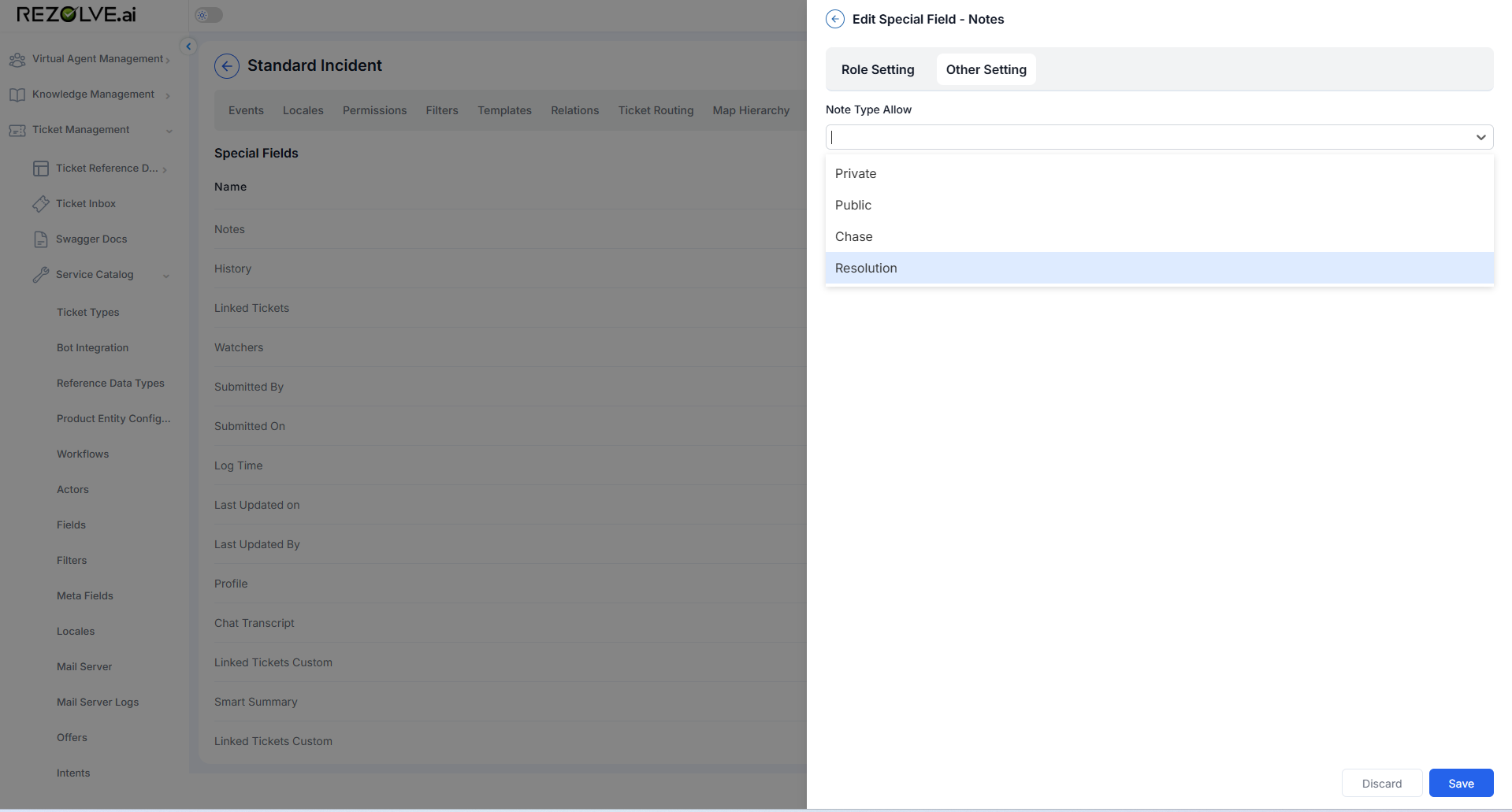
On a customer-facing queue, allow only Public and Resolution so agents can't accidentally expose internal Private notes to requesters.
History
The History field shows the chronological record of changes made to a ticket.
Access: Role Setting — Viewers, Expressions.
Fold History
Enter a value to control how the history log is folded (collapsed) on the ticket.
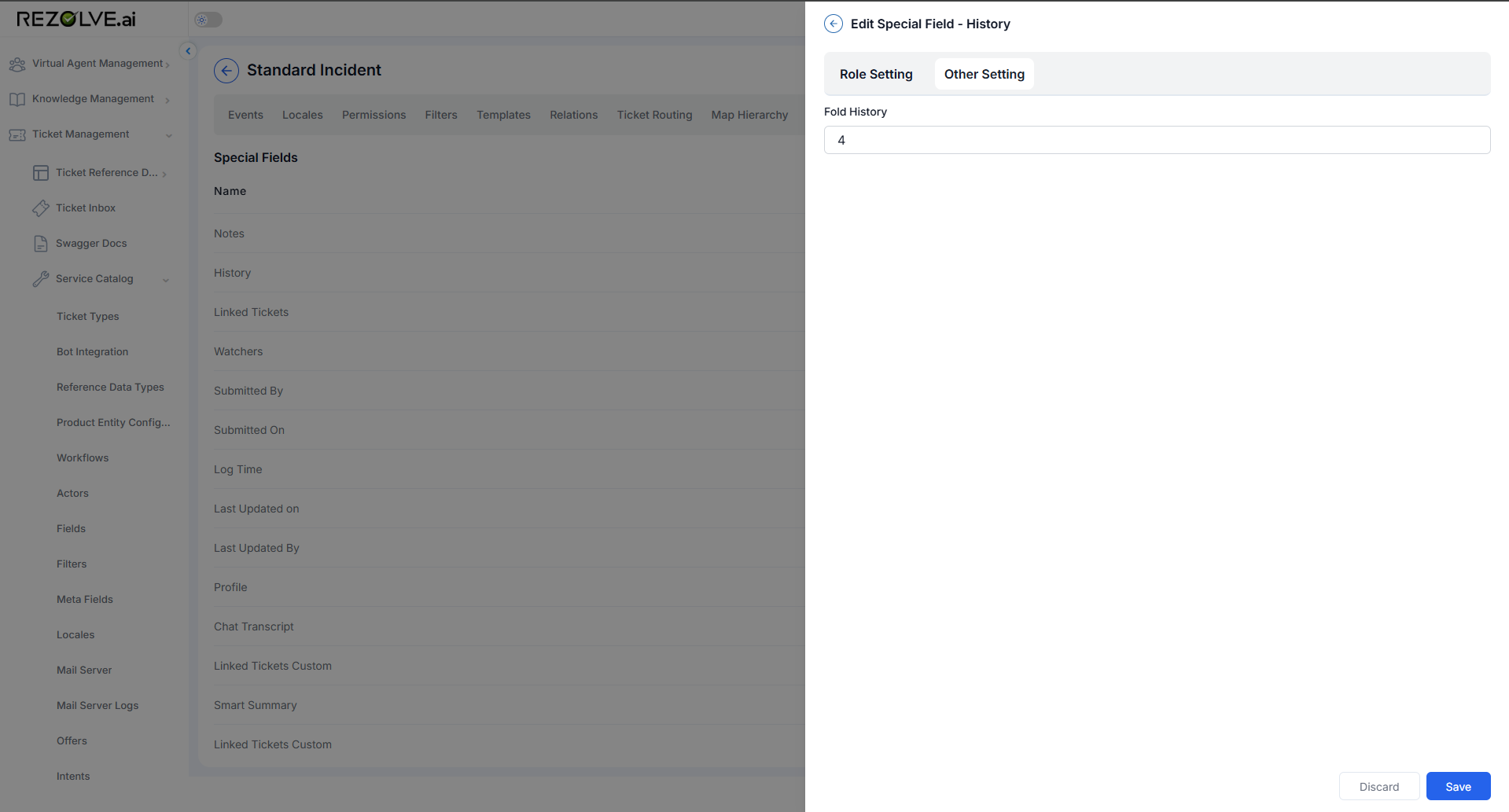
On long-running tickets with a lot of activity, folding keeps the history compact while preserving the full record.
Linked Tickets
The Linked Tickets field manages relationships between a ticket and other related tickets.
Access: Role Setting — Viewers, Editors, Expressions. No Other Setting.
Link related incidents to a problem, or duplicates to a master ticket, so agents see all connected work in one place.
Watchers
The Watchers field tracks the people following a ticket for updates.
Access: Role Setting — Viewers, Editors, Expressions.
Max no of Watcher
Sets the maximum number of watchers allowed on the ticket.
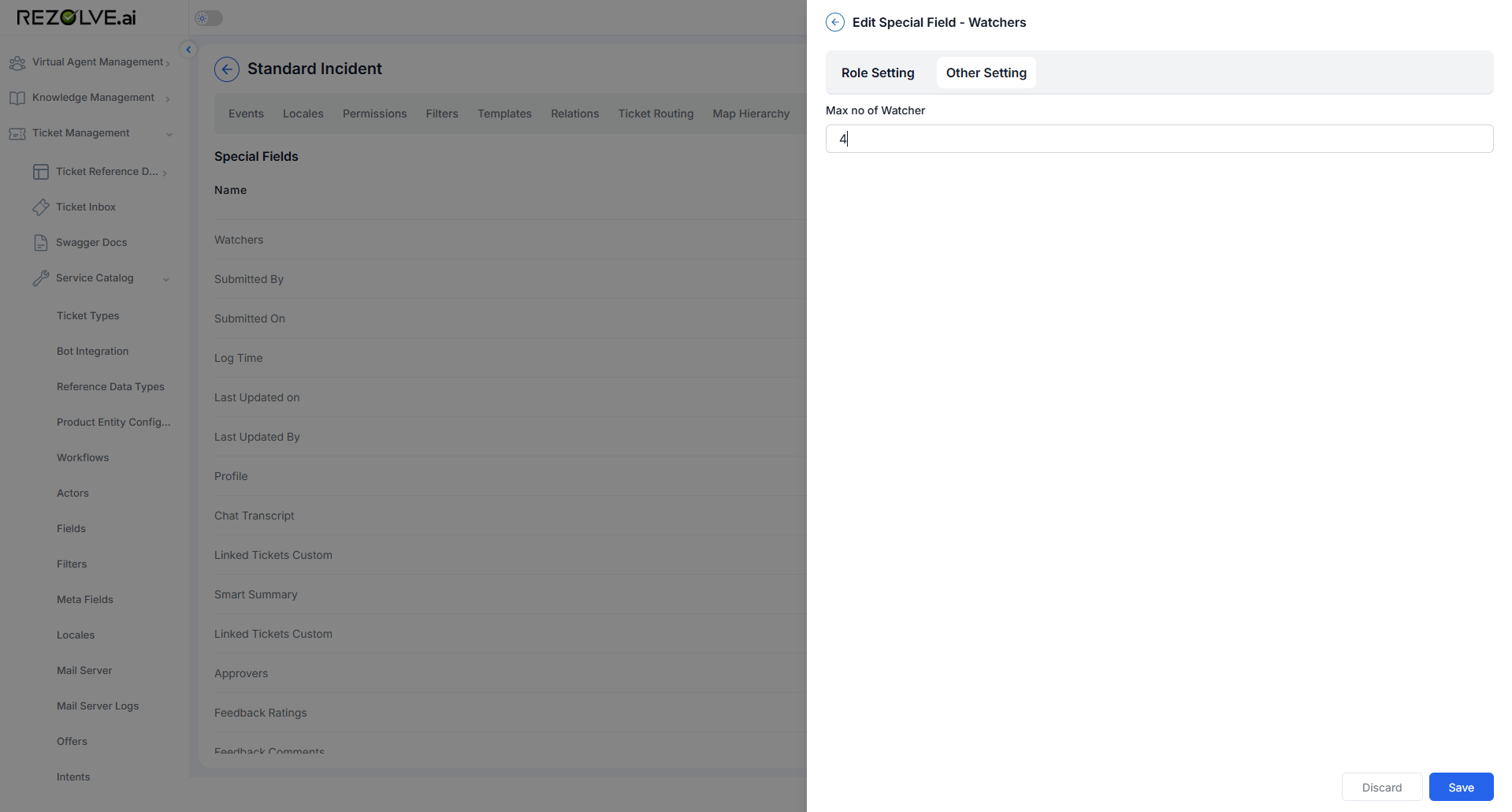
To restrict how many watchers a ticket can have, set a limit — for example, 20. Only that many watchers can be added; trying to add more shows an error.
Submitted By, Submitted On, Log Time, Last Updated on, Last Updated By
These system-populated fields record tracking details about the ticket:
- Submitted By: The user who created the ticket.
- Submitted On: The date and time the ticket was created.
- Log Time: The time logged against the ticket.
- Last Updated on: The date and time of the most recent update.
- Last Updated By: The user who made the most recent update.
Access: Role Setting — Viewers, Editors. No Other Setting.
Restrict these fields to internal roles when you don't want requesters to see who worked the ticket or when it was last touched.
Profile
The Profile field displays the requester's profile information on the ticket.
Access: Role Setting — Viewers, Editors, Expressions.
Attributes To Hide
A multi-select list of profile attributes to hide from the field. Select one or more attributes to omit them from display. The available attributes are sourced from AdminApp.
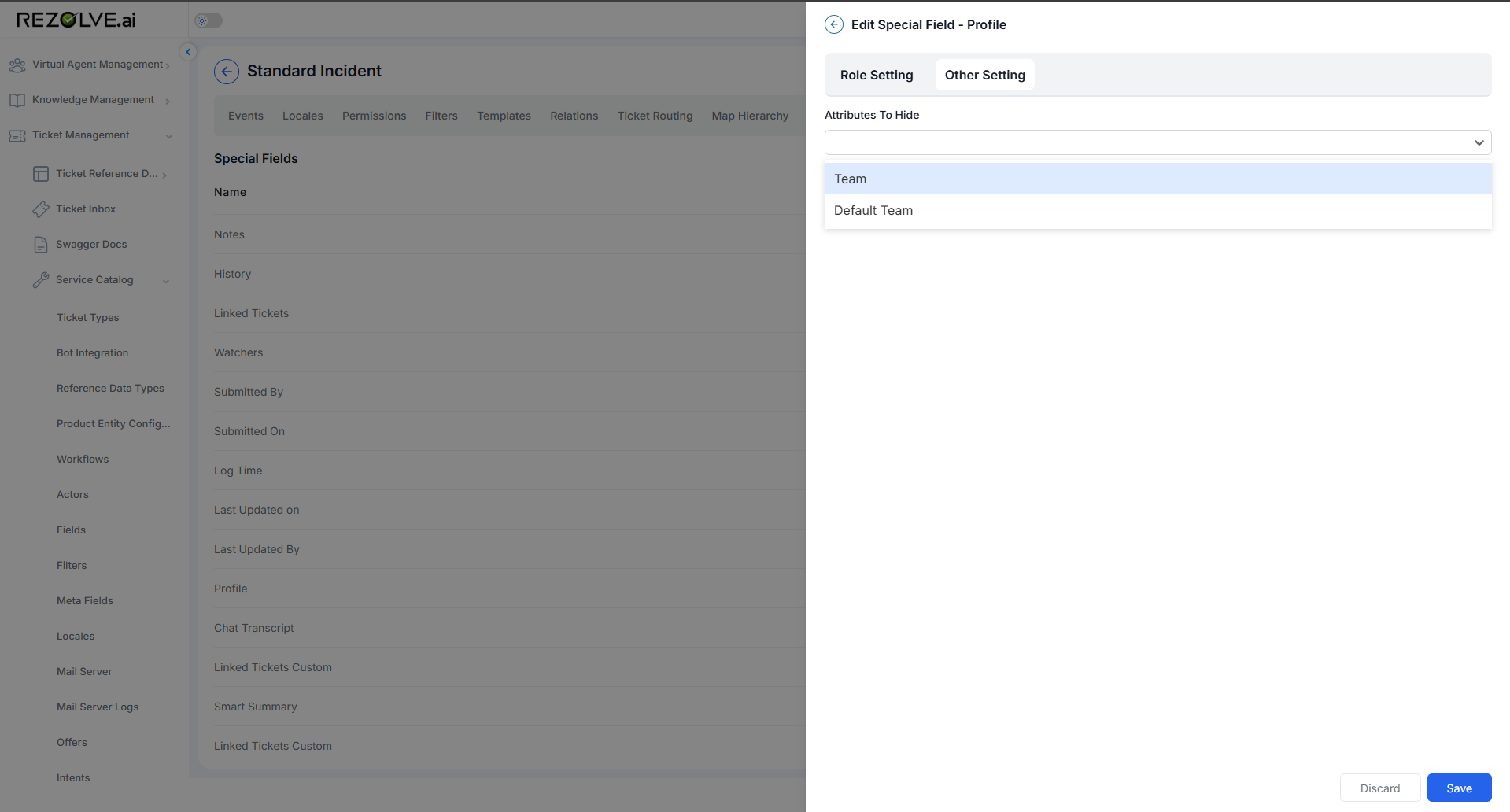
Hide sensitive or irrelevant profile attributes (for example, internal HR attributes) from agents while keeping the rest of the profile visible.
Chat Transcript
The Chat Transcript field preserves the conversation history tied to a ticket.
Access: Role Setting — Viewers, Expressions. No Other Setting.
Keep the original chat for context and audit, visible only to the audiences you choose.
Smart Summary
The Smart Summary field displays an AI-generated summary of the ticket.
Access: Role Setting — Viewers, Expressions.
Fields To Be Used To Generate Smart Summary
Select which ticket fields feed the summary: Source, Summary, Description, Public Notes, Requestor, and Workflow Status. A field can be selected only when it is mapped to a meta field; if it is not mapped, it appears crossed out (disabled) and cannot be selected.
Comprehensiveness Of The Summary
Sets the level of detail — Detailed, Balanced, or Crisp.
Summarization Style
Sets the tone — Casual, Professional, or Empathetic.
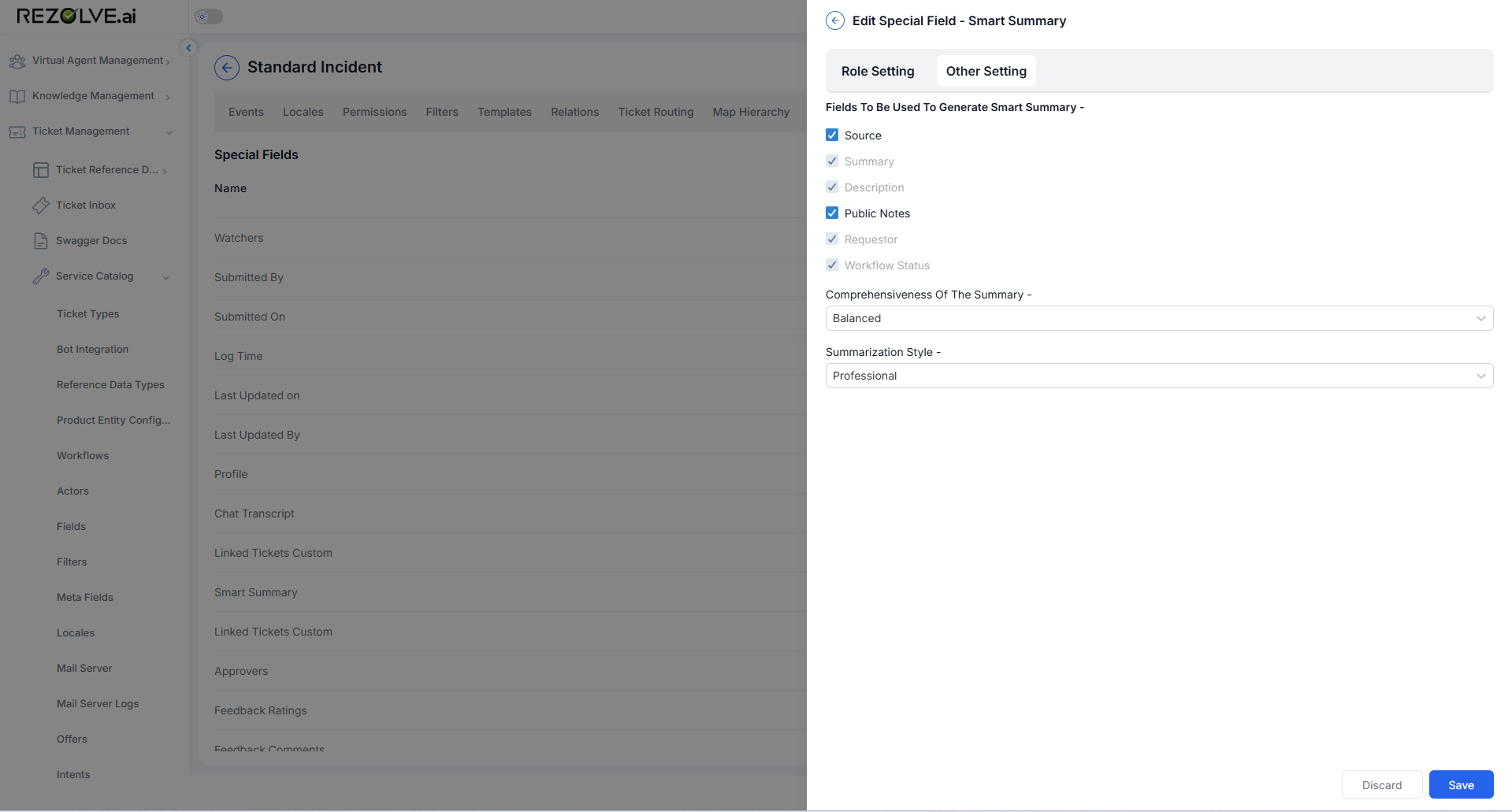
For a manager-facing queue, choose Crisp + Professional and include only the fields that matter (for example, Description and Public Notes) to get a short, focused summary.
Feedback Ratings
The Feedback Ratings field collects a satisfaction rating from the requester on a ticket.
Access: Role Setting — Viewers, Editors, Expressions.
Title and Description
The heading and supporting text shown with the rating.
Rating Scale
Choose the range — 1 to 2, 1 to 3, 1 to 4, or 1 to 5. For each value on the scale, enter a label describing that score (for example, 1 → Very poor).
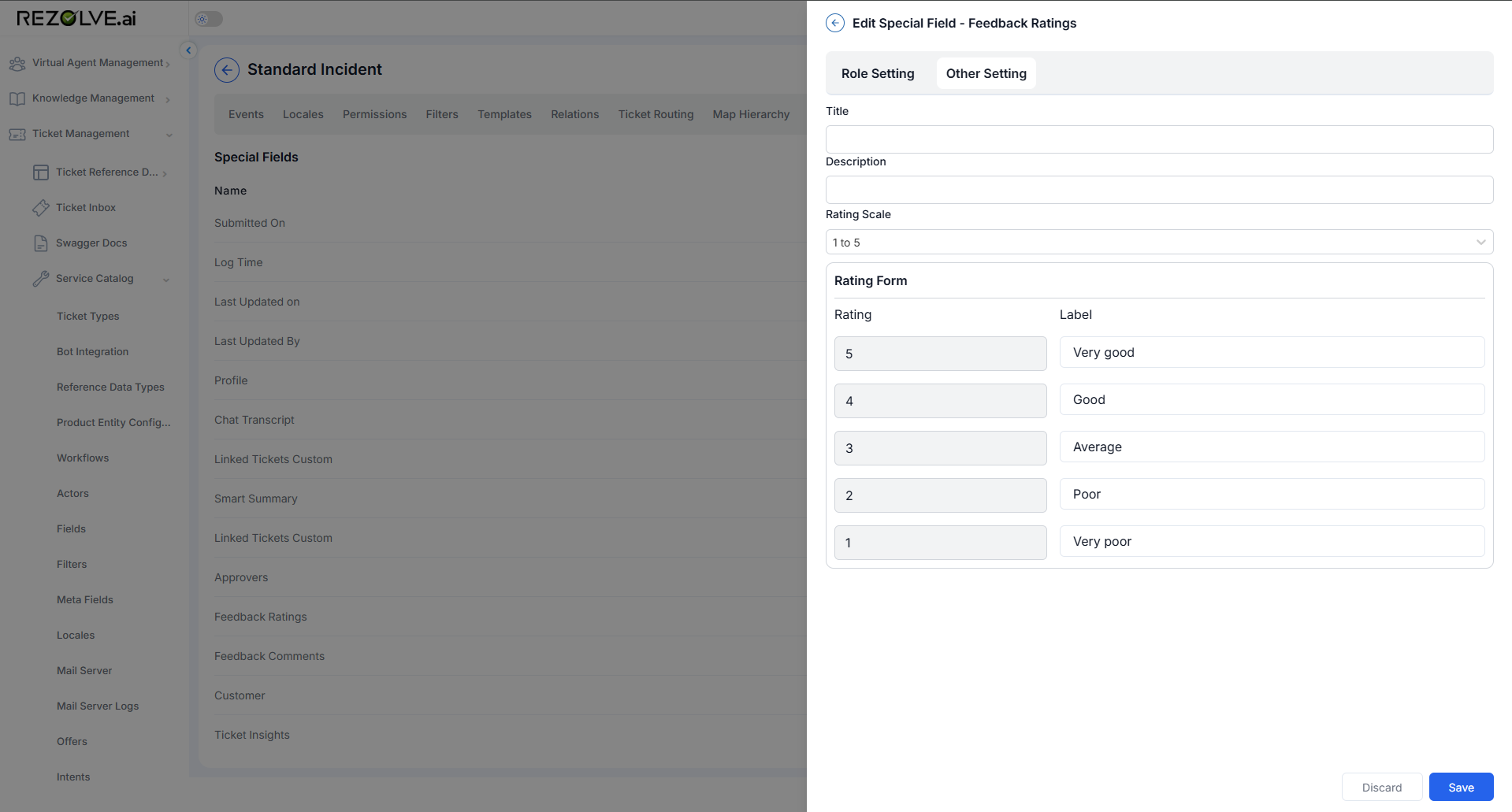
A 1–5 scale with clear labels gives more granular CSAT than a simple thumbs up/down, and the labels make each score unambiguous to requesters.
Feedback Comments
The Feedback Comments field collects written feedback from the requester on a ticket.
Access: Role Setting — Viewers, Editors, Expressions.
Comments
Sets whether the requester must enter a comment — Optional (can be left blank) or Mandatory (must be filled in).
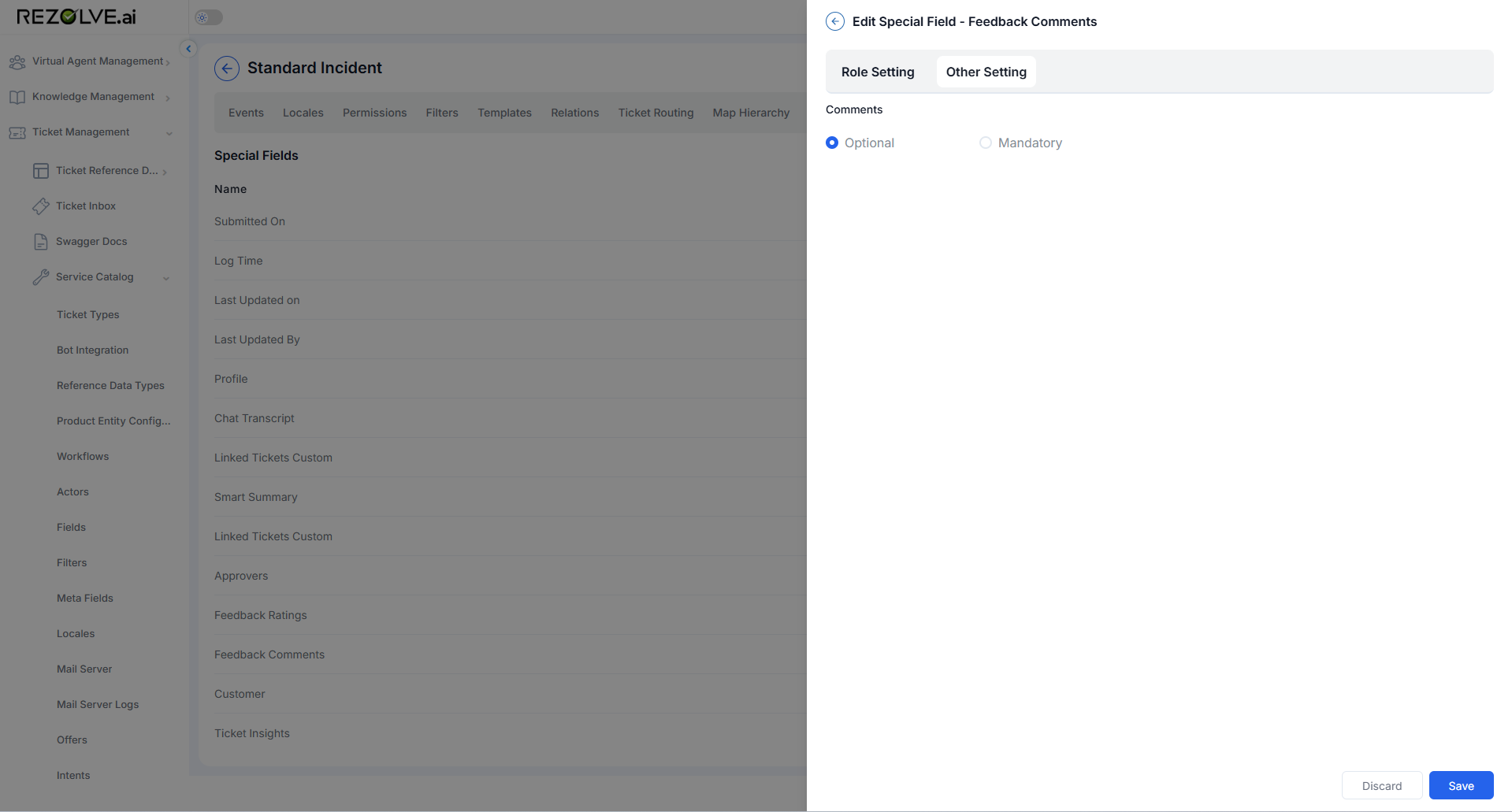
Set to Mandatory when you want requesters to always explain their rating — especially helpful for low scores, where you need context to improve.
Approvers
The Approvers field manages who authorizes a ticket.
Access: Role Setting — Viewers, Editors, Expressions. No Other Setting.
Control which teams can see and change the approver list on approval-driven ticket types.
Linked Tickets Custom
The Linked Tickets Custom field manages custom relationships between a ticket and other tickets.
Access: Role Setting — Viewers, Editors, Expressions. No Other Setting.
Define your own relationship types between tickets beyond the standard links, and control who can manage them.
Customer
The Customer field displays the customer associated with a ticket.
Access: Role Setting — Viewers, Editors, Expressions. No Other Setting.
Restrict visibility of the customer or account on tickets that span multiple organizations.