Service Teams, Queues & Calendars
Part of Org Administration (App Switcher → Org Administration). Requires the Tenant Admin role.
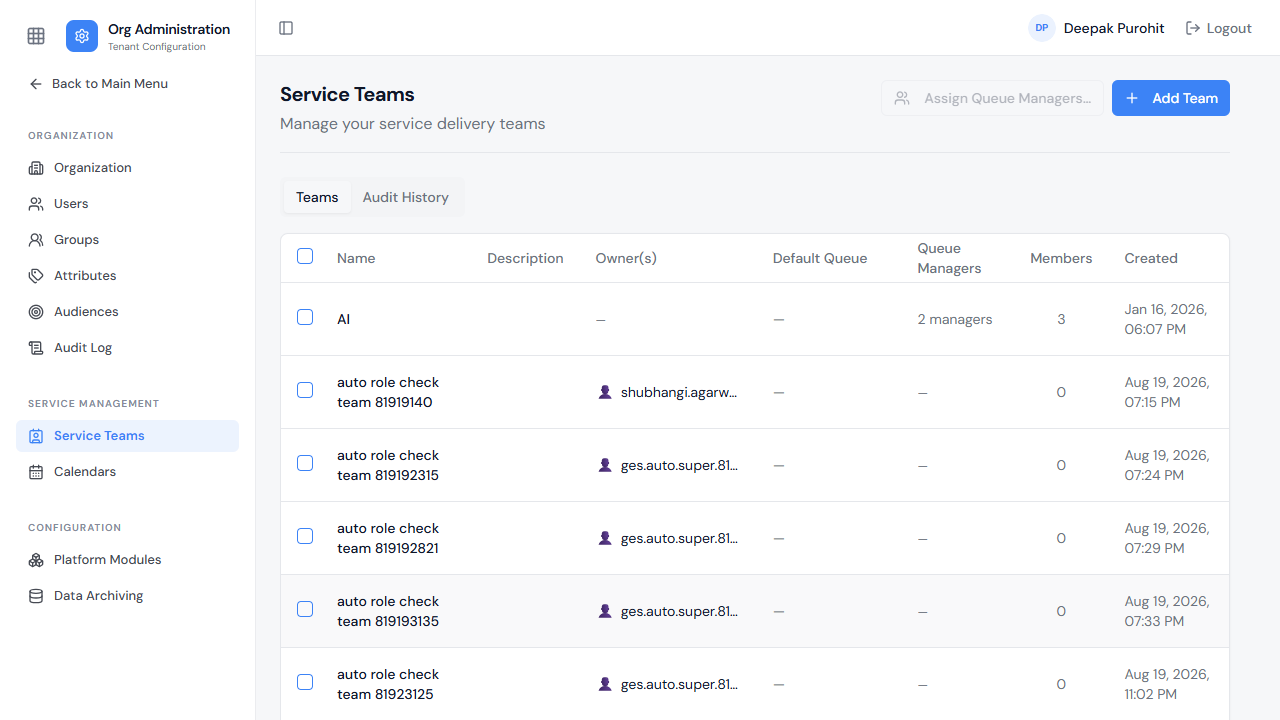
Service Teams organize who handles incoming work. The list shows each team's owner(s), default queue, member count, and creation date.
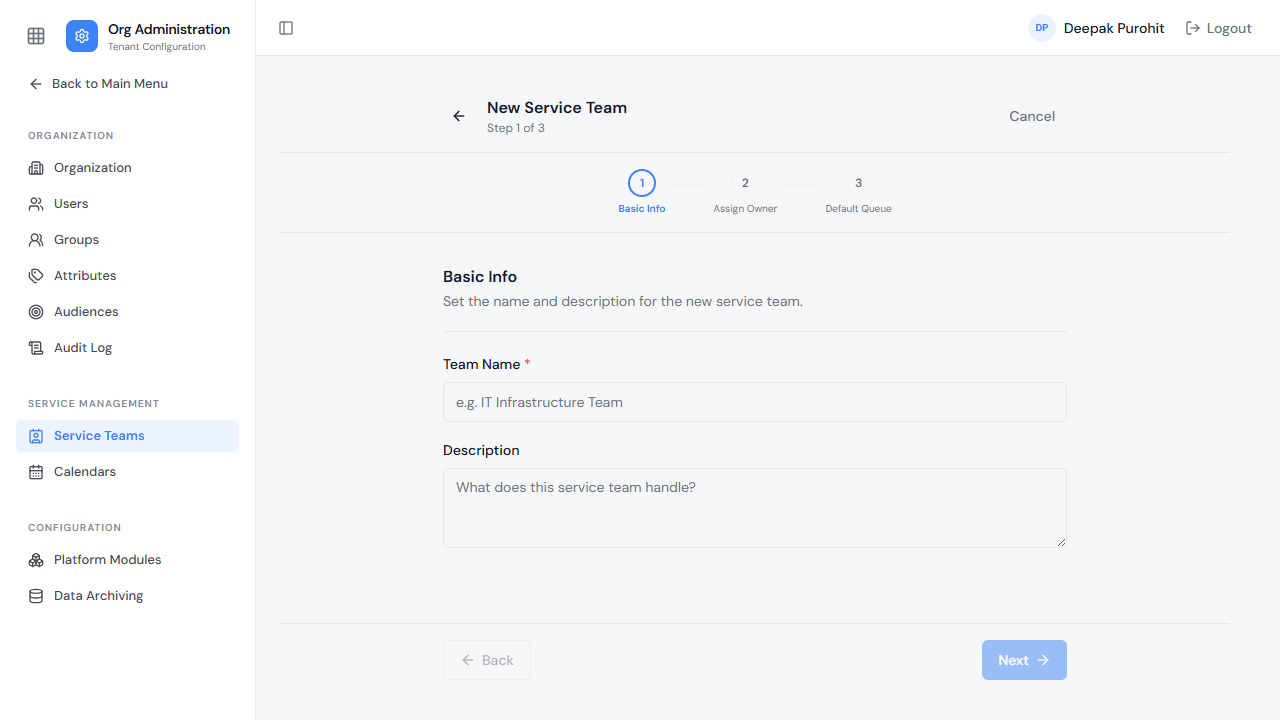
Creating a team is a 3-step wizard: Basic Info (name, description), Assign Owner, and Default Queue — every team is created with at least one queue.
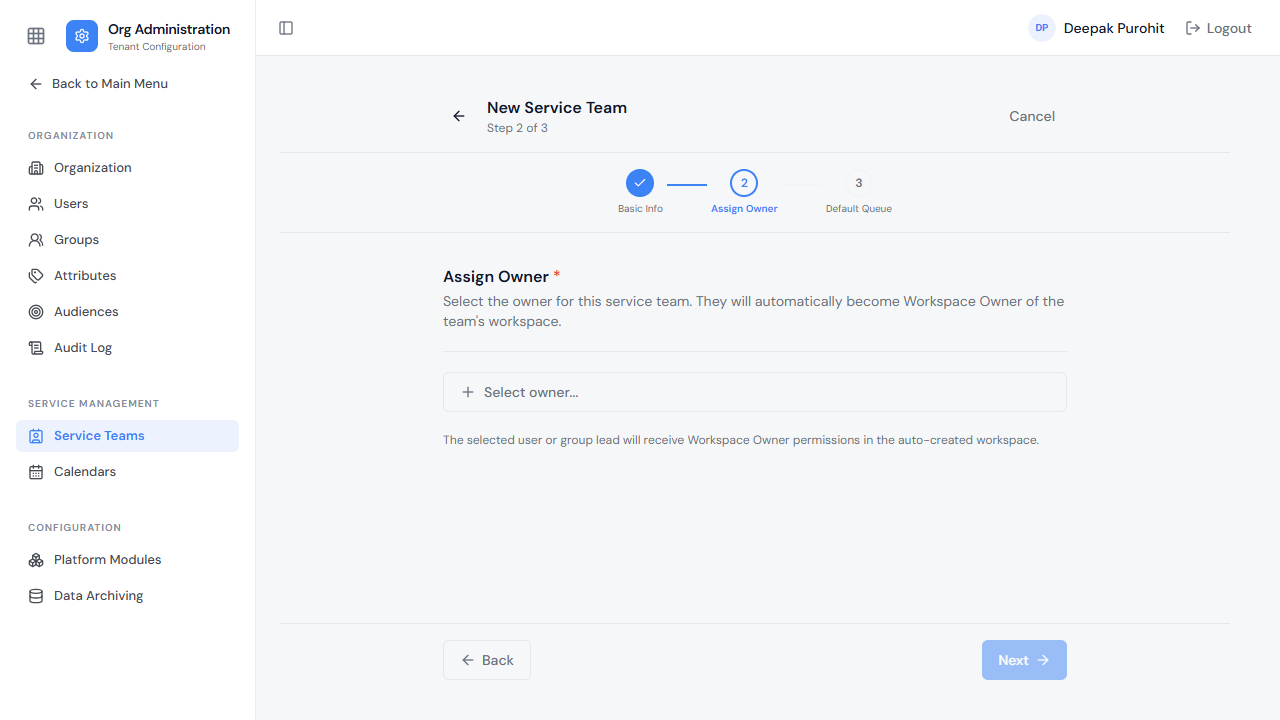
The assigned owner automatically becomes Workspace Owner of a workspace that gets auto-created for the team.
The default queue requires a Queue Name and a Calendar — everything else (members, supervisors, email configuration, additional queues) is added afterward from the team's own Queues tab.
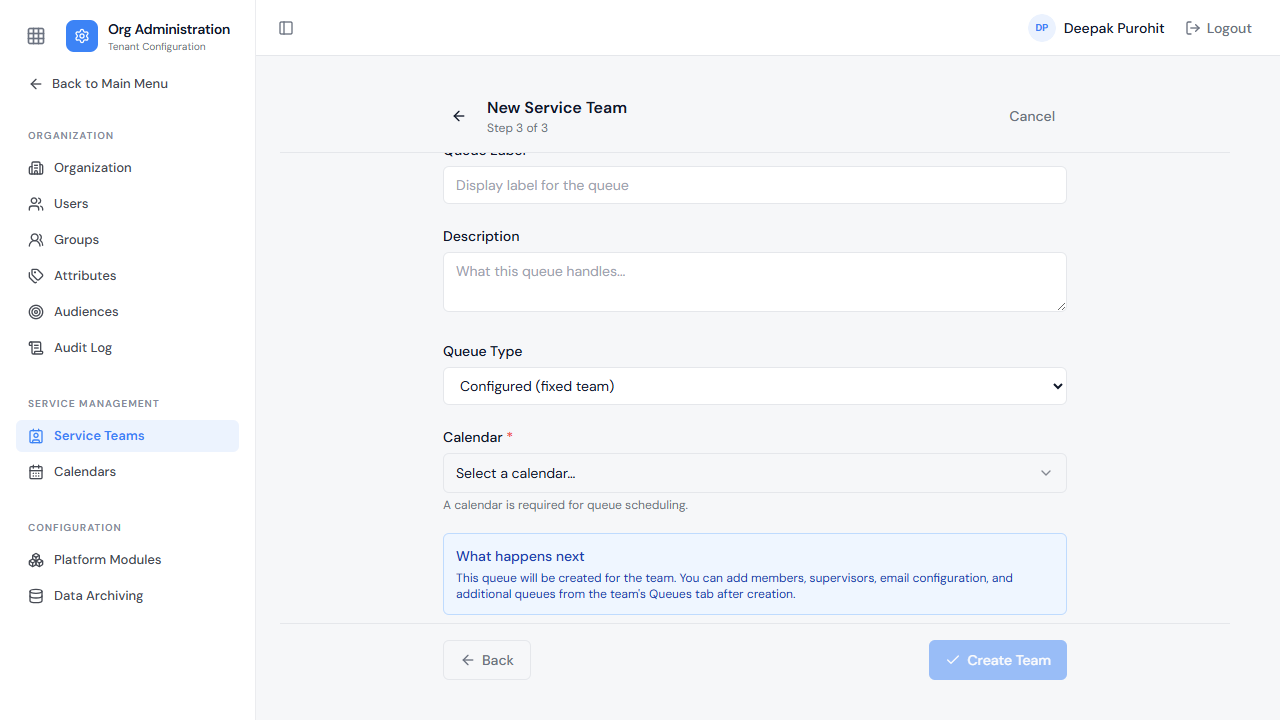
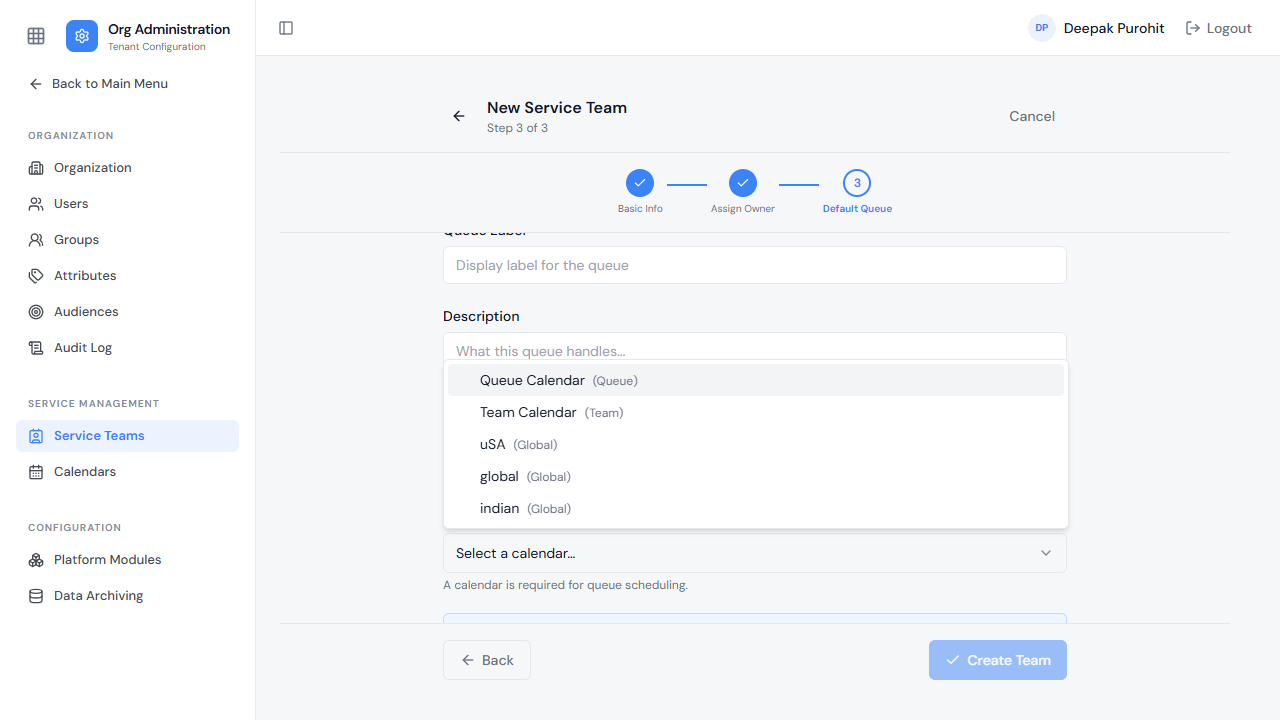
The Calendar dropdown here — same as on any queue — offers every calendar the tenant has, regardless of scope, labeled by where each one comes from: (Queue), (Team), or (Global).
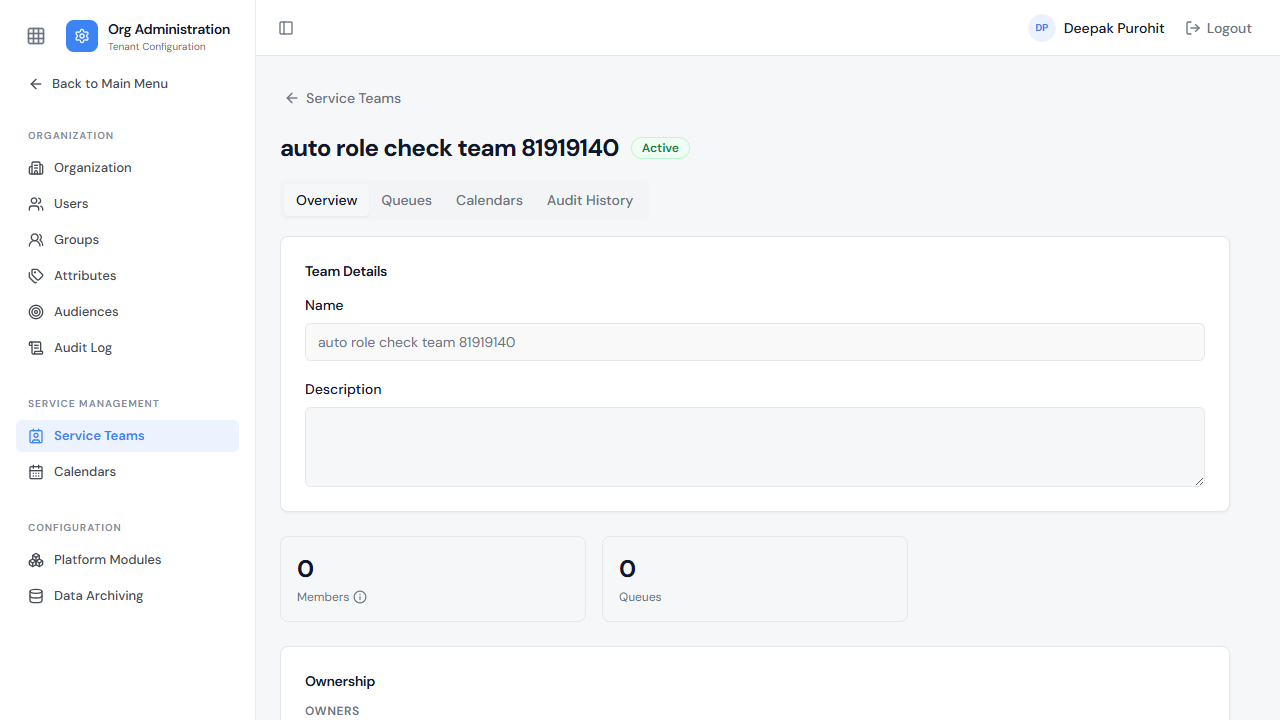
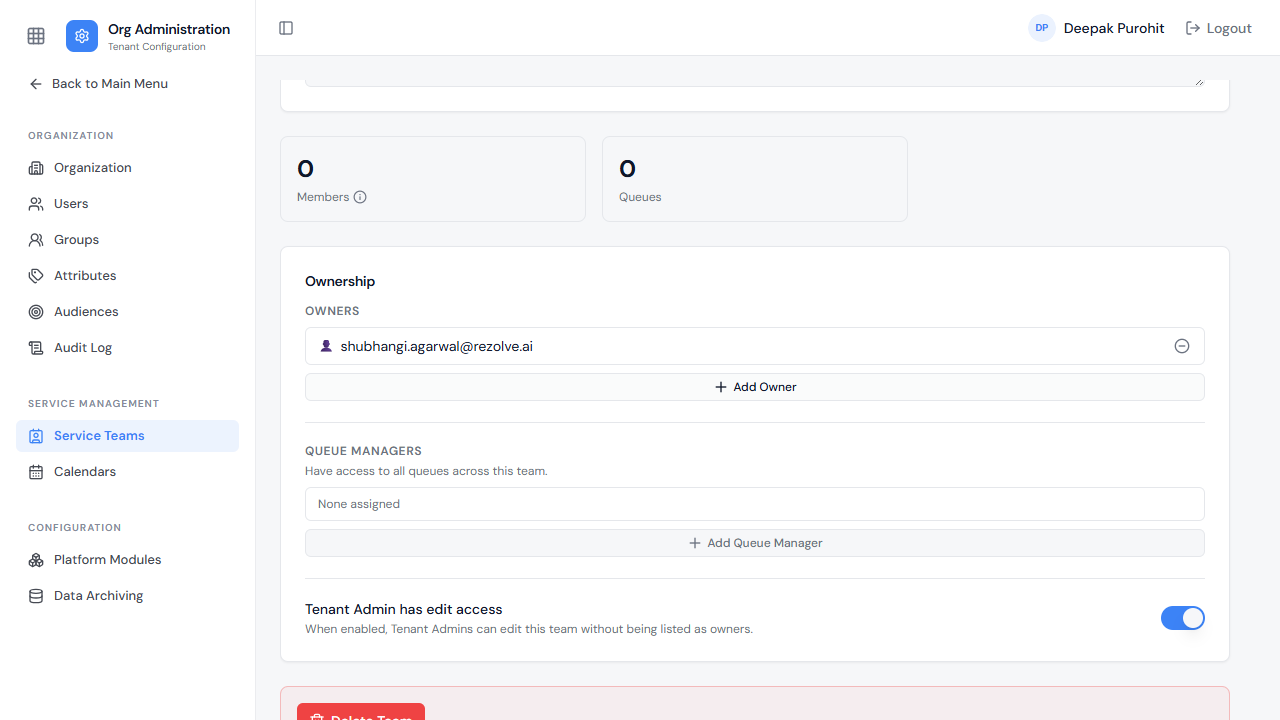
A team's own page has four tabs: Overview (details, Members/Queues counts, Ownership), Queues, Calendars, and Audit History — the last of these covering changes to both the team itself and every queue on it.
The Members count has its own info tooltip that spells out exactly what it counts: "No of users with team attribute assigned as [Team Name]." In other words, this number is driven entirely by the team attribute on each user's Attributes tab (see Users) — checking a team there and saving increases this count immediately, the same as adding the user from the team's own page would. It does not, however, add the user to any specific queue's own Members list under that queue's Ownership & Assignment — that remains a separate, manual, role-filtered action.
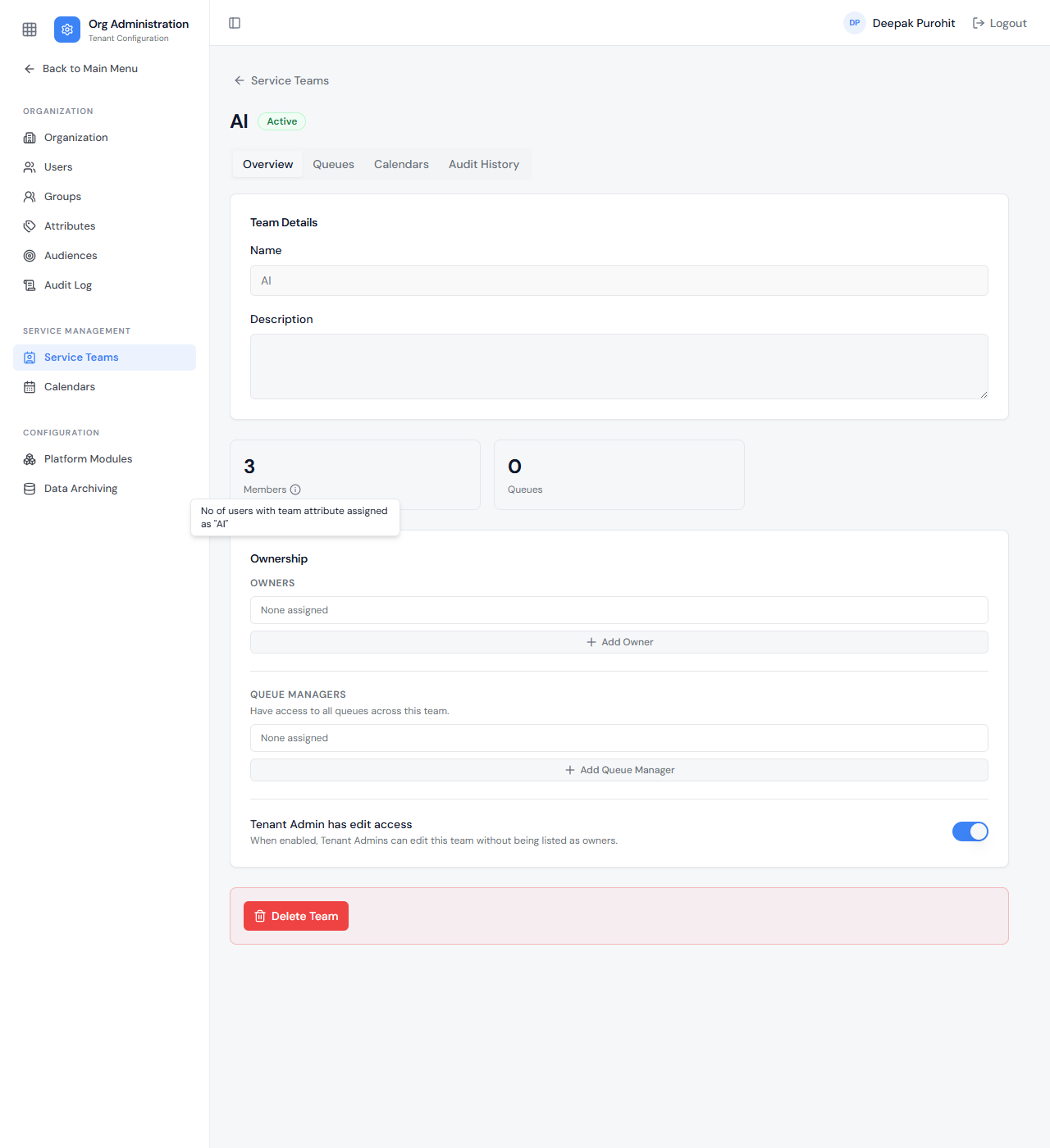
The team's Ownership section also includes a Tenant Admin has edit access toggle: when on, Tenant Admins can edit the team without being listed as an owner.
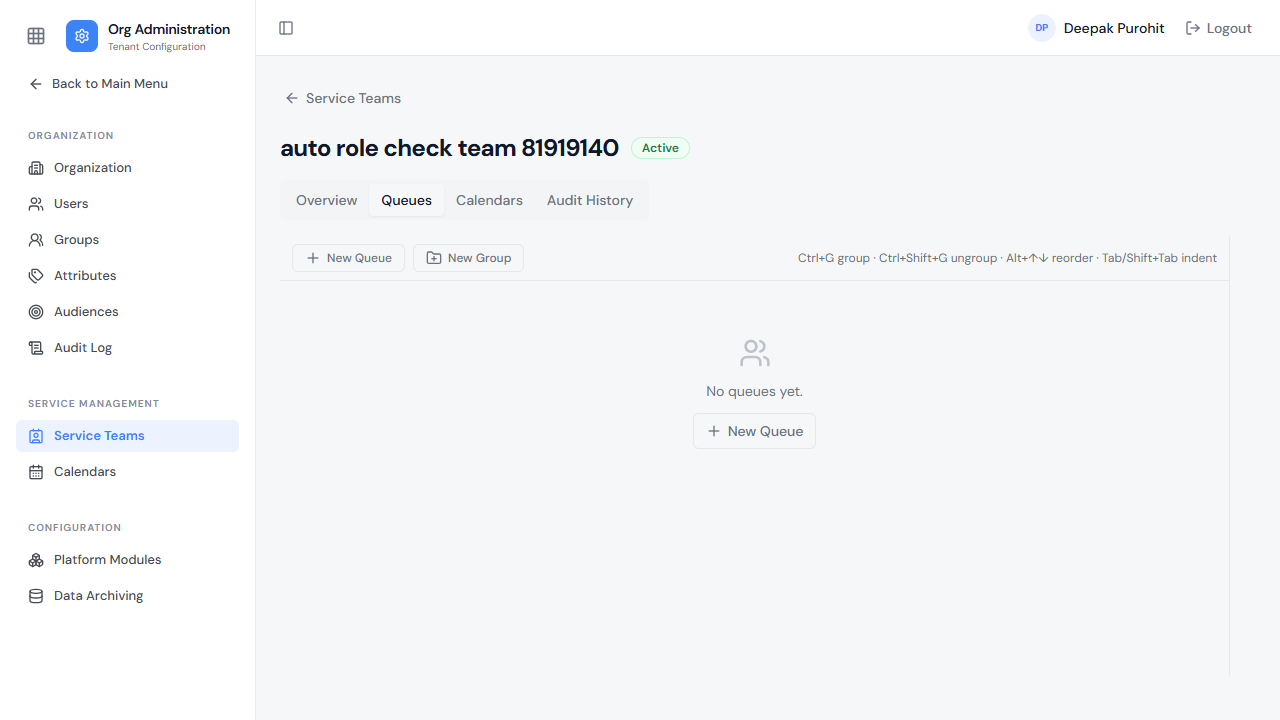
The Queues tab lists every queue on the team, and supports organizing them into groups, not just a flat list.
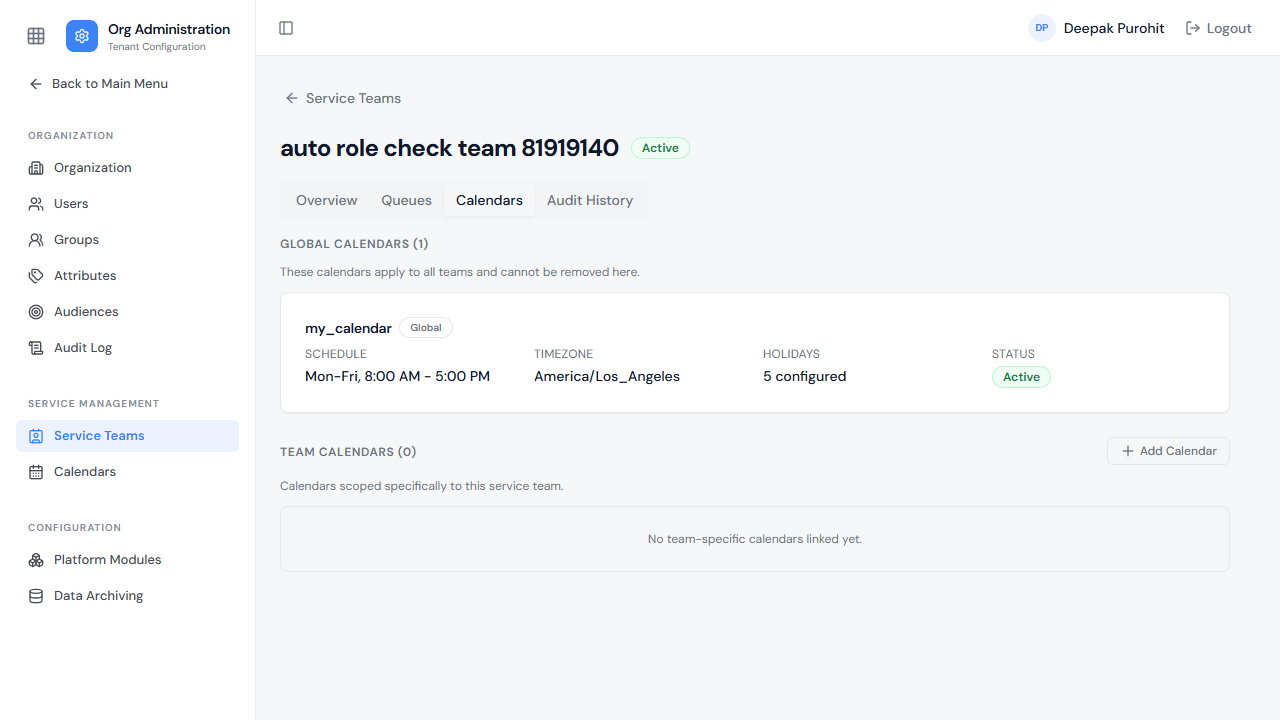
The team's own Calendars tab separates Global calendars (apply to every team, can't be removed here) from Team-specific ones (added just for this team). Add Calendar offers a picker of the tenant's Team-scoped calendars to link to this team.
A Queue's Own Configuration
Opening (or creating) an individual queue reveals a fuller panel than the team wizard shows: General (Name, Label, Description, Type, Is Default Queue), Ownership & Assignment (Owners, Supervisors, Members, each with its own Add picker), a Calendar field, and a Parent Group picker for nesting it under a queue group.
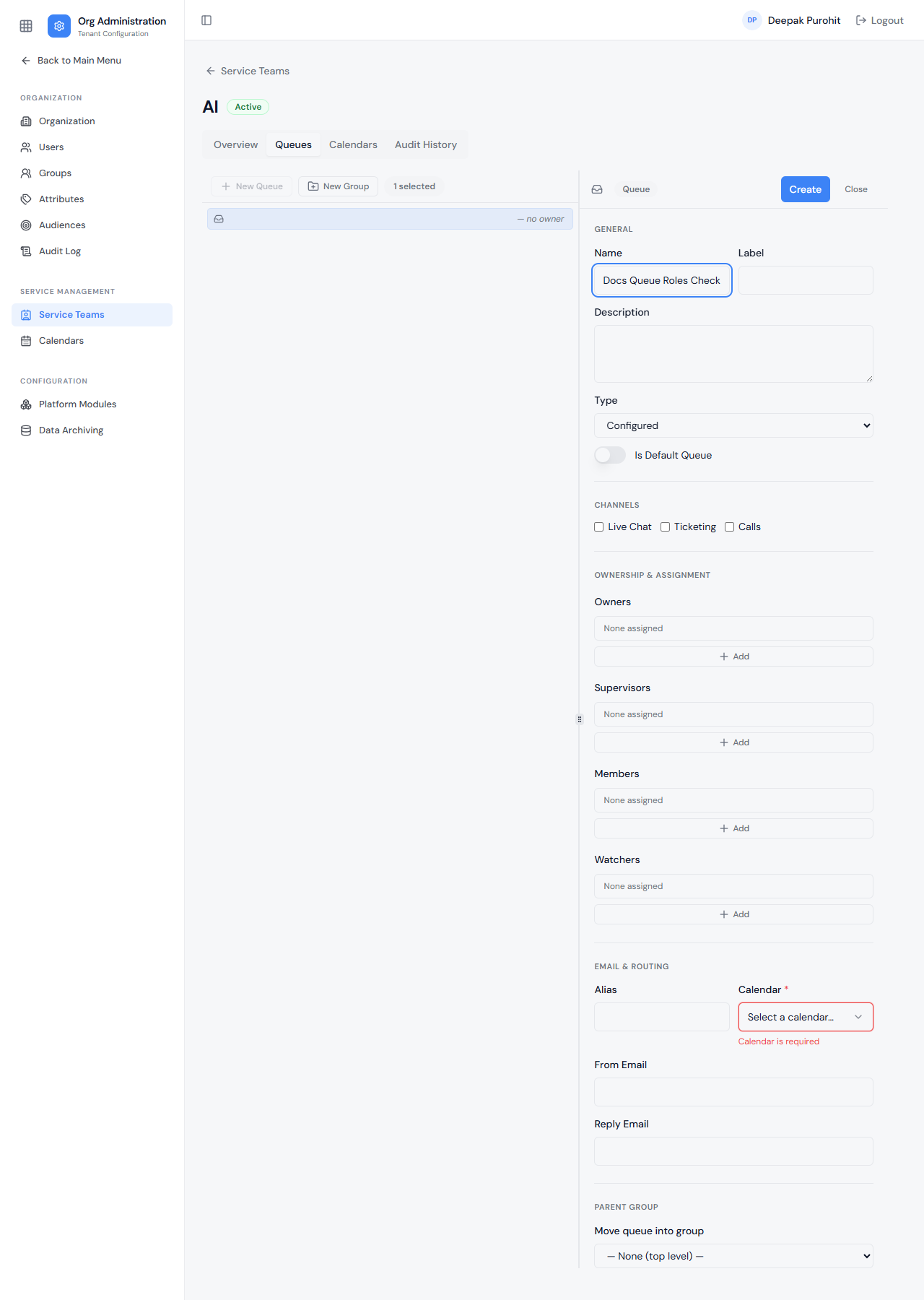
The Is Default Queue toggle can be switched on for any queue on the team, but only one queue can be marked as default at a time. It acts as the backup queue: if a ticket isn't assigned to any queue, it automatically falls into whichever queue has this toggle on.
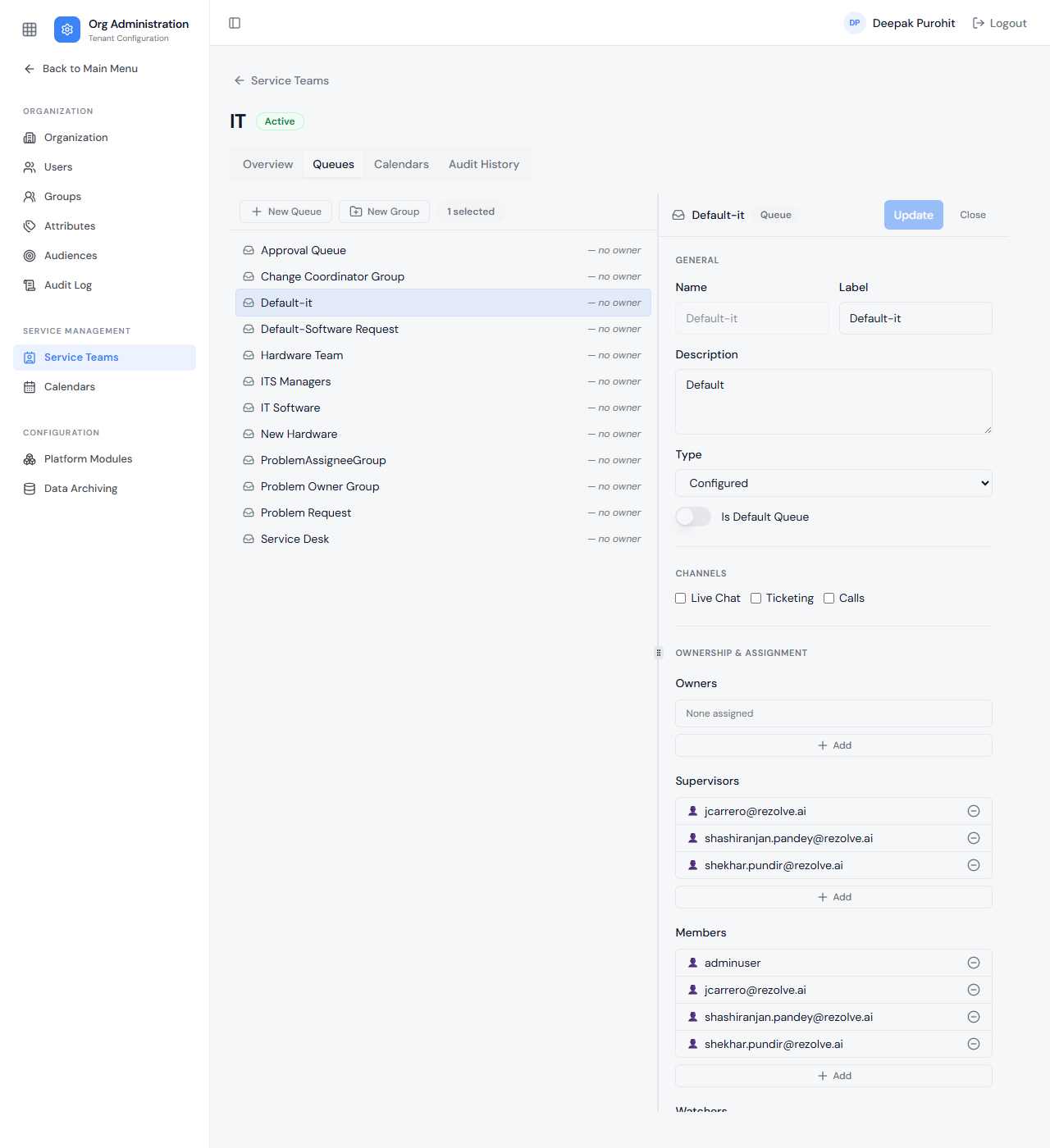
The queue's own Calendar field accepts any calendar regardless of scope — (Team), (Global), or (Queue) — each option labeled with its scope so it's clear where it comes from.
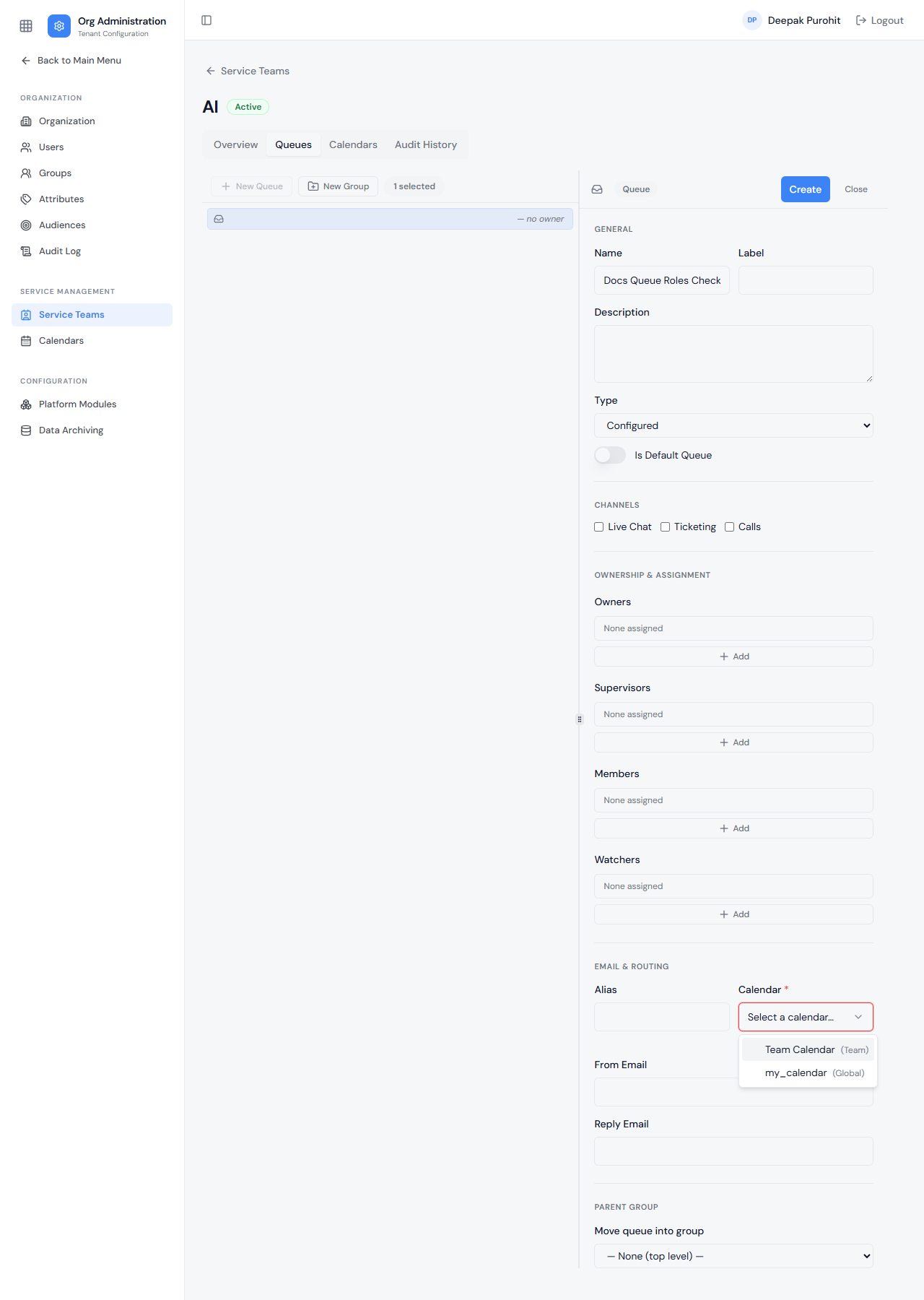
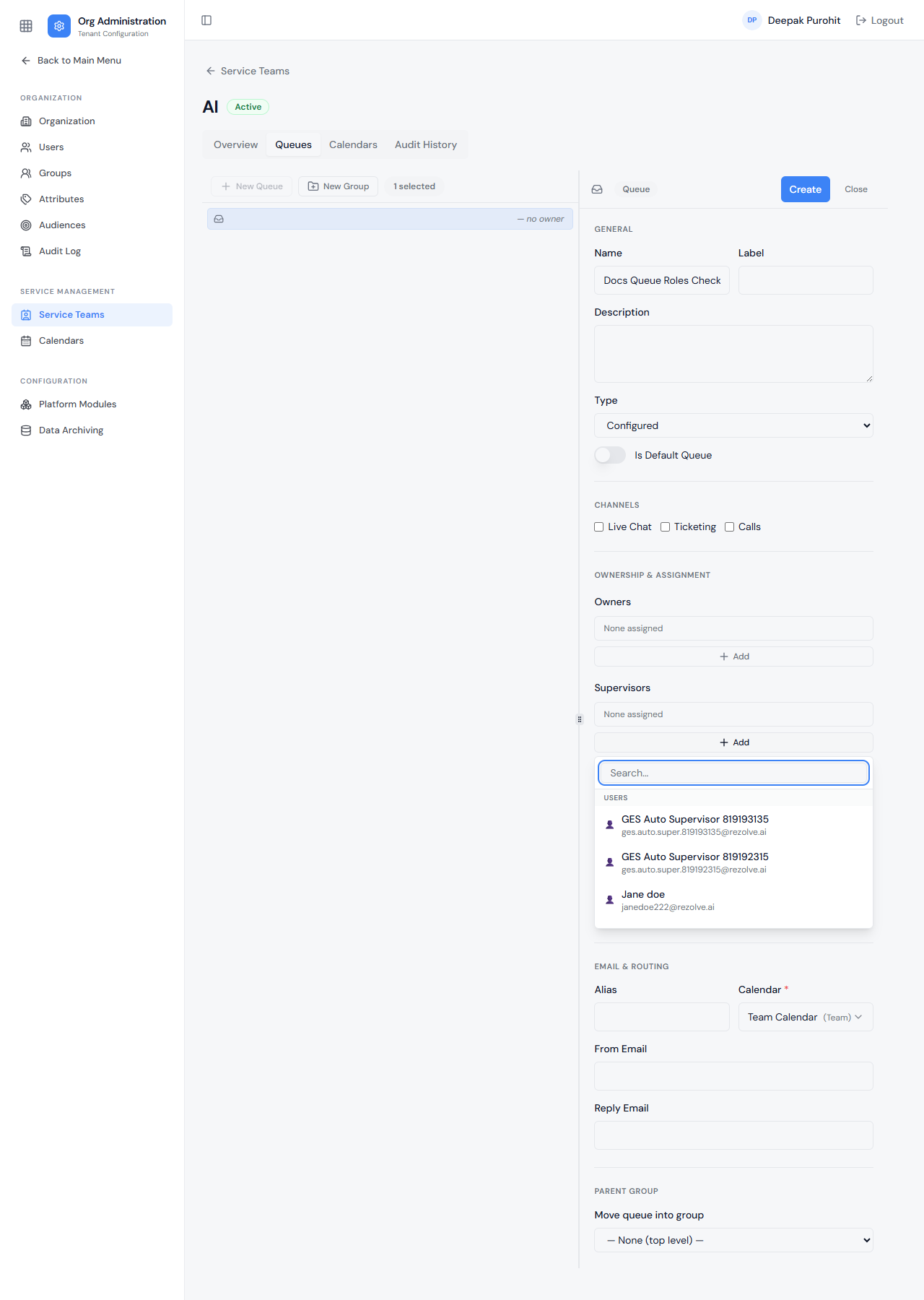
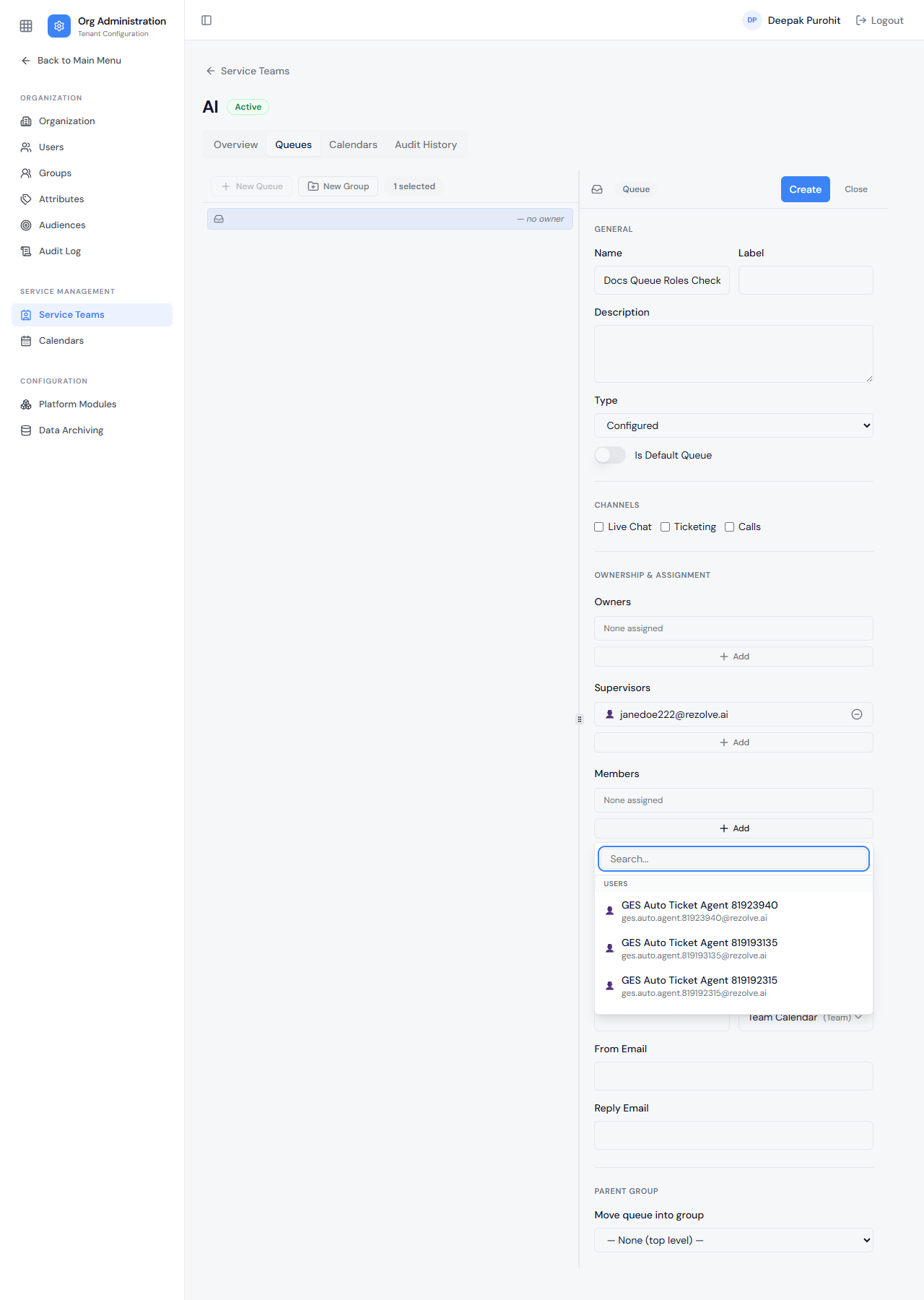
The Supervisors and Members Add pickers are role-filtered, not open to every user:
- Ticket Agent Supervisor — has access to every ticket in the queue: can see how many tickets each member is holding and reassign tickets within the queue. Only users with this role appear in the Supervisors picker.
- Ticket Agent — can only access tickets assigned to them, not other members' tickets. Only users with this role appear in the Members picker.
Calendars
Calendars themselves live in their own top-level section. The list is filterable by scope tabs — All, Global, Service Team, or Queue (each tab shows a count) — with a search box, and columns for Name, Scope, Hours, Holidays, and Actions (Clone, Delete).

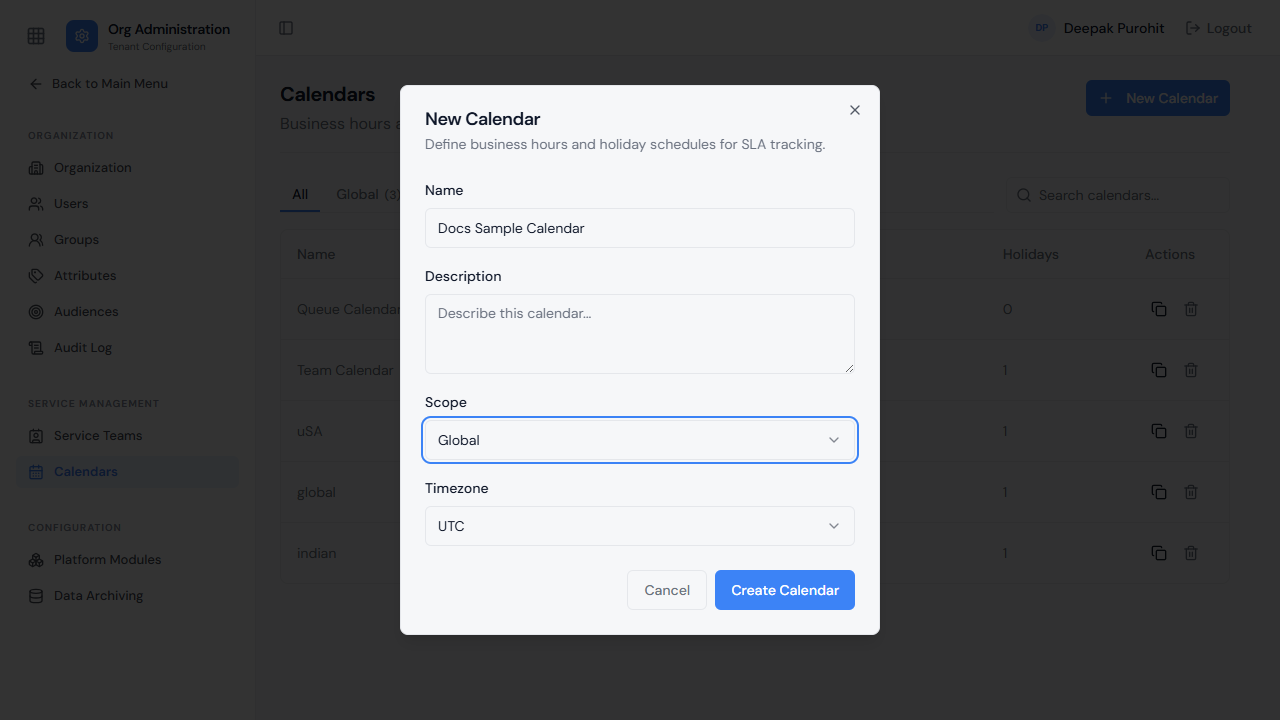
New Calendar asks for just four things: Name, Description, Scope (Global / Service Team / Queue), and Timezone. Choosing Service Team or Queue as the scope does not ask which team or queue at creation time — a new calendar is simply tagged with that scope, and gets linked to a specific team or queue afterward from that team's Calendars tab (via Add Calendar) or from a queue's own Calendar field.
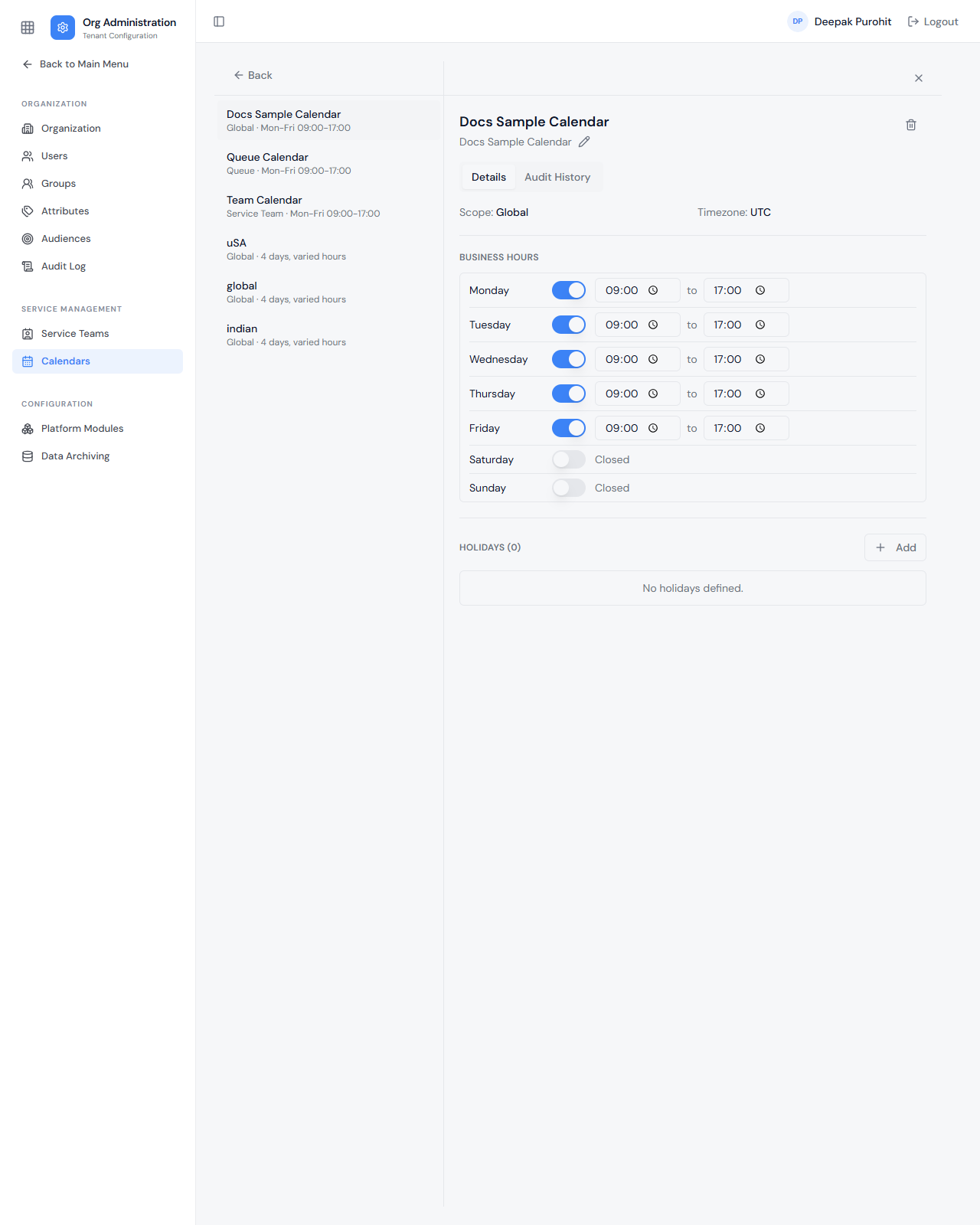
Opening a calendar shows its schedule: a Business Hours grid with an on/off switch per day of the week and a from/to time range for each day that's on, plus a Holidays list (date + name) that can be added to or left empty. A separate Audit History tab tracks changes to the calendar.