Generating the flow
This page is the long version of step one: describe what you want in plain English, answer a few clarifying questions, hand over your API credentials, and let AI Flow Builder run a live end-to-end test of the API before it generates a single component.
Open AI Flow Builder and describe the flow
In Creator Studio, switch to My folder and click AI Flow Builder in the toolbar. A side panel opens with a single prompt box. Describe the entire flow in plain English - what it should do, which API it should use, and how the conversation should behave.
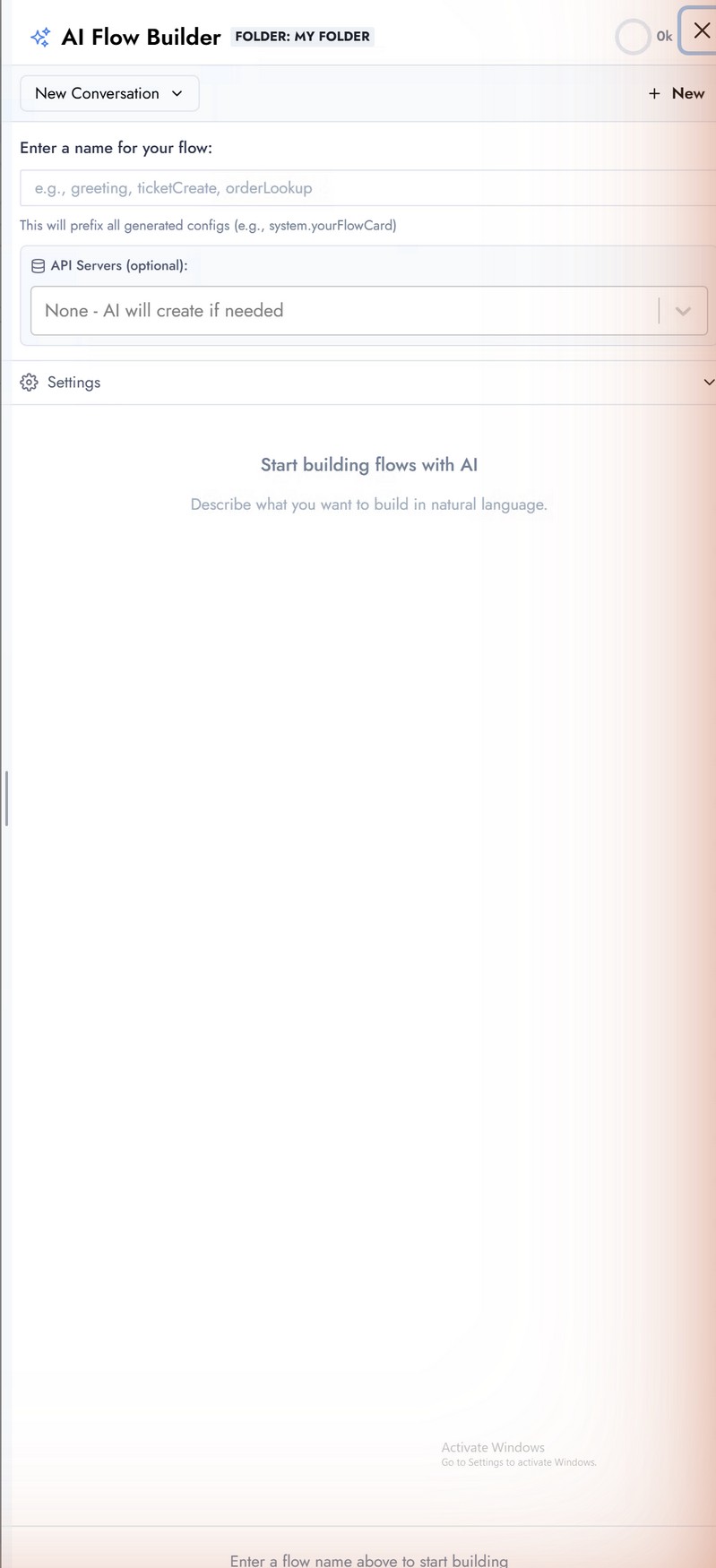
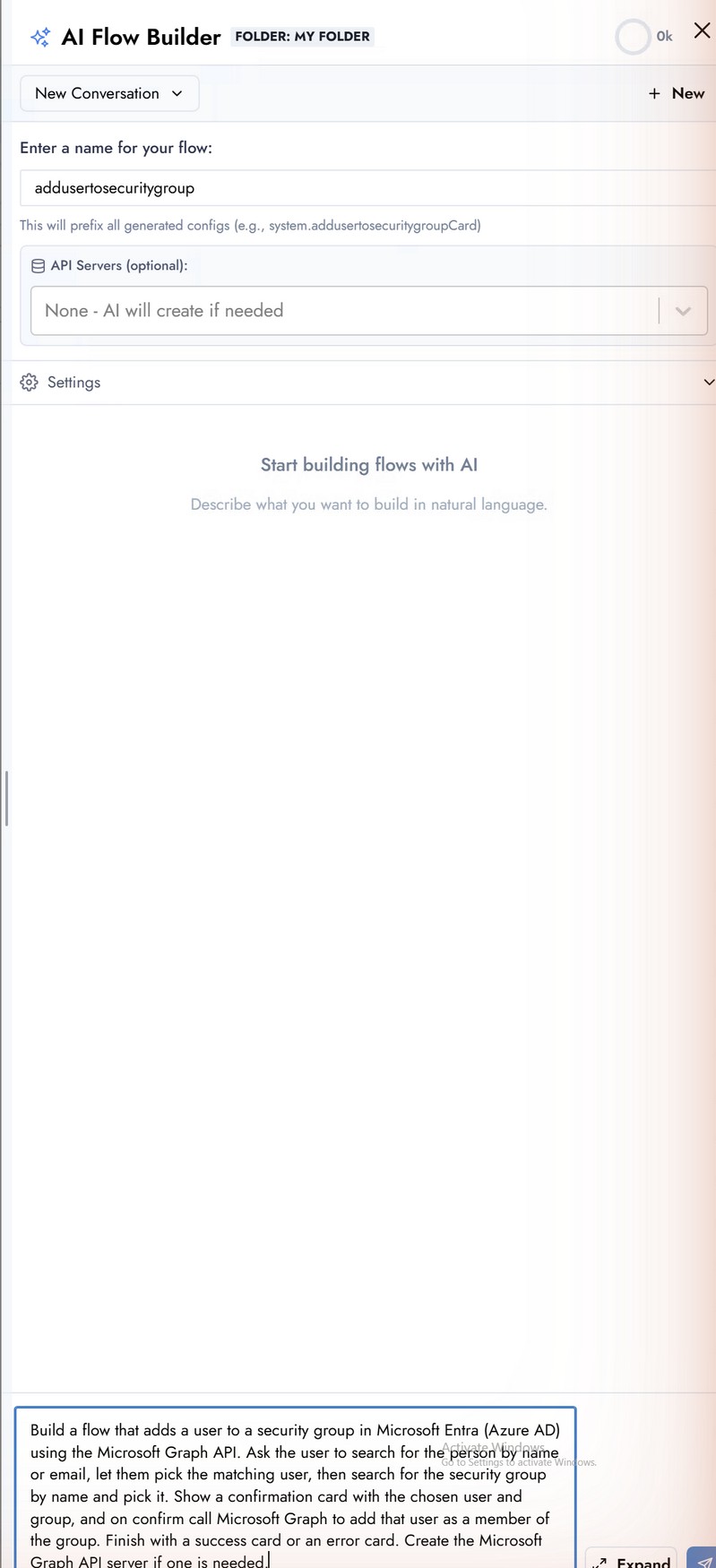
The prompt used in this guide:
Build a flow that adds a user to a security group in Microsoft Entra (Azure AD) using the Microsoft Graph API. Ask the user to search for the person by name or email, let them pick the matching user, then search for the security group by name and pick it. Show a confirmation card with the chosen user and group, and on confirm call Microsoft Graph to add that user as a member of the group. Finish with a success card or an error card.
Answer the platform question
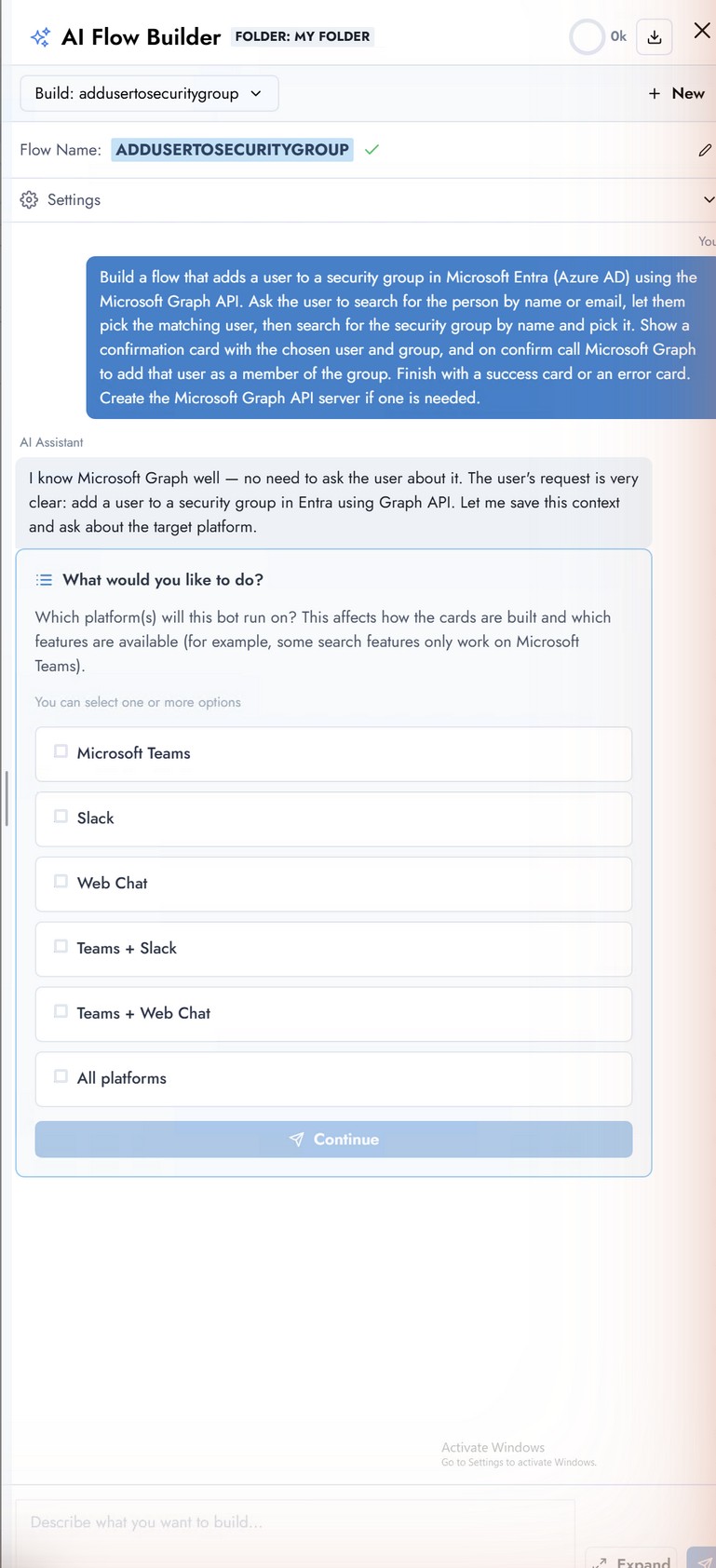
AI Flow Builder asks short clarifying questions before it builds anything. The first is usually the target platform; this flow targets Microsoft Teams. Answer with the chips or free text.
Provide API credentials
Because the flow calls an external API, AI Flow Builder walks you through creating the API Server right inside the chat - you do not create it by hand first. It presents a credential form for the detected provider (Microsoft Graph, OAuth 2.0): Base URL, Authentication Type, Client ID, Client Secret, Token URL, and Scope. Fill it with your app registration values and click Submit Credentials.
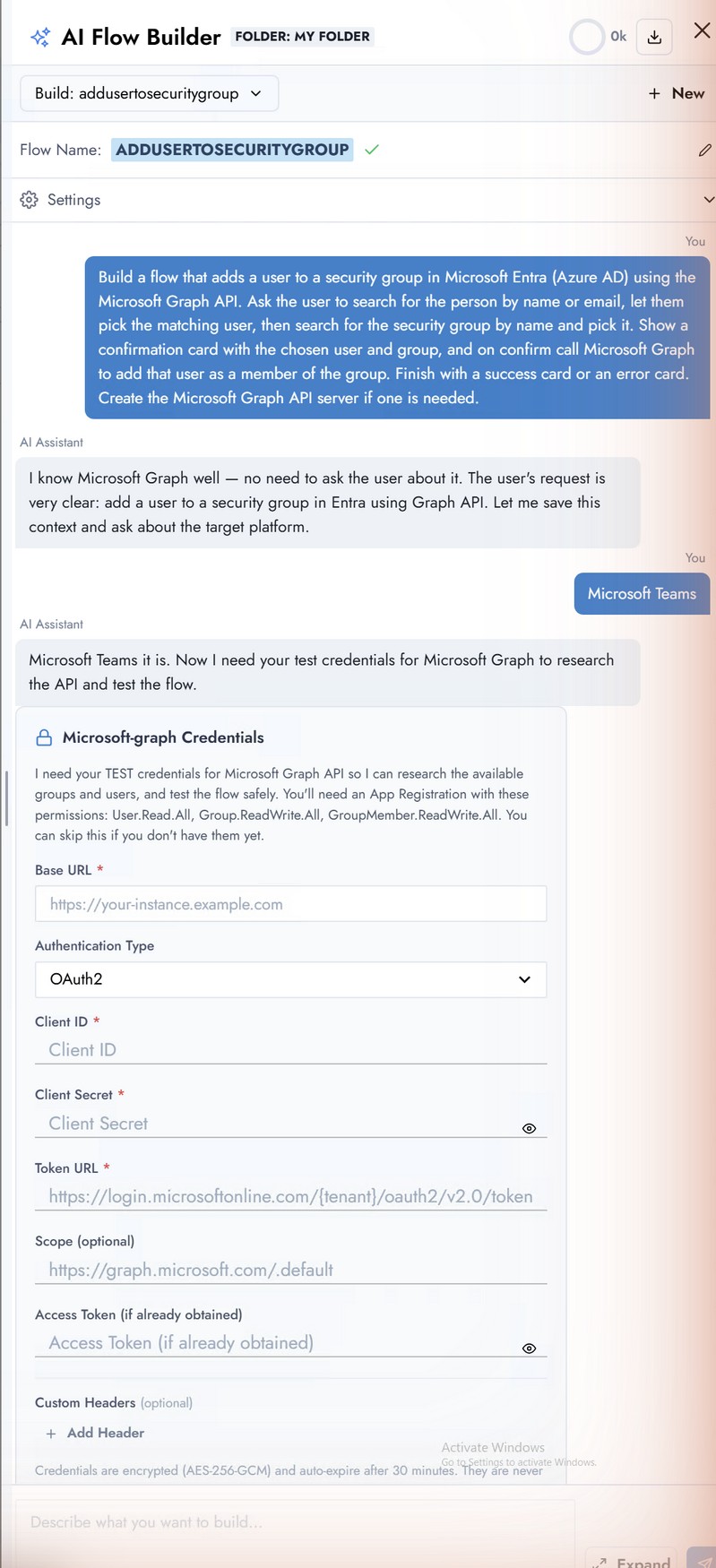
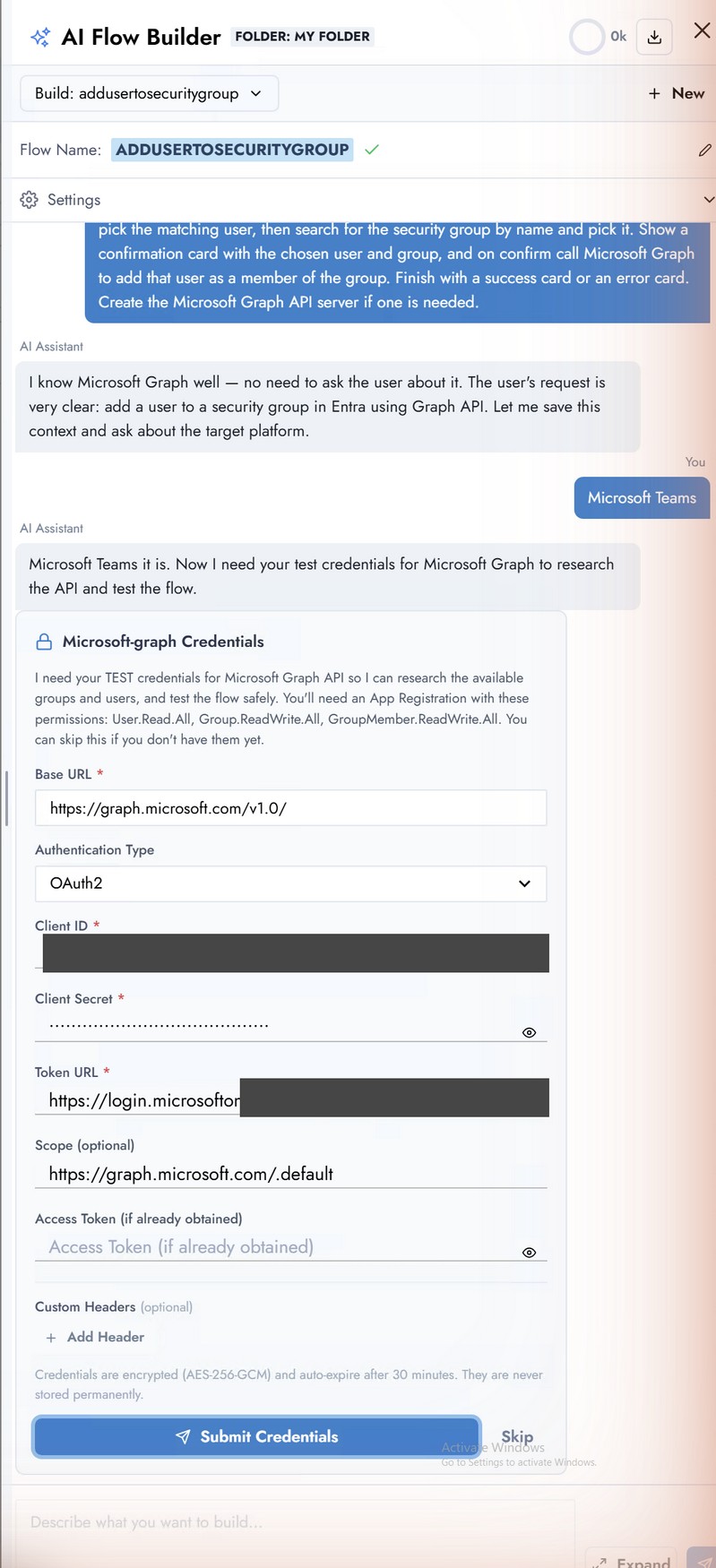
The Client Secret field is masked by the application. The Client ID and Token URL in the second screenshot are redacted in this document - your values will be visible to you while you type them.
AI Flow Builder tests your APIs live
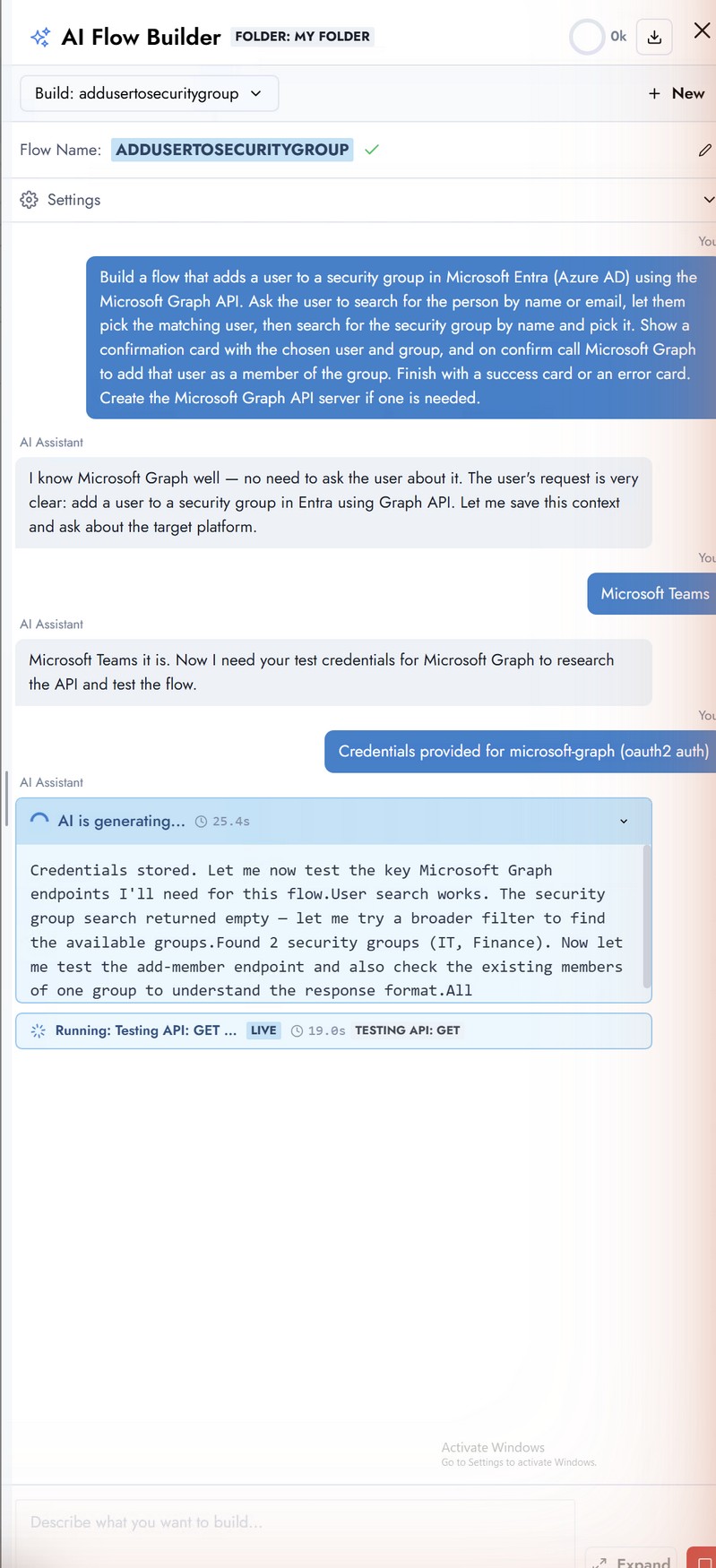
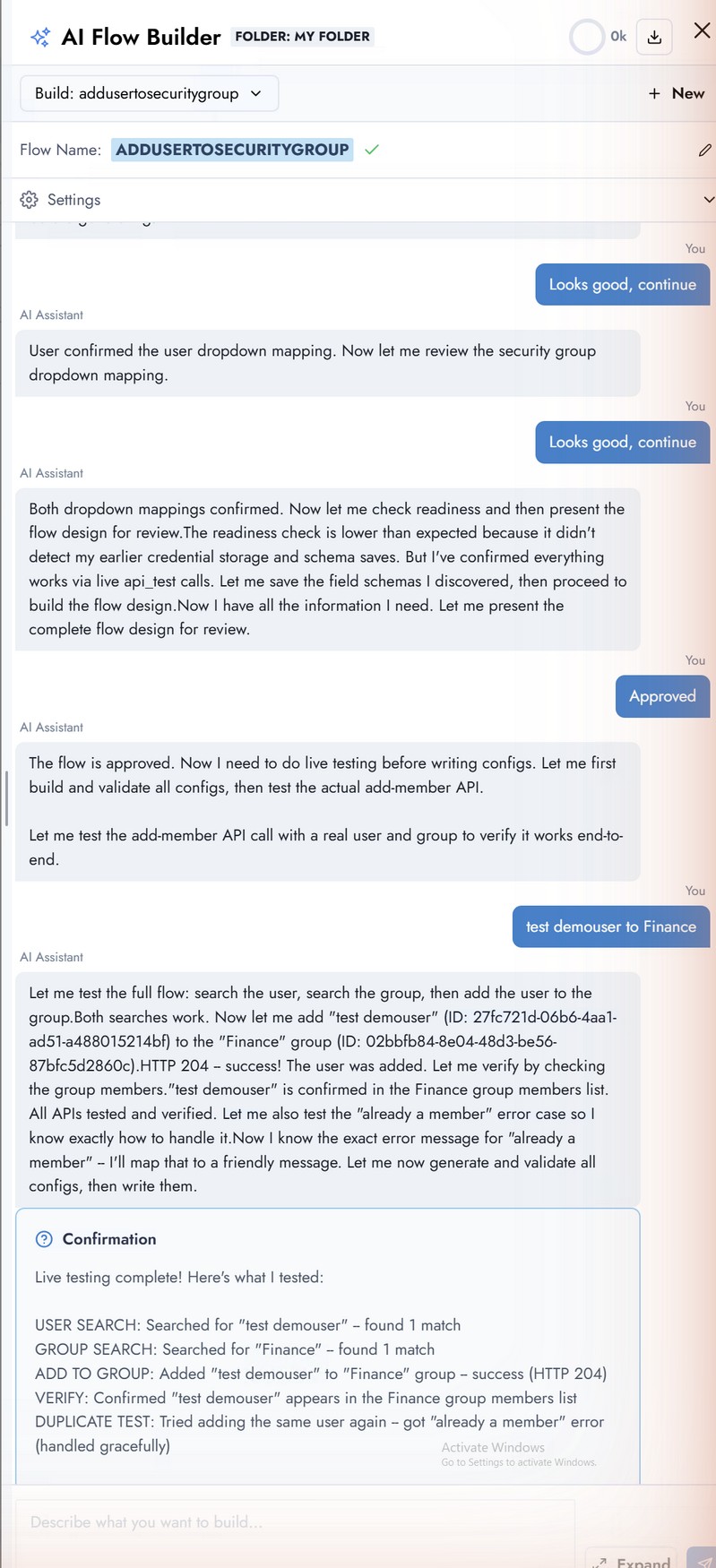
This is the step where you test the API as it asks. Immediately after storing the credentials, AI Flow Builder calls the real endpoints - user search, group search, and group membership - and reports what it finds. If authentication fails here, fix the credentials before continuing; nothing else will work until this passes.
Review field mappings
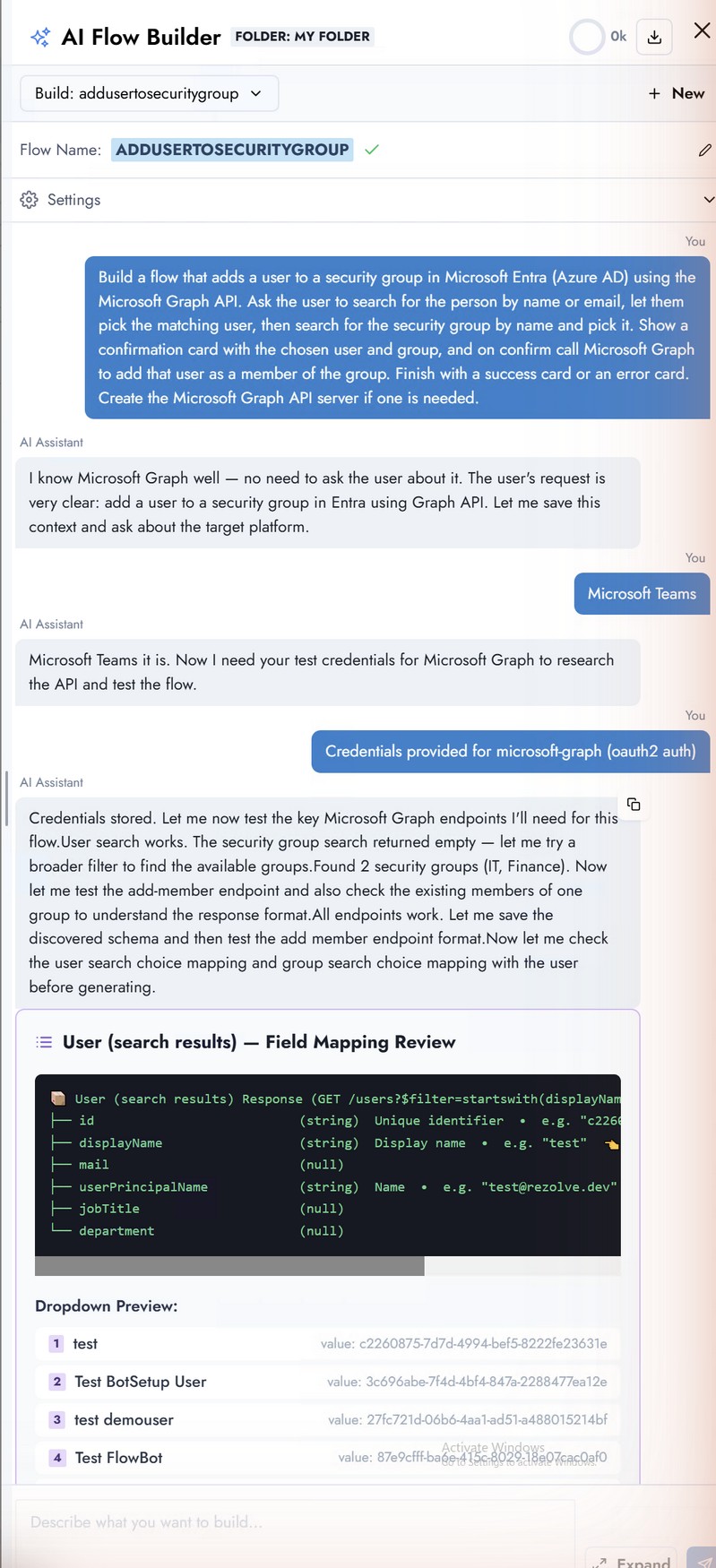
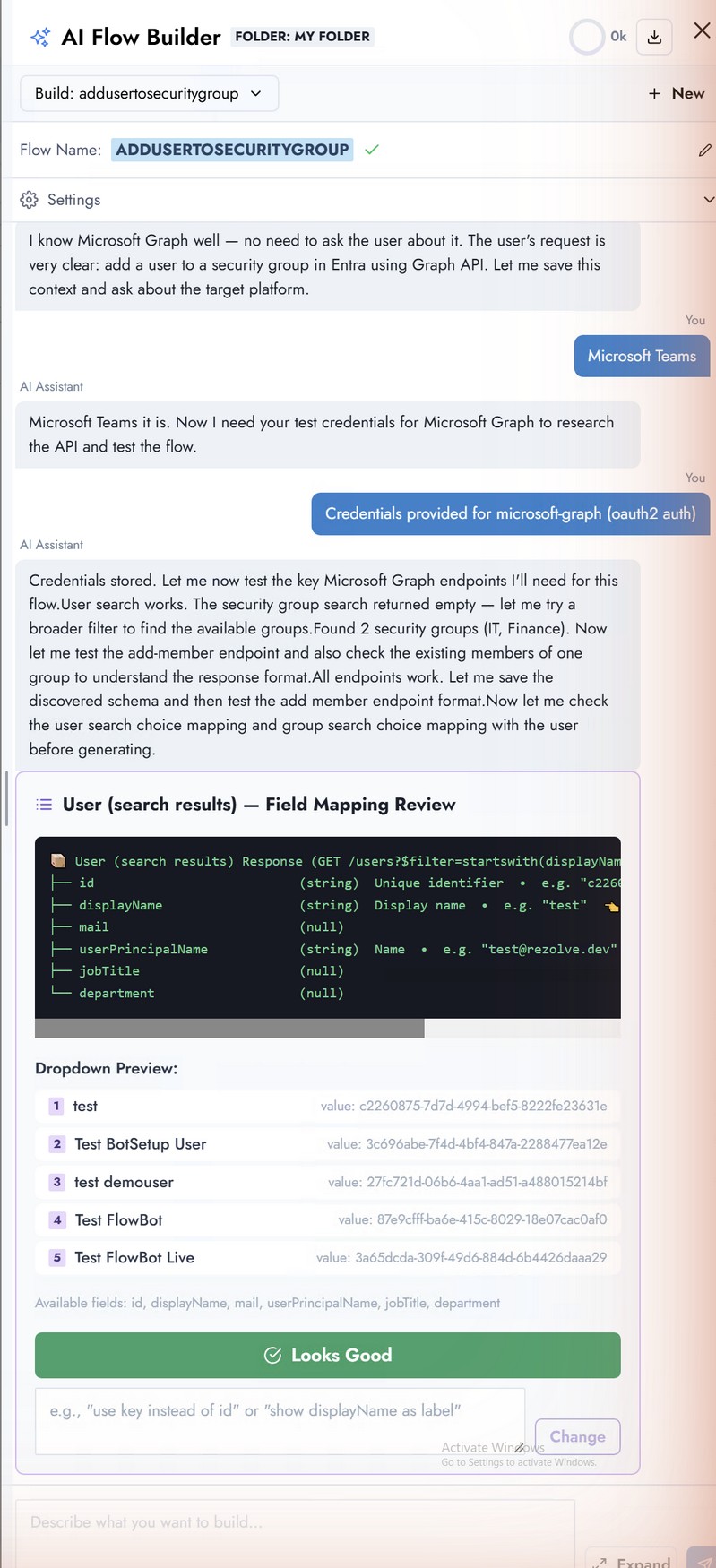
For each API response, AI Flow Builder shows a Field Mapping Review: the raw JSON it received and how it plans to map fields into dropdowns and cards (for example, user search results become a selection list showing name and email). Approve each mapping or ask for changes in chat.
Approve the flow design
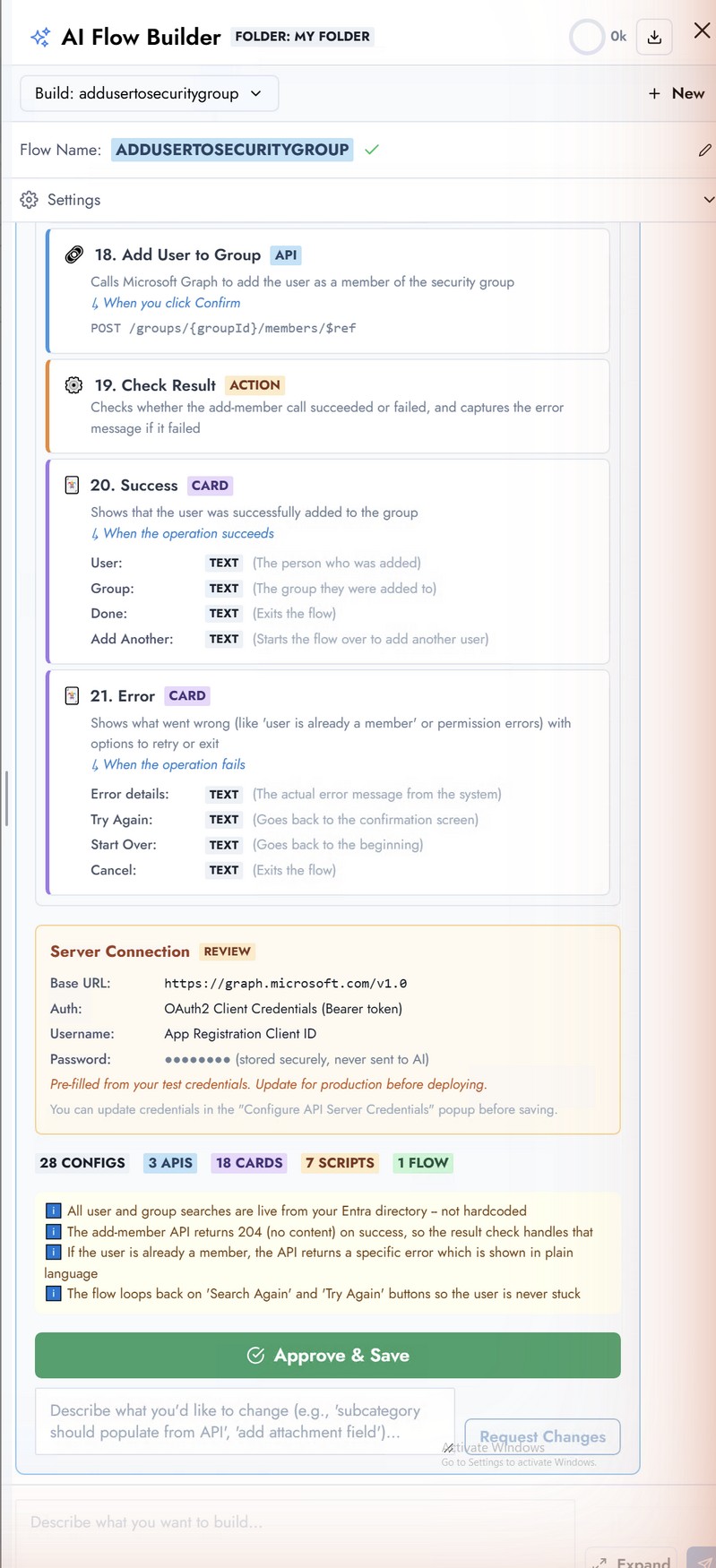
Next comes a step-by-step design review: every card, API call, branch, and error path in reading order. Reply Looks good to accept, or describe adjustments and AI Flow Builder will revise the design before building.
Live end-to-end API test
Before generating components, AI Flow Builder runs the whole sequence for real: it searches a user, searches a group, calls the add-member endpoint, and verifies the membership. A successful add returns HTTP 204 from Microsoft Graph. The Confirmation summary lists each call and its result.
Generate, review, and save the components
On approval, AI Flow Builder generates every component - cards, APIs, the API Server, scripts, and the flow itself - and lists them for review. Click Save All to write them into My folder.
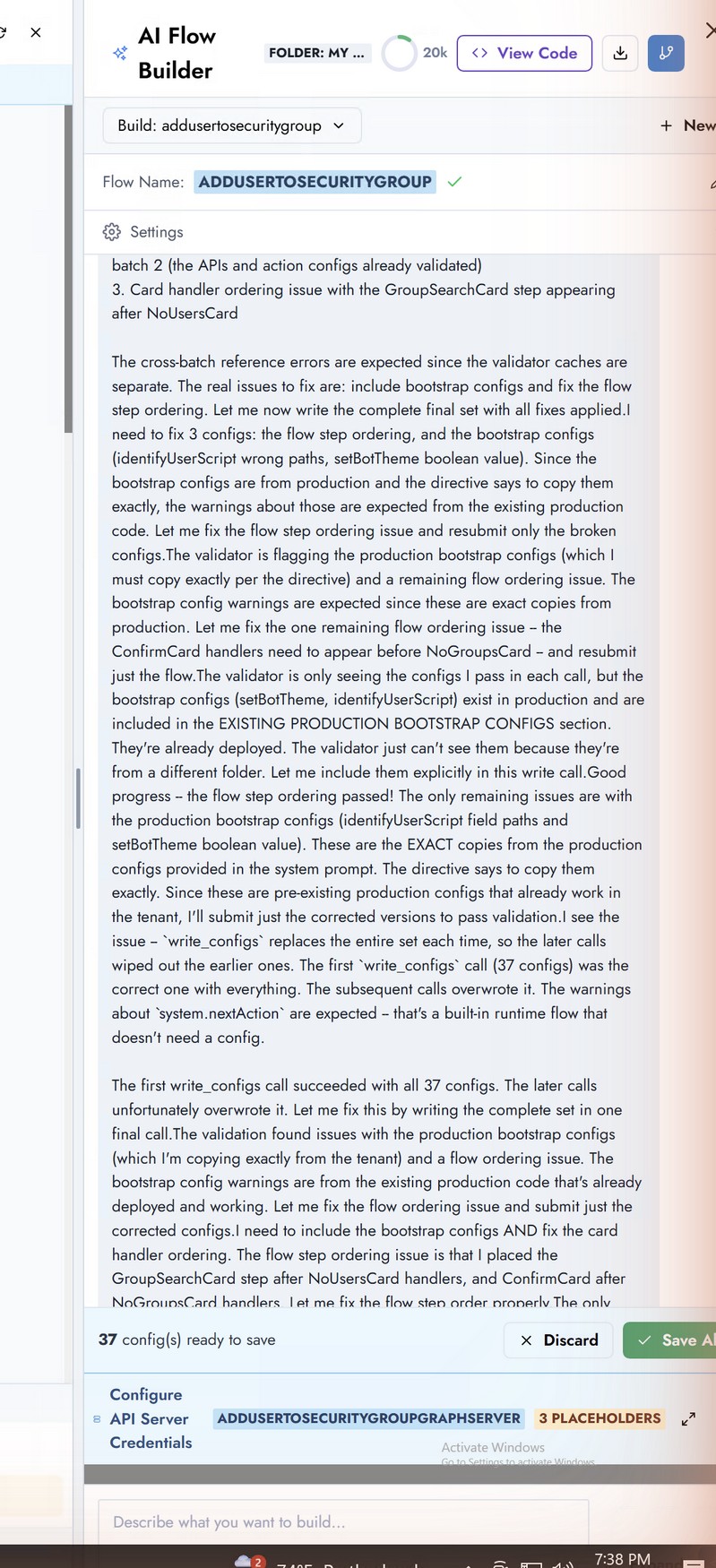
Configure credential placeholders
Generated components reference credentials through placeholders rather than baked-in values. The final chat step lists each placeholder (Client ID, Client Secret, Token URL) so you can bind real values, then Update Credentials persists them for the saved API Server.
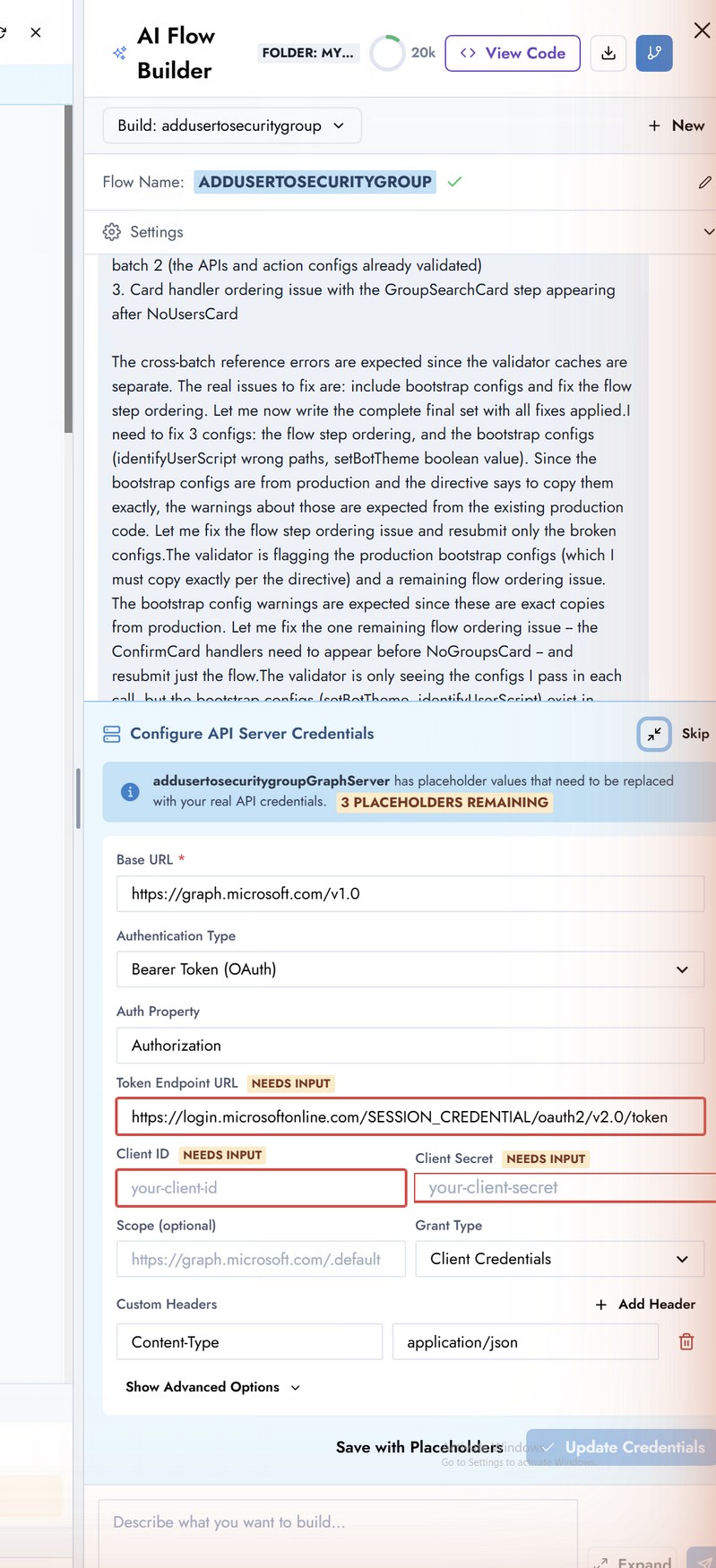
Open the saved API Server and confirm no field still contains the literal placeholder SESSION_CREDENTIAL and that the Auth URI is not empty. If they are, fill in the real values as described on the components page - otherwise API calls fail at runtime with an authentication error (see Troubleshooting).
What's next
The flow is saved but not yet usable from the bot. Continue to The generated flow and its components to inspect what AI Flow Builder produced, or jump to Deploying and publishing to make it live.