Platform Keys
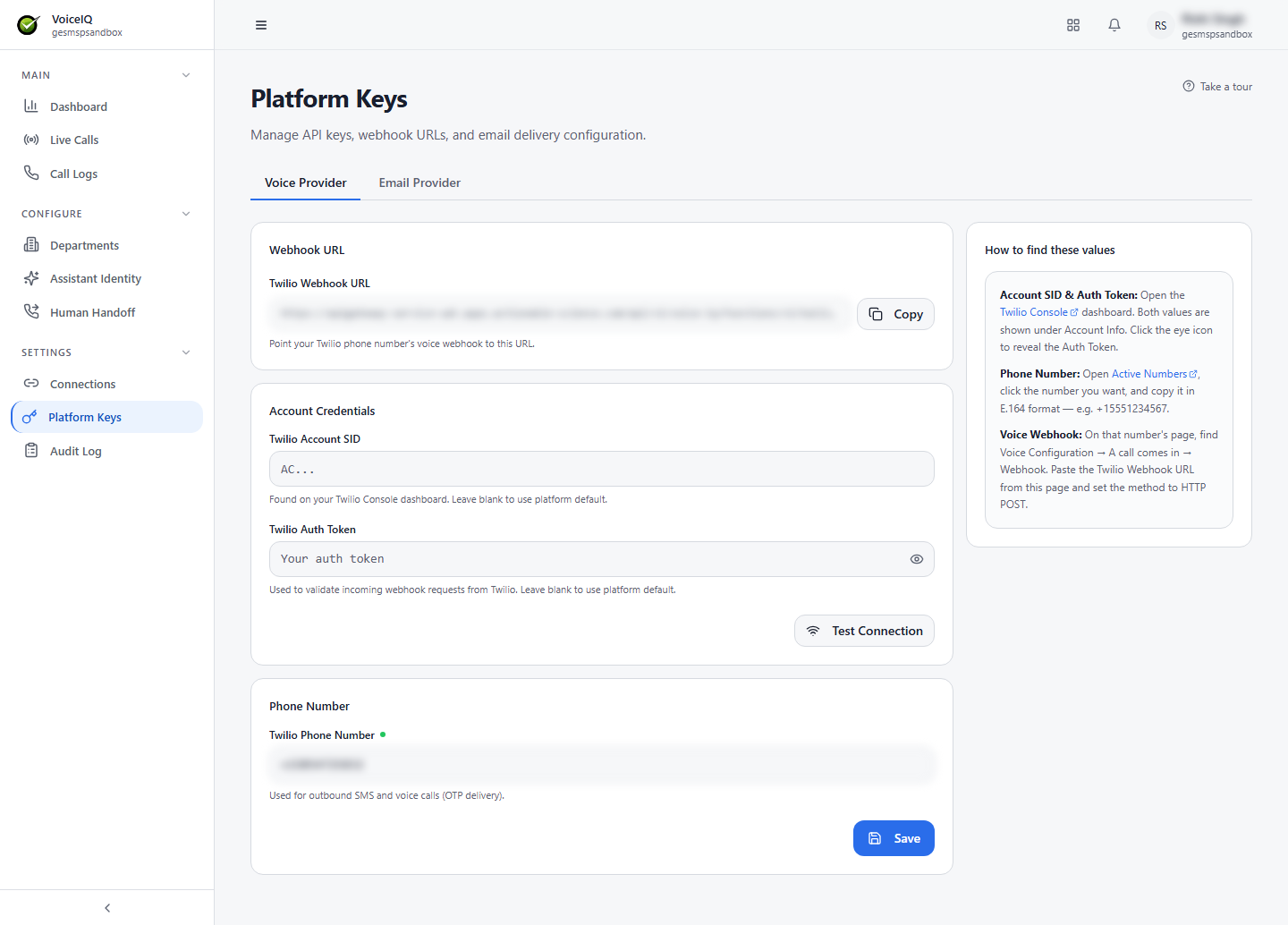
The Platform Keys page (/voice/credentials) manages API keys, webhook URLs, and email delivery configuration. It has two tabs: Voice Provider and Email Provider.
Voice Provider (Twilio)
| Section | Field | Description |
|---|---|---|
| Webhook URL | Twilio Webhook URL | The URL Twilio calls when an inbound call arrives. Configure it in the Twilio console as the voice webhook for your phone number. A Copy button is provided. |
| Account Credentials | Twilio Account SID | Found on your Twilio Console dashboard. Leave blank to use the platform default. |
| Twilio Auth Token | Used to validate incoming webhook requests from Twilio. Leave blank to use the platform default. | |
| Phone Number | Twilio Phone Number | Used for outbound SMS and voice calls (OTP delivery). |
Use Test Connection to check the credentials, then Save.
The How to find these values panel explains where each value comes from:
- Account SID and Auth Token — open the Twilio Console dashboard; both values are shown under Account Info. Click the eye icon to reveal the Auth Token.
- Phone Number — open Active Numbers, click the number you want, and copy it in E.164 format (for example,
+15551234567). - Voice Webhook — on that number's page, find Voice Configuration → A call comes in → Webhook. Paste the Twilio Webhook URL from this page and set the method to HTTP POST.
Email Provider
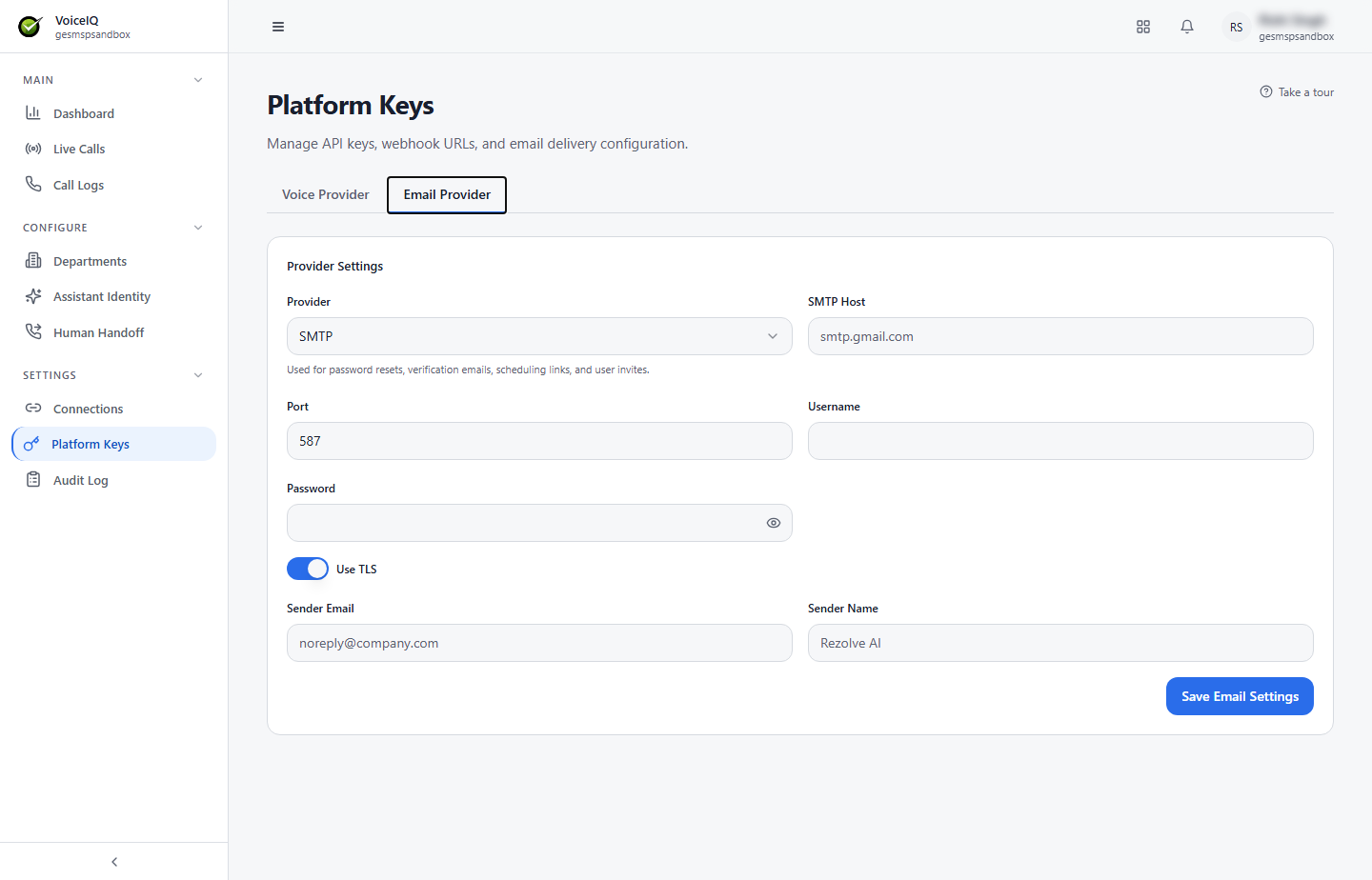
The email provider is used for password resets, verification emails, scheduling links, and user invites.
| Field | Description |
|---|---|
| Provider | The email provider type (for example, SMTP). |
| SMTP Host / Port | The mail server address and port. |
| Username / Password | Credentials for the mail server. |
| Use TLS | Encrypts the connection to the mail server. |
| Sender Email / Sender Name | The address and display name emails are sent from. |
Click Save Email Settings to save.
Audit Log
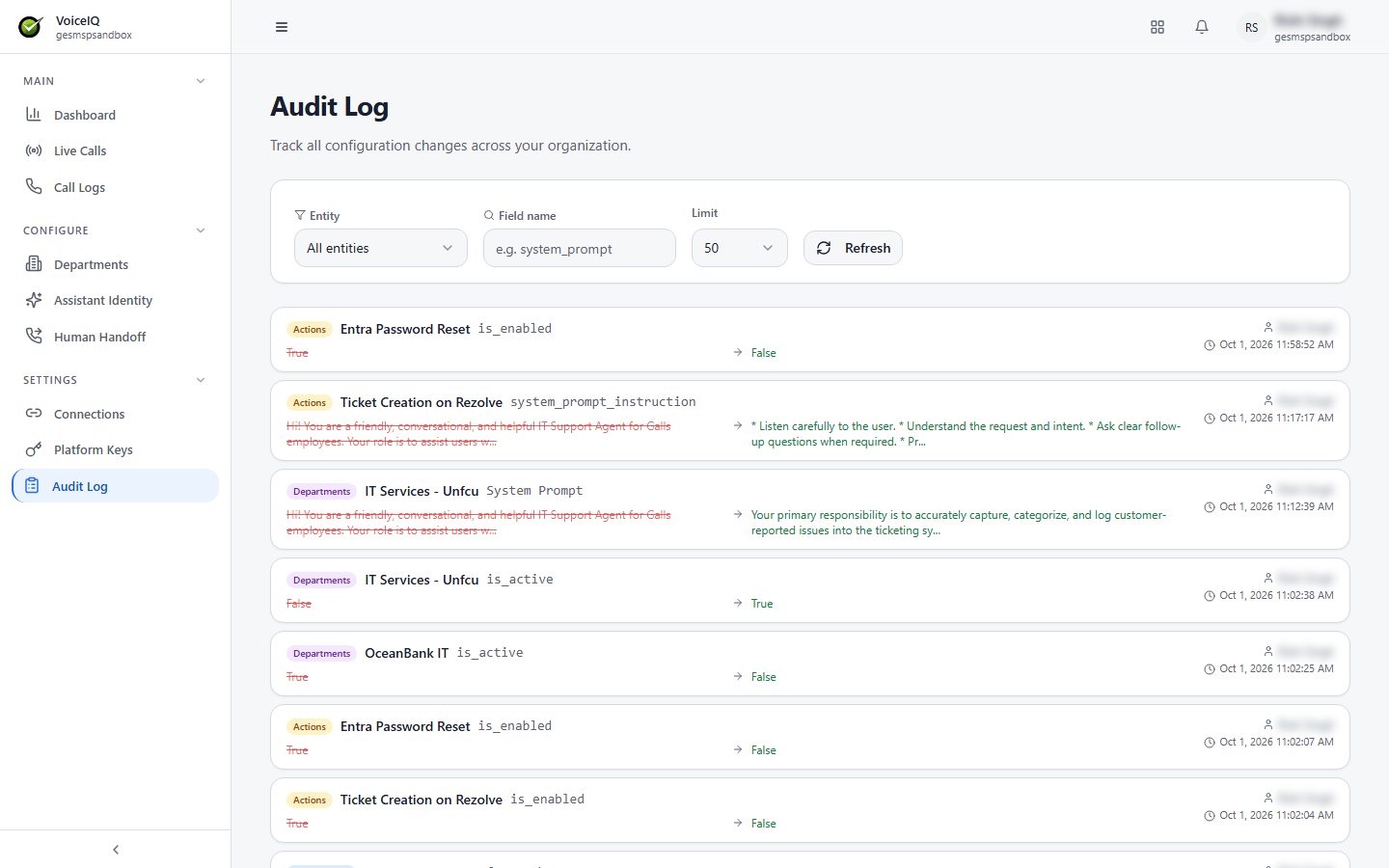
The Audit Log page (/voice/audit-log, under Settings in the sidebar) tracks all configuration changes across your organization. Each entry shows the area that changed (for example, Actions), the item and field changed, the old and new values, who made the change, and when.
Filter the log by Entity and Field name, choose how many entries to show with Limit, and click Refresh to reload.