Departments
A Department is the core building block of VoiceIQ. Each Department defines how a specific category of inbound call is handled from start to finish.
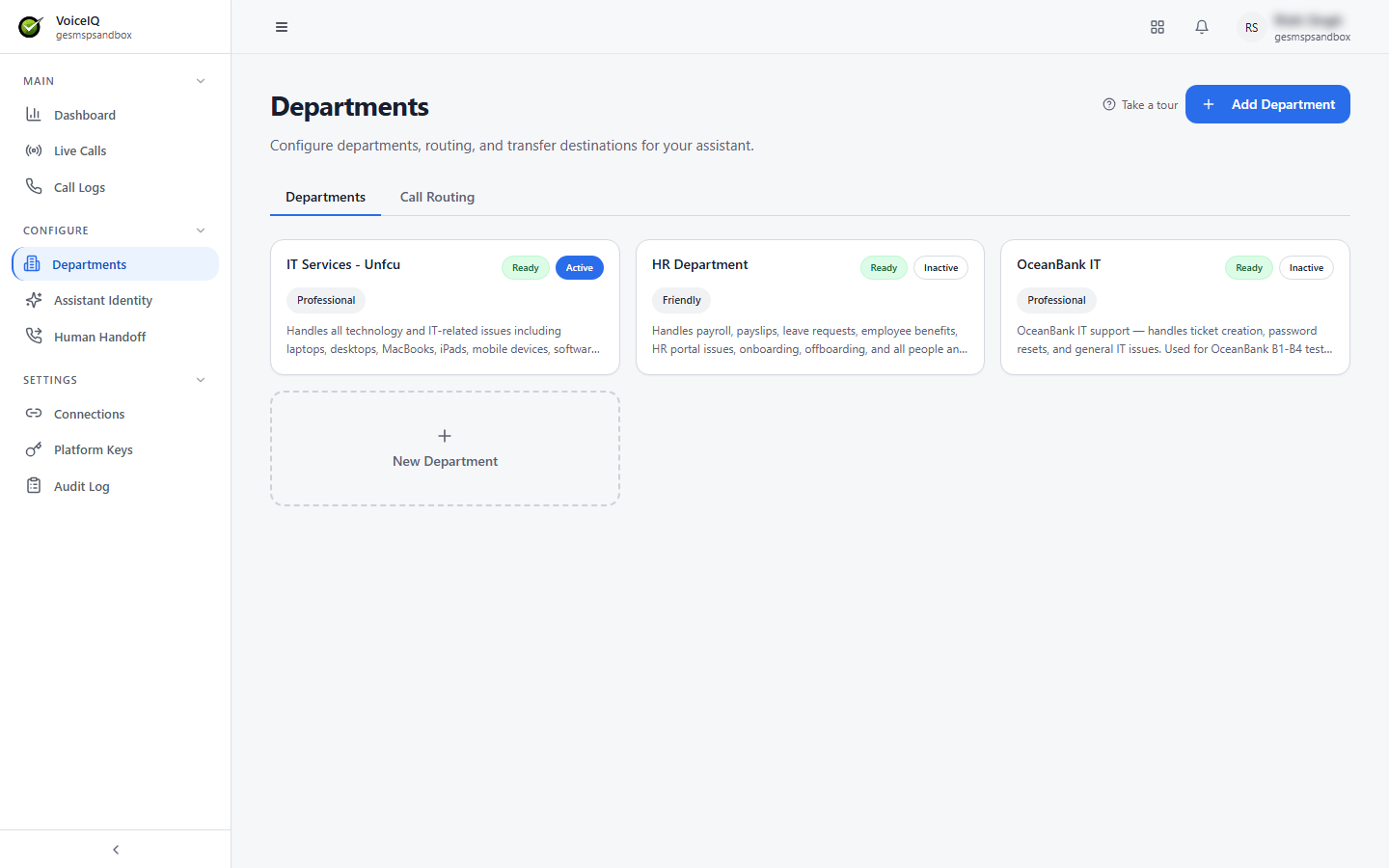
The Departments page (/voice/departments) lists every Department as a card showing its name, tone, description, and status badges:
- Ready — the Department is fully configured.
- Active / Inactive — whether callers can currently be routed to the Department.
Creating a Department
- Navigate to Departments (
/voice/departments). - Click Add Department (or the New Department card).
- In the New Department dialog, enter a Name and Description.
- Click Create Department.
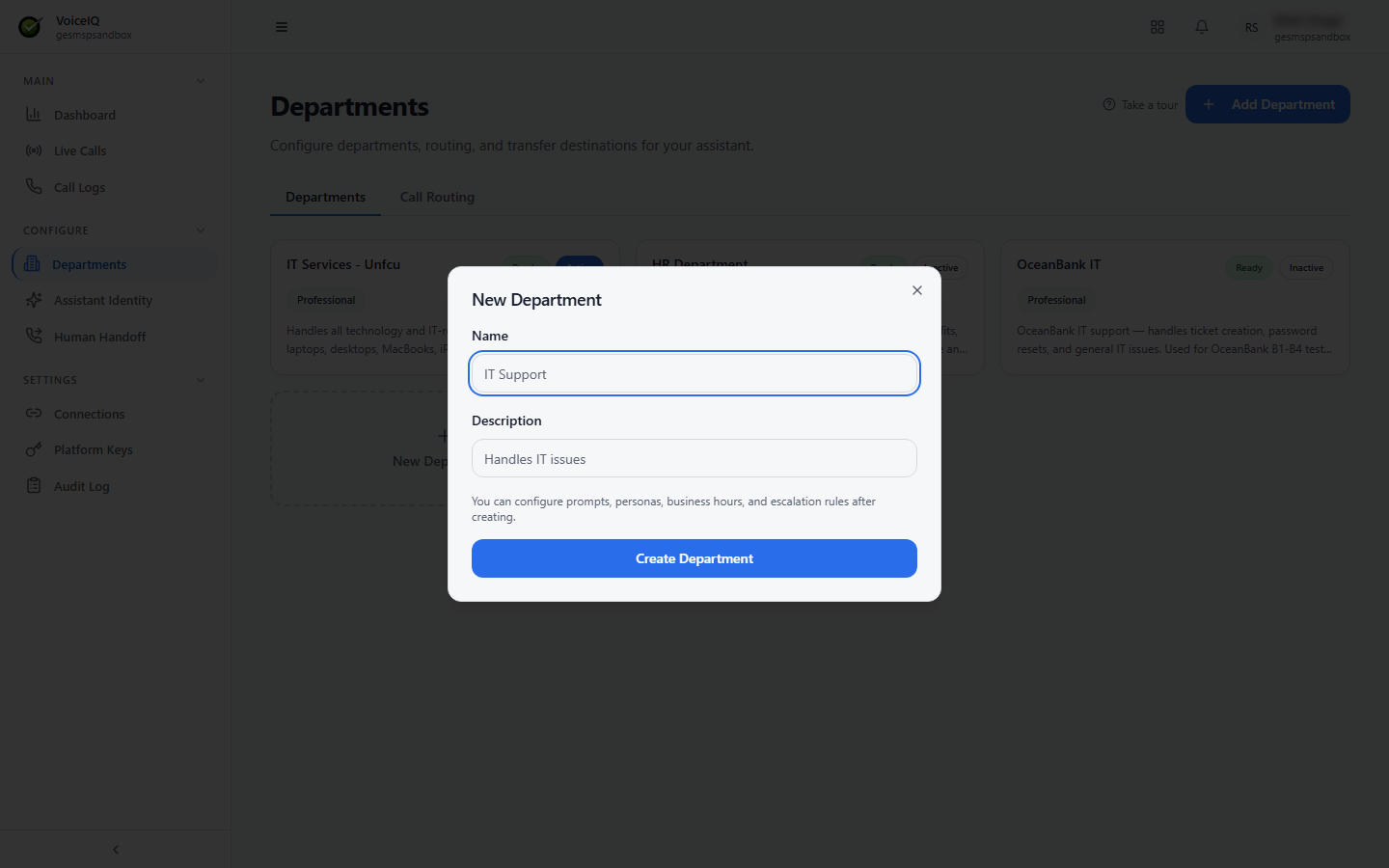
The Department detail page opens after creation. Prompts, personas, business hours, and escalation rules are configured there.
Call Routing
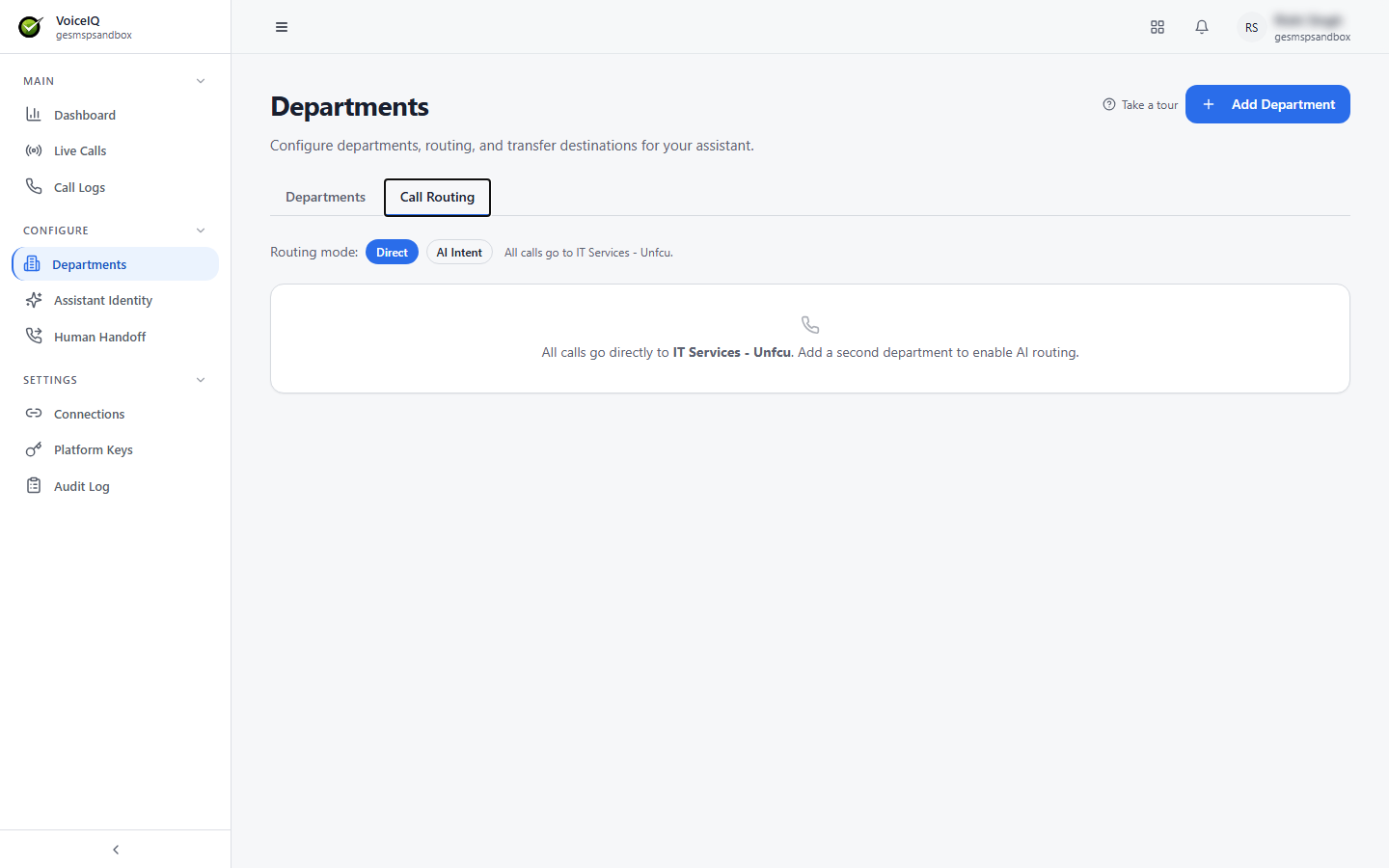
The Call Routing tab on the Departments page sets how inbound calls reach a Department:
| Routing Mode | Description |
|---|---|
| Direct | All calls go directly to a single Department. |
| AI Intent | The AI routes each caller to the Department that best matches their request, using each Department's Description. Available once there are at least two Departments. |
Department Tabs
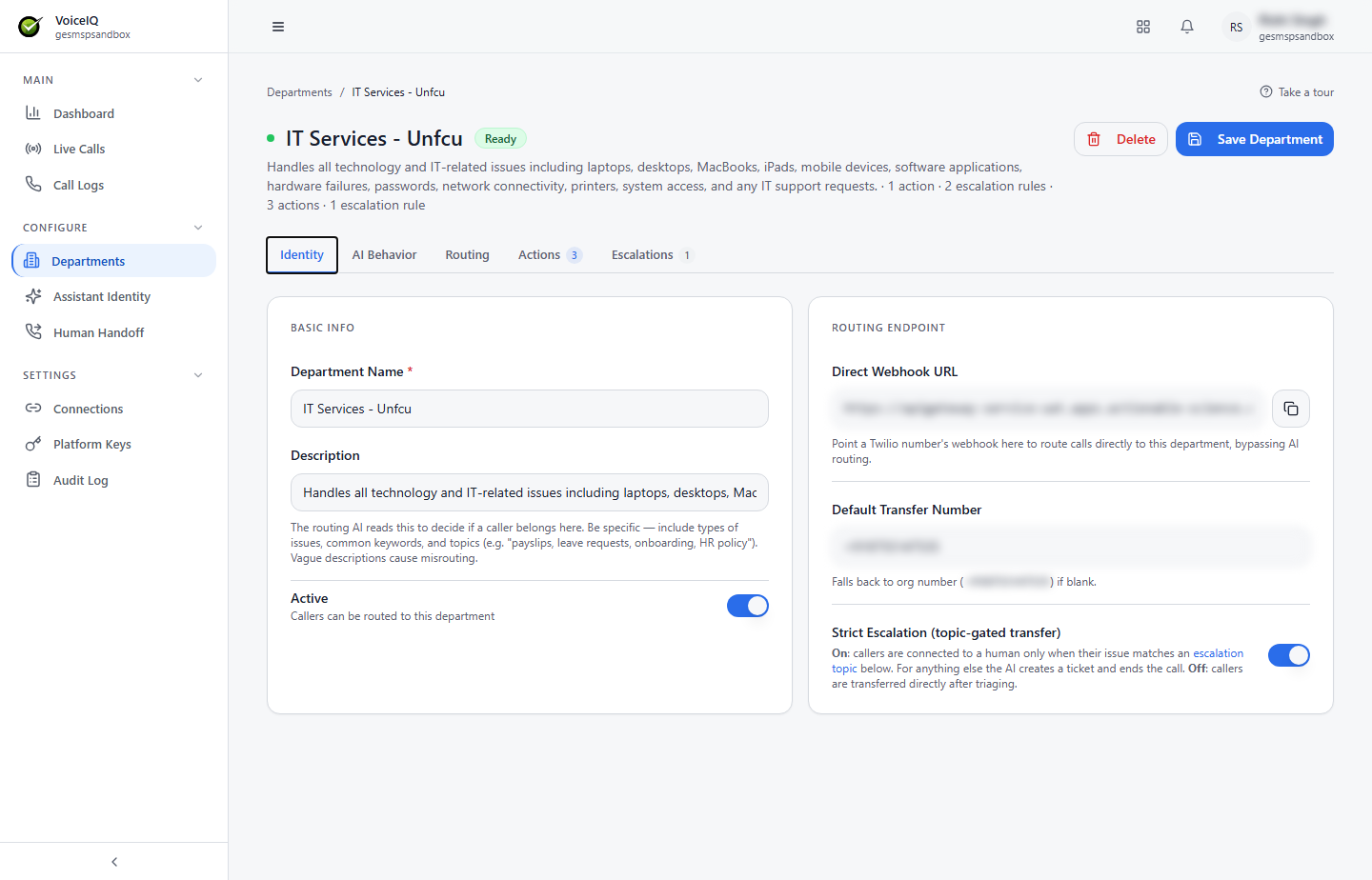
Each Department has five configuration tabs: Identity, AI Behavior, Routing, Actions, and Escalations.
Identity Tab
Basic Info
| Field | Description |
|---|---|
| Department Name | The Department's display name. Required. |
| Description | Read by the routing AI to decide whether a caller belongs in this Department. Be specific — include types of issues, common keywords, and topics (for example, "payslips, leave requests, onboarding, HR policy"). Vague descriptions cause misrouting. |
| Active | When on, callers can be routed to this Department. |
Routing Endpoint
| Field | Description |
|---|---|
| Direct Webhook URL | Point a Twilio number's webhook to this URL to route calls directly to this Department, bypassing AI routing. |
| Default Transfer Number | The number calls are transferred to when a human handoff is triggered for this Department. If blank, the organization's fallback number is used (see Human Handoff). |
| Strict Escalation (topic-gated transfer) | On: callers are connected to a human only when their issue matches one of the Department's escalation topics; for anything else, the AI creates a ticket and ends the call. Off: callers are transferred directly after triage. |
AI Behavior Tab
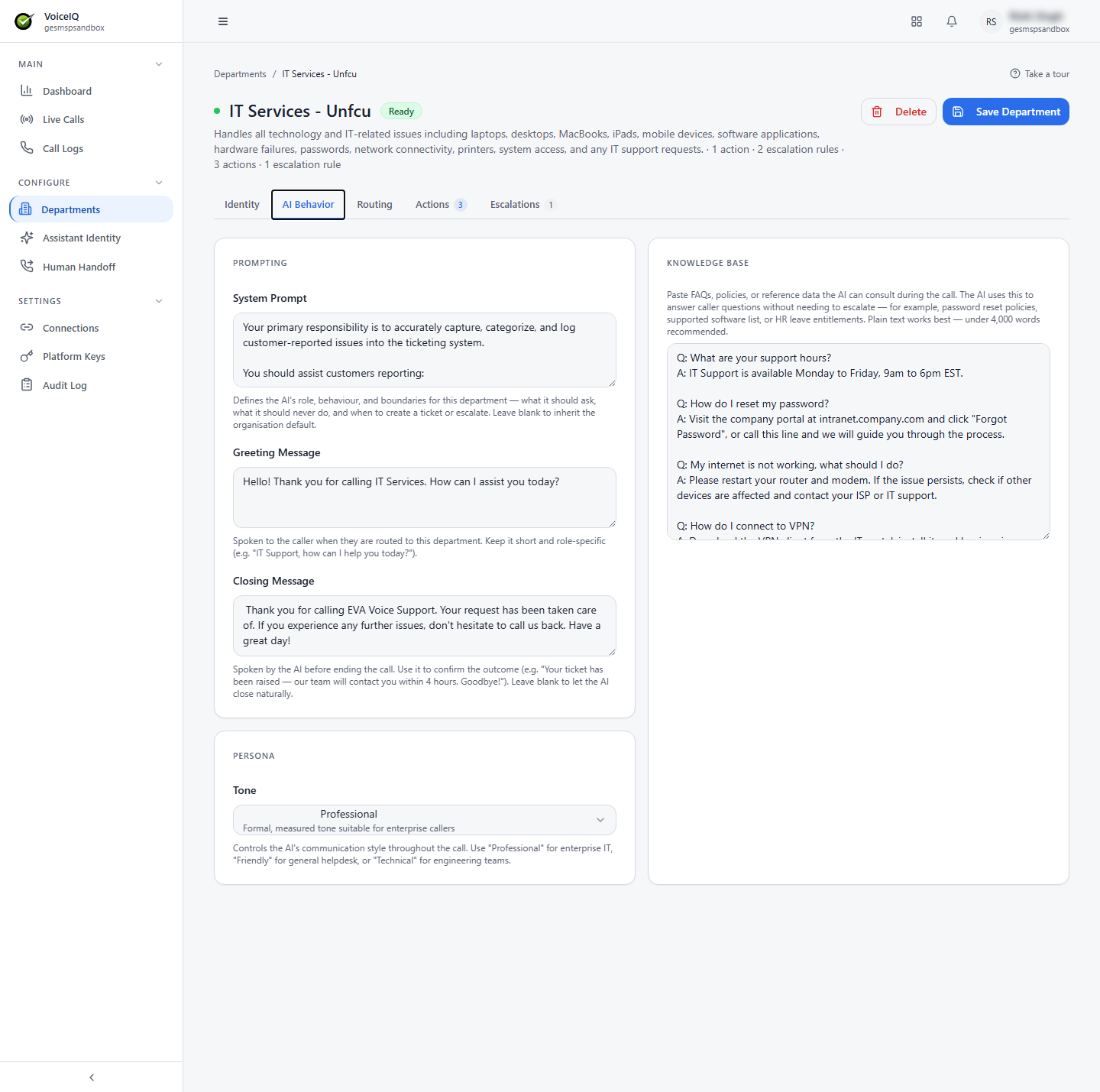
Prompting
| Field | Description |
|---|---|
| System Prompt | Defines the AI's role, behavior, and boundaries for this Department — what it should ask, what it should never do, and when to create a ticket or escalate. Leave blank to inherit the organization default. |
| Greeting Message | Spoken to the caller when they are routed to this Department. Keep it short and role-specific (for example, "IT Support, how can I help you today?"). |
| Closing Message | Spoken by the AI before ending the call. Use it to confirm the outcome (for example, "Your ticket has been raised — our team will contact you within 4 hours. Goodbye!"). Leave blank to let the AI close naturally. |
Persona
| Field | Description |
|---|---|
| Tone | The AI's communication style throughout the call: Professional for enterprise IT, Friendly for a general helpdesk, or Technical for engineering teams. |
Knowledge Base
Paste FAQs, policies, or reference data the AI can consult during the call — for example, password reset policies, a supported software list, or HR leave entitlements. The AI uses this to answer caller questions without needing to escalate. Plain text works best; under 4,000 words is recommended.
Routing Tab
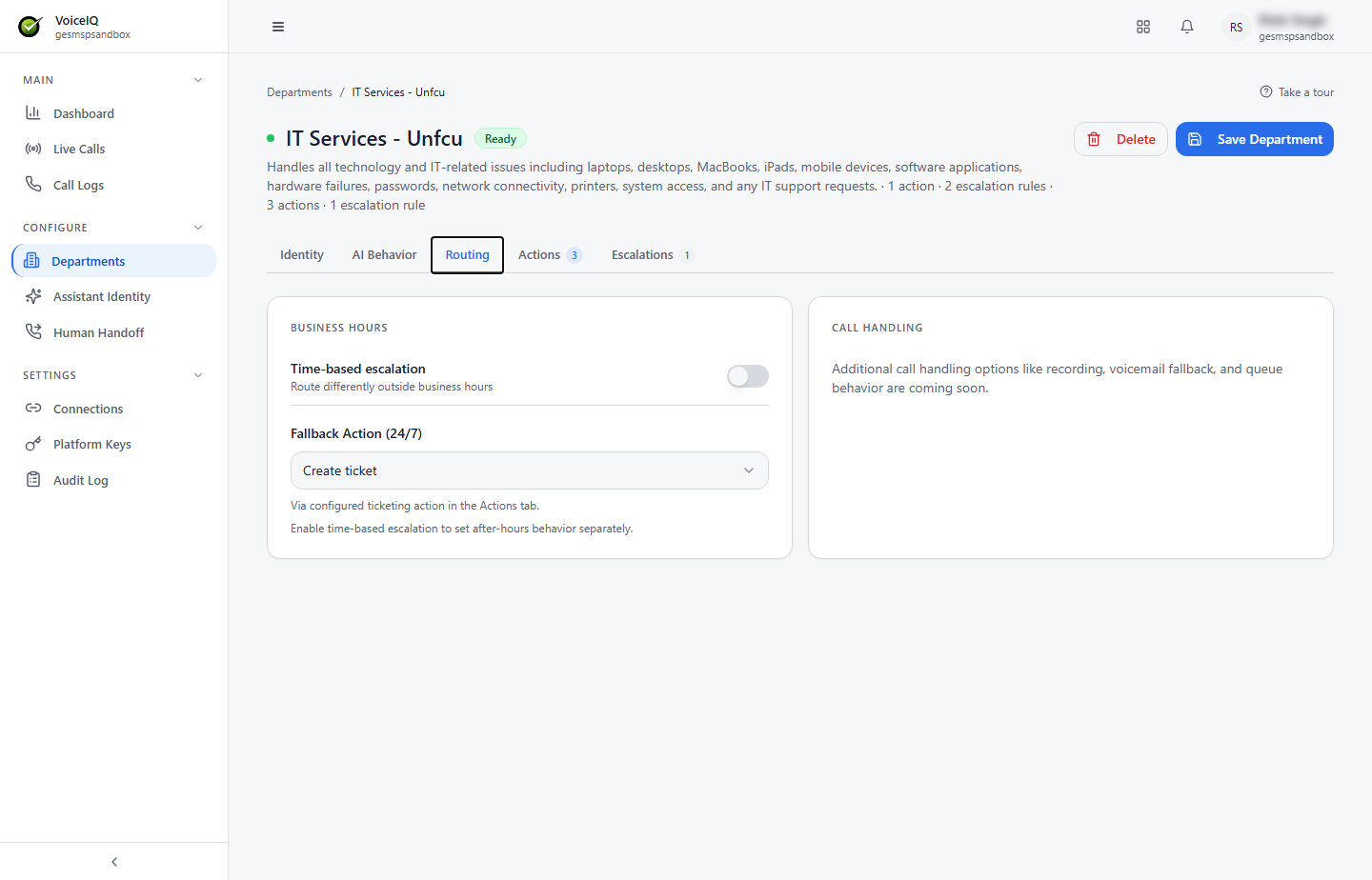
Business Hours
| Field | Description |
|---|---|
| Time-based escalation | When on, calls are handled differently outside business hours, so after-hours behavior can be set separately. |
| Fallback Action (24/7) | What the AI does when it cannot resolve the caller's request — for example, Create ticket, using the ticketing action configured on the Actions tab. |
Actions Tab
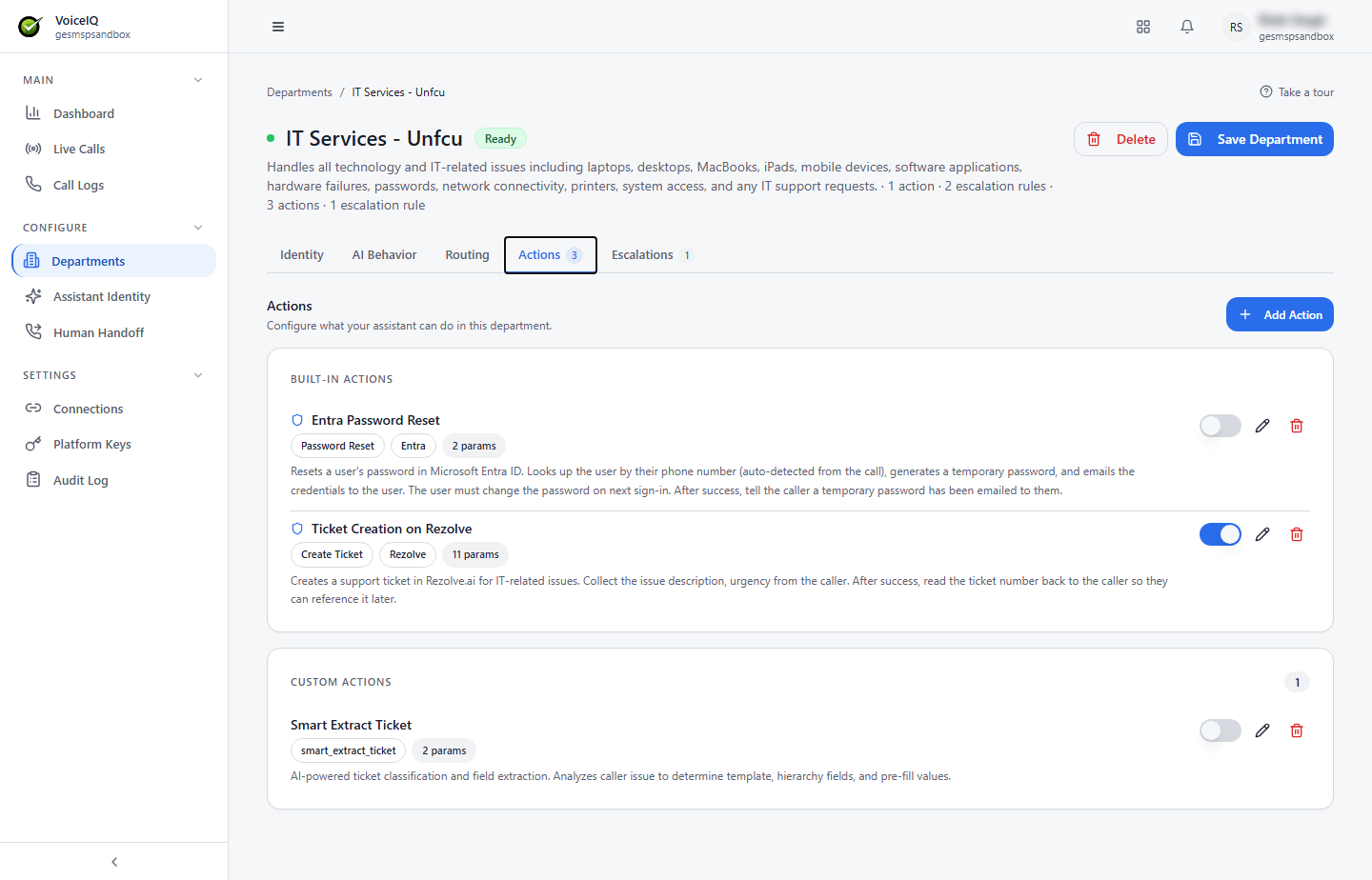
Actions are tasks the AI can perform during a call. The tab lists Built-in Actions and Custom Actions separately. Each Action has a toggle to enable or disable it, plus edit and delete icons.
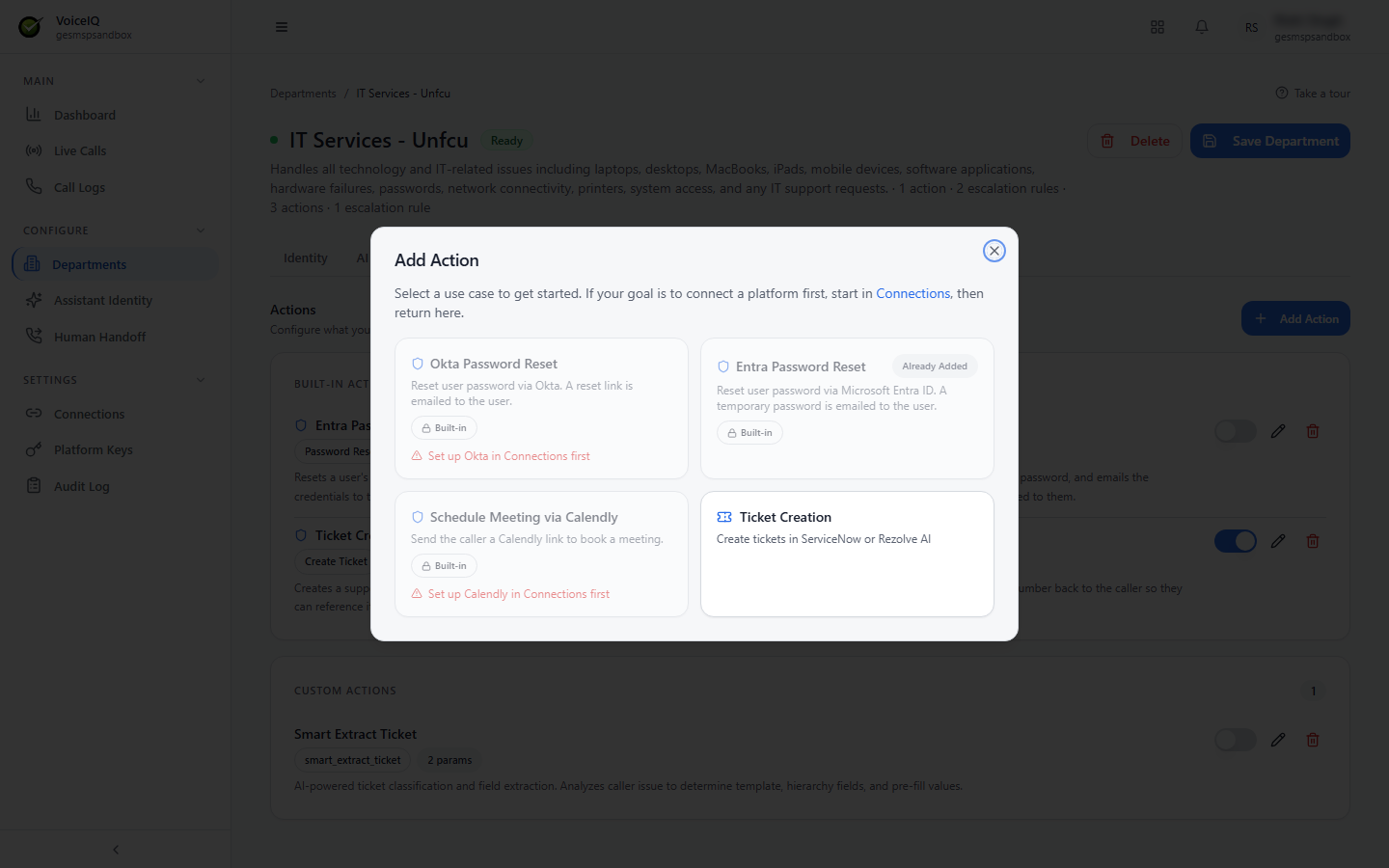
To add an Action, click Add Action and select a use case:
| Action | Description |
|---|---|
| Okta Password Reset | Resets the user's password via Okta. A reset link is emailed to the user. Requires the Okta Connection. |
| Entra Password Reset | Resets the user's password via Microsoft Entra ID. A temporary password is emailed to the user. Requires the Microsoft Entra ID Connection. |
| Schedule Meeting via Calendly | Sends the caller a Calendly link to book a meeting. Requires the Calendly Connection. |
| Ticket Creation | Creates a ticket in ServiceNow, Rezolve AI, or Jira. Requires the relevant Connection. |
An Action whose Connection is not set up shows Set up … in Connections first, and an Action already on the Department shows Already Added. Set up Connections on the Connections page first, then return here.
Escalations Tab
Escalation Rules define when the AI hands the call off to a human agent. The tab has two sections:
- Inherited Rules — rules applied across all Departments, marked Global.
- Department Rules — escalation triggers specific to this Department.
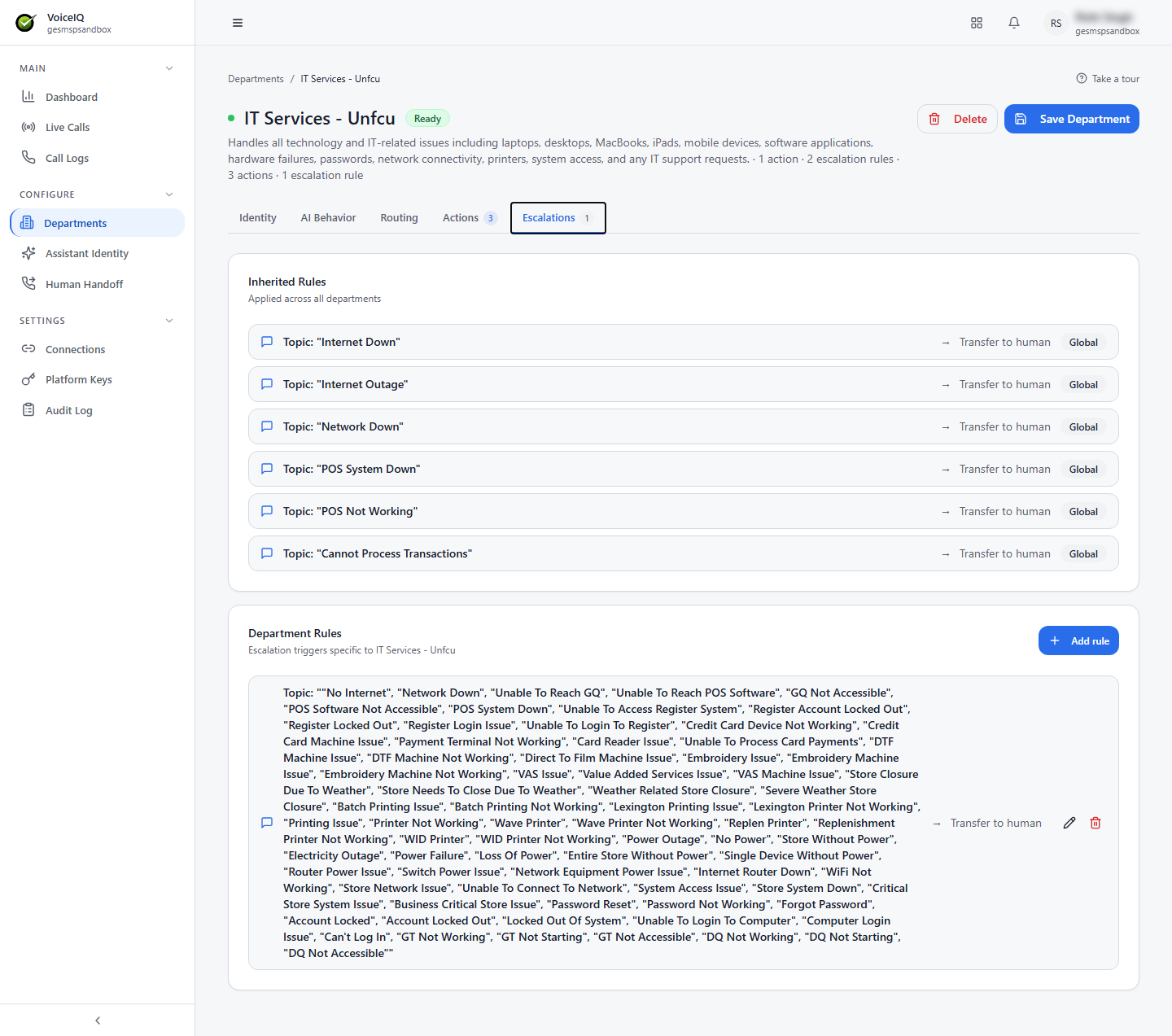
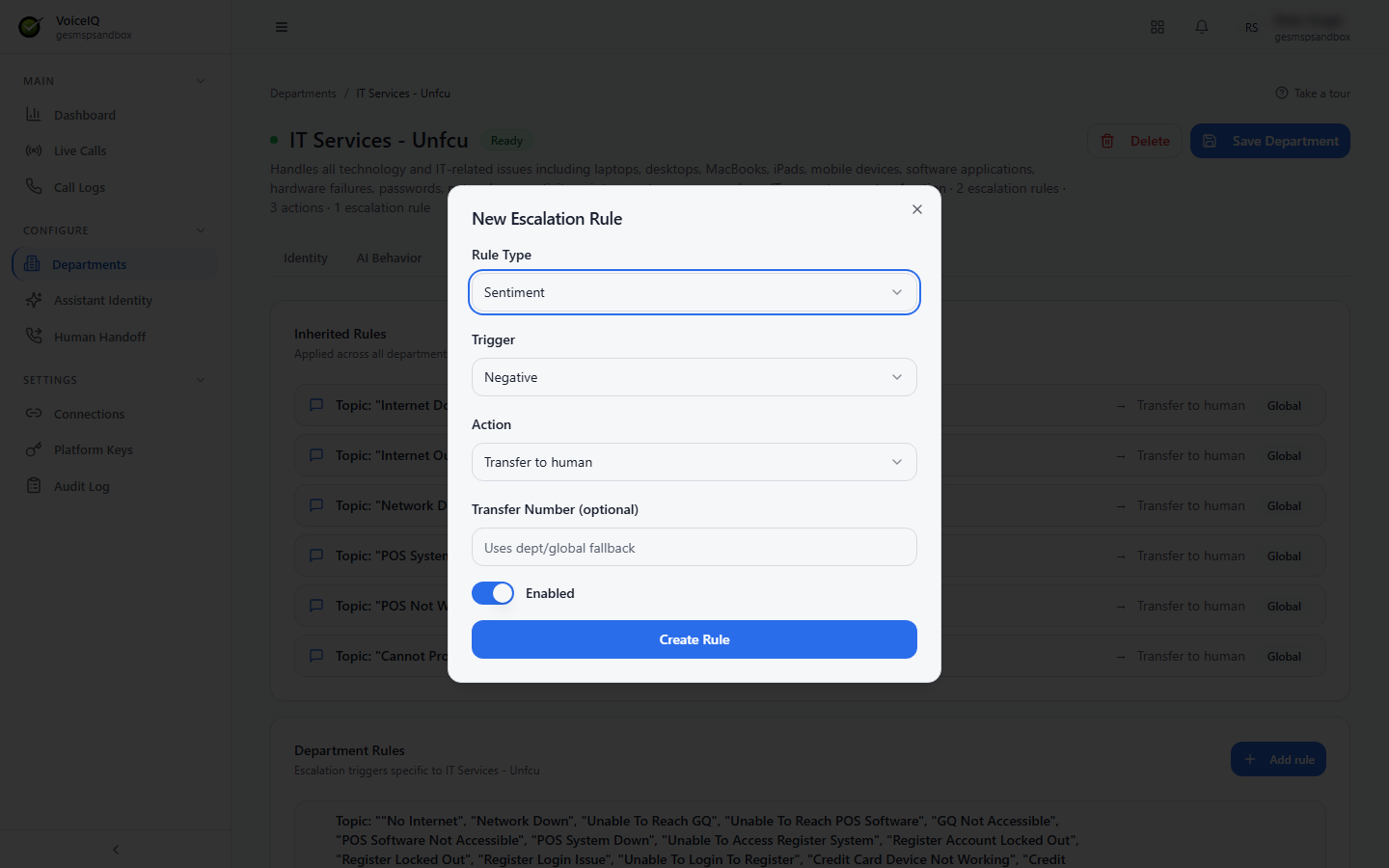
To add a Department rule, click Add rule and complete the New Escalation Rule dialog:
| Field | Description |
|---|---|
| Rule Type | Sentiment (escalate based on the caller's emotional state) or Topic (escalate when the conversation matches a specific topic or phrase). |
| Trigger | For Sentiment rules, the sentiment that fires the rule (for example, Negative). For Topic rules, the topic keywords or phrases. |
| Action | What happens when the rule fires — Transfer to human. |
| Transfer Number (optional) | The number to transfer to. If blank, the Department's Default Transfer Number is used, then the global fallback number. |
| Enabled | Turns the rule on or off. |
Click Create Rule to save it.
Saving and Deleting
- Save Department — saves all changes across all tabs.
- Delete — permanently removes the Department and returns the user to the Departments list.