Organizations
In MSP mode, each client organization is managed as a Customer. This page covers how to create and manage Customers and their users.
Onboarding a Customer
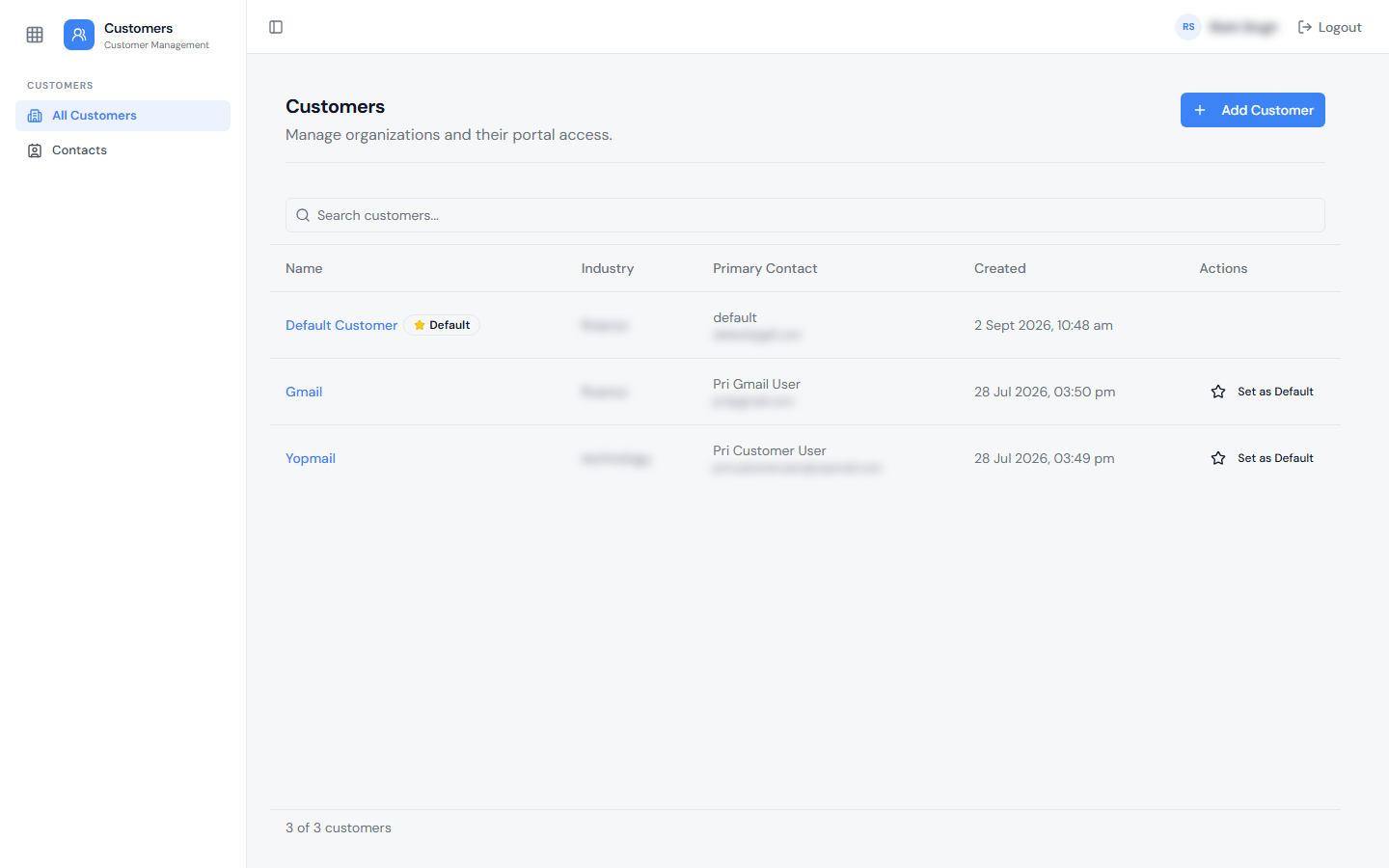
Customers are managed from Admin App → Customer, which lists every Customer with its Industry, Primary Contact, and creation date. The current Default Customer is marked with a Default badge, and Set as Default is available on the others.
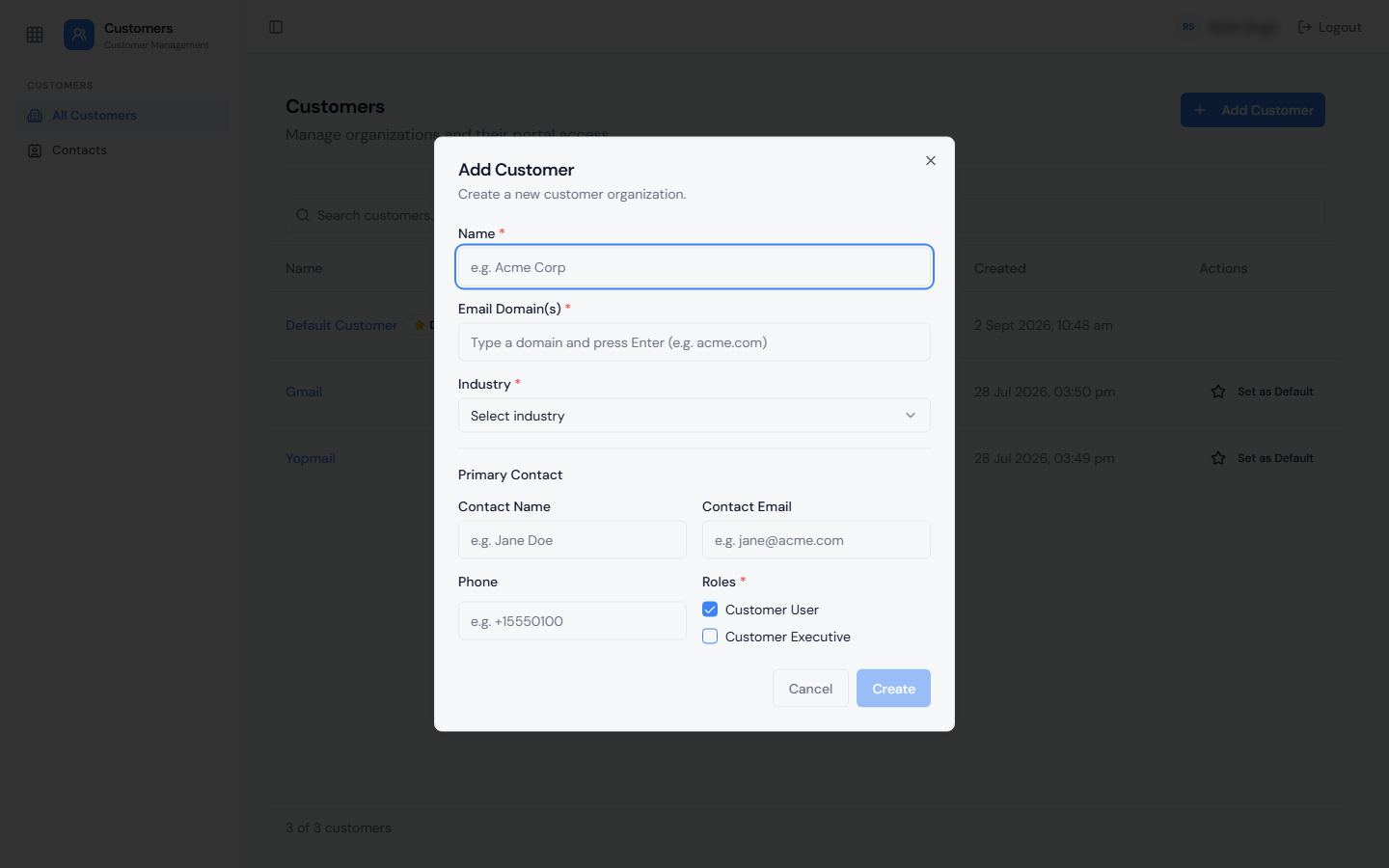
Click Add Customer to onboard a new Customer. The following is required:
- Name
- Email Domain(s) — one or more domains that identify users belonging to this Customer
- Industry
Optional at onboarding, and editable later:
- Primary Contact — when a Primary Contact is set, they are automatically granted both the Customer User and Customer Executive roles.
- Customer Attributes — custom fields such as "Entitlement" (e.g., Premium or Standard), which can also be used later for SLA and audience configuration.
Any Customer can be designated as the Default Customer and this designation can be changed at any time.
Multiple Domains per Customer
A Customer can have more than one associated domain. For example, if both abccorp.com and abccorp.in are mapped to ABC Corporation, users and tickets from either domain will show the Customer as "ABC Corporation."
Domains are managed in the Email Domains field on the Customer's Organization page. Type a domain and press Enter to add it.
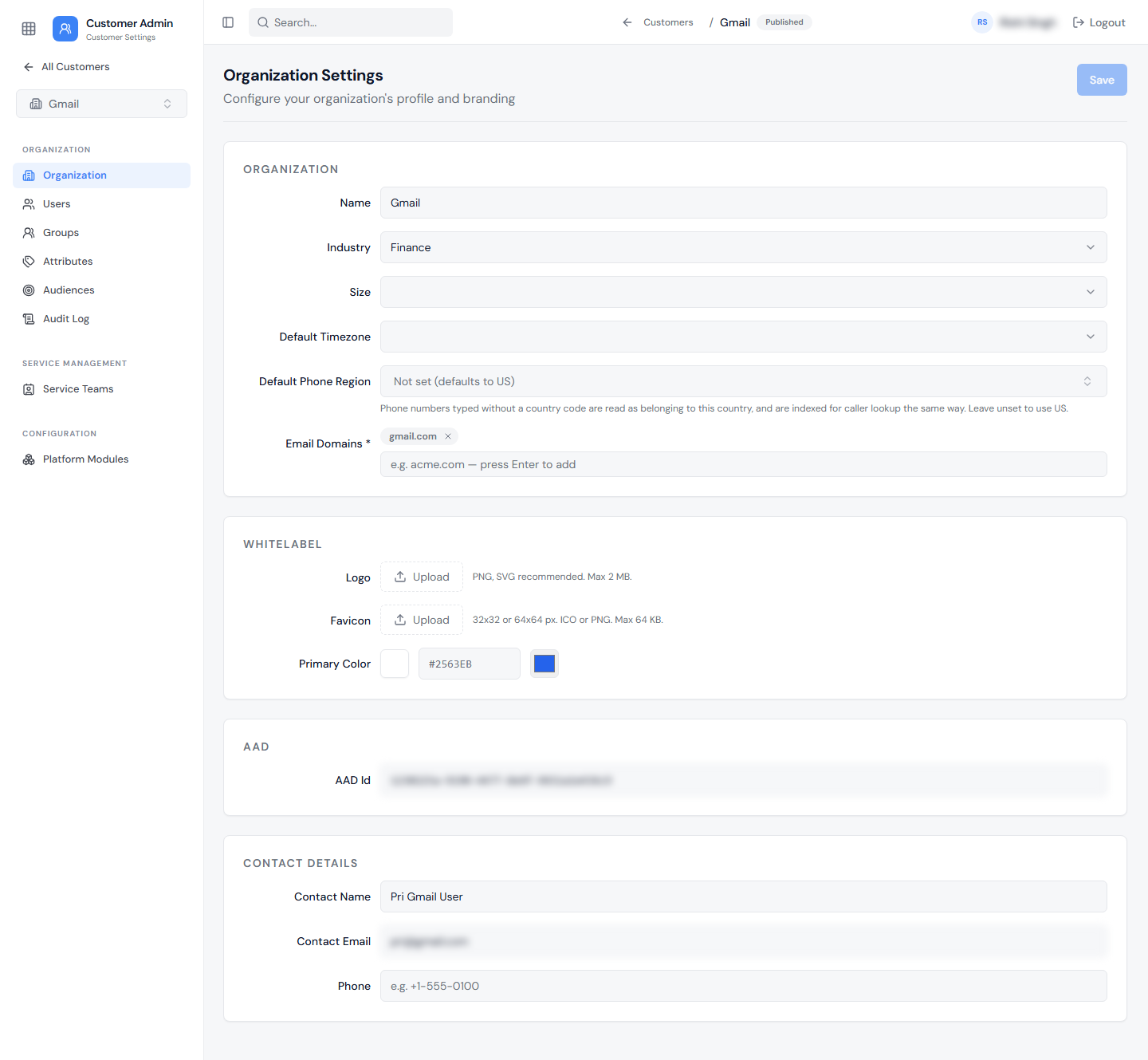
The Customer's Organization Settings page holds the rest of its profile:
| Section | Fields |
|---|---|
| Organization | Name, Industry, Size, Default Timezone, Default Phone Region (phone numbers typed without a country code are read as belonging to this region; defaults to US), and Email Domains. |
| Whitelabel | Logo (PNG or SVG recommended, max 2 MB), Favicon (32×32 or 64×64 px ICO or PNG, max 64 KB), and Primary Color. |
| Contact Details | Contact Name, Contact Email, and Phone for the Customer's primary contact. |
Click Save to apply changes.
Customer as a Workspace
Each Customer functions as its own workspace, with its own Users, Groups, Attributes, Audiences, Audit Logs, Service Teams (with Queues), and enabled platform modules.
MSP-Level vs. Customer-Level Configuration
| Configured at MSP (Tenant) Level | Configured at Customer Level |
|---|---|
| Enabling MSP mode | Customer's email domain(s) |
| Module Redirection setup | Customer Attributes & Audiences |
| Creating and managing the list of Customers | Groups (Owner/Members) |
| Designating the Default Customer | Service Teams and their Queues (enable/disable) |
| Tenant-level Attributes & Audiences | Module enablement for that Customer (e.g., turning Ticketing on) |
| Tenant Admin role and access | Service Portal look-and-feel configuration |
| SLA rules based on that Customer's attributes |
Enabling Modules for a Customer
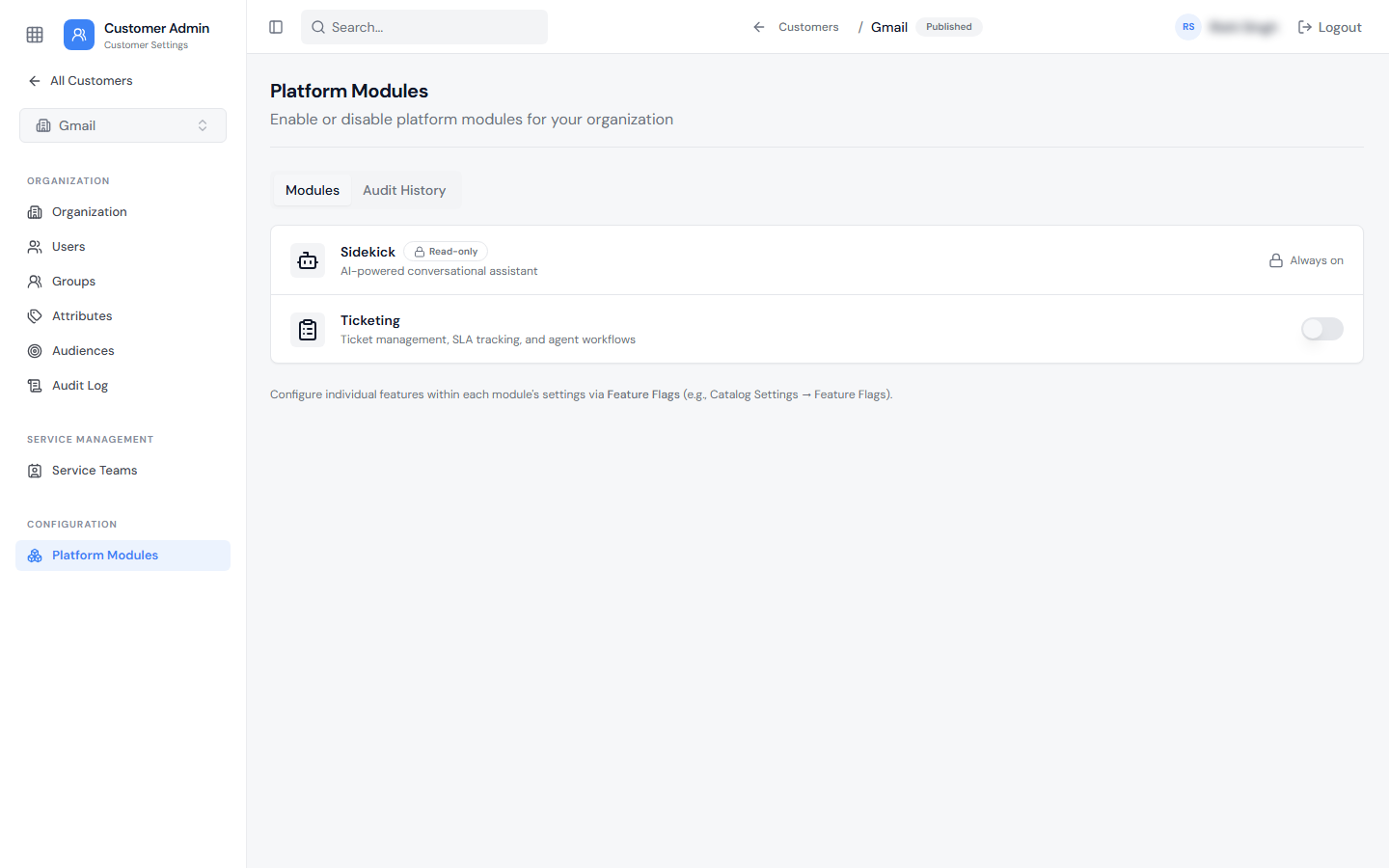
For a Customer's users to use a given module (for example, Ticketing), that module must be explicitly turned on for that Customer. Until it is enabled, Customer-level roles cannot access that module even though the Customer exists.
Modules are turned on from the Customer's Platform Modules page.
User Management
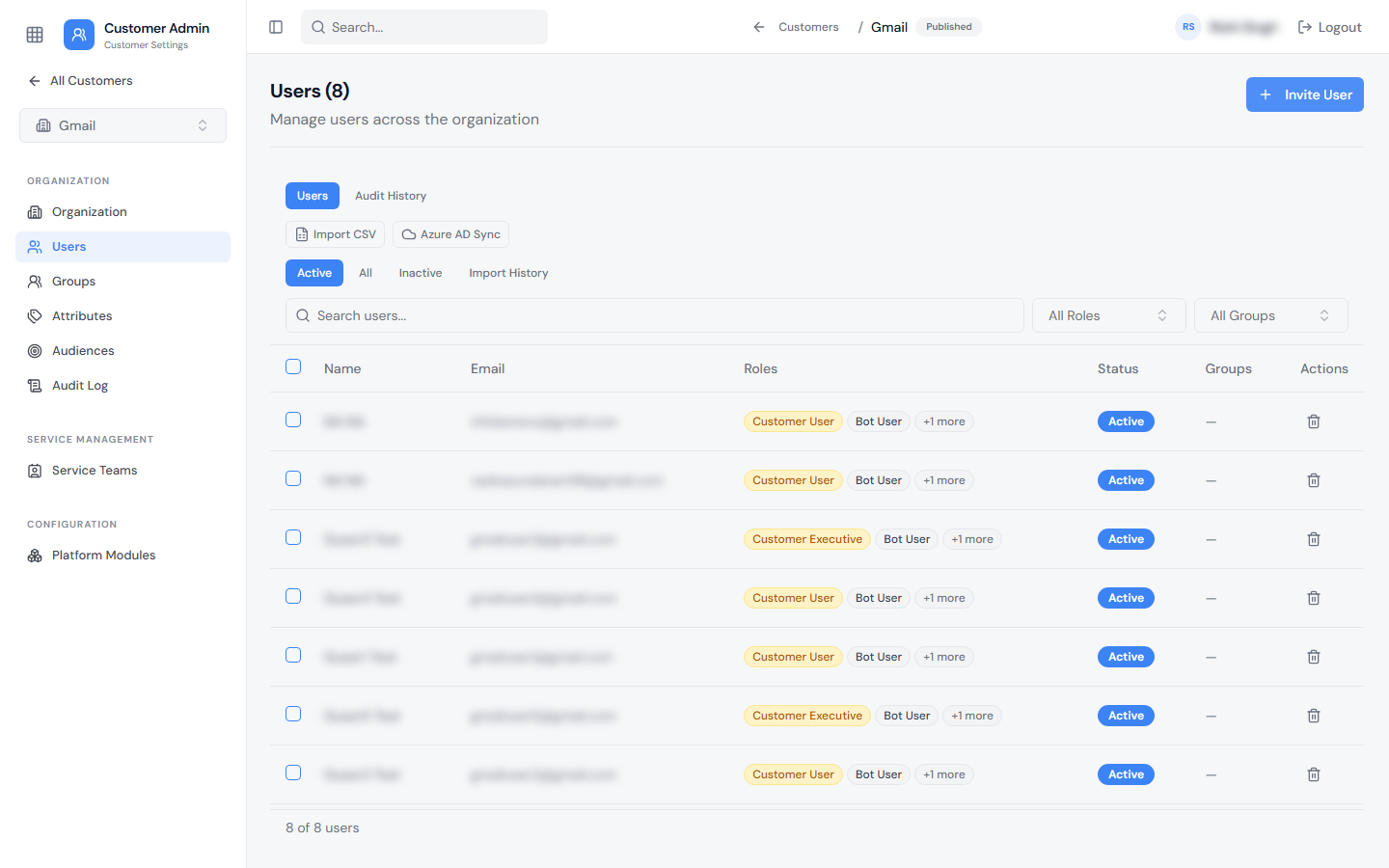
Users can be added under the Users tab manually (Invite User), by CSV import (Import CSV), or by syncing from Azure AD (Azure AD Sync). The list can be filtered by Active, All, or Inactive users, and by role and group; Import History shows past CSV imports.
| Scenario | Result |
|---|---|
| Added at tenant level; domain is mapped to a specific Customer | Automatically added under that Customer's user list |
| Added at tenant level; domain is a recognized public/consumer domain not mapped to a Customer | Automatically added under the Default Customer's user list |
| Added at tenant level; domain is the tenant's own organizational domain | Added at the tenant level; no Customer association |
| Added directly under a Customer | Only Customer-level roles (Customer User, Customer Executive) can be assigned |
| Added at tenant level | Any role except the Customer-level roles can be assigned |
Additional notes:
- The Service Portal Access checkbox, available during both manual onboarding and CSV import, can be used to suppress the welcome email for that user.
- A user can be moved from one Customer (including the Default Customer) to another at any time using the Reassign Customer option.
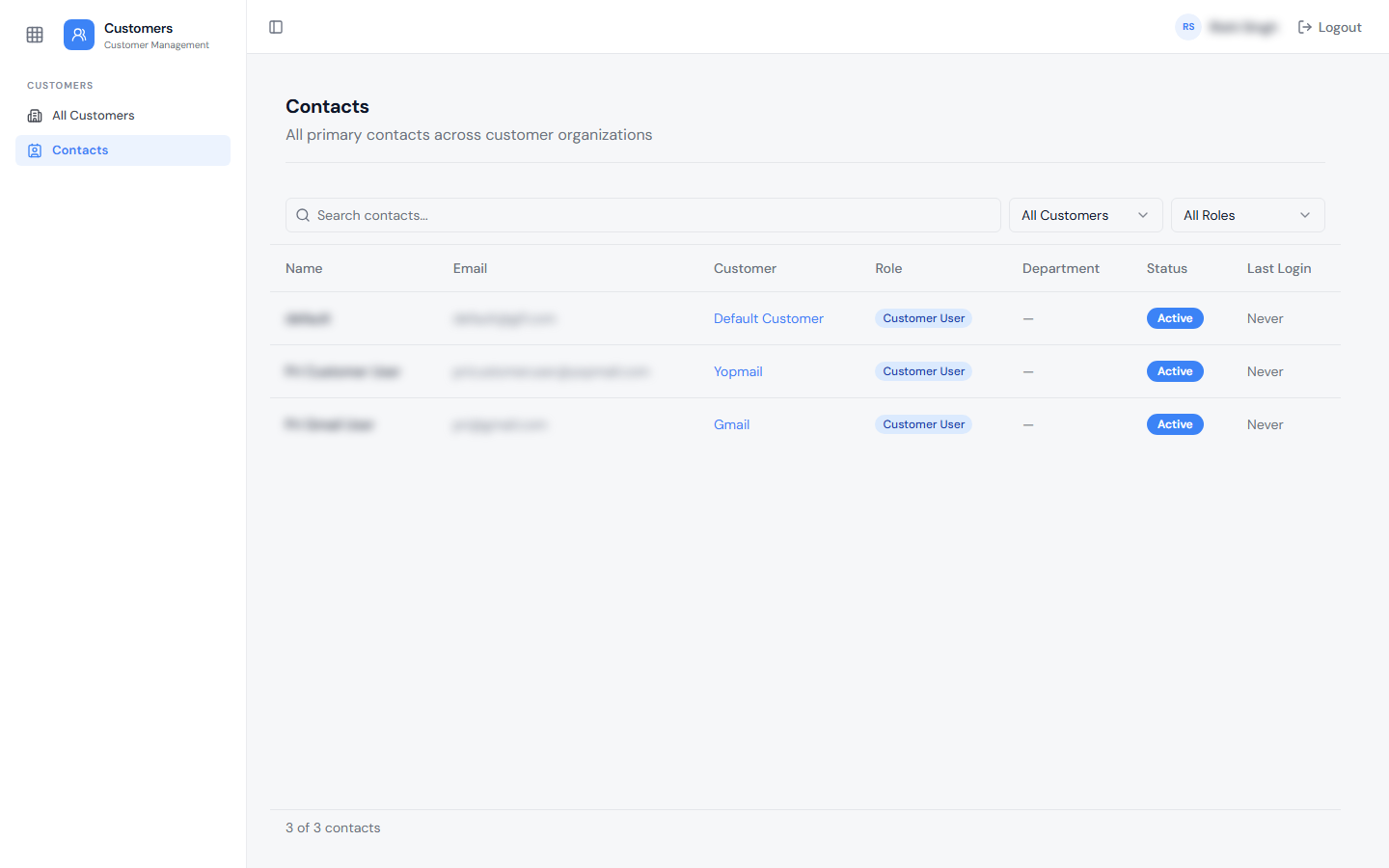
The Contacts page under Customer Management lists contacts across all Customers.