Ticket Management
Ticket Management in MSP
- Every ticket is associated with a Customer, based on the requester's identified Customer at the time of creation.
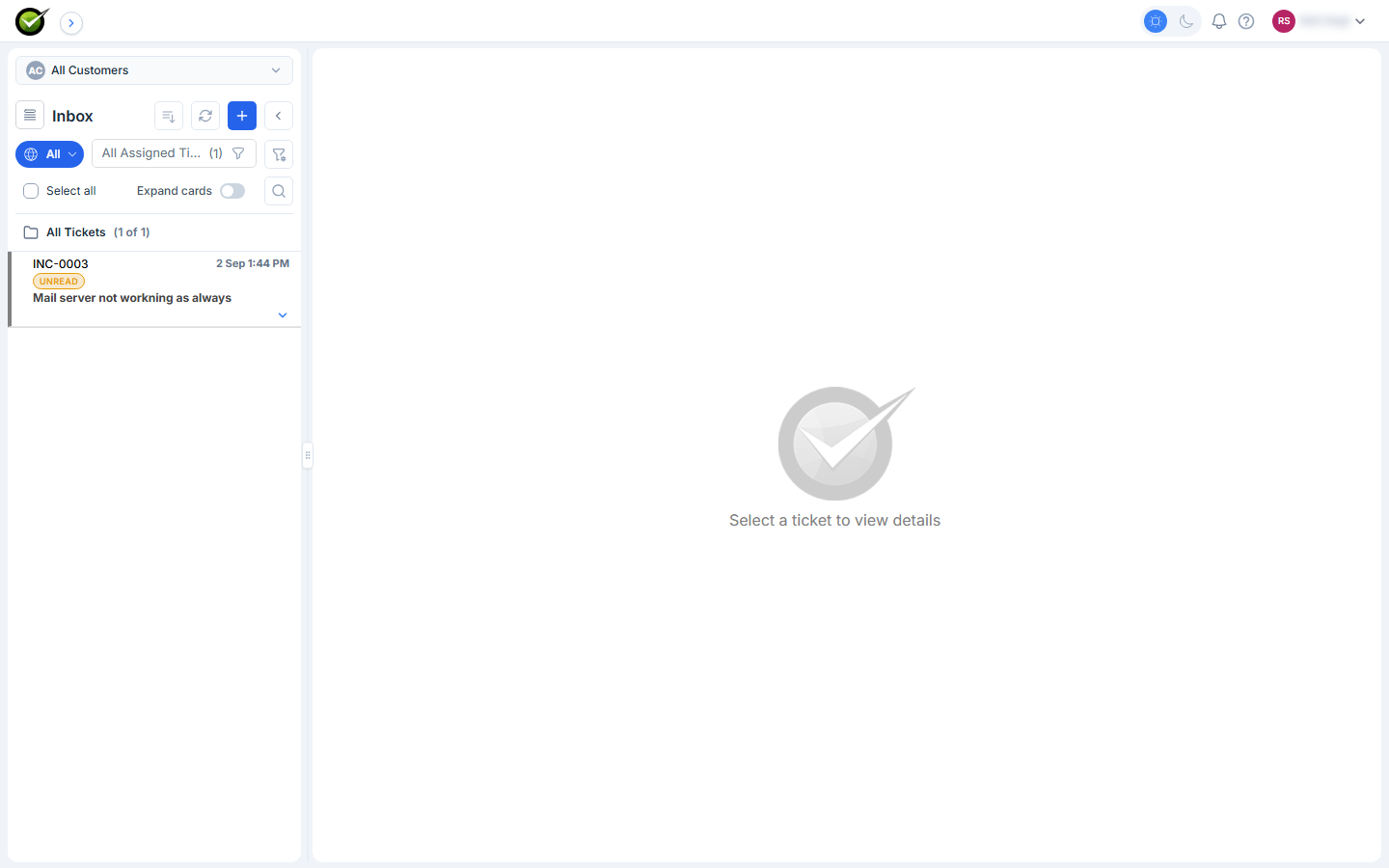
- The ticket list view includes a Customer column.
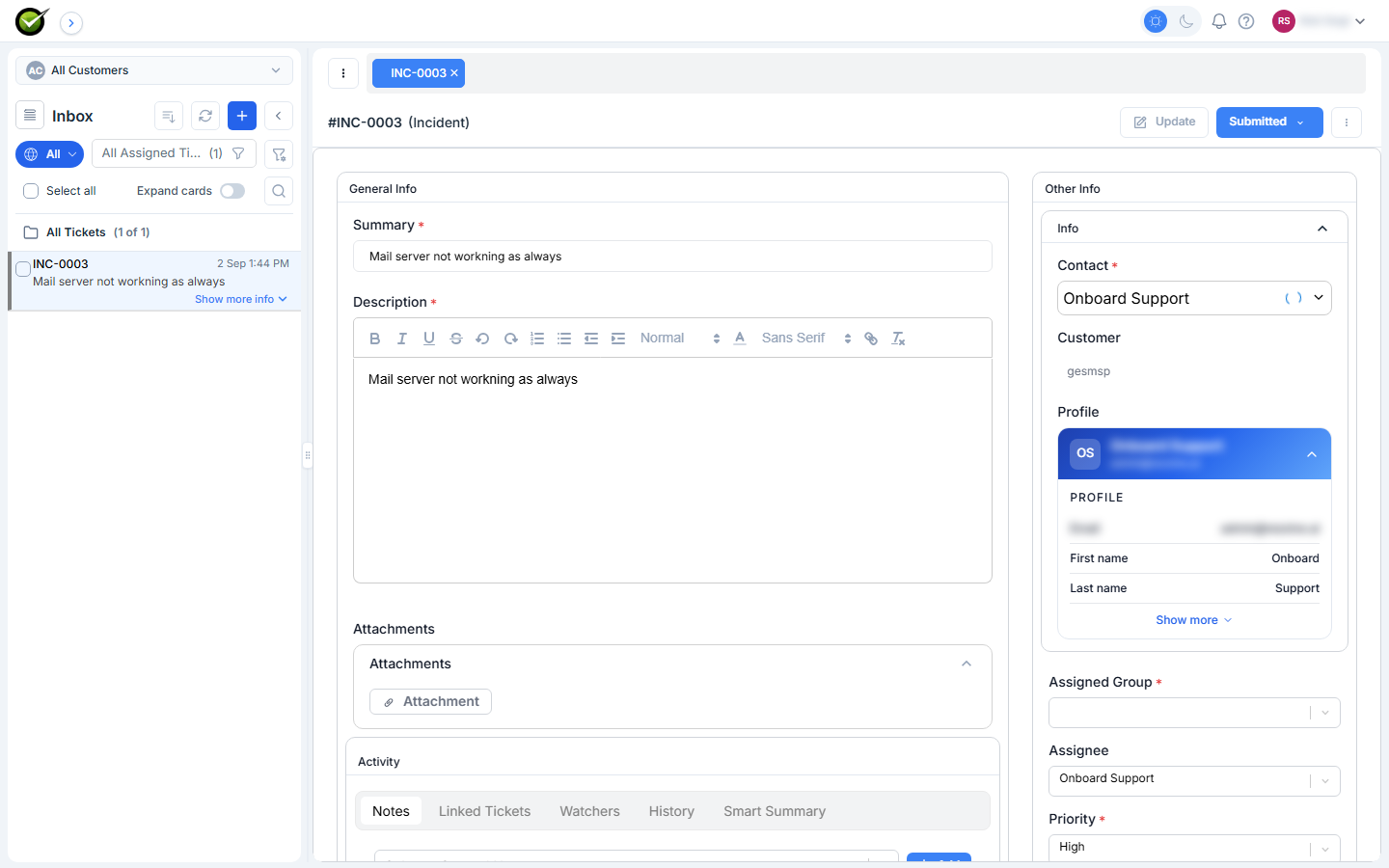
- The ticket detail page displays the ticket's Customer value.
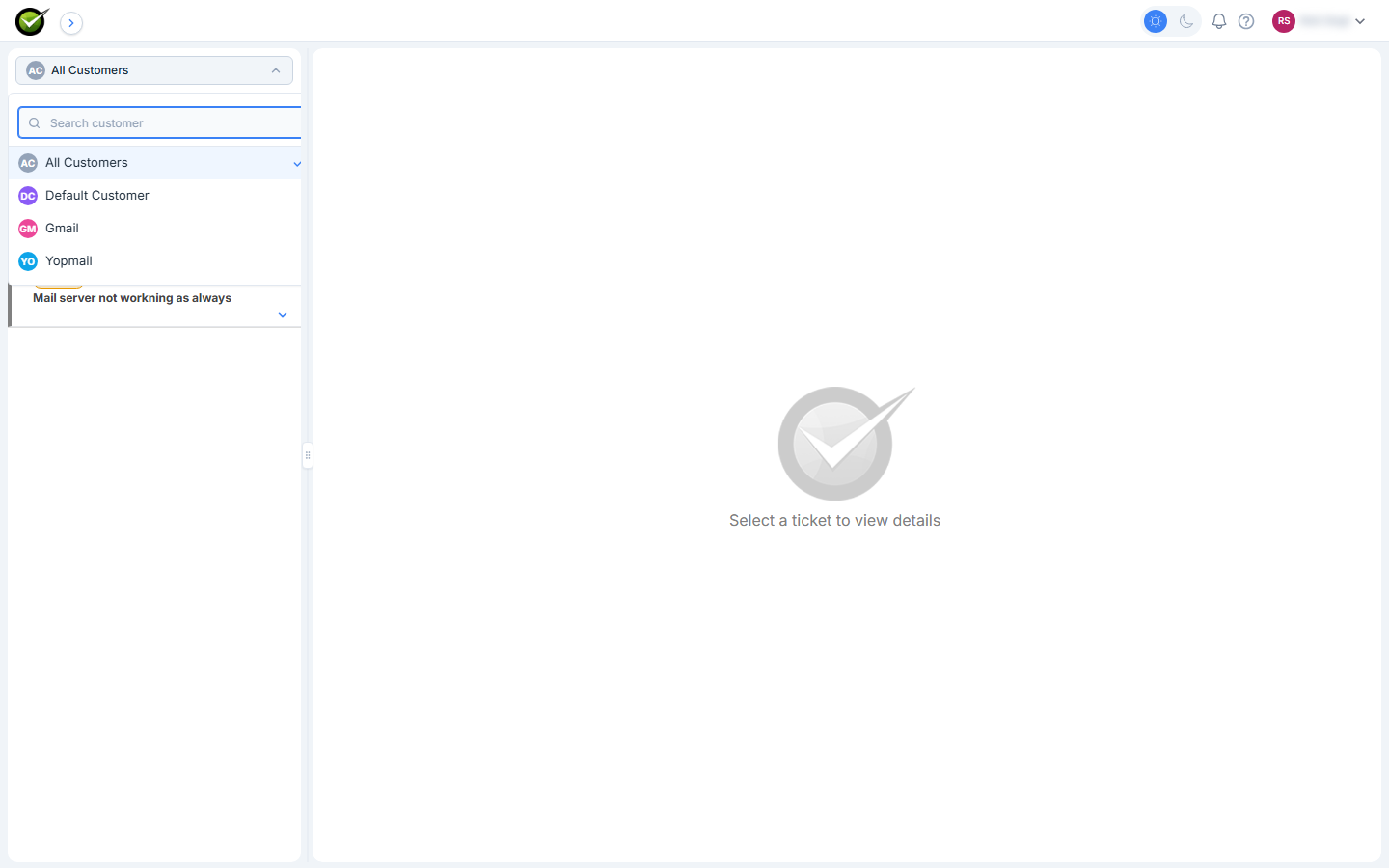
- On the Agent UI, a Customer dropdown is available; it can be used both to filter the ticket list by Customer and to select a Customer when creating a ticket manually.
- Notes and Watchers on a ticket can include all Customer Users and Customer Executives belonging to that ticket's Customer, plus all tenant-level users.
- Tickets are routed through the Service Teams and Queues enabled for their associated Customer; only the queues enabled for that Customer are available on the Agent UI.
- Using the bulk operation, tickets (and their requester) can be moved from the Default Customer to a specific Customer.
Supported Channels
Ticket creation with automatic Customer identification is supported through:
| Channel | Auto-identifies Customer? | Notes |
|---|---|---|
| Service Portal | Yes | Customer identified by the logged-in user's Customer association |
| Yes | Customer identified by the sender's email domain | |
| Microsoft Teams | Yes | Customer identified by the Teams user's email domain |
| Slack | Yes | Customer identified by the Slack user's email domain |
Users who create tickets through Email, Teams, or Slack and are not already associated with a Customer are handled per the domain-mapping rules. Users automatically created under the Default Customer through these channels are granted the Ticket User, Bot User, and Customer User roles.