Known Issues overview
Users open the bot, type their problem, wait for a response, and sometimes log a ticket. If the problem is already a known outage, that whole round trip is wasted time on both sides.
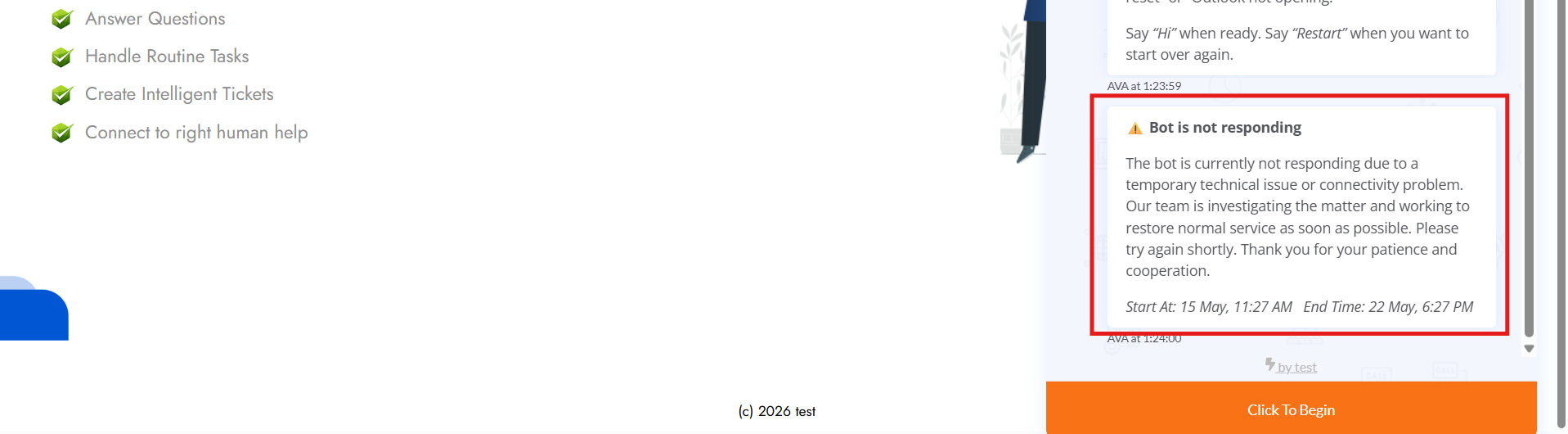
Known Issues fixes that. When a user opens the bot, any active known issues relevant to them appear right below the standard landing message - before they start typing.
What it does
- Tells users about outages upfront. No more duplicate tickets for things your team already knows about.
- Targets the right users. Show an issue to everyone, or scope it to a specific audience so only the affected teams see it.
- Runs on a schedule. Pick a start time and an end time. The banner appears and disappears on its own.
- Stays visible across channels. The same banner renders inside the web chat, Microsoft Teams, and Slack.
What it doesn't do
- It doesn't block the bot. Users can still chat, log tickets, or use catalog actions. The banner is informational.
- It doesn't push notifications. The banner appears only when the user opens the bot. For proactive notifications, use Announcements.
- It doesn't auto-detect outages. An admin creates each known issue manually.
How it compares to Announcements
| Known Issues | Announcements | |
|---|---|---|
| When users see it | Only when they open the bot | Pushed proactively |
| Typical use | Active outages, degraded services | Policy changes, all-hands info, new features |
| Lifespan | Hours or days, while the issue is live | Days or weeks |
| Multiple at once | All active ones show together | One at a time, scheduled |
Use Announcements for things you want to push. Use Known Issues for things you want users to see if they happen to come looking for help right now.
In this section
- Creating a known issue - the admin form
- Managing known issues - list view, edit, deactivate, delete, filters, audit log
- Bot experience - what users see in web chat, Teams, and Slack