Managing known issues
The Known Issues page lists every issue you've configured for the tenant, active or inactive. Each row shows the title, a description preview, the start and end times, an active toggle, and the per-row actions.
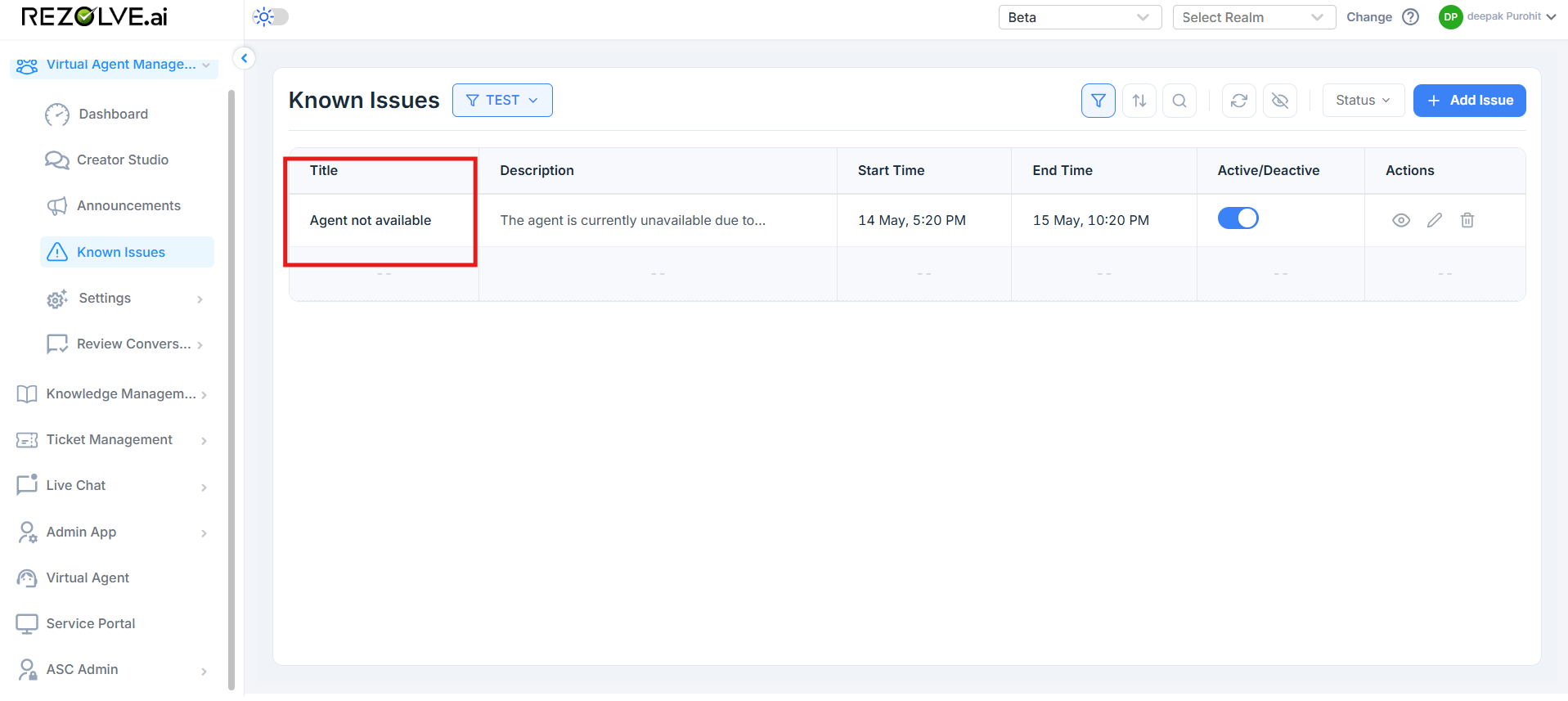
The list columns
| Column | What it shows |
|---|---|
| Title | The heading users see in the bot |
| Description | Truncated preview - hover to see the full text, or click into View Details |
| Start Time | When the banner starts showing |
| End Time | When the banner stops showing (or blank if open-ended) |
| Active / Deactive | Toggle to switch the banner on or off without deleting the issue |
| Actions | View, edit, and delete icons |
The header above the table has filter, sort, search, refresh, and a Status filter that lets you see only active or only inactive issues.
Viewing a known issue
Click the eye icon on any row. The View Details drawer opens with the full title, full description, audience, start time, end time, the user who created the issue, and the creation timestamp.
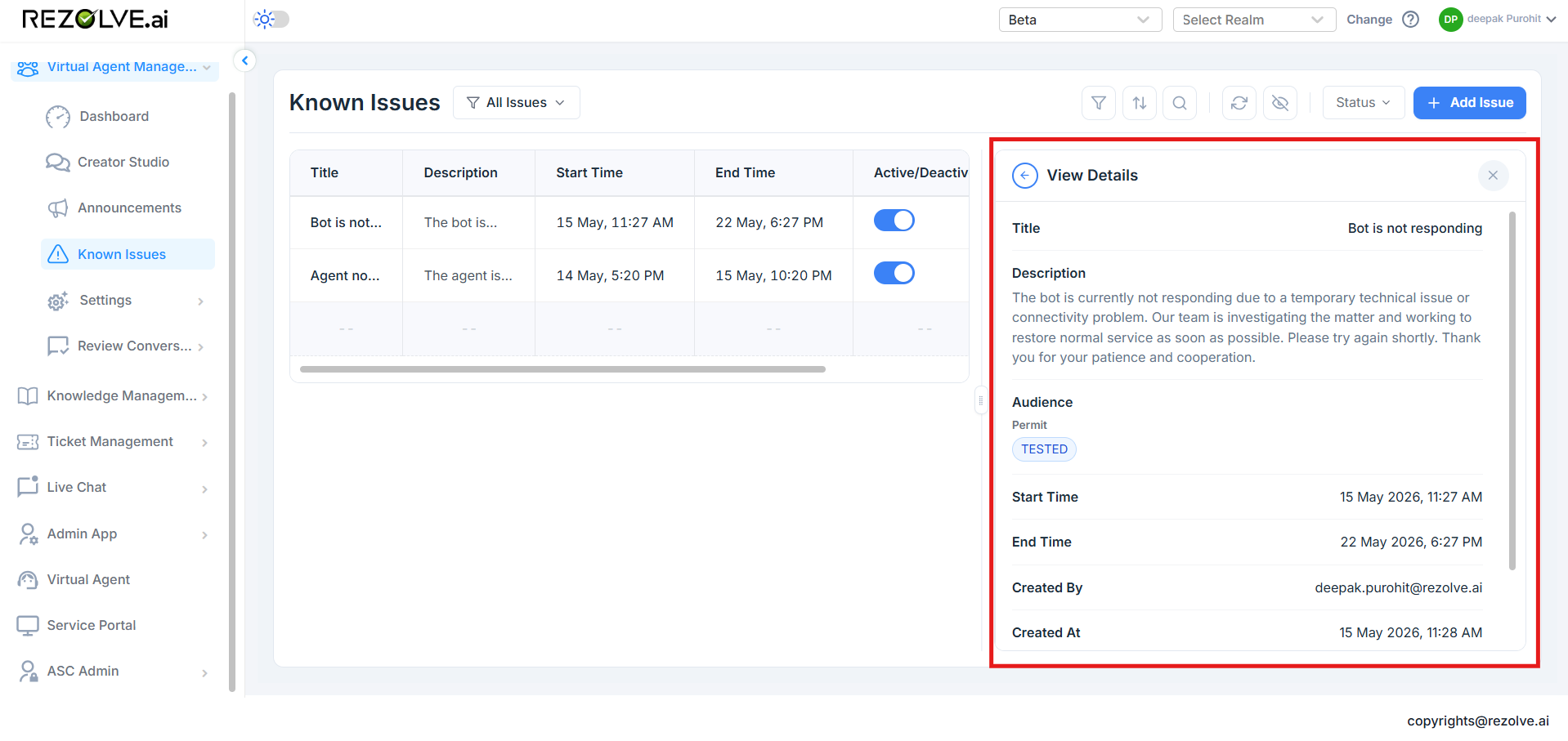
View Details is read-only. To change anything, close the drawer and click the edit icon instead.
Editing a known issue
Click the edit (pencil) icon. The Edit Known Issue drawer opens with all the current values pre-filled. Change what you need and click Save Changes.
Edits take effect immediately. If you change the title or description, every user who opens the bot after the change sees the new text. If you change the audience or end time, the banner re-evaluates who sees it.
Deactivating without deleting
Use the Active / Deactive toggle in the list. Switching it off hides the banner from every user immediately, but keeps the configuration around so you can switch it back on without re-entering everything.
This is the right action for issues that recur (planned maintenance, periodic vendor outages) - keep one record, toggle it on when the issue starts, off when it ends.
Deleting permanently
Click the trash icon. A confirmation prompt asks if you're sure. Deletion is permanent and removes the issue from the audit log's "current state" but the audit entries themselves are preserved.
Prefer deactivate to delete unless the issue was created in error.
Filtering the list
The funnel icon at the top of the page opens the Filters drawer. You can build a filter and save it for reuse.
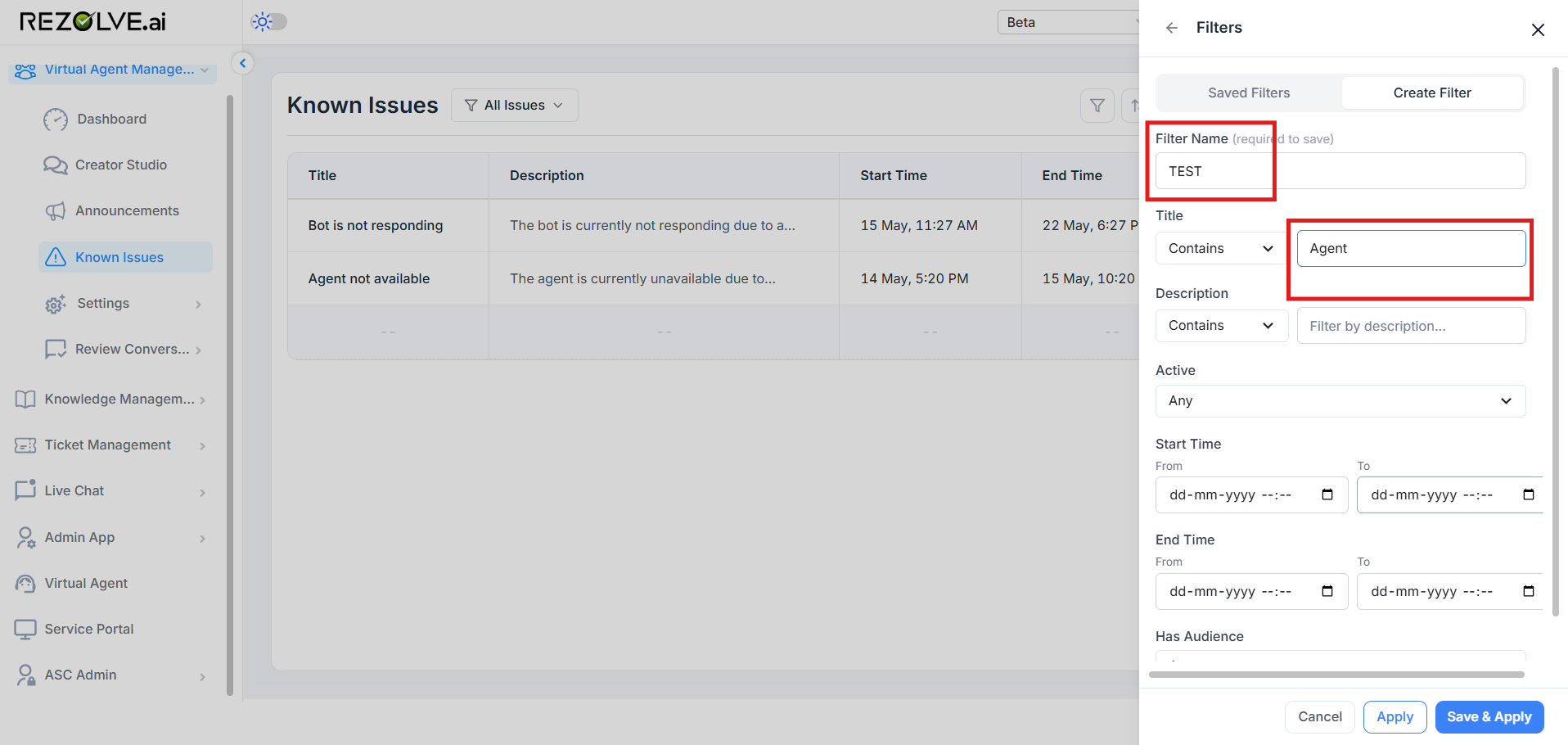
Available filter fields:
- Title - contains / does not contain
- Description - contains / does not contain
- Active - any, yes, or no
- Start Time - between two dates
- End Time - between two dates
- Has Audience - issues with audience targeting vs. all-users issues
Save the filter combination with a name, and it appears under Saved Filters in the same drawer next time.
Audit log
Every create, edit, activate, deactivate, and delete is recorded in the platform audit log. Each entry captures:
- The action (create, update, deactivate, delete)
- The admin user who made the change
- The timestamp
- The before-and-after values
Audit entries live in Admin App → Audit Log with the rest of the platform's audit history. Filter by the Known Issues entity type to scope down to just these events.