Creating a known issue
A tenant admin opens Virtual Agent Management → Known Issues and clicks Add Issue. The Edit Known Issue drawer opens on the right. Fill in the fields, save, and the issue starts appearing in the bot at the configured start time.
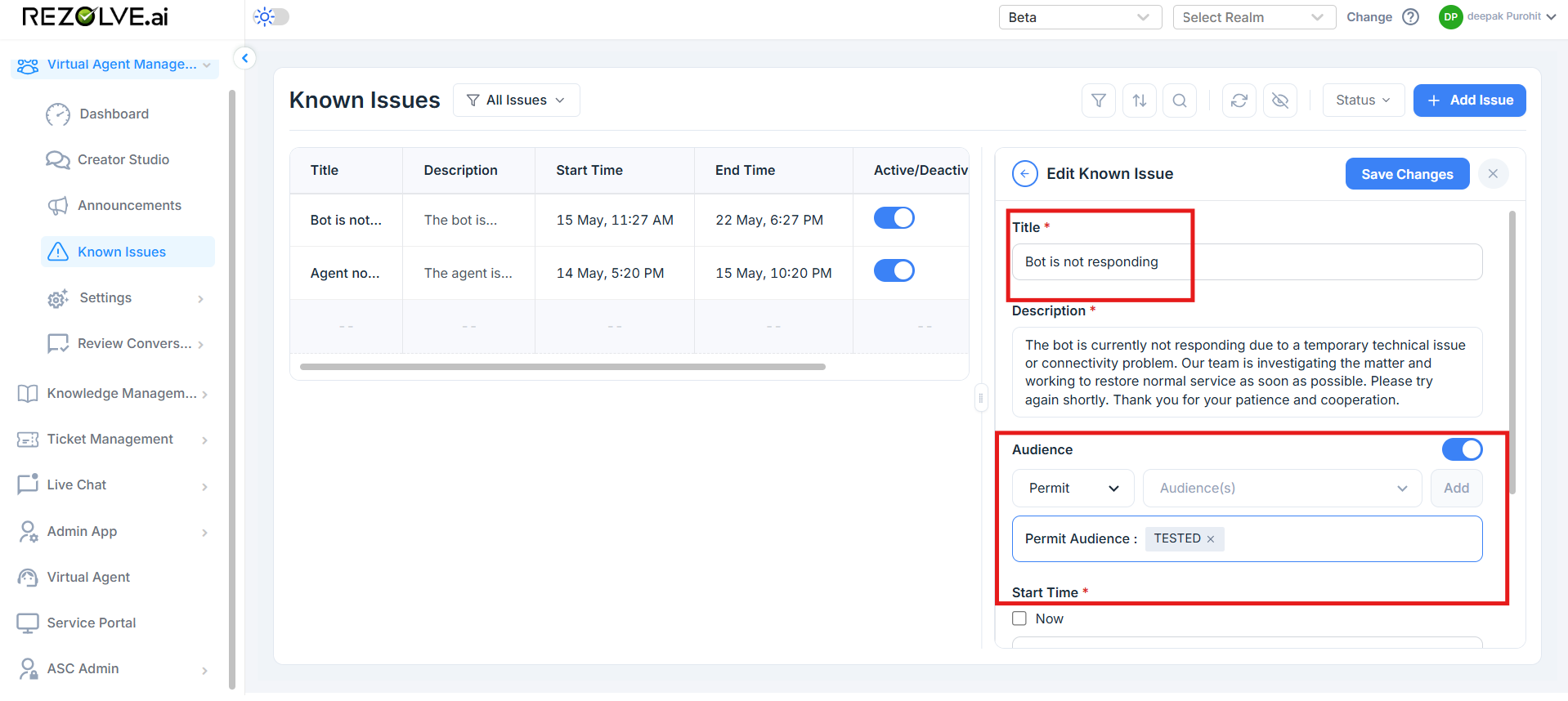
The fields
| Field | Required | What it does |
|---|---|---|
| Title | Yes | Short heading shown in the bot banner. Keep it under 60 characters. |
| Description | Yes | Body text shown under the title. Explains what's wrong, what users should expect, and when the team aims to resolve it. |
| Audience | No | Who sees the banner. Leave blank to show to everyone. See Audience targeting below. |
| Start Time | Yes | When the banner starts showing. Pick Now for immediate, or set a future date and time. |
| End Time | No | When the banner stops showing. Leave blank to keep the issue active until you deactivate it manually. |
Writing a useful banner
Two practical guidelines:
- Title is for scanning. The user should know in two seconds whether it's relevant to them. "Email server down" beats "Service degradation".
- Description is for context. Say what's affected, what isn't, and roughly when it'll be back. A two-sentence description is usually enough.
Audience targeting
The Audience field has two modes:
- Permit - show the banner only to users in the selected audiences. Use this when an issue affects a specific team, region, or department.
- Deny - show the banner to everyone except the selected audiences. Use this when an issue affects most of the organization but a small group is unaffected.
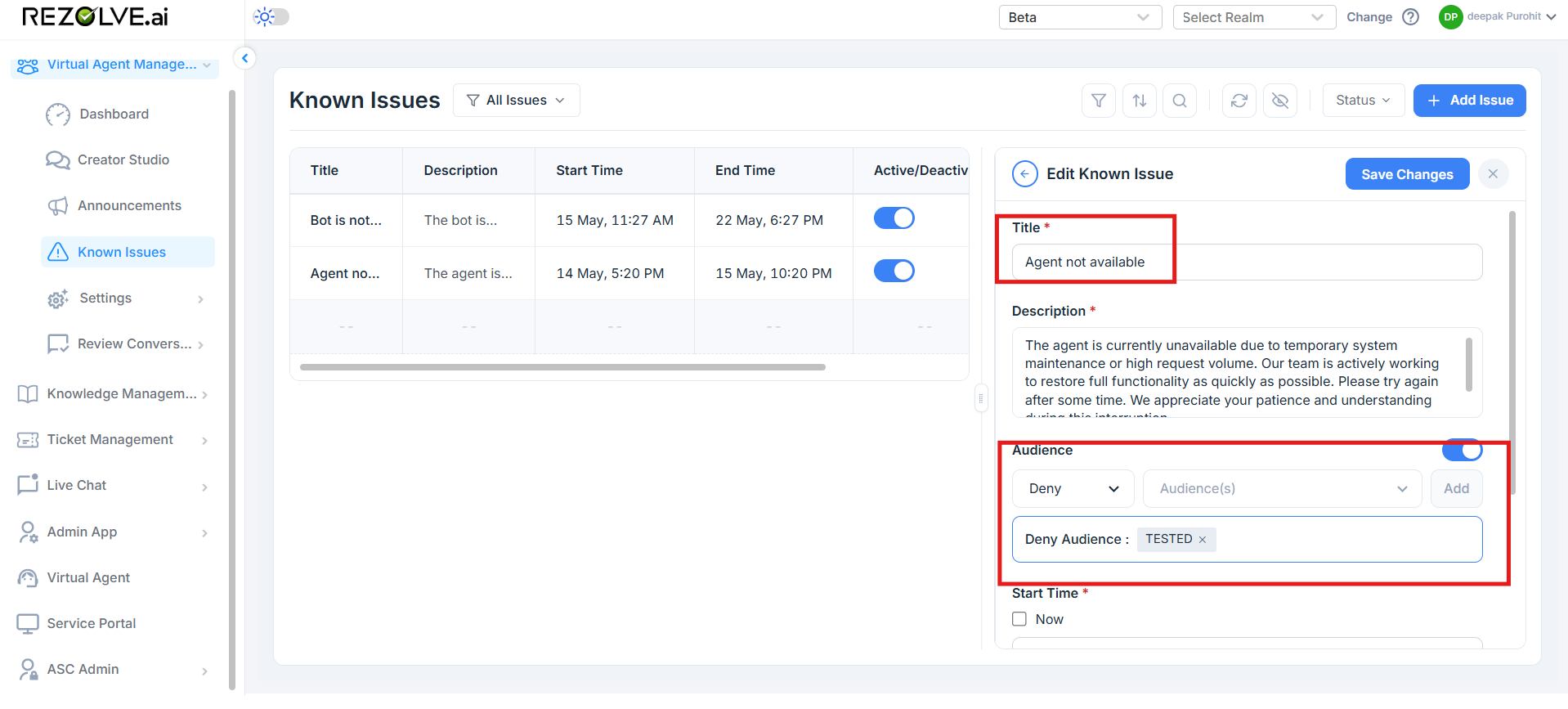
Audiences themselves are defined in Admin App → Audiences. They can be email-domain based, group based, or built from user attributes. A known issue picks from existing audiences; you don't create audiences from this page.
If you toggle the Audience field off, the issue is shown to everyone in the tenant.
Start and end time
| Choice | Effect |
|---|---|
| Start = Now, End = blank | Banner is live immediately and stays until manually deactivated or deleted |
| Start = Now, End = a specific time | Banner is live immediately and disappears at the end time |
| Start = future time, End = blank | Banner appears at the start time and stays until manually deactivated |
| Start = future time, End = a specific time | Banner appears at the start time and disappears at the end time |
Times are in the tenant's configured timezone. The banner in the bot displays the times back to the user so they know how long the issue is expected to be active.
Saving
Click Save Changes. The drawer closes and the new issue appears in the Known Issues list. If the start time is now or already passed, the banner becomes visible in the bot on the next user session.