Bot experience
When a user opens the bot, the system checks for known issues that match two conditions:
- The current time is between the issue's start and end times.
- The user belongs to the issue's target audience (or the issue has no audience set).
If at least one issue matches, the bot shows a banner under the standard landing message. If multiple match, all of them appear, stacked.
Web chat
The banner sits below the standard greeting. It has a warning icon, the title, the description, and the start and end times.
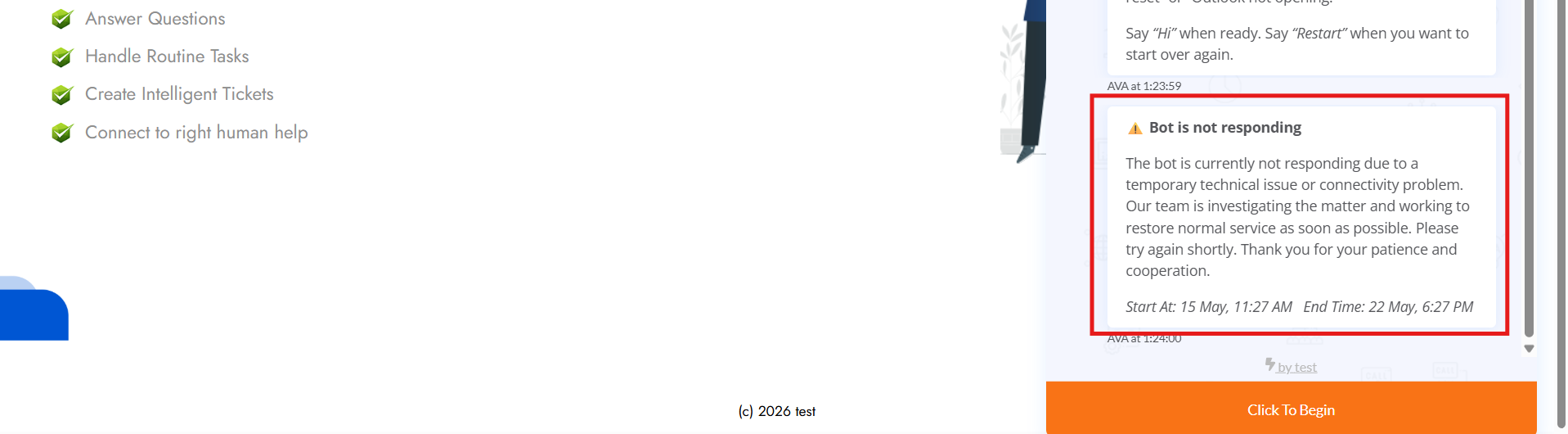
The user can still interact with the bot normally - the banner is informational, not a block. They can ask a question, log a ticket, or use any catalog action.
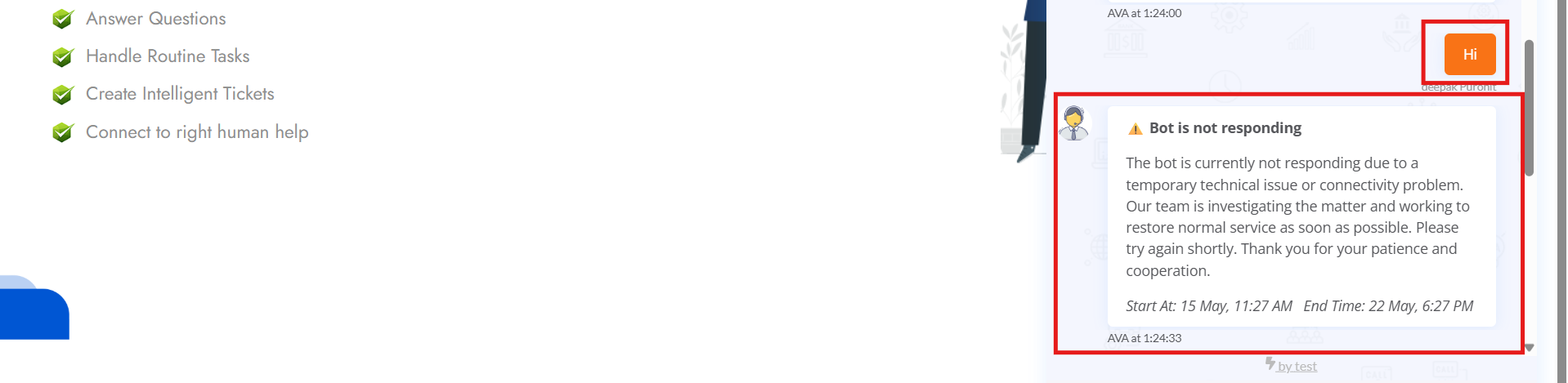
If the user greets the bot, the banner appears again above the menu options so they don't miss it.
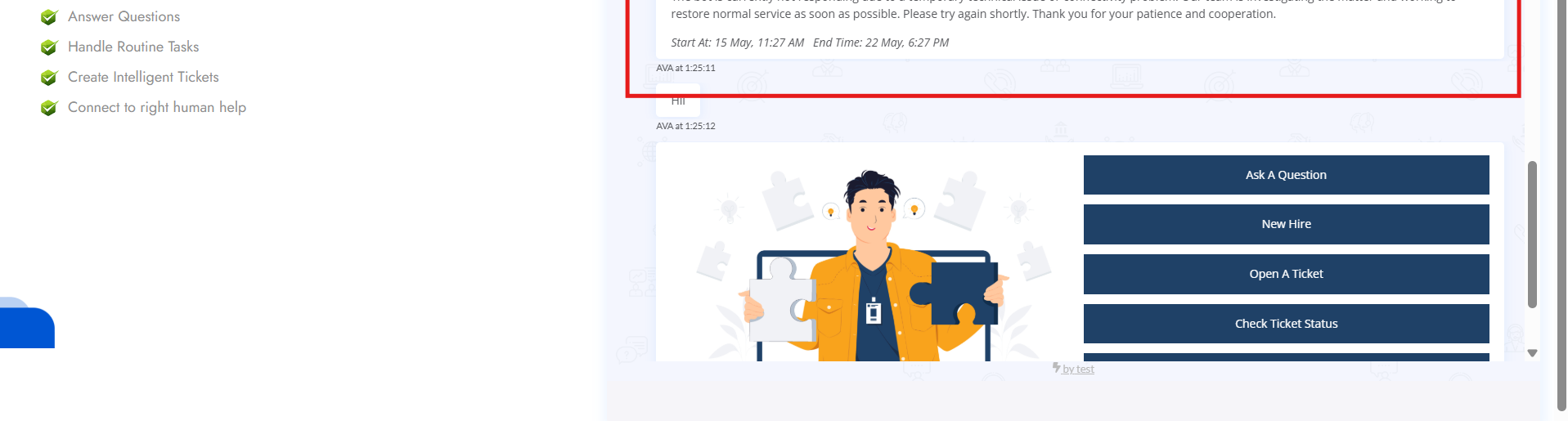
The bot's main menu (Ask A Question, New Hire, Open A Ticket, Check Ticket Status, Service Catalog) shows up below the banner.
Microsoft Teams
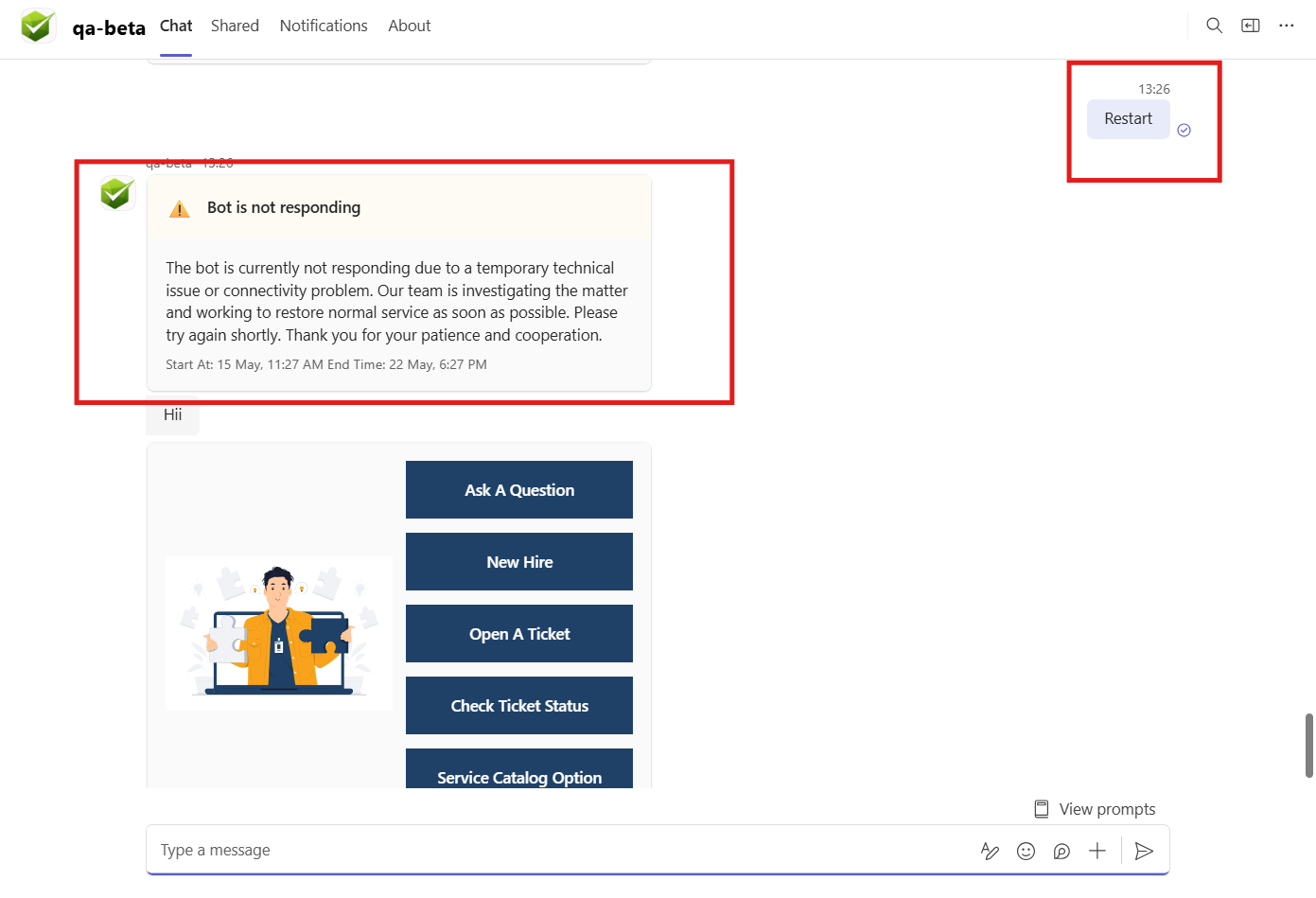
The same banner renders inside Teams. The title, description, and times appear as a card, with the same warning icon.
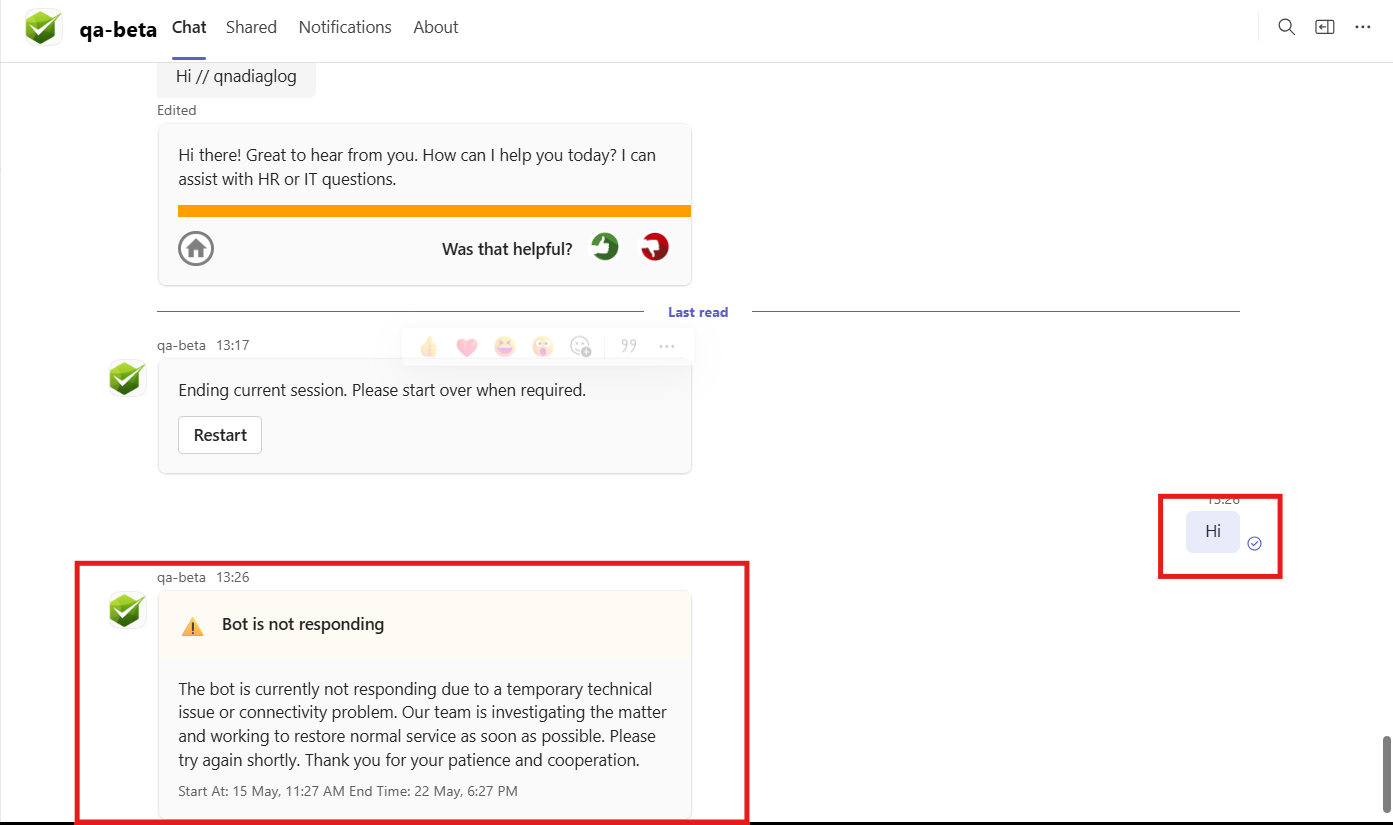
Cards in Teams use Teams' native card rendering, so the banner respects light/dark themes and the user's Teams font settings.
After the banner, the bot's menu options appear inline as buttons.
Slack
The Slack experience mirrors Teams. The same content surfaces as a Slack block, with a warning emoji prefix on the title and the description in the body. Start and end times appear as a context line under the description.
What happens when an issue expires
When the configured end time passes, or when an admin deactivates the issue, the banner stops appearing on the next user session. Users with open sessions don't see the banner disappear mid-conversation - they just don't see it the next time they open the bot.
What users can't do with the banner
The banner is read-only. Users can't acknowledge it, dismiss it, or hide it. If you want them to take action - file a ticket, sign up for updates, visit a status page - put a link in the description.