Knowledge Integrations
Knowledge Integrations connects external knowledge repositories to Rezolve.ai. Content from third-party applications is synchronized into the Rezolve Knowledge Base, where the Virtual Agent can use it to answer questions and agents can use it for reference.
Key Capabilities
- Centralized knowledge: aggregate knowledge from several external sources into one searchable knowledge base
- Scheduled synchronization: sync daily, weekly, or monthly, or on demand with Sync Now
- Audience-based access control: choose which user groups can get answers from each content set
- Incremental sync: after the first sync, only new or changed content is processed
- Source permissions: SharePoint permissions and ServiceNow user criteria can restrict who sees each item
- Sync monitoring: sync history, downloadable logs, email reports, and bounced-file management
How It Works
- Connect: create a secure connection to the external source with its credentials.
- Select content: organize what to sync into one or more content sets (sites, drives, folders, knowledge bases, spaces, projects, notebooks, or articles). Optionally restrict each content set to specific audiences.
- Configure sync: set the sync schedule and who receives sync reports.
- Monitor: track sync status, download logs, and resolve bounced files.
Supported Applications
| Application | What you select | Access control | Setup guide |
|---|---|---|---|
| SharePoint | Drives, folders, site pages, sub-sites, lists | Audience, or permissions inherited from SharePoint | SharePoint |
| Confluence | Spaces | Audience | Confluence |
| ServiceNow | Knowledge bases, plus field mapping for non-standard templates | ServiceNow user criteria, then audience | ServiceNow |
| Google Drive | Shared Drives and folders | Audience | Google Drive |
| Azure Wiki | Azure DevOps projects (all wikis in each) | Audience | Azure DevOps Wiki |
| OneNote | Notebooks stored in SharePoint sites | Audience | OneNote |
| BossDesk | Knowledge base articles | Audience | BOSSdesk |
Each setup guide covers the credentials and source-side permissions to prepare, the connection fields, what gets ingested, supported file types, and troubleshooting.
Accessing Knowledge Integrations
- Log in to the Rezolve.ai console.
- Go to Knowledge Management → Manage Knowledge → Knowledge Integration.
Setting Up a New Knowledge Integration
Every integration is created with the same three-step wizard: Connection Setup, Content Selection, and Configuration.
- Click Add Integrations.
- Select the application: SharePoint, Confluence, ServiceNow, OneNote, Azure Wiki, Google Drive, or BossDesk.
Step 1: Connection Setup
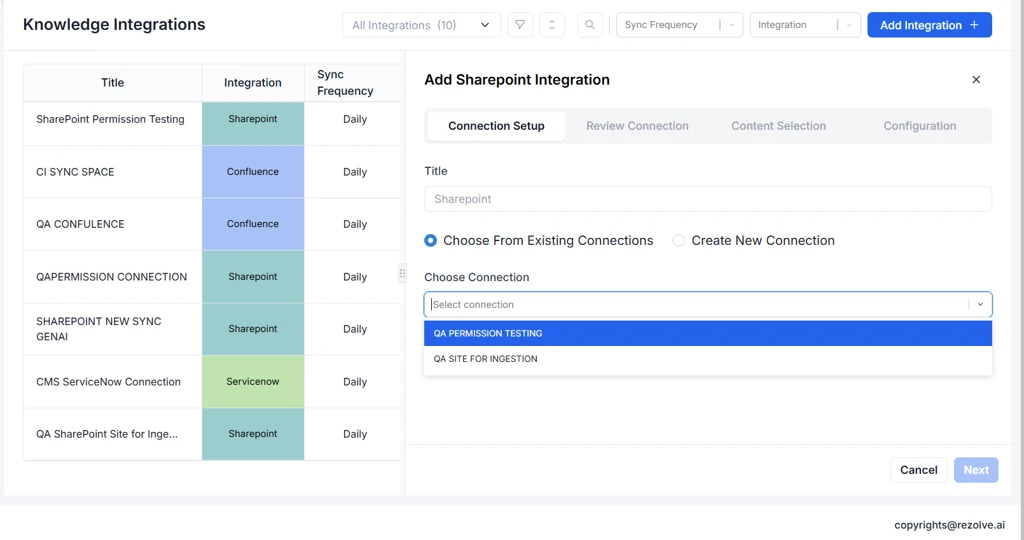
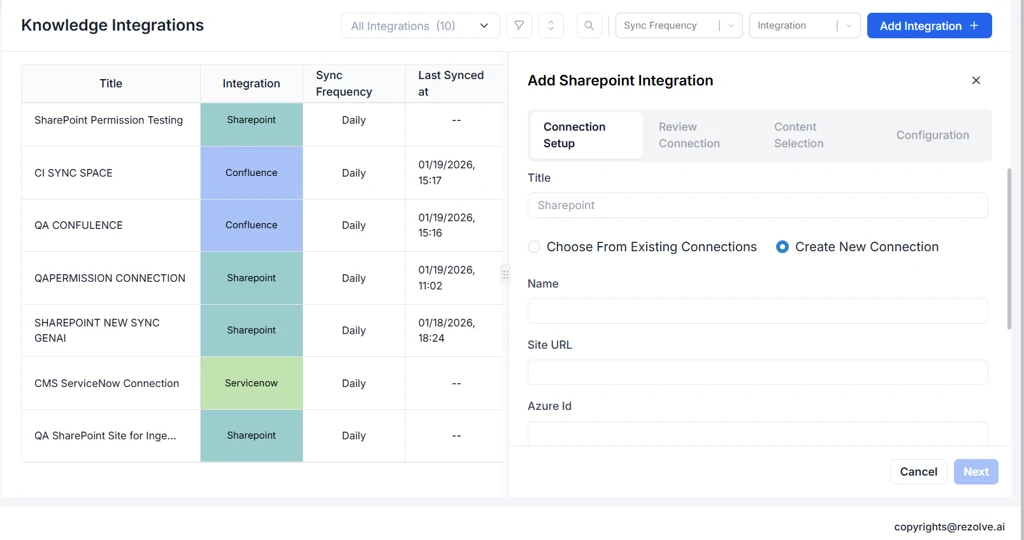
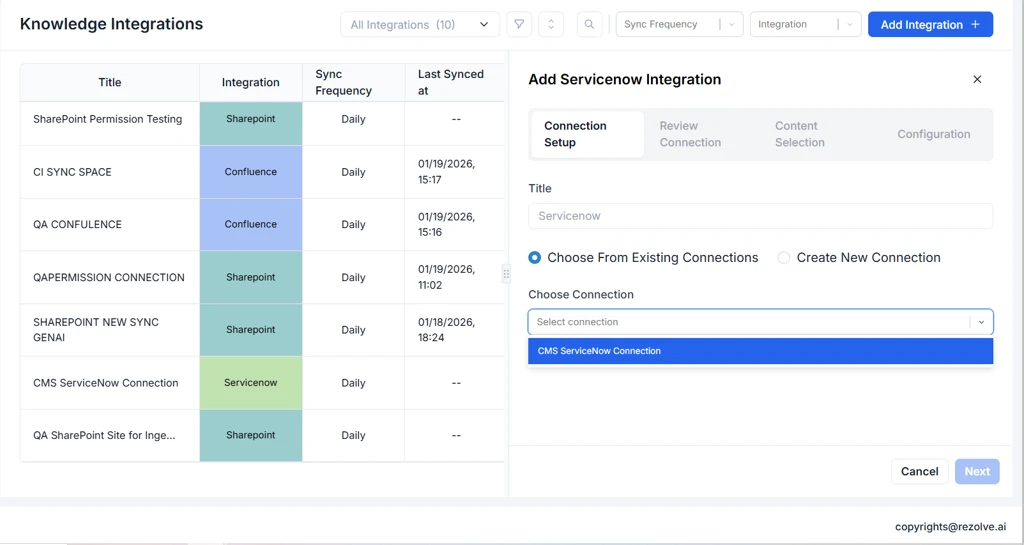
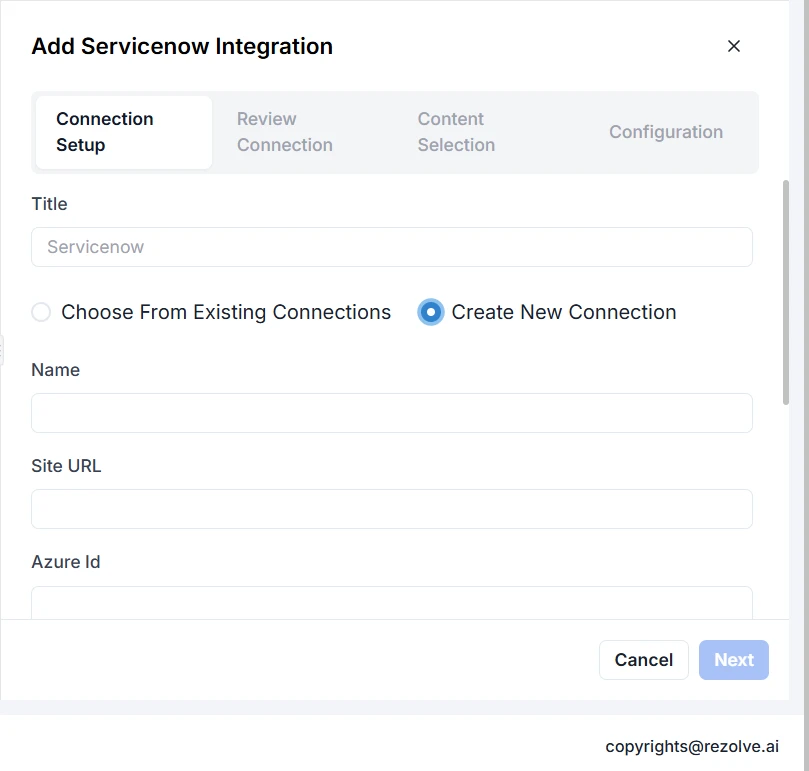
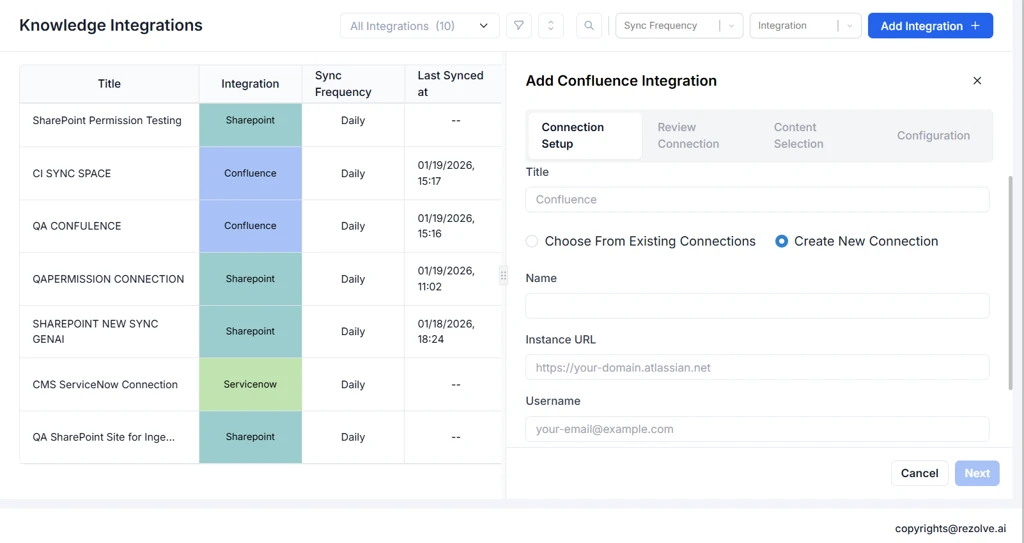
- Enter a Title for the integration.
- Choose how to connect:
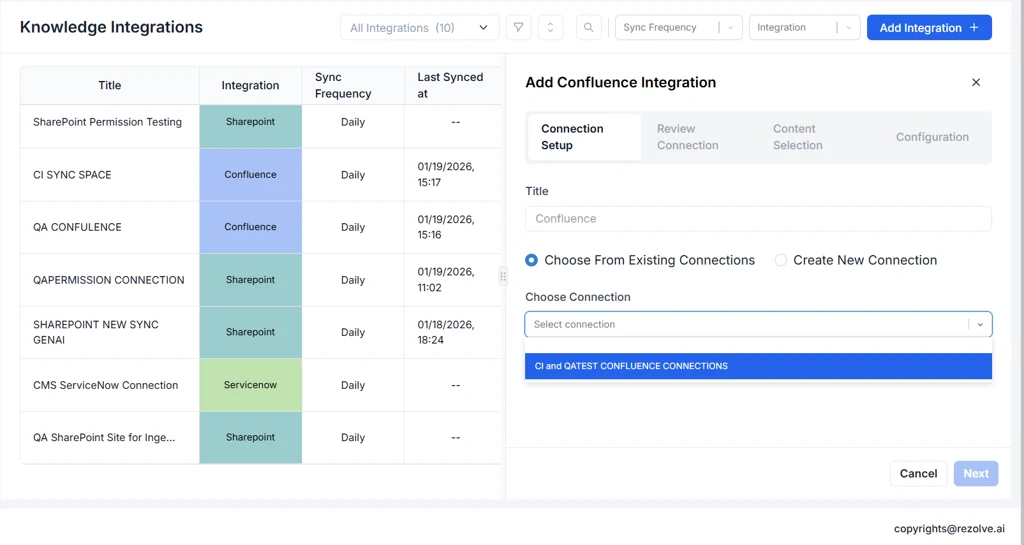
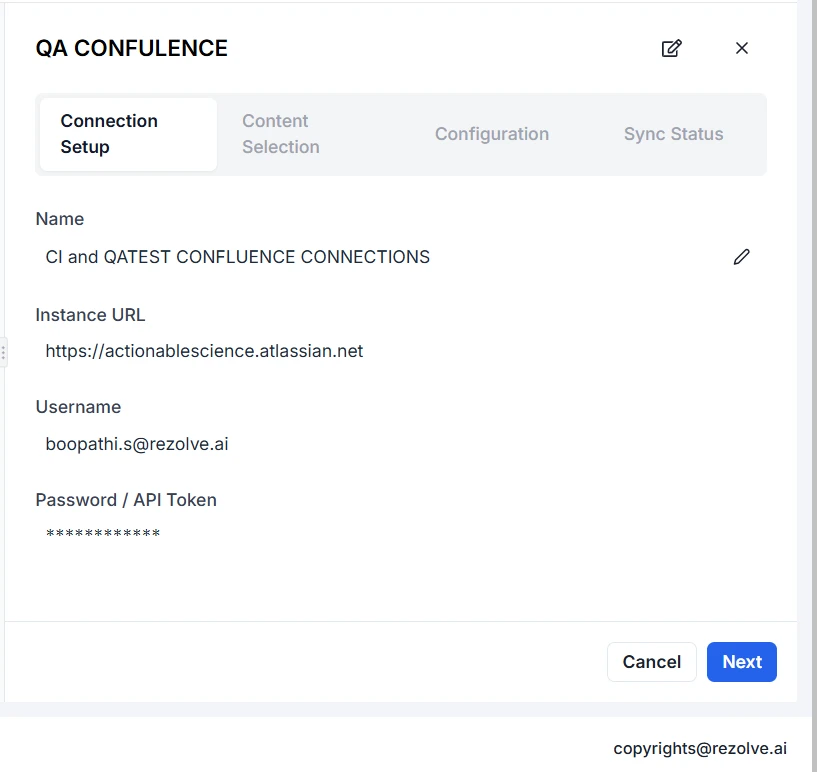
- Choose From Existing Connections: pick a connection you created earlier for the same application.
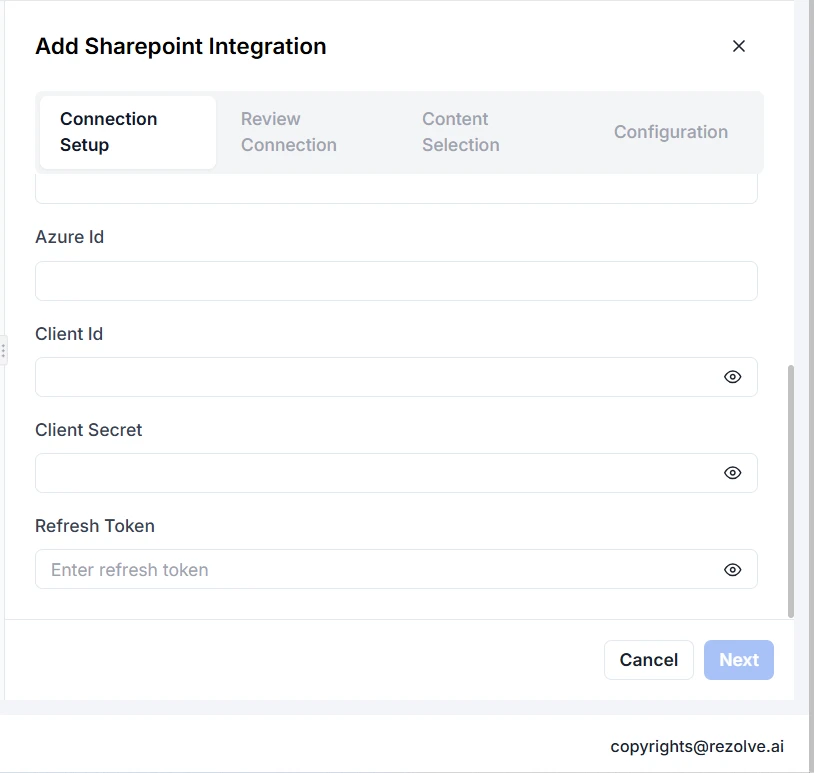
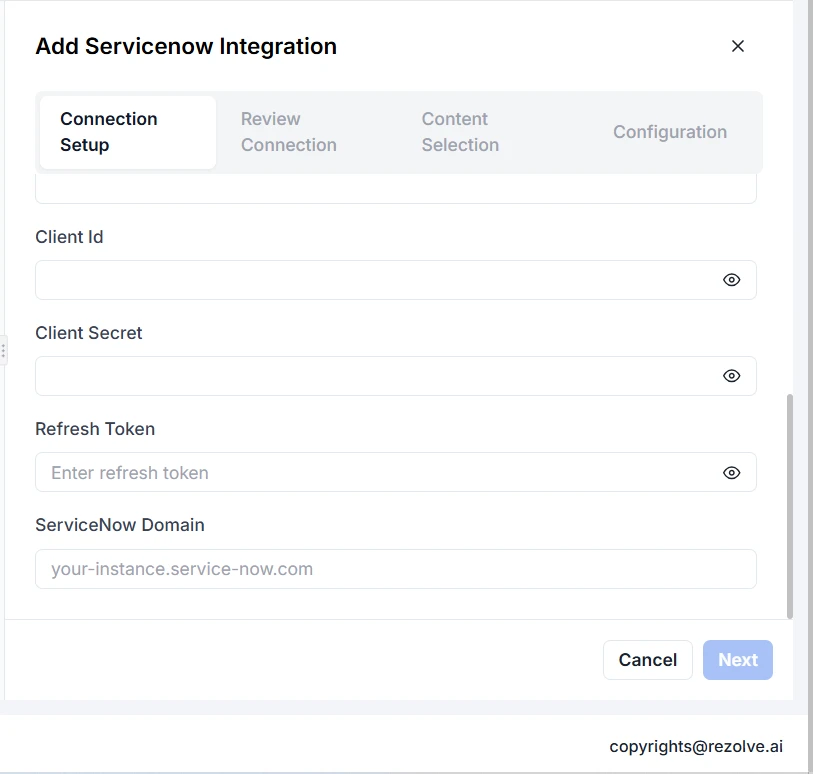
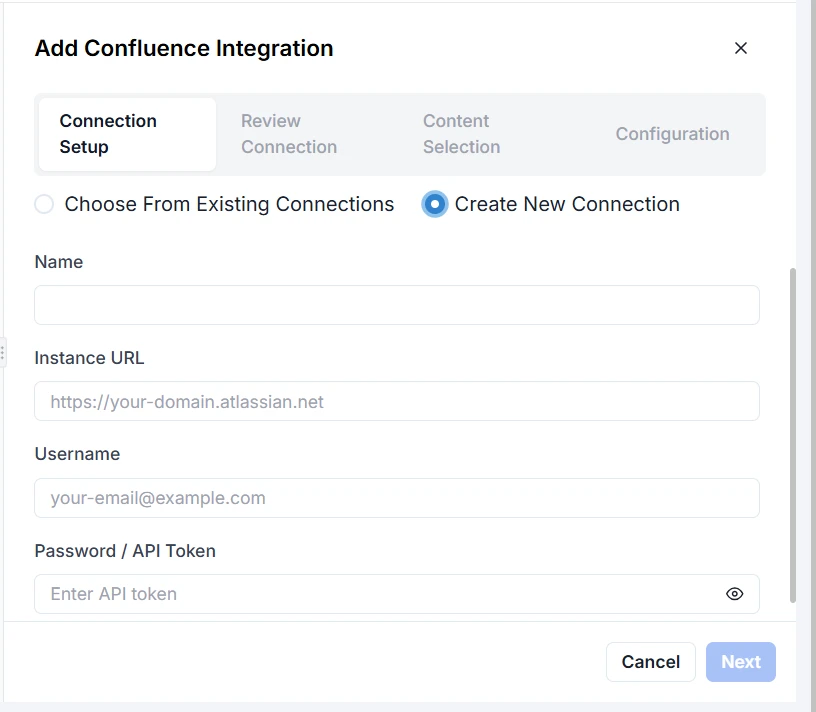
- Create New Connection: enter a Name and the application's connection fields.
- Click Next.
| Application | Connection fields |
|---|---|
| SharePoint | Site URL, Azure Id, Client Id, Client Secret |
| Confluence | Instance URL, Username, Password / API Token |
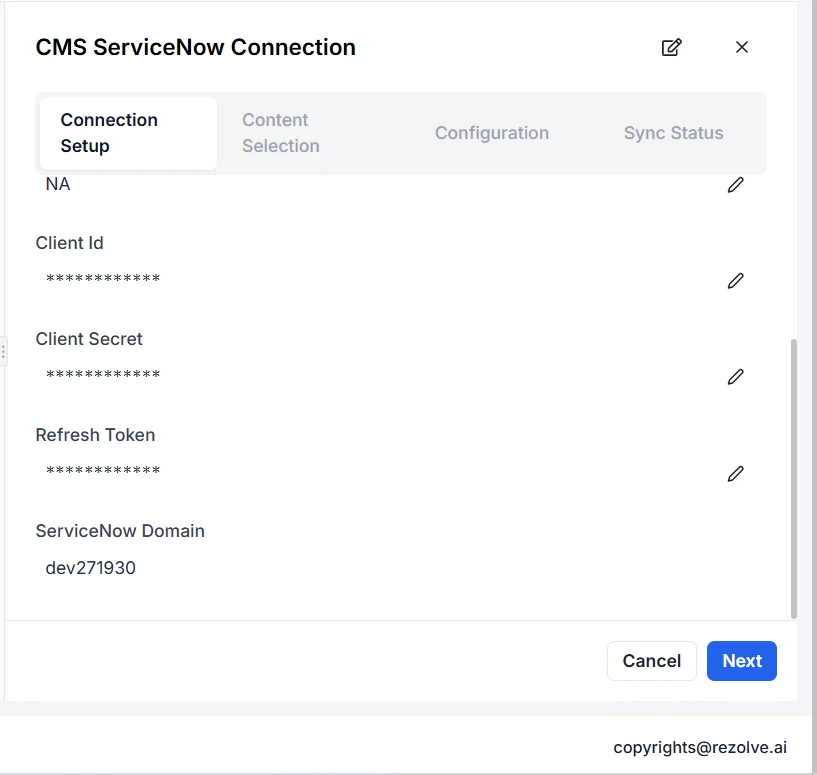
| ServiceNow | Client Id, Client Secret, Refresh Token, ServiceNow Domain |
| Google Drive | Service Account Email, Token URI, Private Key |
| Azure Wiki | Organisation URL, Azure Tenant Id, Client Id, Client Secret |
| OneNote | Site URL, Azure Id, Client Id, Client Secret, Refresh Token |
| BossDesk | Username, Password, Domain, API Key |
Step 2: Content Selection
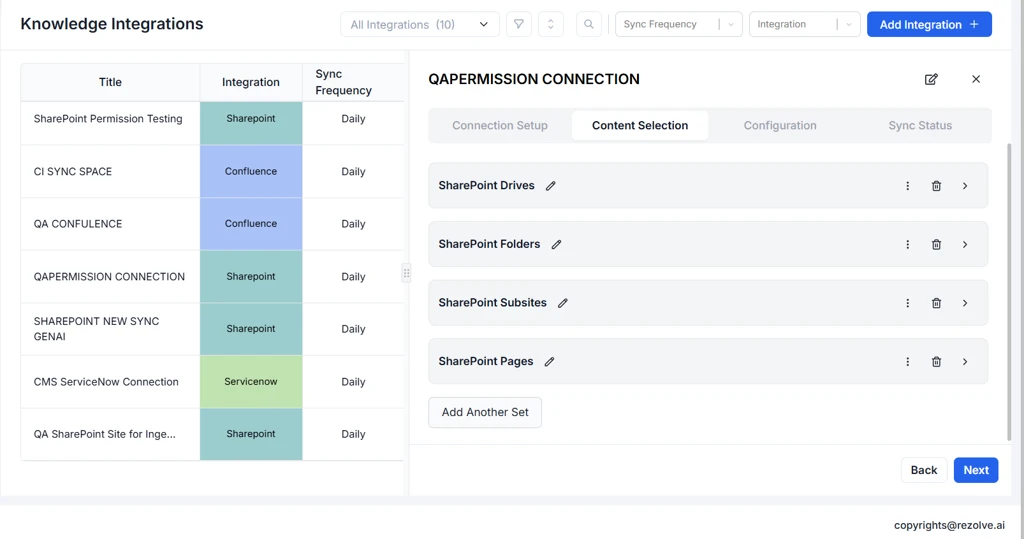
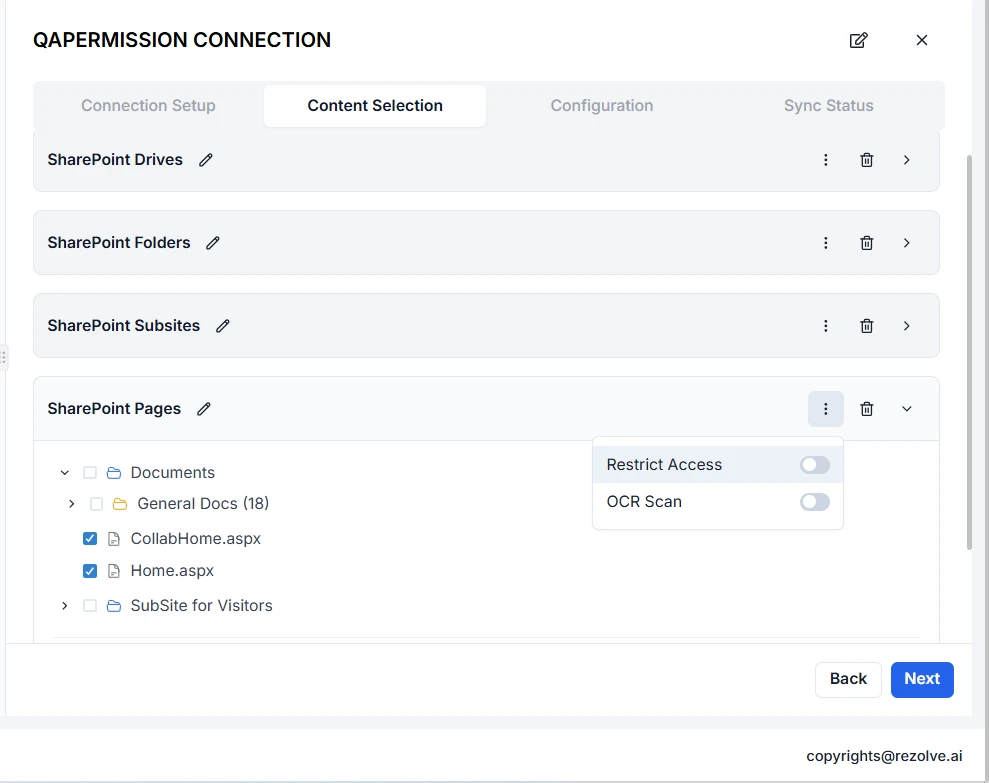
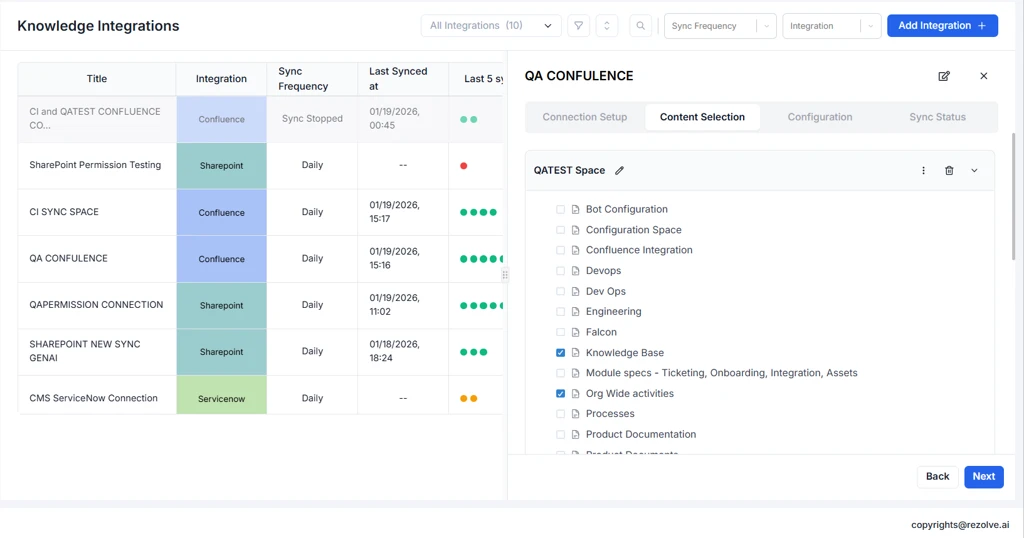
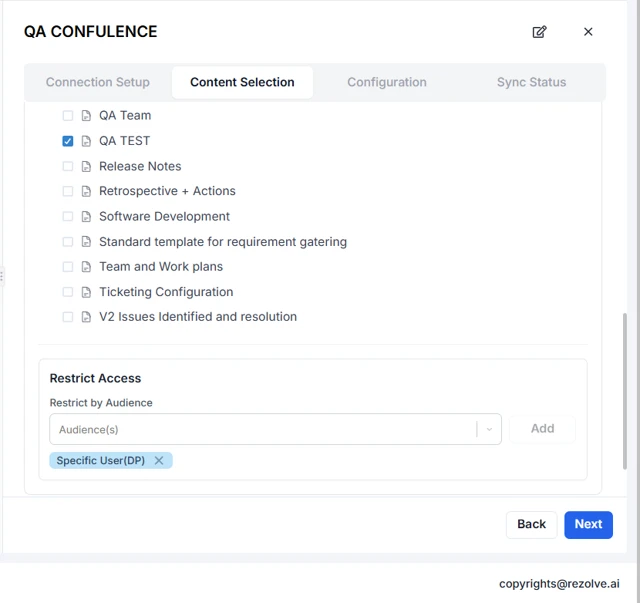
Content is organized into content sets. A content set is a selection of source content plus its access settings. One integration can hold several content sets, for example one per department, each with a different audience.
-
Click + Add Content Set.
-
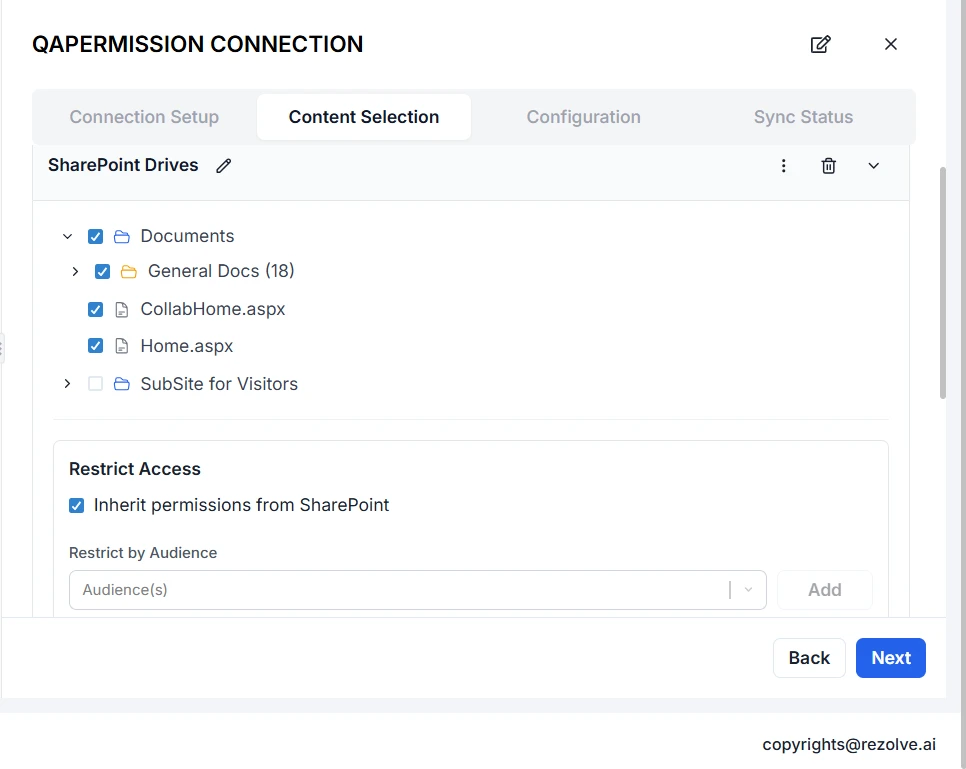
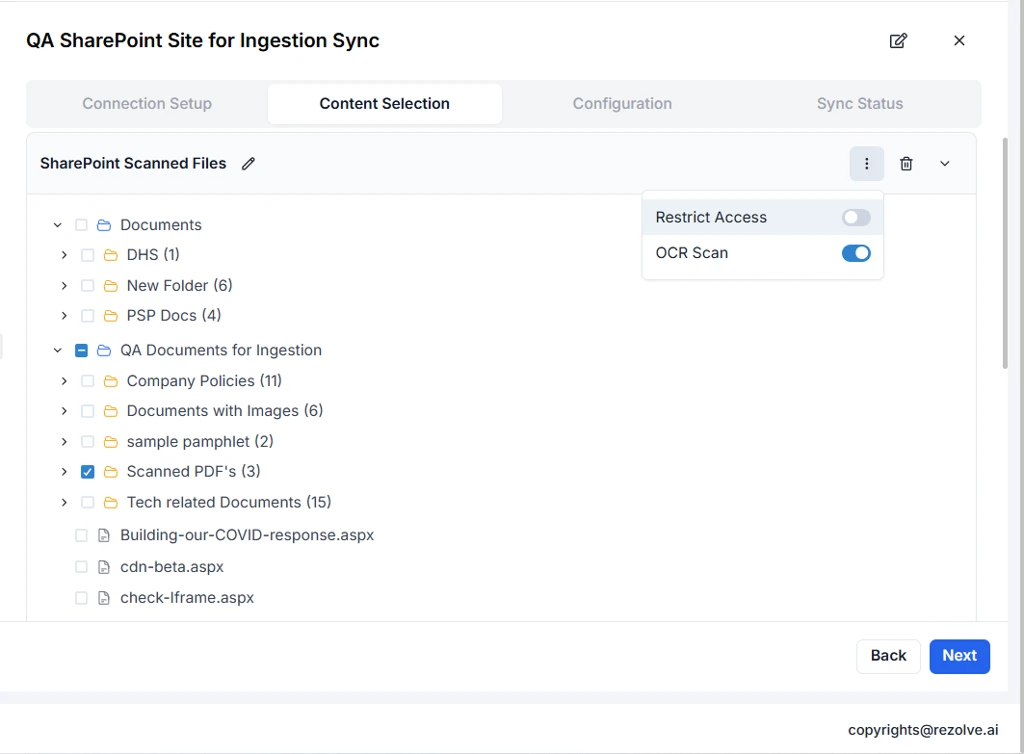
Browse the source and tick the content to sync. What you can select depends on the application; see the table in Supported Applications.
-
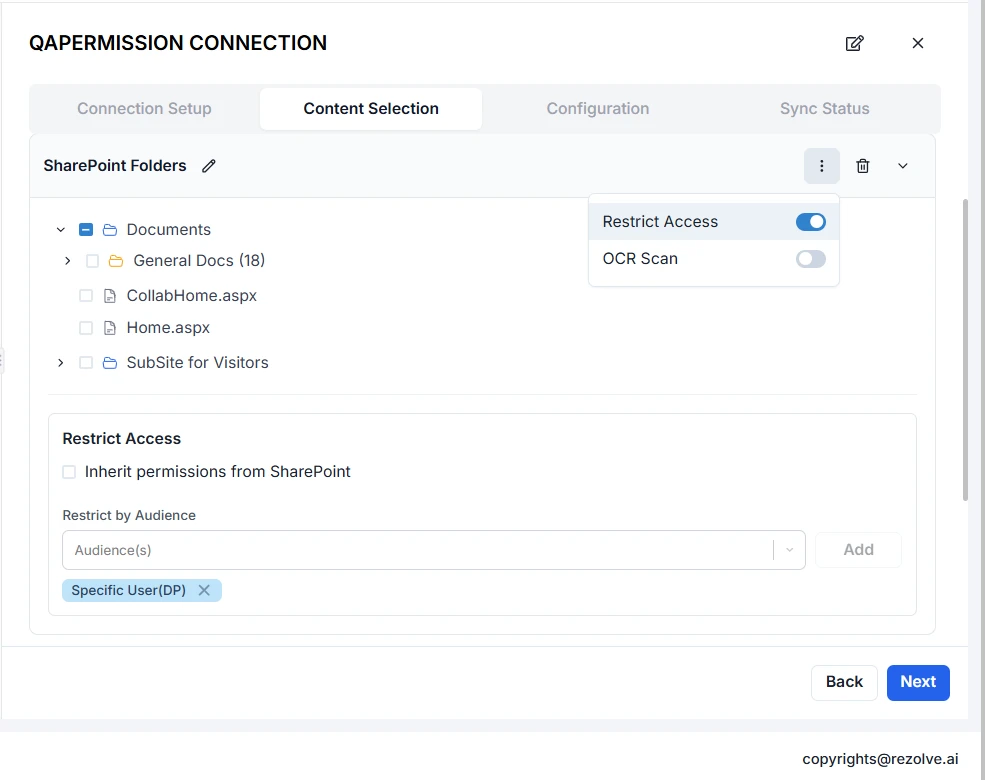
To restrict access, open the content set's ⋮ menu and turn on Restrict Access:
- Restrict by Audience: select one or more Audience(s) that can get answers from this content set.
- Inherit permissions from SharePoint (SharePoint only): users only get answers from items they can access in SharePoint. See Permission inheritance.
Without Restrict Access, the content set is available to everyone.
-
Repeat for additional content sets, then click Next.
Application-specific options:
- SharePoint: sync SharePoint lists with the SharePoint List switch in the ⋮ menu.
- ServiceNow: map fields for knowledge bases that use non-standard templates.
To delete a content set and its ingested content, type Delete Knowledge to confirm.
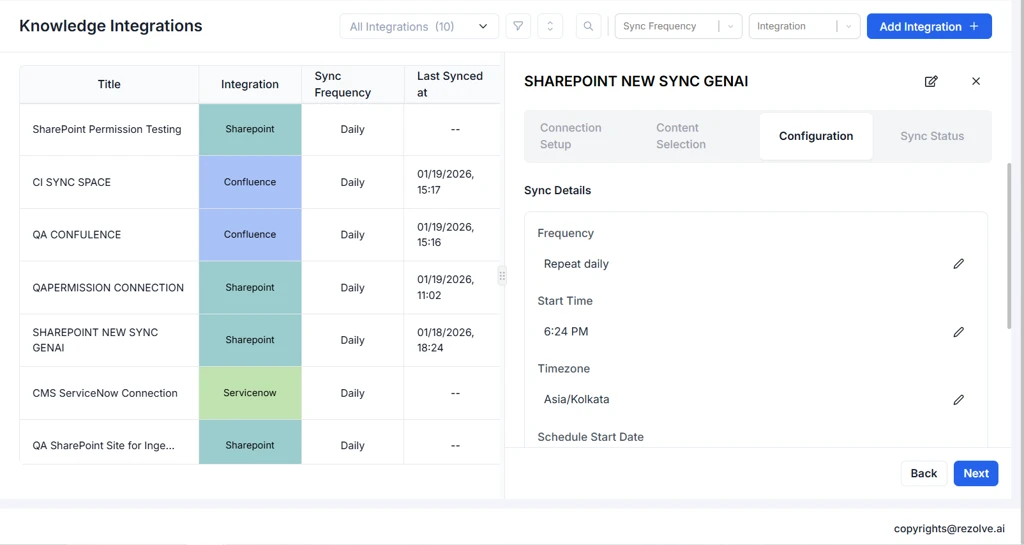
Step 3: Configuration
Sync Details:
| Field | Options |
|---|---|
| Frequency | Repeat daily, Repeat weekly, or Repeat monthly. Weekly syncs run on the start date's weekday; monthly syncs run on the start date's day of the month. |
| Start Time | The time of day the sync runs |
| Timezone | The timezone for the start time |
| Schedule Start Date | The date of the first scheduled sync |
Sync reports:
- Subscribe to Sync Reports: turn on to email a report after each sync.
- User Subscribers: the users who receive the reports.
Click Save. The integration appears in the list view with its sync status.
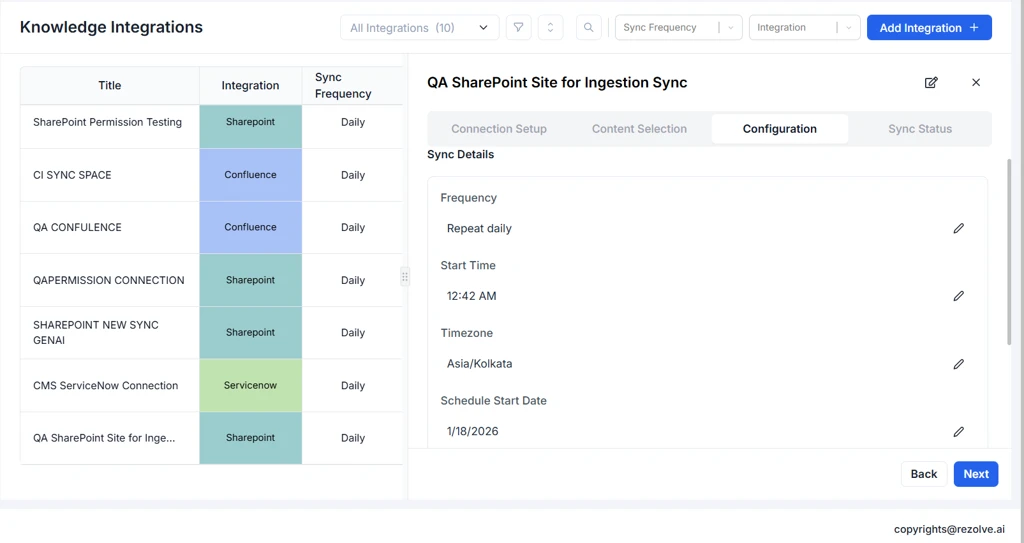
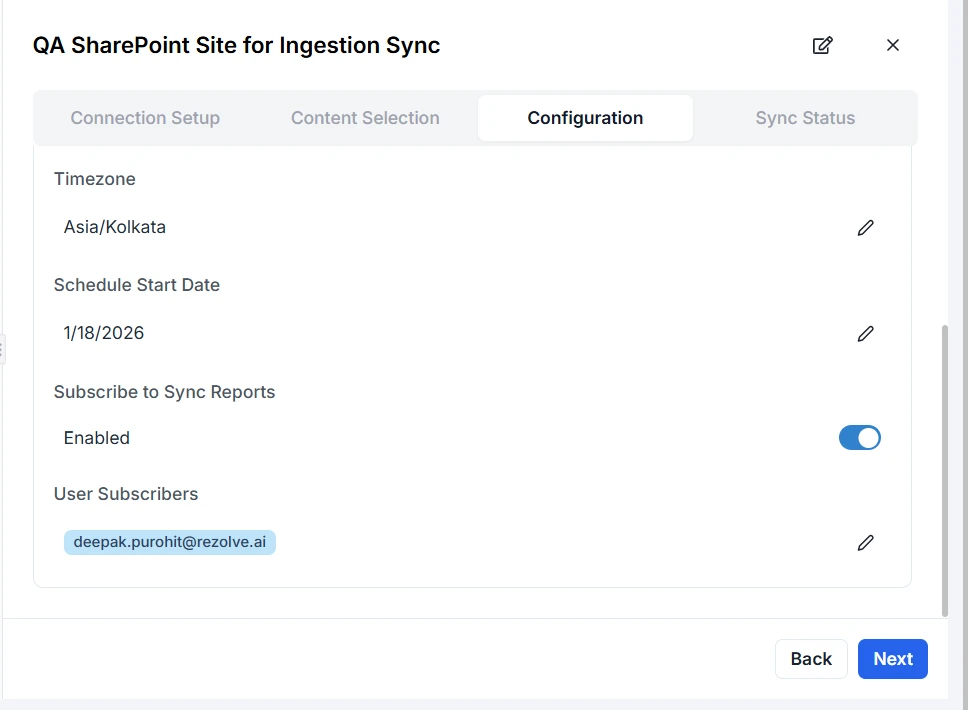
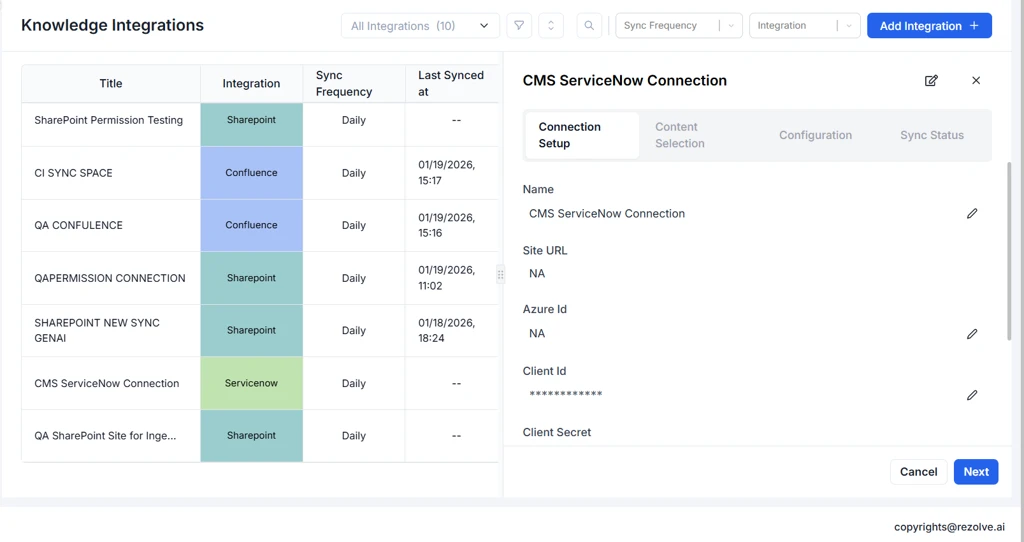
The screenshots below show the connection and content steps for ServiceNow and Confluence.
Managing Knowledge Integrations
Viewing Integration Details
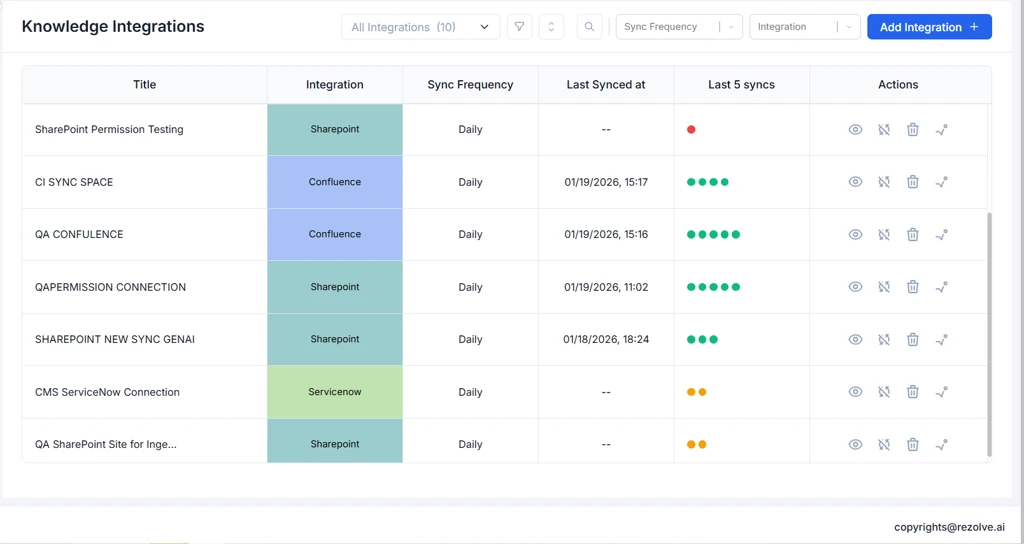
After creating an integration, it appears in the Knowledge Integrations list view.
List View Columns:
- Title: Integration name
- Application: Source application
- Connection: Associated connection name
- Last Synced: Timestamp of the most recent sync
- Status: Current sync status
- Actions: Edit, Stop Sync, Delete, View Bounced Files
Accessing Detailed View:
- Click the View icon in the Actions column
- The detail view opens with the Sync Status tab selected by default
Editing an Integration
You can modify an existing integration's settings at any time.
To Edit an Integration:
- From the list view, locate the integration you want to modify
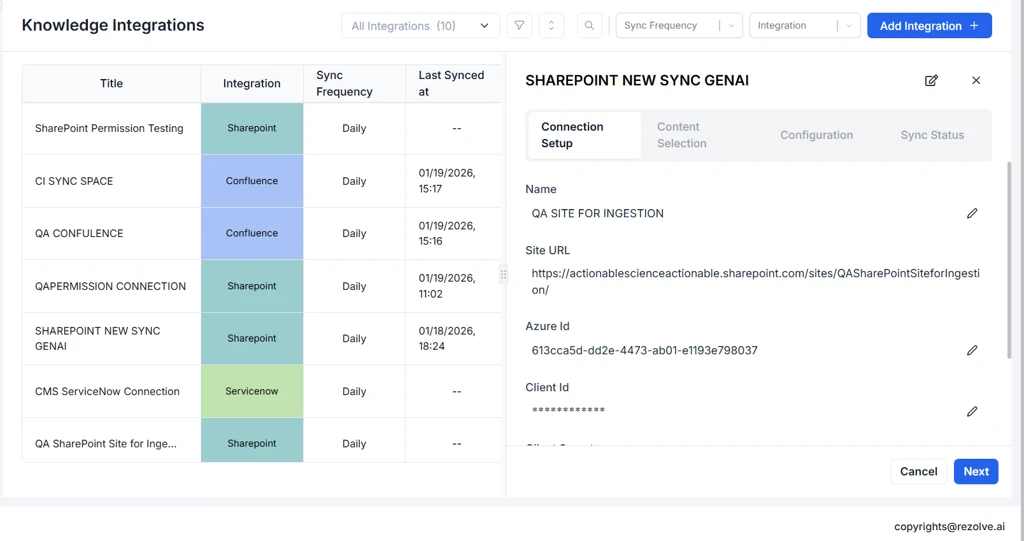
- Click the View icon (eye icon) in the Actions column
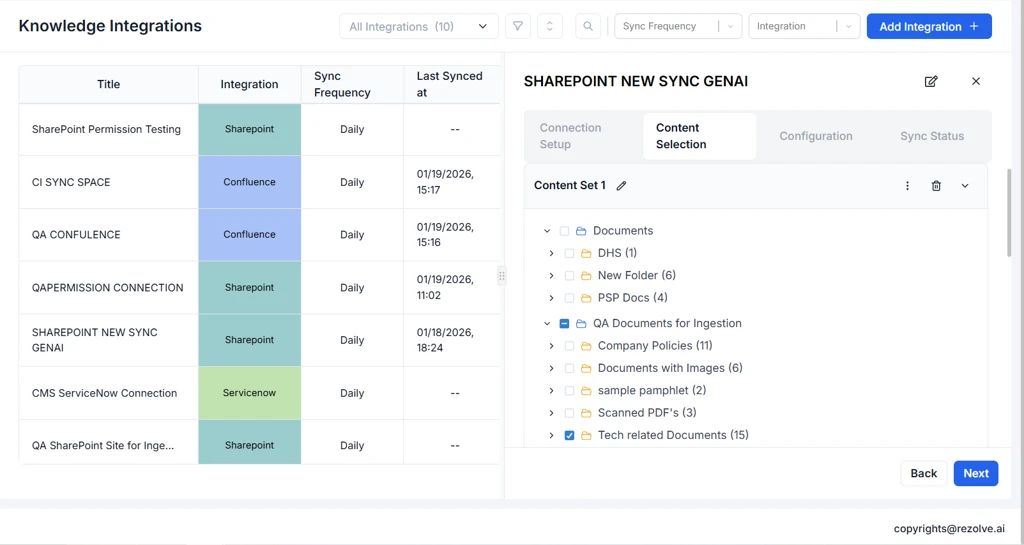
- The system opens the sync configuration details with current settings pre-populated
Editable Settings:
- Step 1 - Connection Setup: Change the connection (you can't create a new one while editing). You can replace secrets such as the client secret or refresh token. The Site URL, Instance URL, or Organisation URL can't be edited.
- Step 2 - Content Selection:
- Add or remove content sets
- Change the selected content
- Update audience assignments
- Enable/disable permission inheritance (SharePoint only)
- Step 3 - Configuration:
- Modify sync frequency and schedule
- Add or remove report subscribers
- Click Save to apply changes
Note: Content you deselect is removed from the Knowledge Base when you save. Newly selected content is synced on the next scheduled sync, or right away with Sync Now.
Triggering Manual Sync (Sync Now)
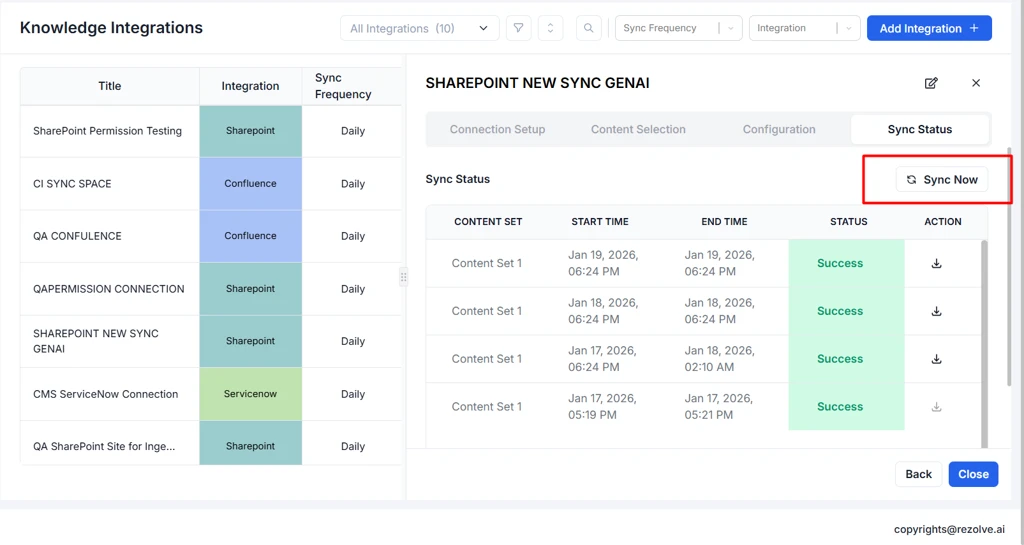
In addition to scheduled syncs, you can manually trigger a sync at any time.
To Trigger Manual Sync:
- Open the integration detail view by double-clicking the integration
- Navigate to the Sync Status tab
- Click the Sync Now button
- The sync process begins immediately
- Monitor progress in the Sync Status section
Use Cases for Manual Sync:
- Immediately sync newly added content
- Re-sync after resolving bounced files
- Verify sync configuration after making changes
Stopping a Sync
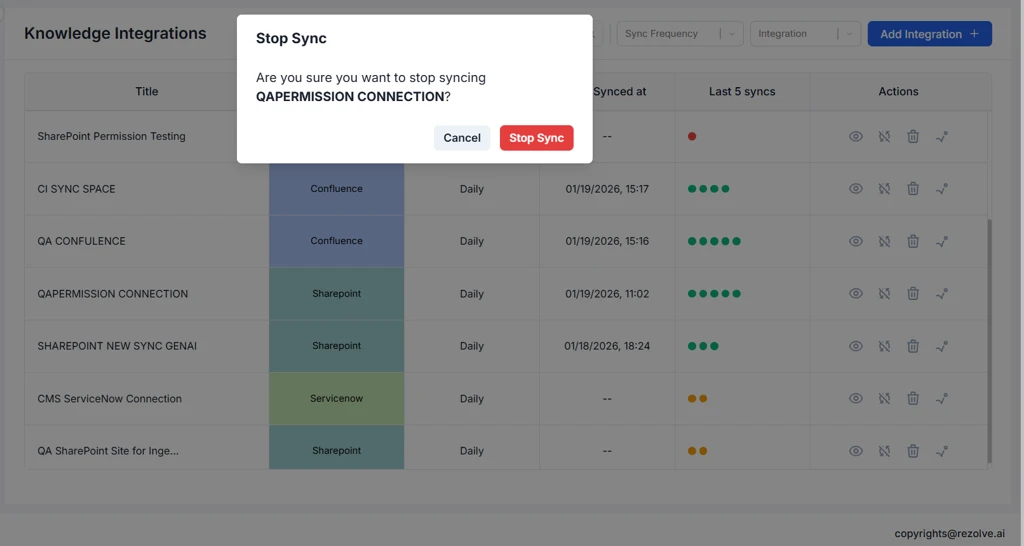
You can disable future scheduled syncs -
-
From the list view, click the Stop Sync icon in the Actions column, or
-
Open the detail view and click Stop Sync
-
A confirmation dialog appears with the following message:
"Are you sure you want to stop this sync? While this sync won't be active anymore, the knowledge previously ingested won't be removed from Rezolve Knowledge Base."
-
Click Confirm to stop the sync
Important Notes:
- Stopping a sync does not remove previously ingested knowledge from the Rezolve Knowledge Base
- The integration configuration is preserved
- You can resume syncing by triggering a manual sync or re-enabling the schedule
Deleting an Integration
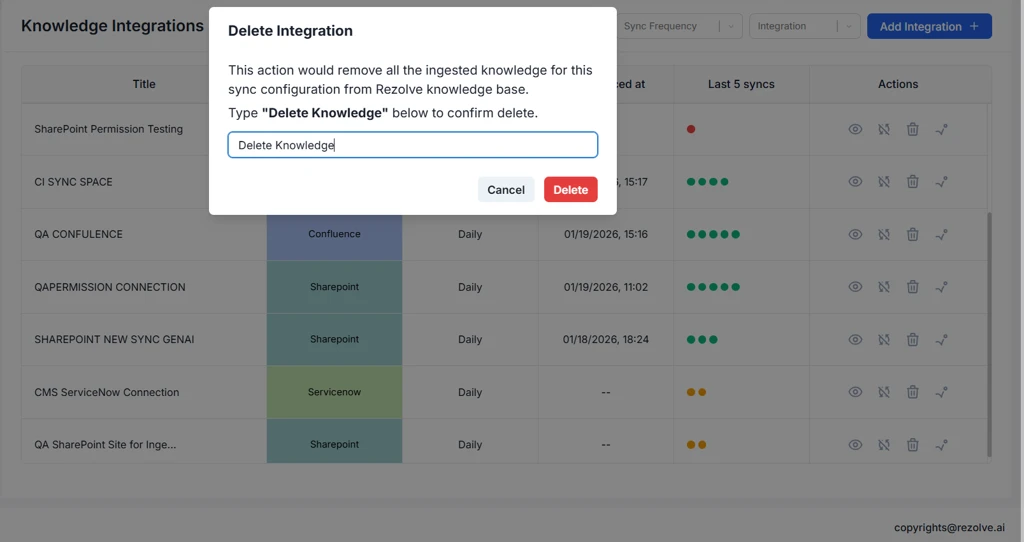
Deleting an integration permanently removes both the sync configuration and all associated ingested knowledge.
To Delete an Integration:
-
From the list view, click the Delete icon (trash icon) in the Actions column
-
A confirmation dialog appears with a warning message:
"This action would remove all the ingested knowledge for this sync configuration from Rezolve knowledge base. Type "Delete Knowledge" below to confirm delete."
-
Type "Delete Knowledge" in the input field and click Delete to confirm, or Cancel to abort
Important Considerations:
- Permanent Action: Deletion cannot be undone
- Knowledge Removal: All articles and content from this integration will be removed from the Rezolve Knowledge Base
- Impact on Virtual Agent: The Virtual Agent will no longer have access to this knowledge for answering queries
- Bounced Files: Any bounced files associated with this integration will also be deleted
Sync Status and Monitoring
Viewing Sync Status
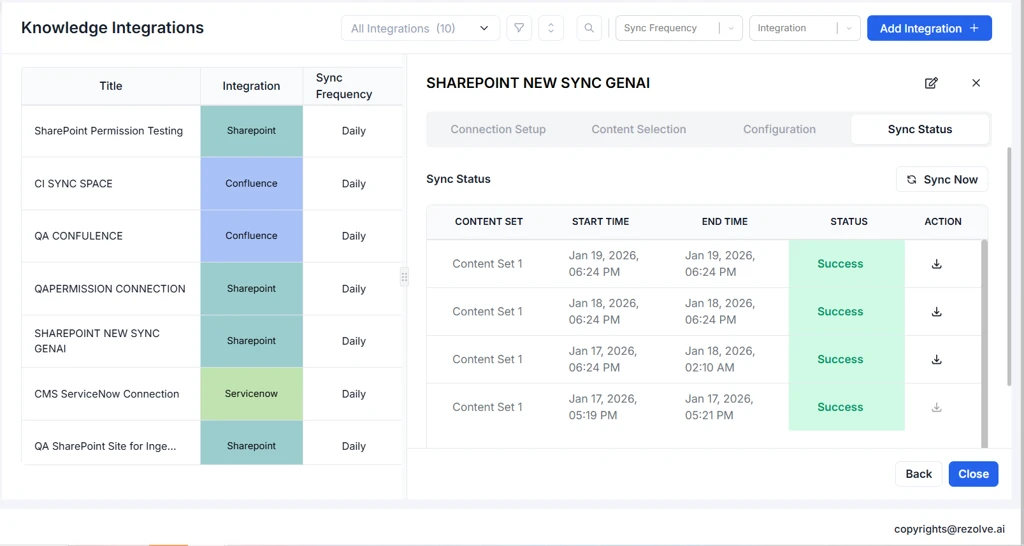
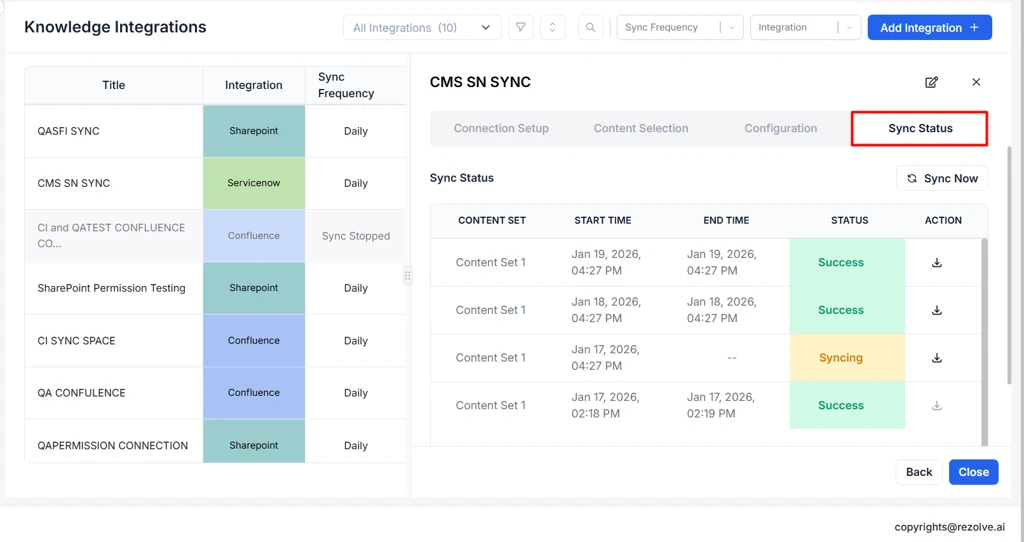
The Sync Status tab provides comprehensive information about sync operations.
Accessing Sync Status:
- Double-click an integration from the list view
- The detail view opens with Sync Status as the default tab with following information
| Column | Description |
|---|---|
| Content Set | Name of the content set |
| Start Time | When the sync began |
| End Time | When the sync completed |
| Status | Outcome (Success, Failed, Stopped) |
| Action/s | Link to download sync log |
Downloading Sync Logs
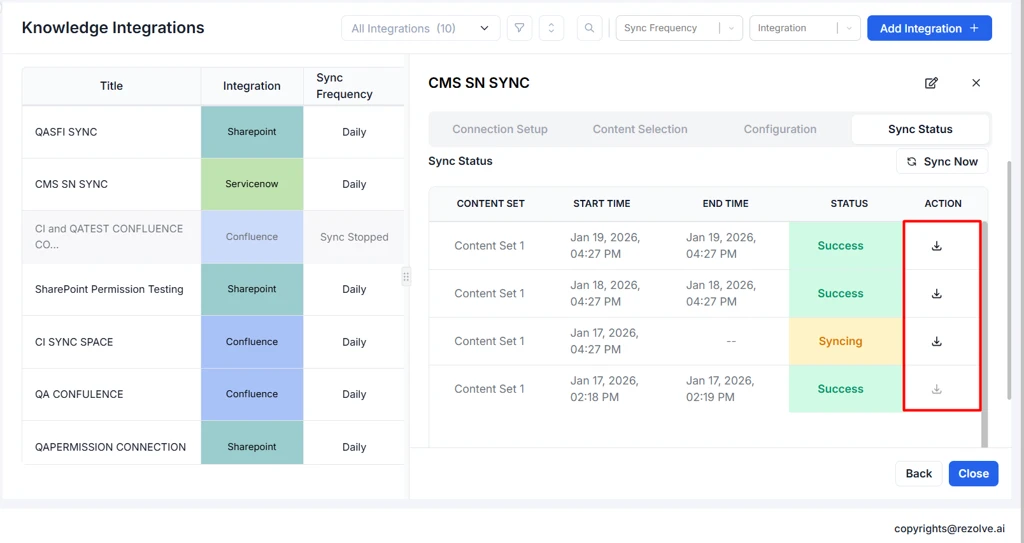
Sync logs provide detailed information about each sync operation for troubleshooting and auditing.
To Download Sync Logs:
- Navigate to the Sync Status tab of the integration
- In the Sync History table, locate the sync job you want to review
- Click the Download icon in the row's action column
- The log file downloads in CSV format
Email Notifications
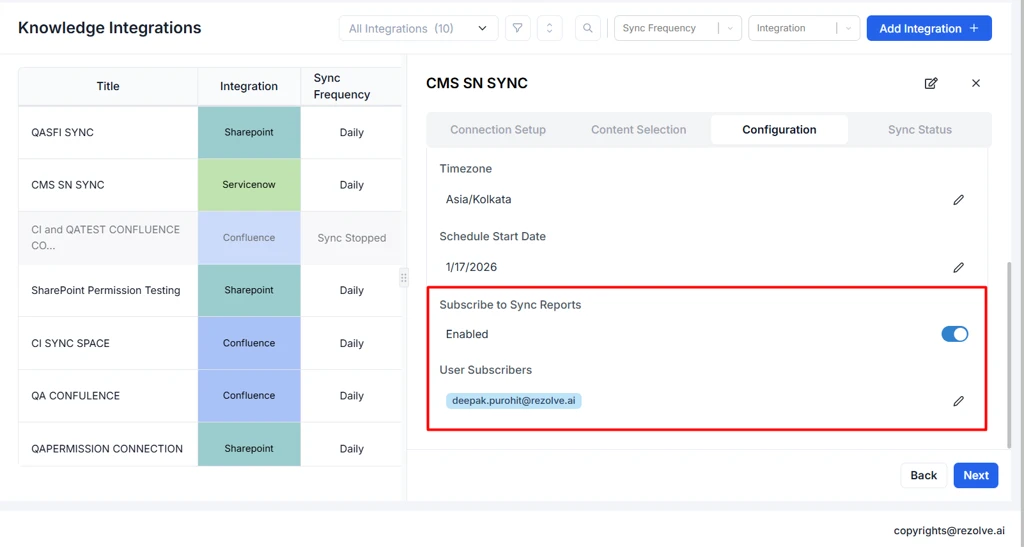
Stay informed about sync status through email notifications.
Configuring Email Notifications:
- During integration setup (Step 3: Configuration), or
- Edit an existing integration and navigate to Step 3
Configuration Options:
- Subscribe to Sync Reports: Toggle to enable or disable sync report emails
- User Subscribers: Select the users who should receive the reports
Notification Contents:
- Sync status (Success, Failed, Partial)
- Link to view sync status CSV file
Notification Triggers:
- Sync completion (success)
- Sync failure
Managing Bounced Files
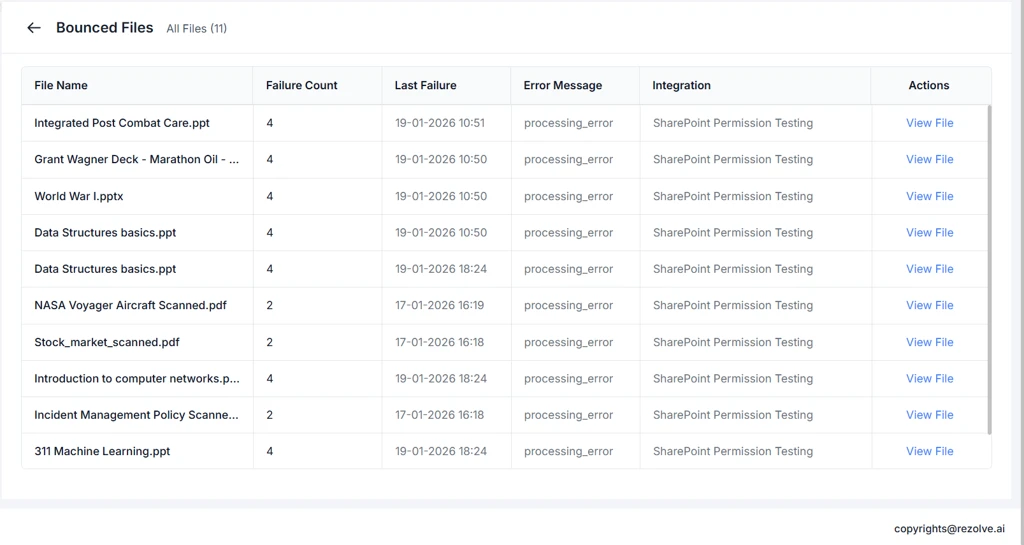
Bounced files are documents that failed to process during sync. Managing these files ensures complete knowledge coverage.
Viewing Bounced Files
Accessing Bounced Files:
- From the list view, click the Bounce icon (warning/exclamation icon) in the Actions column for the relevant integration
- The Bounced Files panel opens, displaying all failed files
Resolving Bounced Files
View File:
- Click the View File button next to the bounced file
- The system opens the file in the source application
- Review and fix the issue in the source system
- During the next sync, the system will attempt to process the file again
Appendix
Supported File Types
Knowledge Integrations can process the following file types:
Supported file types depend on the source application. For SharePoint document libraries:
| Category | Extensions |
|---|---|
| Documents | .pdf, .doc, .docx, .txt, .md |
| Presentations | .ppt, .pptx |
| .msg | |
| Archives | .zip, .rar, .7z (supported files inside are extracted) |
| Pages | SharePoint site pages (.aspx) |
Excel (.xls, .xlsx) and CSV files are not ingested from any application. Files over 25 MB are bounced. Text inside images isn't extracted. Each setup guide lists the file types for that application.
Permission Requirements
SharePoint
- Azure AD (Entra ID) app registration with a client secret and one of these Microsoft Graph application permissions, with admin consent:
- Sites.Read.All: read access to all sites
- Sites.Selected (recommended): read access only to the sites you explicitly grant
- Write or full-control permissions (for example
Sites.FullControl.All) are not required for the ingestion app. - See Connecting SharePoint to Knowledge Management.
ServiceNow
- OAuth application registry entry (client ID and secret) and a refresh token for an integration user
- The integration user needs REST API access and read access to
kb_knowledge_base,kb_knowledge, and attachments
Confluence
- Confluence Cloud account with view access to the selected spaces, plus an Atlassian API token
Google Drive
- Google Cloud service account with the Google Drive API enabled, added as a Viewer member of each Shared Drive
Azure Wiki
- Entra ID app registration (client secret), added as a user of the Azure DevOps organization with read access to the projects
OneNote
- Entra ID app with delegated
Notes.Read.All,Sites.Read.All, andoffline_accesspermissions, plus a refresh token for a user who can open the notebooks
BossDesk
- BOSSdesk account (username and password, optionally an API key) with read access to the knowledge base
See each application's setup guide for step-by-step instructions.
For additional support, contact your Rezolve AI administrator or raise a support ticket.